

Configuration
Settings
Section titled “Settings”Add-ons > Manage add-ons > Sell by Weight & Length > Settings > General
| Setting | Default | What it does |
|---|---|---|
| Enable | On | Decimal quantities on the storefront. While off, products are sold in whole units; carts and orders that already hold a decimal quantity keep it. |
| Show the unit after prices | On | Shows “/ kg” (the unit of the product) after the price on product pages and lists. |
| Show preset quantities | On | Shows the preset buttons under the quantity field. |
| Vendors can set sale units | On | Multi-Vendor: vendors sell their own products by a measure and set step, minimum, maximum and presets. When off, only the marketplace administrator does. |
Product settings
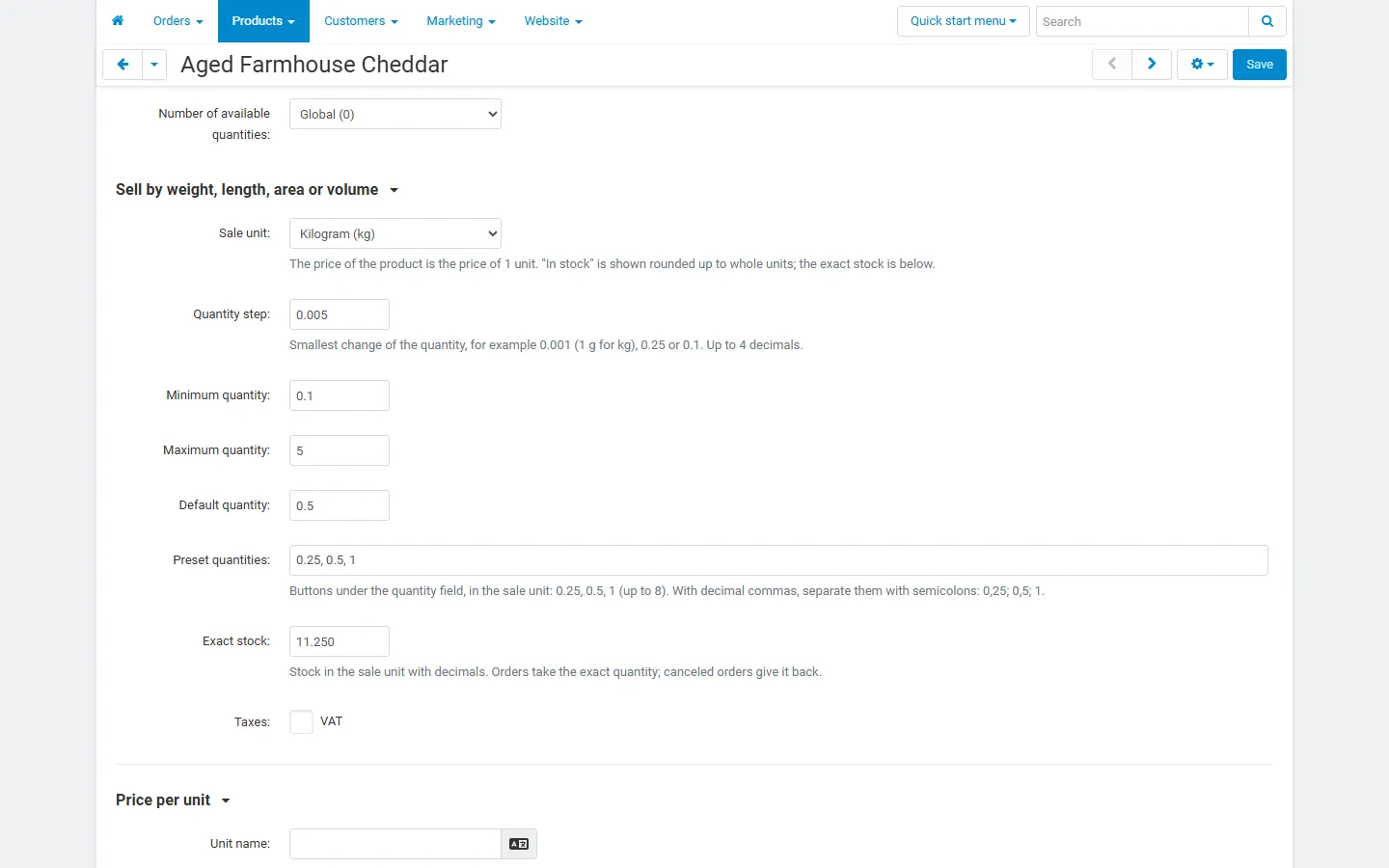
Section titled “Product settings”Open a product, General tab, section Sell by weight, length, area or volume (below the quantity fields).
| Field | Example | What it does |
|---|---|---|
| Sale unit | Kilogram (kg) | Whole items (standard) keeps the product as it is. Any unit turns on decimal quantities for the product. The price of the product is the price of 1 unit. |
| Quantity step | 0.005 | Smallest change of the quantity, up to 4 decimals. Quantities are snapped to this step (1.2345 kg with a step of 0.001 becomes 1.235 kg). The number of decimals of the step is also the number of decimals shown (0.005 → 1.250 kg, 0.5 → 3.5 m). |
| Minimum quantity | 0.1 | Smallest quantity per line. Empty = one step. |
| Maximum quantity | 5 | Largest quantity per line. Empty = no limit. |
| Default quantity | 0.5 | Quantity in the field when the page opens, and the quantity added from product lists. Empty = the minimum. |
| Preset quantities | 0.25, 0.5, 1 | Up to 8 buttons under the field. Below 1 kg, 1 L or 1 m they read 250 g, 250 ml or 50 cm. With decimal commas, separate them with semicolons: 0,25; 0,5; 1. |
| Exact stock | 8.750 | Stock in the sale unit with decimals (see below). |
The core fields Minimum order quantity, Maximum order quantity, Quantity step and List quantity count are not used for products sold by a measure; use the fields of this section instead.
| Measure | Units |
|---|---|
| Weight | kg, g, lb, oz |
| Length | m, cm, ft, yd, in |
| Area | m², ft² |
| Volume | L, ml, gal, fl oz |
The short labels (“kg”, “m²”) are language variables (kv_fractional_quantities.unit_kg, …) that you can rename in Administration > Languages.
The core In stock field only holds whole numbers, so the add-on keeps the exact stock next to it:
- In stock shows the exact stock rounded up (8.750 kg → 9), so the product stays “in stock” while any quantity is left.
- Exact stock is the real quantity. Orders take exactly what was ordered, canceled orders and returns give it back.
- If you, an import or the API change In stock to another whole number, that number becomes the exact stock (10 → 10.000 kg). To set a fraction, use Exact stock.
- The storefront shows the exact stock (“8.750 kg”) where your theme shows the number of items in stock.
When you choose a sale unit for a product that already has stock, the current In stock value becomes the exact stock (12 → 12.000 kg).
Quantity discounts
Section titled “Quantity discounts”Quantity discounts of the product (the Quantity discounts tab) work in the sale unit: a discount from 5 applies from 5 kg. The price is chosen by the whole units of the quantity (5.5 kg uses the “5 and more” price).
Shipping by weight
Section titled “Shipping by weight”Set the Weight of the product to the weight of one sale unit (1 for kg). The shipping weight of a line is weight × quantity (1.250 kg → 1.25).
Min/Max Order & Quantity Rules
Section titled “Min/Max Order & Quantity Rules”When the Kavio Labs add-on Min/Max Order & Quantity Rules is installed, its product, category and vendor rules apply to products sold by a measure in the sale unit: a minimum of 2 means 2 kg, a step of 1 means whole kilograms. The stricter of the two (rule or product setting) wins.
License
Section titled “License”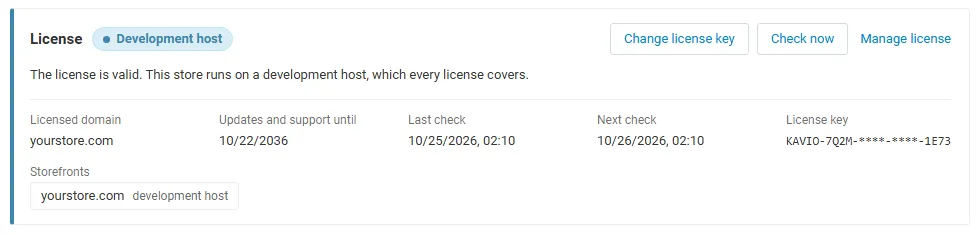
The License section shows the license status, the licensed domain and Check now. Enter your Kavio Labs license key there, or the CS-Cart Marketplace license number in Add-ons > Manage add-ons.
What switched off means: products are sold in whole units again: the decimal quantity field and the preset buttons are hidden and no new decimal quantities are accepted. Carts and orders that already hold a decimal quantity keep their exact quantity, price and stock handling.