

Configuration
Open Add-ons > Manage add-ons > Bookings & Reservations > Settings. Most settings are per product (the Booking tab of the product editor, see Usage); the add-on settings decide how bookings behave in carts, orders and e-mails.
Time zone
Section titled “Time zone”All opening hours, slots and dates use the store time zone from Settings > Appearance > Time zone. Customers see the times as the store sees them; daylight saving changes are handled: a local time skipped in spring is never offered, and slot lengths stay correct across the change. Changing the time zone later does not move existing bookings.
General
Section titled “General”| Setting | Default | What it does |
|---|---|---|
| Accept online bookings | On | Off pauses new bookings (for example during holidays): the date picker says that online booking is paused. Existing bookings are not affected. |
| Hold the time in the cart for (minutes) | 15 | When a customer adds a booking to the cart, the places are held for this long, so nobody else can take them during checkout. 0 = no hold. The availability is always checked again when the order is placed. |
| Keep places of unpaid online payments for (minutes) | 60 | Orders waiting for an online payment (status “Incomplete”) keep their places for this long. A payment that arrives later takes the places again if they are still free; otherwise the booking is marked as overbooked for you to resolve. |
| Free the places when the order status is | Canceled, Declined, Failed | Bookings of orders in these statuses no longer take capacity. When the order leaves the status again, the places are taken again. |
| Show bookings as confirmed when the order status is | Paid, Complete | Other statuses show as “Awaiting payment” in the calendar and on My bookings. |
| Show “few places left” at or below | 3 | Days and times with this many free places or fewer (and at least one place taken) are marked in the date picker (“2 left”). 0 = never. |
| Vendors manage their bookings (Multi-Vendor) | On | See Vendors. |
Customers
Section titled “Customers”| Setting | Default | What it does |
|---|---|---|
| Customers can cancel bookings | Request | No: no online cancellation. Request: the customer sends a cancellation request from My bookings; you approve or decline it on the booking page (approving frees the places and e-mails the customer). Automatic: if the order contains only bookings that can still be cancelled, the order changes to the cancellation status at once and the places become free; otherwise a request is sent. |
| Cancellation possible until (hours before the start) | 24 | Later, customers are asked to contact you. |
| Order status after an automatic cancellation | Canceled | Use a status that frees the places. Refunds are handled by your usual order process. |
| Bookings can be cancelled when the order status is | Open, Paid | |
| Attach calendar files (.ics) to order e-mails | On | Customer e-mails about an order with upcoming bookings get one .ics file per booking. |
Reminders
Section titled “Reminders”| Setting | Default | What it does |
|---|---|---|
| Send a reminder (hours before the start) | 24 | 0 = no reminders. Bookings made less than this many hours before their start get no reminder; the order confirmation is enough. |
| Send due reminders on admin activity | On | Without a cron job, due reminders are sent at most every 10 minutes while somebody works in the admin panel. |
| Cron key | (generated) | Secret part of the cron URL. |
Each reminder is sent once: overlapping runs (a cron job and the admin fallback) cannot send it twice. Reminders go to the customer of the order (or the e-mail of a manual booking) with an .ics file and links to Add to calendar and My bookings. The template is Design > Email templates > Booking reminder.
Recommended cron job (every 15 minutes), shown with your paths on the Reminders tab:
*/15 * * * * php /home/yourstore/public_html/admin.php --dispatch=kv_booking_reservations.cronor call https://yourstore.com/index.php?dispatch=kv_booking_reservations.cron&key=<cron key> from an external scheduler. Send due reminders now on the same tab runs it at once.
Vendors (Multi-Vendor)
Section titled “Vendors (Multi-Vendor)”With Vendors manage their bookings on, vendors find Orders > Bookings in the vendor panel and the Booking tab in their product editor. They see, add, move and cancel only the bookings of their own products and create their own resources. Sending reminders and the add-on settings stay with the marketplace administrator. Booking reminders and cancellation requests are sent from and to the vendor’s orders department.
License
Section titled “License”The license status is shown in a License card at the top of the add-on page, above the tabs, so you see it on every tab. The License tab holds the key itself. The key is stored once for the whole installation.
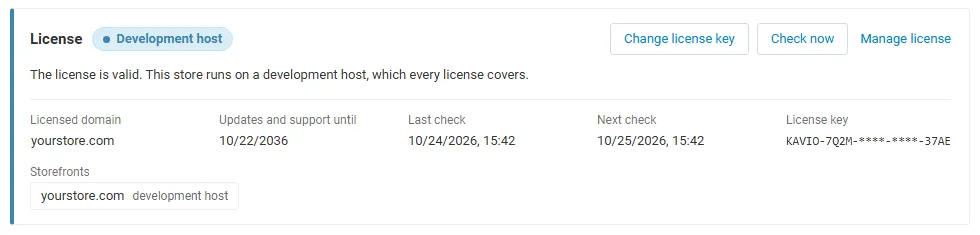
The License card shows:
- the status in color: green when valid, blue for a development host or the 14-day period before a key is required (with the days left), amber when the license server could not be reached (with the days left) or a Marketplace number is still being verified, red when the add-on is switched off;
- in plain words what the status means and, when the add-on is (or will be) switched off, what stops: no new bookings can be made: bookable products show that online booking is unavailable and cannot be added to the cart, and manual bookings are disabled. Existing bookings, the calendar, lists, exports, cancellations, reminders and the customers’ My bookings page keep working;
- the licensed domain, every storefront with its result (covered, development host, not covered), the end of the updates and support period, the last and the next check, and the key in use (masked);
- the actions Enter license key / Change license key (opens the License tab), Check now (verifies at once and stays on the page), Manage license (your licenses on cs-cart.kaviolabs.com) and, without a valid license, Buy a license.
The check runs only in the admin panel and from cron (php admin.php --dispatch=kv_booking_reservations_license.check), never on the storefront.