

Configuration
Overview · Installation · Usage · Developer notes · FAQ
Open Add-ons → Manage add-ons → Photo & Video Reviews with Q&A. In CS-Cart Ultimate, select a storefront to set values per storefront. Review approval, “only buyers can review” and the number of reviews per page stay in the core Product reviews settings.
General
Section titled “General”| Setting | Default | Description |
|---|---|---|
| Enable | On | Turns every storefront feature of the add-on on or off. When off, product pages show the core reviews only. |
| Videos in reviews | Uploads and links | Uploads and links, Uploads only, Links only (YouTube, Vimeo) or Off. |
| Who can add videos | Every reviewer | Every reviewer, Signed-in customers or Verified buyers (customers who bought the product, or who came from a review request e-mail). |
| Maximum video size (MB) | 50 | Larger files are refused in the browser and on the server. PHP limits lower than this setting apply (see Upload limits of this server). |
| Maximum video length (seconds) | 60 | The length is read from the file itself (MP4/MOV, including browser recordings, and WebM). It is checked in the browser and again on the server. |
| Videos per review | 1 | 1 to 5. |
| Video moderation | With the review | With the review: a video is shown when its review is approved, and you can reject it on the Review videos page. Approve each video: every video waits on that page for your approval. |
| Show a privacy note under YouTube and Vimeo videos | On | Embedded players never load before the shopper clicks play. The note tells which service plays the video. |
| Remove location and camera data from review photos | On | Removes EXIF (GPS position, camera, date), XMP and IPTC data from photos uploaded with reviews before CS-Cart stores them. Phone photos with a rotation tag are turned upright first. |
| Photos and videos in the gallery tab | 48 | The newest customer photos and videos shown in the Photos & videos tab. Set 0 to hide the tab. |
| Review filters | On | Filter buttons under the review sorting: star ratings, With photos or videos, With videos, Verified buyers, each with its count. |
| Upload limits of this server | Shows the largest video that can be uploaded with these settings and the PHP limit of your server. |
Questions & answers
Section titled “Questions & answers”| Setting | Default | Description |
|---|---|---|
| Enable questions and answers | On | Shows the Questions & answers product tab. |
| Who can ask | Everyone | Everyone (guests give a name, e-mail optional) or Signed-in customers. |
| Who can answer, besides the store and the vendor | Verified buyers | Nobody, Verified buyers, Signed-in customers or Everyone. The store answers in the admin panel and vendors in the vendor panel. |
| Questions need approval | All questions | All questions, Questions from guests or None. A question gets published when you approve or answer it. |
| Customer answers need approval | All customer answers | All customer answers, Answers from guests or None. Answers by the store and by vendors are published at once. |
| Questions per page | 10 | Questions per page in the product tab. A search box appears when there are more. |
| Send new questions to | (empty) | E-mail address for new questions. If empty, the store’s support e-mail is used. In Multi-Vendor, the vendor of the product also gets the e-mail. |
Spam protection: a hidden honeypot field, a limit of 5 questions per IP address per hour, and the store’s CAPTCHA when an image verification add-on is active (scenario kv_photo_video_reviews).
Review rewards
Section titled “Review rewards”| Setting | Default | Description |
|---|---|---|
| Give a coupon for approved reviews | Off | Turns rewards on. |
| Promotion | – | A cart promotion with the condition Coupon code (auto-generated). Its bonus (for example 10% off the order) is the reward. Each review gets its own single-use code, which is added to that promotion. Create a 10% promotion creates a ready one that you can adjust. |
| Coupon valid for (days) | 30 | After that, the code is withdrawn from the promotion. |
| Reviews must include | A photo or a video | Text only, A photo or a video or A video. Only approved videos count. |
| Minimum rating | Any rating | Any rating, 3 stars or more or 4 stars or more. |
| Only for verified buyers | On | Buyers of the product, or reviewers who came from a review request e-mail of their order. |
| Minimum review length (characters) | 50 | Advantages, disadvantages and comment together. |
| Rewards per customer in 30 days | 3 | A customer gets at most one reward per product in any case. |
| Coupon code prefix | REVIEW | Letters and digits, up to 12 characters (codes look like REVIEW7F3A92C1). |
| Show the reward in the review form | On | Shows, for example, “Add a photo or video to your review and get 10% off your next order once it is approved.” The text uses the promotion’s short description. |
Rewards are sent by e-mail to signed-in reviewers, and to guests who came from a signed review link (the e-mail of their order). A code is withdrawn from the promotion once an order uses it, so it works only once.
If Review Request E-mails is active, that add-on gives the rewards for reviews written on its review page, and for reviews by customers who have an open request for the product. This add-on gives no coupon for those reviews, so a review never earns two coupons.
E-mail templates
Section titled “E-mail templates”Design → E-mail templates lists three templates you can edit:
- Photo & Video Reviews: new question (store, vendor)
- Photo & Video Reviews: answer to a question (customer): sent when an answer is published and the shopper asked to be notified.
- Photo & Video Reviews: review reward coupon (customer)
License
Section titled “License”The license status is shown in a License card at the top of the add-on page, above the tabs, so you see it on every tab. The License tab holds the key itself. The key is stored once for the whole installation.
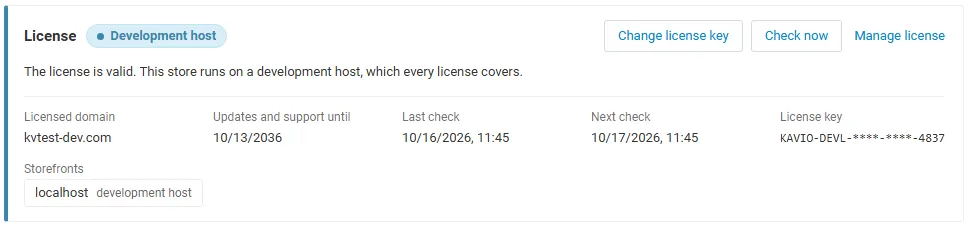
The License card shows:
- the status in color: green when valid, blue for a development host or the 14-day period before a key is required (with the days left), amber when the license server could not be reached (with the days left) or a Marketplace number is still being verified, red when the add-on is switched off;
- in plain words what the status means. When the add-on is (or will be) switched off, the card also says what stops: customer videos, the Photos & videos gallery, the Q&A tab, review filters and review rewards are switched off on the storefront; core product reviews with photos and votes keep working; existing videos, questions and issued coupons are kept and stay manageable in the admin panel;
- the licensed domain, every storefront with its result (covered, development host, not covered), the end of the updates and support period, the last and the next check, and the key in use (masked);
- the actions Enter license key / Change license key (opens the License tab), Check now (verifies at once and stays on the page), Manage license (your licenses on cs-cart.kaviolabs.com) and, without a valid license, Buy a license.
In Add-ons → Manage add-ons, the add-on’s row shows a small license badge next to its name, for example License: Valid.
The add-on’s own admin pages (Questions, Review videos, Review rewards) show the license status in a bar at the top. When the license is valid, it is a small green chip. Otherwise it is a banner with the status, what is switched off, and the same actions as the card. Vendors never see license information.
| Setting | Description |
|---|---|
| License key | Your Kavio Labs license key (KAVIO-XXXX-XXXX-XXXX-XXXX, from My licenses on cs-cart.kaviolabs.com) or your CS-Cart Marketplace license number. If you entered the Marketplace license number in Add-ons → Manage add-ons, leave this empty: the add-on uses that number. |
| License status | Points to the License card and explains what the check sends. |
What the license covers. A license is bound to the base domain you entered at purchase (for example example.com). It covers every subdomain of it (www.example.com, shop.example.com, staging.example.com). Local development hosts are always allowed: localhost, 127.0.0.1 and other private IP addresses, and host names ending in .localhost, .test, .local, .example or .invalid. A store on a different base domain needs its own license. If you move your store to a new domain, contact support.
When the add-on checks. When you save the key, and then once a day. The check runs only in the admin panel (on a page you open) or from cron. It never runs while customers browse the storefront or post reviews, and it takes a few seconds at most. A cron job keeps the license verified even when nobody opens the admin panel:
php /home/yourstore/public_html/admin.php --dispatch=kv_photo_video_reviews_license.checkWhat is sent. The check sends only this to https://cs-cart.kaviolabs.com: the license key, the add-on ID and version, the host names of your storefronts, your CS-Cart version and edition, and a random one-time value. No customer, review, question or personal data is sent. The server answers with a digitally signed result, so a forged answer is ignored.
Statuses.
| Status (card) | Color | What happens |
|---|---|---|
| Valid | Green | The license is valid for this domain. Everything works. |
| Development host | Blue | The store runs on a local development host, which every license covers. Everything works. |
| Pending verification | Amber | A CS-Cart Marketplace license number was accepted, but the Marketplace has not confirmed it yet. Everything works. |
| Pending · N days left | Blue | No verified key yet (a new installation). Everything works for 14 days. |
| Grace period · N days left | Amber | The last checks failed (for example a network problem). The add-on keeps working for 14 days after the first failed check. |
| Not activated, Invalid key, Revoked, Domain mismatch, Not verified | Red | Product pages fall back to the core reviews: no video fields, players, gallery, Q&A tab or review filters, and no new rewards. Core reviews with photos, votes and “Verified purchase” keep working. Questions, videos and issued coupons are kept, issued coupons stay valid, and the admin pages keep working. |
When your updates and support period ends, the add-on keeps working. Only updates and support stop.
License information appears in the admin panel only, and only for administrators who may manage add-ons. Vendors and customers never see it.