

Usage
Overview · Installation · Configuration · Developer notes · FAQ
What the customer sees
Section titled “What the customer sees”Desktop
Section titled “Desktop”All steps sit on one page. The summary on the right shows the items with quantity buttons, totals, the promo code link and the Place order button, and it stays on screen while the customer scrolls.
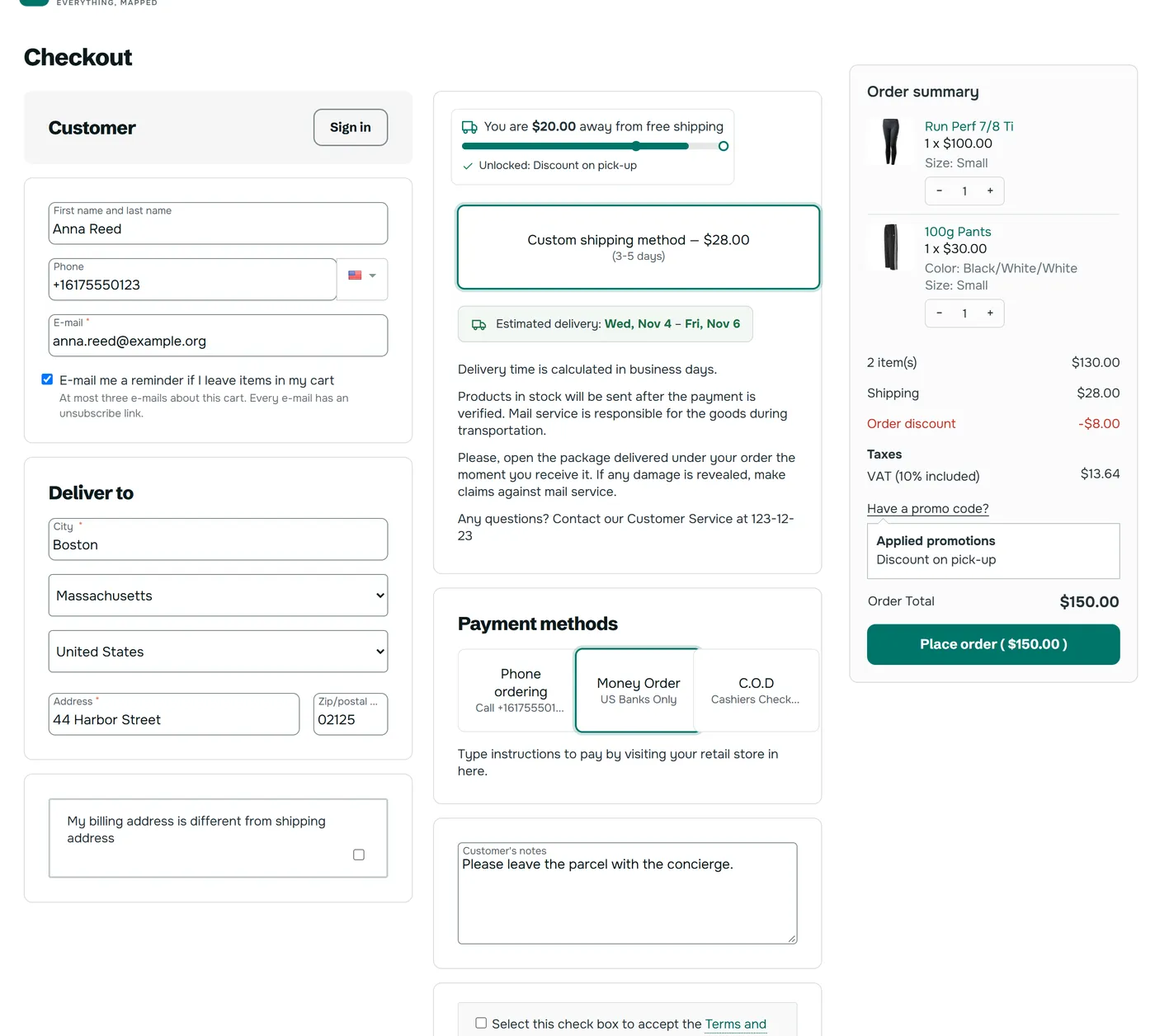
Clicking the summary’s Place order button presses the core button in the form, so validation, terms and order placement are the core ones. A missing required field is marked in the form as usual.
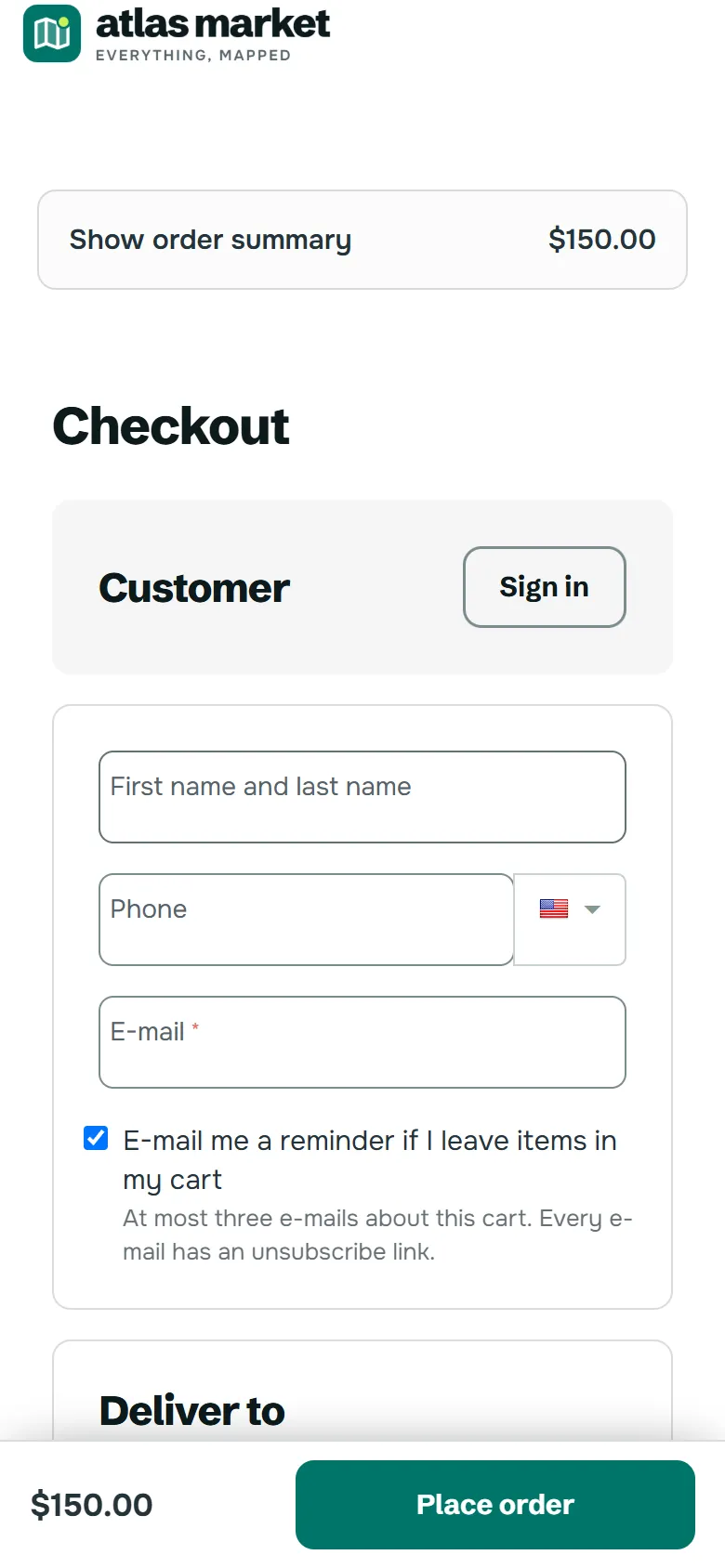
The summary is closed at the top with the total. A tap opens it. The steps follow in one column, and the bar at the bottom keeps the total and Place order in reach.
Multi-Vendor
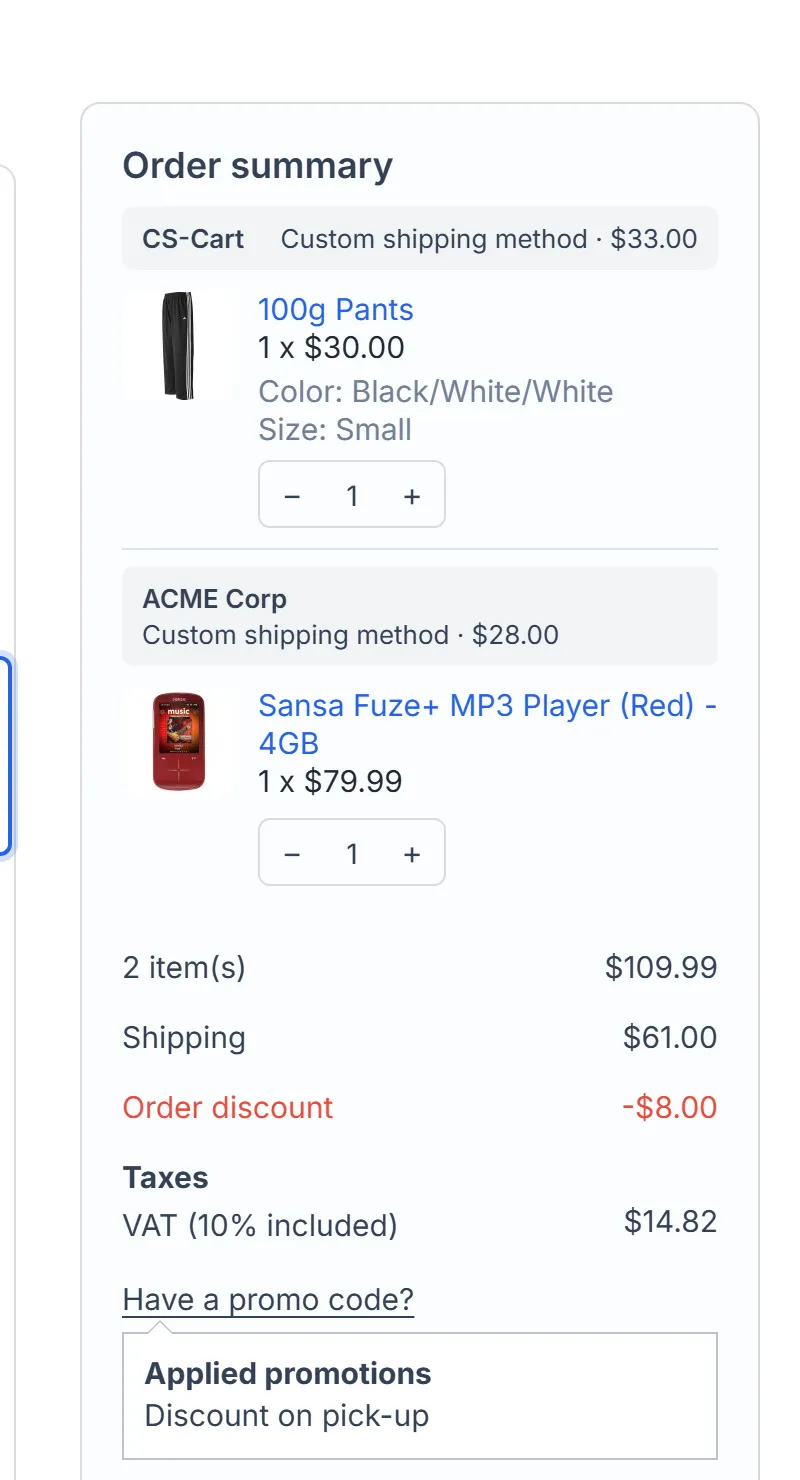
Section titled “Multi-Vendor”An order with several vendors groups the items by vendor. Each heading shows the shipping method chosen for that vendor. The shipping step asks for a method per vendor, and the order splits into vendor orders as usual.
What is kept on the page
Section titled “What is kept on the page”| Moment | Result |
|---|---|
| Customer changes shipping, payment, or applies a promo code | Note and typed fields stay |
| Customer reloads right after typing | Typed fields and note come back, in that browser tab |
| Customer empties the note | The note stays empty, also on the order |
| Customer picks a method marked for the standard checkout | Typed fields and note go along |
Country, state, city and zip code are saved by the core checkout, because they decide the shipping rates, and are not part of the reload copy. The copy lives in the browser tab, not on the server, and is removed when the order is placed.
Order notes
Section titled “Order notes”The note is the core order note: it appears on the order in the admin panel and in the core order documents.
Coupons and gift certificates
Section titled “Coupons and gift certificates”The promo code box is the core box. Closing it only hides it until the customer clicks “Have a promo code?”.
Going back to the standard checkout
Section titled “Going back to the standard checkout”- For one customer: Show a link to the standard checkout, or the fallback on a payment method.
- For everyone: turn off Enable, or set Preview link only.
License
Section titled “License”If the license is not active, the checkout page is the standard CS-Cart page. See Installation.