

Configuration
Open Add-ons → Manage add-ons → EU Withdrawal Button & Returns Portal → Settings. On CS-Cart (Ultimate) you can set the values per storefront.
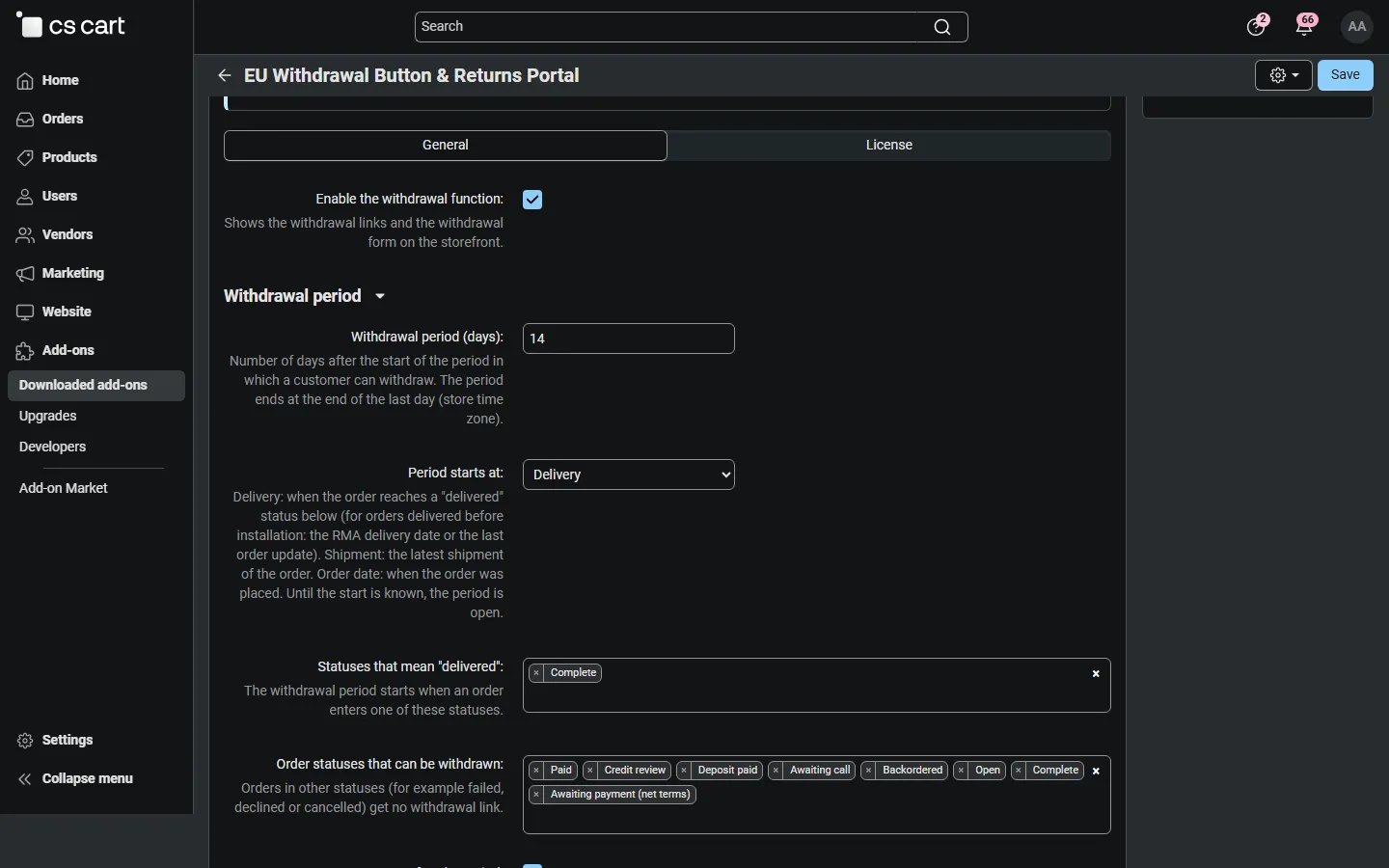
General
Section titled “General”| Setting | Default | Description |
|---|---|---|
| Enable the withdrawal function | On | Shows the withdrawal links and the withdrawal pages. Off hides them (the register stays). |
Withdrawal period
Section titled “Withdrawal period”| Setting | Default | Description |
|---|---|---|
| Withdrawal period (days) | 14 | Days after the start of the period. The period ends at the end of the last day (store time zone). |
| Period starts at | Delivery | Delivery: when the order reaches a status from Statuses that mean “delivered”. Shipment: the latest shipment of the order. Order date: when the order was placed. Until the start is known (for example not delivered yet) the period is open. |
| Statuses that mean “delivered” | Complete | The add-on stores the time an order enters one of these statuses. For orders delivered before you installed the add-on it uses the RMA delivery date or the last update of the order. |
| Order statuses that can be withdrawn | all except Failed, Declined, Canceled | Orders in other statuses get no withdrawal link. |
| Accept statements after the period | On | On: late statements are accepted and flagged After the period in the register, so you can decide. Off: the form refuses them and shows the end of the period. |
Where the withdrawal button appears
Section titled “Where the withdrawal button appears”| Setting | Default | Description |
|---|---|---|
| Footer strip on every page | On | A small “Withdraw from contract here” strip below the footer of every storefront page. |
| Links in the customer account | On | My account menu, a Withdrawal column in the order list and a button on the order page while the order can be withdrawn. |
| Link in order e-mails | On | A box with a signed “Withdraw from contract here” link in customer order e-mails while the order can be withdrawn. |
The Withdrawal button block (Design → Layouts, block type Template) can be added to any location, for example the header. The button text is the language variable kv_returns_portal.withdraw_button; the confirm button is kv_returns_portal.confirm_button. If you change them, keep the wording unambiguous.
Withdrawal statement
Section titled “Withdrawal statement”| Setting | Default | Description |
|---|---|---|
| Allow withdrawal of selected items | On | Customers withdraw from the whole order or choose items and quantities. |
| Optional reasons (one per line) | 6 reasons | Shown as an optional question. A reason is never required. Empty hides the question. |
| Categories without a right of withdrawal (IDs) | empty | Comma-separated category IDs, subcategories included. |
| Products without a right of withdrawal (IDs) | empty | Comma-separated product IDs. |
| Exclude downloadable products | Off | Treats downloadable products as excluded. |
Excluded items are listed as Not covered with a short explanation, and a whole-order statement covers the other items. Which goods are exempt (for example personalised goods, goods that spoil quickly, sealed hygiene goods once unsealed, or digital content once delivery has started with the customer’s consent) is a legal question: decide the lists with your adviser.
Follow-up actions
Section titled “Follow-up actions”| Setting | Default | Description |
|---|---|---|
| Cancel whole orders that have not shipped | On | A statement for a whole order that has no shipment and is in one of the statuses below changes the order status. |
| Cancel orders in these statuses | Open, Paid, Backordered, Awaiting call | |
| Change the order status to | Canceled | The status settings decide whether stock is returned and whether the customer gets the status e-mail. |
| Create an RMA return request | On | When the core RMA add-on is active and the order is not cancelled, a return request (status Requested) is created for the withdrawn items. |
| RMA action | First active action | The action of the created request (for example Refund). |
| Refund deadline (days) | 14 | Days after the statement for the refund countdown in the register. |
Refunds are not made automatically: refund through your payment method or the RMA add-on as usual.
Confirmation and notifications
Section titled “Confirmation and notifications”| Setting | Default | Description |
|---|---|---|
| Confirmation attachment | HTML document | The acknowledgement e-mail always contains the full statement with the date and time. The attachment is an extra copy: an HTML document, a PDF (made by the core PDF documents add-on and its conversion service; the HTML copy is used if that fails) or none. |
| Notify the store | On | A notice for each statement. |
| Notification e-mails | empty | Comma-separated. Empty: the orders department e-mail of the store (Settings → Company). |
| Notify the vendor of the order | On | Multi-Vendor: the vendor of each part of the order gets the notice too. |
| Vendors see their withdrawals | On | Multi-Vendor: vendors see and process their own withdrawals in the vendor panel. |
The e-mail templates are Withdrawal: acknowledgement (kv_returns_portal_acknowledgement, customer) and Withdrawal: notice (kv_returns_portal_notice, store and vendor) in Settings → Notifications → Customer/Administrator notifications.
Security and data
Section titled “Security and data”| Setting | Default | Description |
|---|---|---|
| Requests per IP and hour | 10 | Failed order look-ups and statements per IP address and hour. |
| Delete closed records after (days) | 0 (keep) | Refunded, closed and declined records older than this are deleted when the register is opened. |
The guest look-up uses the image verification of your store. Tick Withdrawal form (order look-up) in Settings → Image verification (or in Captcha Pro). Signed-in customers and links from order e-mails skip the look-up.
License
Section titled “License”The license status is shown in a License card at the top of the add-on page, above the tabs. The License tab holds the key itself.
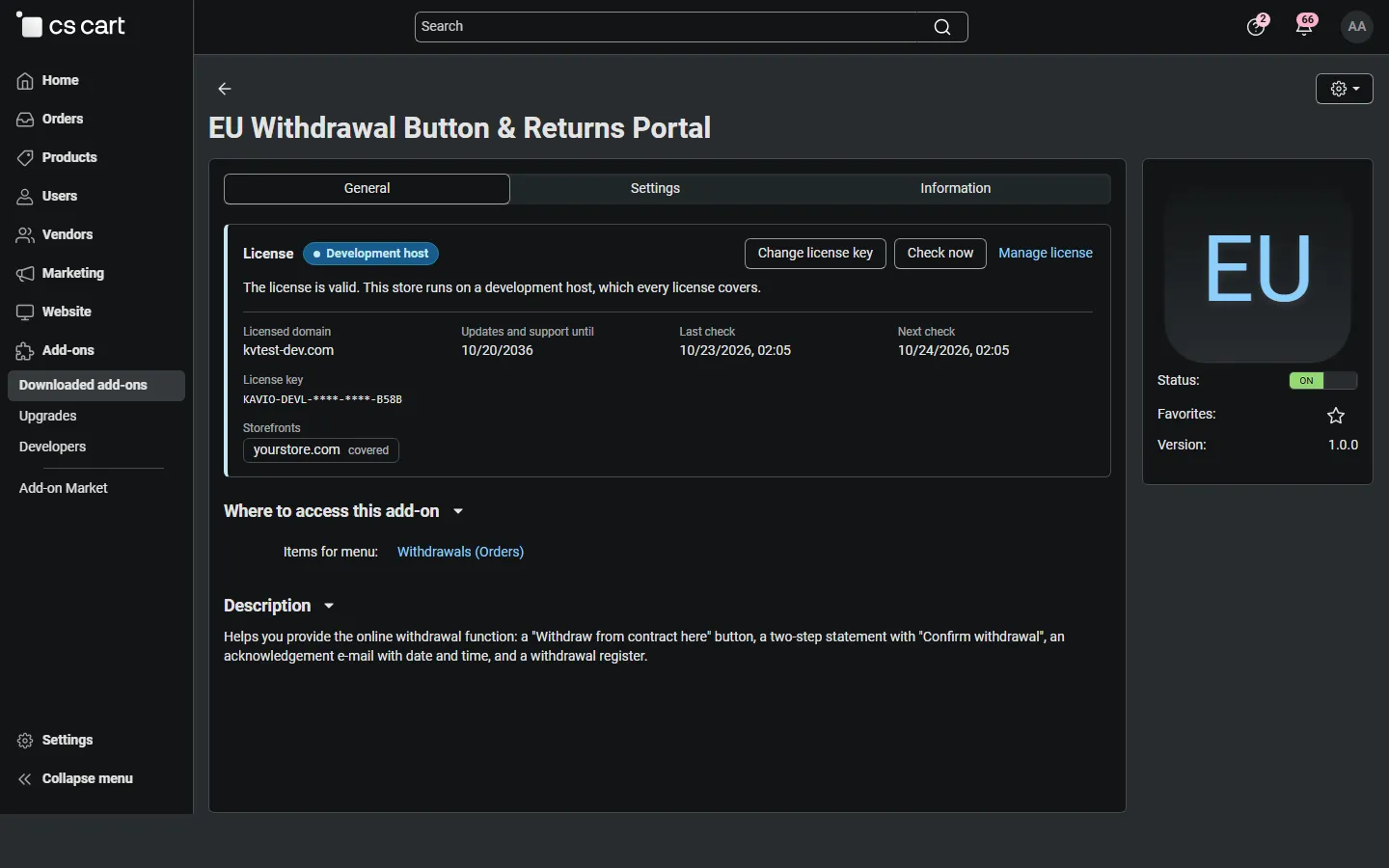
| Setting | Description |
|---|---|
| License key | Your Kavio Labs license key (KAVIO-XXXX-XXXX-XXXX-XXXX) or your CS-Cart Marketplace license number. If you entered the Marketplace license number in Add-ons → Manage add-ons, leave this empty. |
| License status | Points to the License card and explains what the check sends. |
What the license covers. A license is bound to the base domain you entered at purchase (for example yourstore.com) and covers its subdomains. Local development hosts (localhost, private IP addresses, *.local, *.test) are always allowed.
When the add-on checks. When you save the key, and then once a day, only in the admin panel or from cron, never while visitors browse the storefront:
php /path/to/store/admin.php --dispatch=kv_returns_portal_license.checkWhat is sent. The license key, the add-on ID and version, the host names of your storefronts, your CS-Cart version and edition, and a random one-time value. No statements, customers or orders are sent.
Without a valid license the basic withdrawal function keeps working, because switching off a function your customers may rely on could leave your store without it: the withdrawal button and links, the two-step statement for the whole order, the acknowledgement e-mail with the HTML confirmation, the store notice and the register. Switched off are the extras: selecting items, reasons and comments, automatic RMA requests and cancellations, the PDF confirmation, the box in order e-mails, the register filters and the CSV export.
| Status (card) | Color | What happens |
|---|---|---|
| Valid / Development host | Green / Blue | Everything works. |
| Pending · N days left / Grace period | Blue / Amber | Everything works (14 days). |
| Not activated, Invalid key, Revoked, Domain mismatch, Not verified | Red | The basic withdrawal function keeps working; the extras listed above are switched off. |
When your updates and support period ends, the add-on keeps working. Only updates and support stop.