

Usage
How an e-invoice is made
Section titled “How an e-invoice is made”- A customer places an order. Business buyers can enter their Buyer reference / Leitweg-ID, Peppol ID and VAT ID at checkout or in their profile.
- When the order reaches a status from Create the e-invoice when the order reaches (Processed or Complete by default), the add-on creates the e-invoice: it takes the invoice number (yours or the one of Invoices & Credit Notes), your seller data, the buyer data, the lines with their taxes, discounts, shipping and the payment method, and freezes them. Later changes to the order do not change the document unless you rebuild it.
- The document is checked against the rules of every format. The result is the validation log.
- If the order status e-mail goes to a business buyer, the e-invoice is attached (setting).
One frozen document gives four files, so you can send a German public buyer an XRechnung and a French customer a Factur-X of the same invoice.
| Format | File | Typical receiver |
|---|---|---|
| Factur-X / ZUGFeRD | PDF/A-3 with factur-x.xml inside |
Everyone: readable as a PDF, importable by accounting software (France, Germany) |
| XRechnung CII | XML | German public sector portals, German businesses |
| XRechnung UBL | XML | German public sector portals that prefer UBL |
| Peppol UBL | XML (Peppol BIS Billing 3.0) | Peppol access points (Belgium, the Netherlands, Nordics …) |
Admin: order page
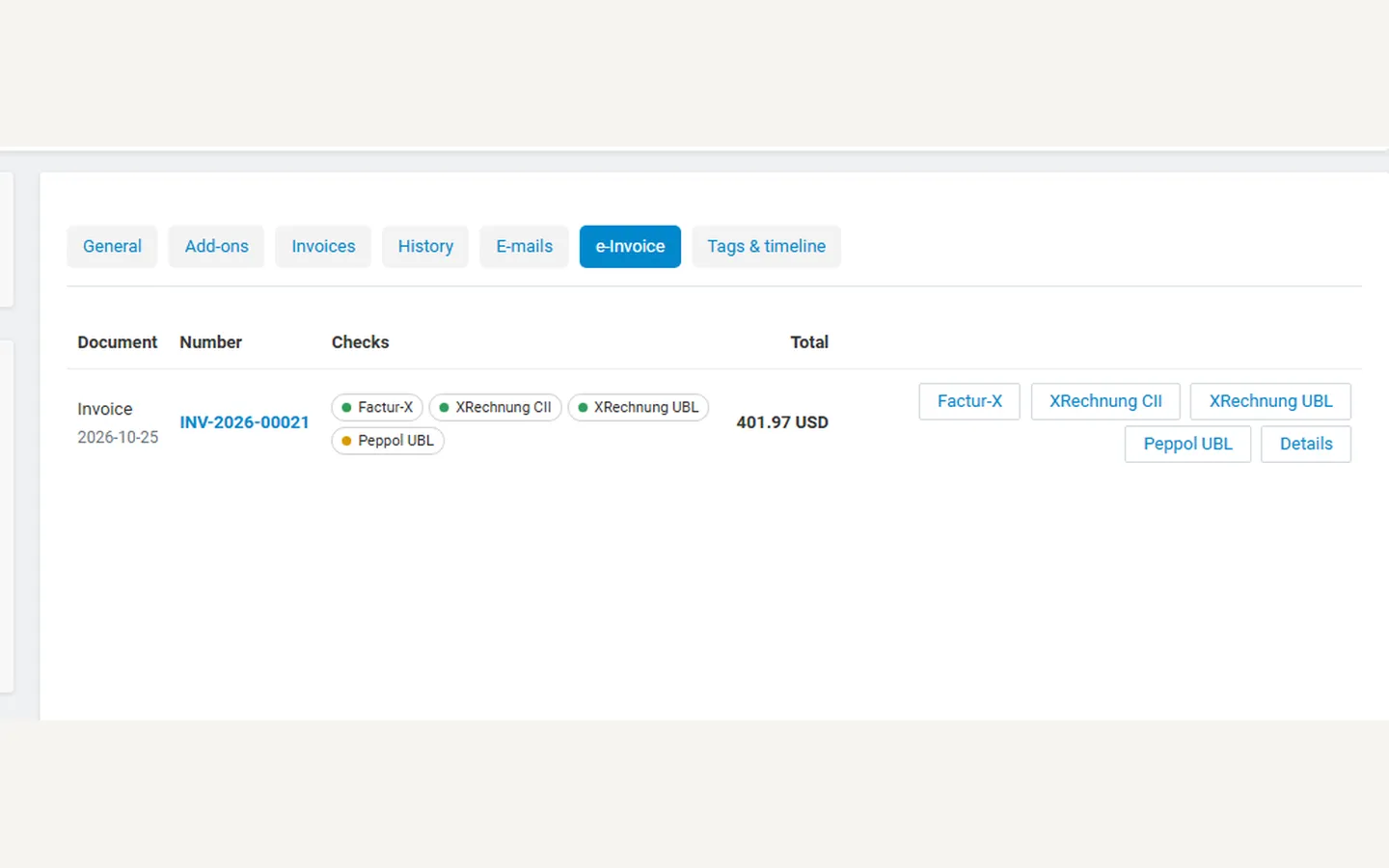
Section titled “Admin: order page”Open an order: the e-Invoice tab lists its e-invoice and e-credit notes with a check badge per format and download buttons. Without an e-invoice, Create e-invoice creates it now (with Invoices & Credit Notes: the invoice is issued there first, so both carry the same number). The e-Invoice item in the order’s tools menu downloads the main format.
Admin: Orders → e-Invoices
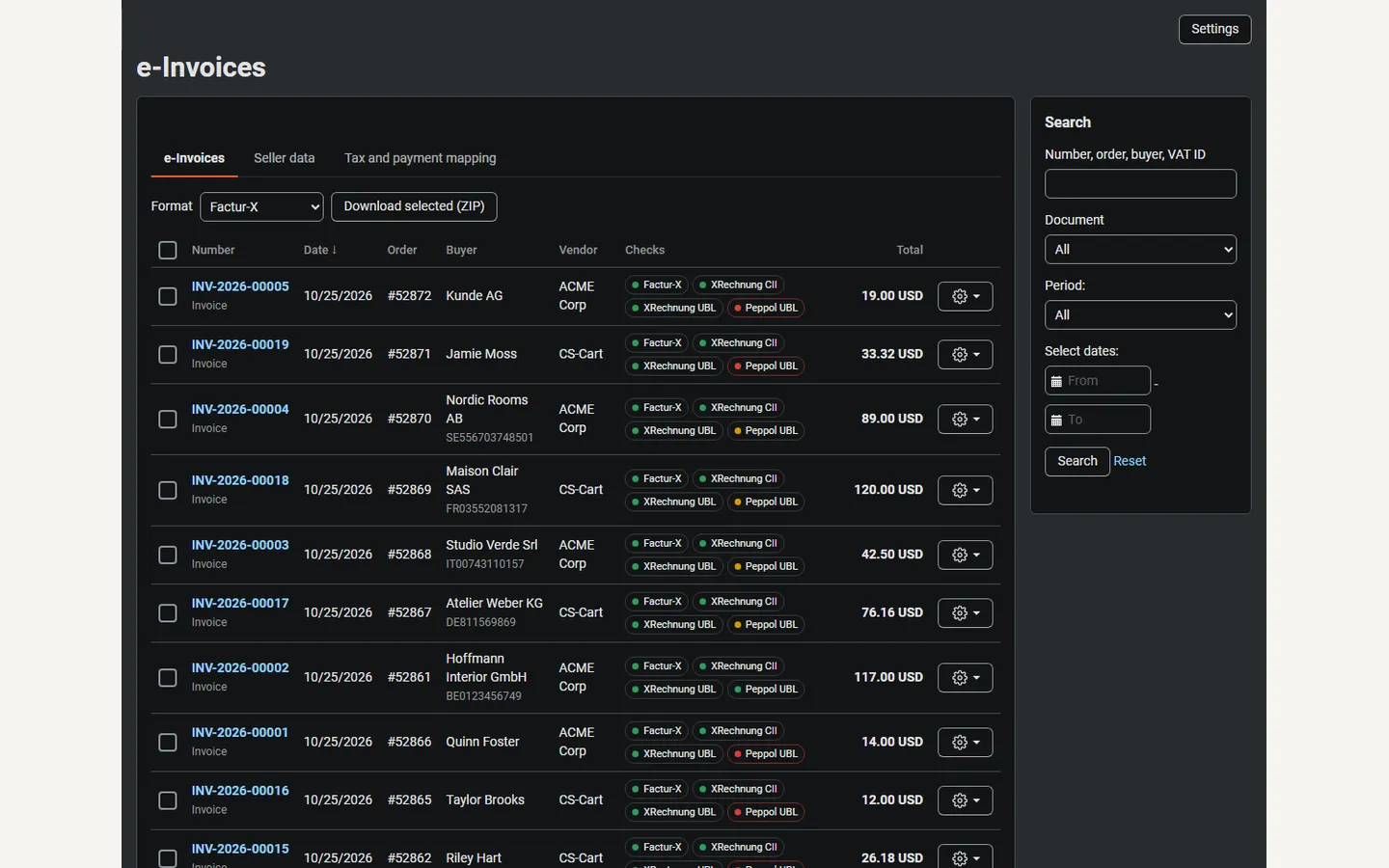
Section titled “Admin: Orders → e-Invoices”All e-invoices and e-credit notes with number, date, order, buyer and VAT ID, vendor (Multi-Vendor), check badges and total. Search by number, order, buyer or VAT ID, filter by type and period. Select documents and use Download selected (ZIP) with the format you need, for your archive or a portal upload.
From Orders → View orders, select orders and use Print documents → e-Invoices (ZIP): orders without an e-invoice get one first (when you may create them), then all their documents are zipped in the main format.
The document page and the validation log
Section titled “The document page and the validation log”Click a number to open the document: seller, buyer, amounts, the four downloads and the validation log. Each format has its own card:
- No problems found: the data is complete for that format.
- Warnings: the file is fine, but something was filled in for you, for example a buyer Peppol ID derived from the VAT ID, or no IBAN for a credit transfer.
- Needs attention: a rule of that format is broken, for example XRechnung without a seller phone number, or Peppol without the buyer’s Peppol ID. Each message names the rule (for example
BR-DE-6) and what to fix.
Fix the data (seller data, mapping, the customer’s fields on the order) and click Rebuild from order. The number and date stay the same. Do not rebuild a document your buyer has already received: correct it with a credit note instead.
The add-on’s own test suite checks every format against the official validators (the KoSIT validator with the XRechnung configuration, the Peppol BIS 3.0 rules and veraPDF for the PDF/A part). The log shows the checks that store data can break.
Credit notes
Section titled “Credit notes”- With Invoices & Credit Notes: create credit notes there (full, partial, returns, wallet refunds, cancellations). Each one becomes an e-credit note with the same number, the credited lines and a reference to the invoice. With Invoices & Credit Notes 1.0.1 or later each credit note becomes an e-credit note the moment it is issued (also credit notes created by hand on its own pages); with 1.0.0 they are picked up when the order changes status, a return changes, or you open the order page.
- Without it: when the order reaches a status from Create a full e-credit note when the order reaches (Canceled by default), a full e-credit note is created. On the document page, Create full credit note does the same by hand, with an optional reason.
Peppol
Section titled “Peppol”Without a driver, download the Peppol UBL file and upload it to your access point. When a driver is installed and selected in the settings, the document page gets a Send via Peppol button, and Send automatically sends new e-invoices of buyers with a Peppol ID. The result (message id or error) is shown on the document and in the list.
Peppol needs both electronic addresses. Enter your own Peppol ID in the seller data; buyers enter theirs at checkout. Without one, the address is derived from the VAT ID (shown as a warning to check).
Customers
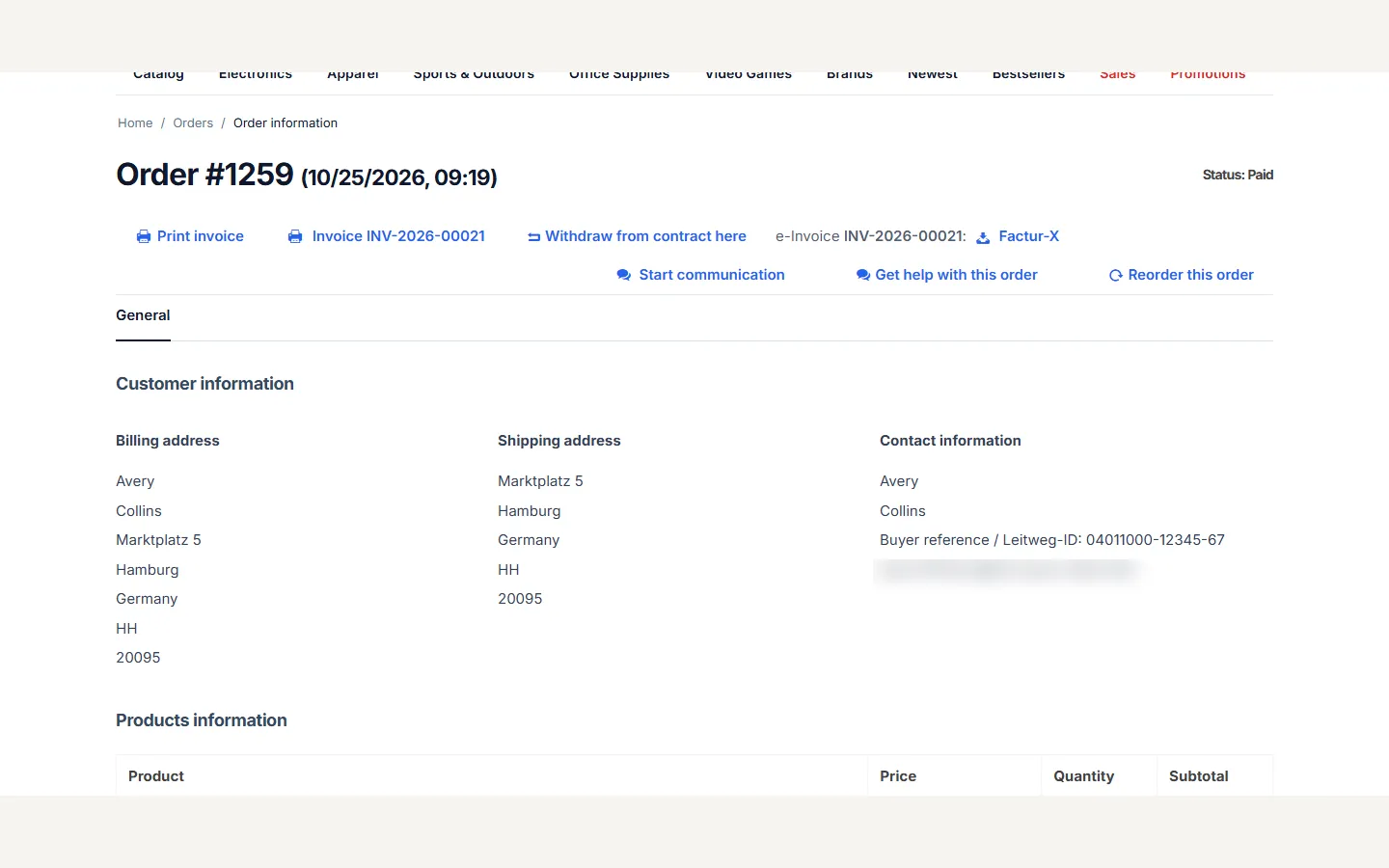
Section titled “Customers”On the order page in the customer account, the e-invoice of the order appears next to the print link with a download per allowed format. Downloads are private to the order’s customer (guests: the order they just placed). The links never appear on cached pages.
Vendors (Multi-Vendor)
Section titled “Vendors (Multi-Vendor)”Vendors see Orders → e-Invoices with the documents of their own orders and the e-Invoice tab on their order pages. When vendors are the sellers, they also create and rebuild e-invoices and keep their own Seller data (VAT ID, IBAN, Peppol ID …).