

Usage
Overview · Installation · Configuration · Developer notes · FAQ
All offers are cart promotions: open Marketing → Promotions → Add promotion → Add cart promotion (or edit one), fill the General tab as usual (name, dates, priority, Stop other rules), then add conditions and bonuses.
Product sets
Section titled “Product sets”Every condition and bonus of the add-on works on a product set:
- All products, or Selected products, categories or vendors: a product belongs to the set when it is one of the products, in one of the categories (with Include subcategories) or, on Multi-Vendor, sold by one of the vendors.
- Exclusions: products, categories and vendors that never count, Skip items that already have a discount (catalog promotions or cart promotions with a higher priority) and Skip sale items (list price higher than the price).
Free gift lines of the core Free products bonus and zero-price lines are never counted or discounted.
Bonus: Buy X get Y (cheapest or N-th item)
Section titled “Bonus: Buy X get Y (cheapest or N-th item)”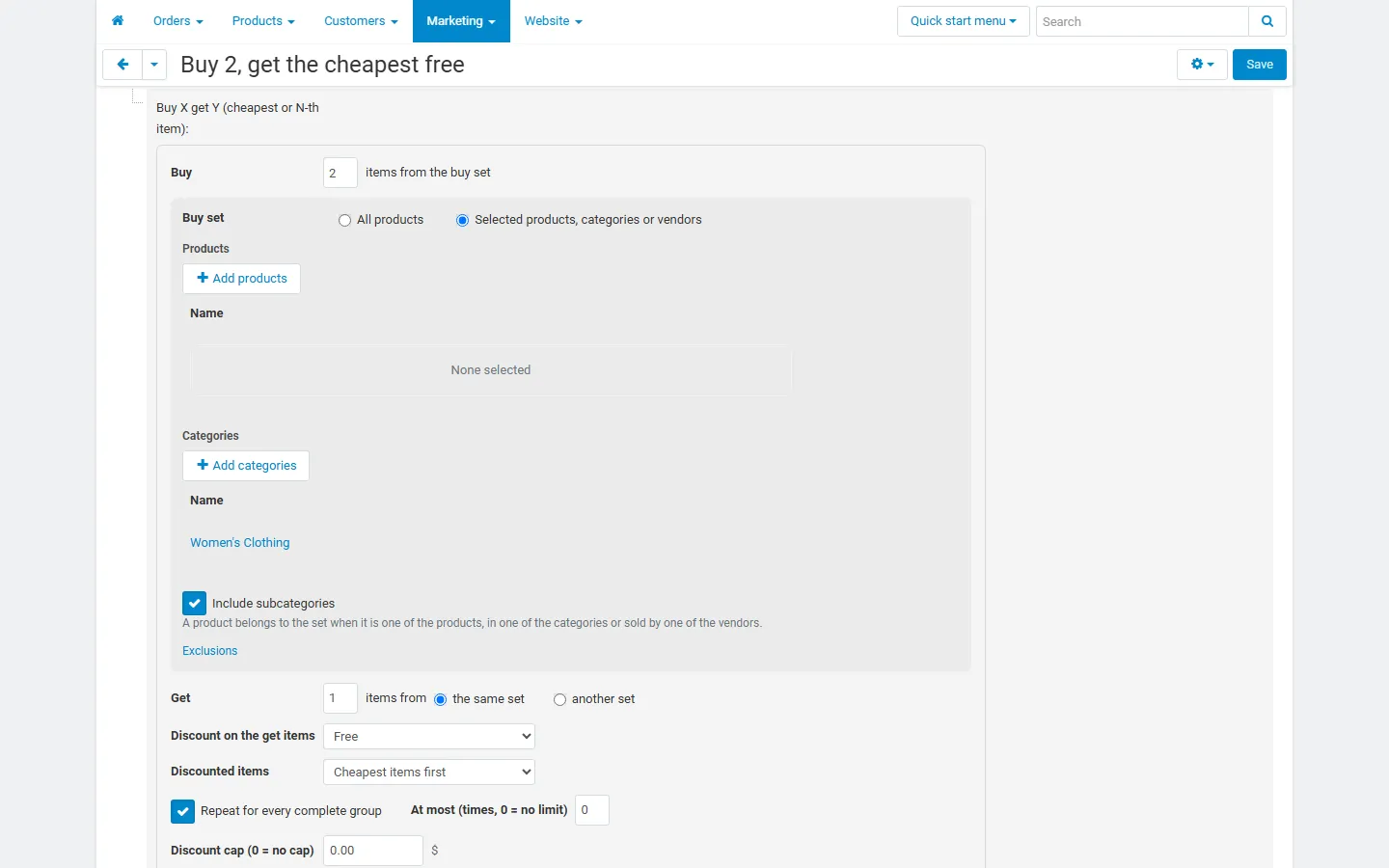
- Buy X items from the buy set, Get Y items from the same set or another set.
- Discount on the get items: Free, percent off, pay a percent of the price, amount off each item or a fixed price per item.
- Discounted items: Cheapest items first (the usual “cheapest free”) or Most expensive items first.
- Repeat for every complete group and At most N times; Discount cap.
With the same set, every complete group of X + Y items earns Y discounted items, picked from the whole cart in the chosen order. Examples: buy 2 get 1 free with 6 items = 2 free; buy 1 get 1 at 50% with 5 items = 2 at half price. With another set, each application takes Y items of the get set and X other items of the buy set; items outside the get set are counted as buy items first. The get items must be in the cart (combine with the core Free products bonus if you want to add a gift automatically).
Bonus: Tiered discount
Section titled “Bonus: Tiered discount”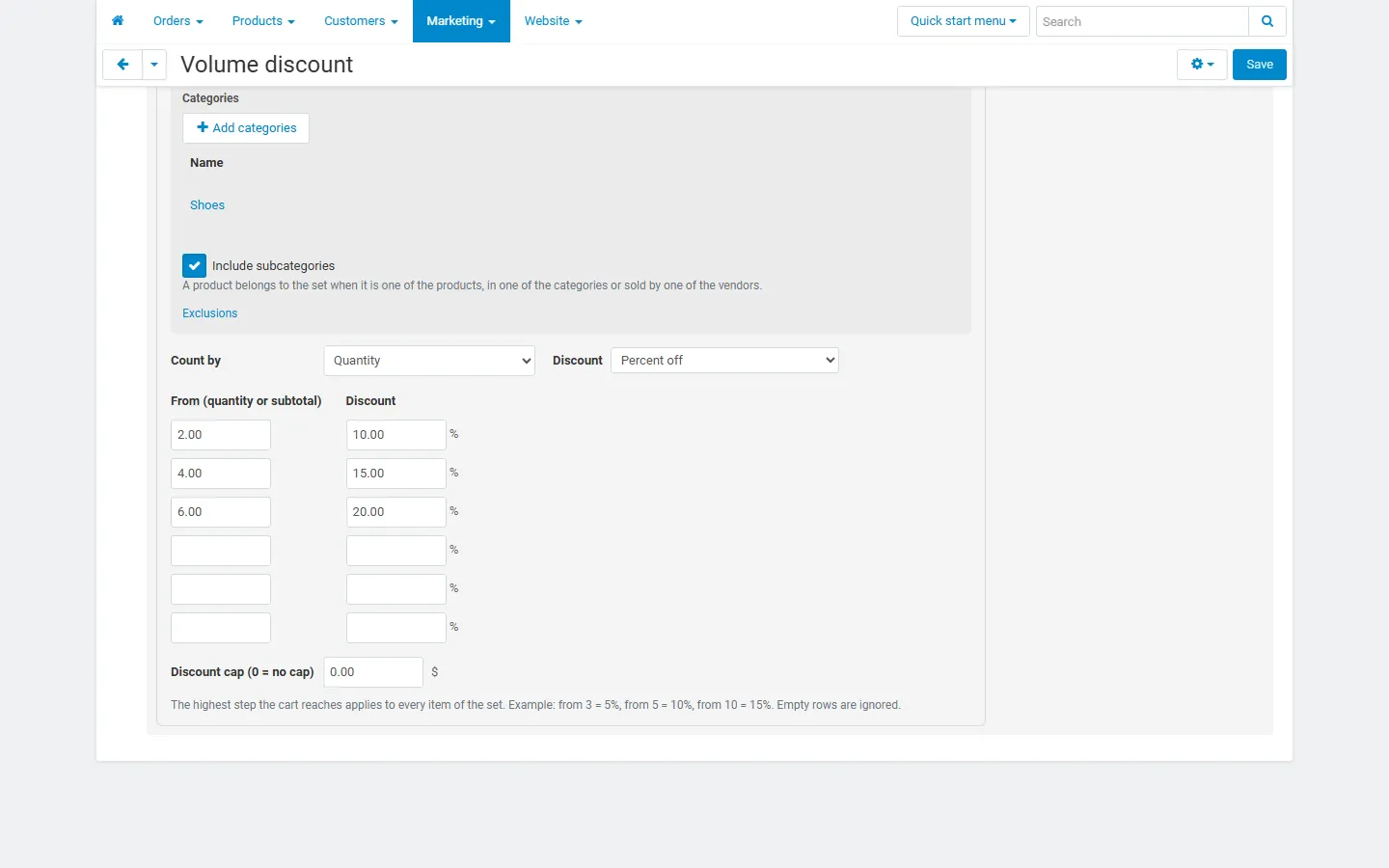
Choose the set, Count by quantity or subtotal and the discount type (percent off, amount off each item, or amount off the total of these items), then fill up to six rows From → Discount. The highest row the cart reaches applies to every item of the set. Empty rows are ignored.
Bonus: Discount on a product set
Section titled “Bonus: Discount on a product set”The set, the discount (percent off, pay a percent, amount off each item, fixed price per item, amount off the total) and a cap. Use it for “20% off everything except sale items” or “15% off this vendor’s products”.
Conditions
Section titled “Conditions”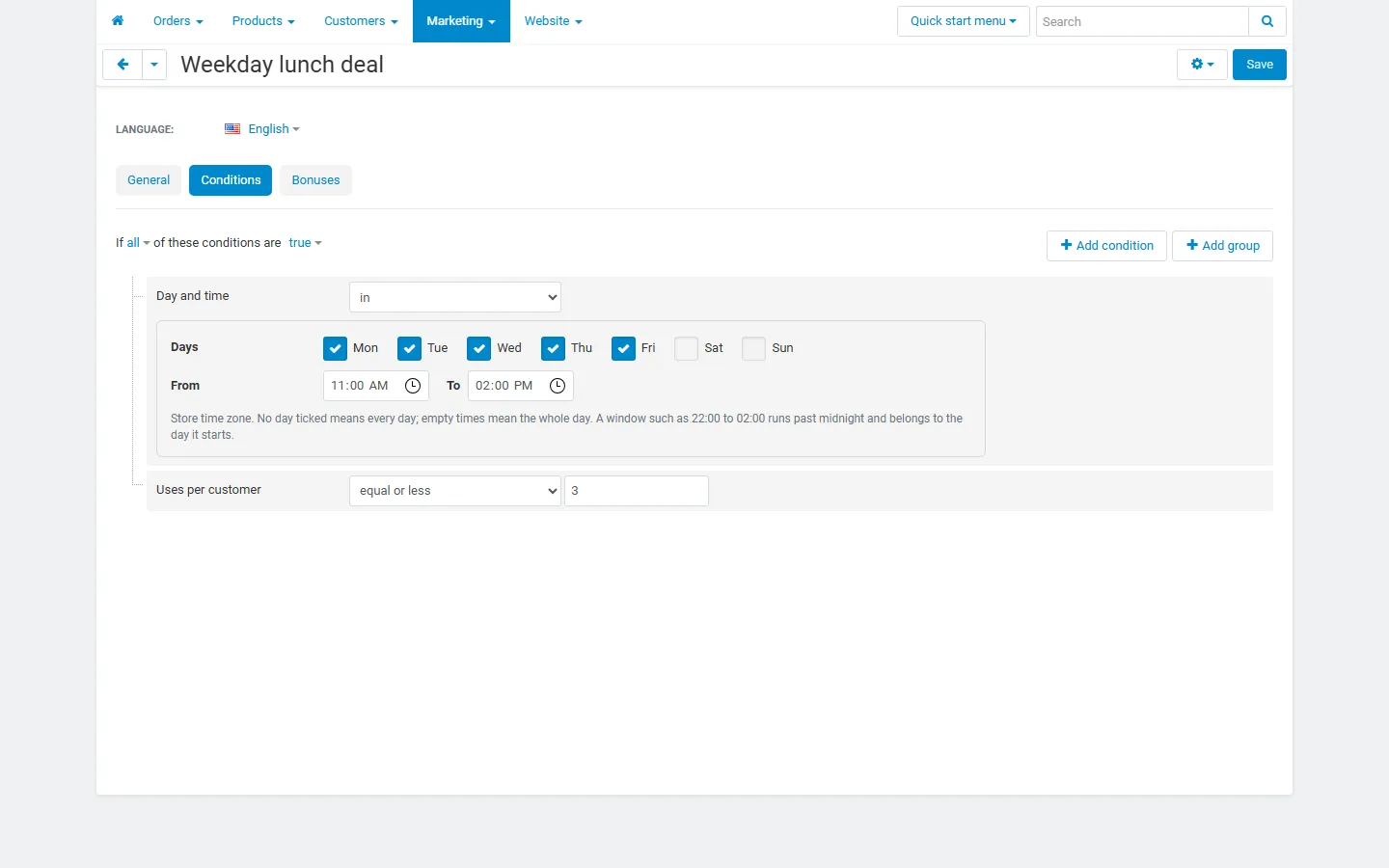
- Day and time (in / not in): weekdays and a time window in the store time zone. No day ticked = every day; empty times = the whole day. A window such as 22:00 – 02:00 runs past midnight and belongs to the day it starts.
- Products from a set (≥, >, ≤, <, =): the quantity or the subtotal of the matching items, for example “at least 3 items from Clothing” or “Toys subtotal ≥ 50”.
- Uses per customer (≤, <): how many orders of this customer (by account or e-mail) may use the promotion. Orders in statuses that decrease stock count; a Multi-Vendor checkout counts once.
The conditions combine with all core conditions (coupon code, user group, subtotal…) in all / any groups.
What shoppers see
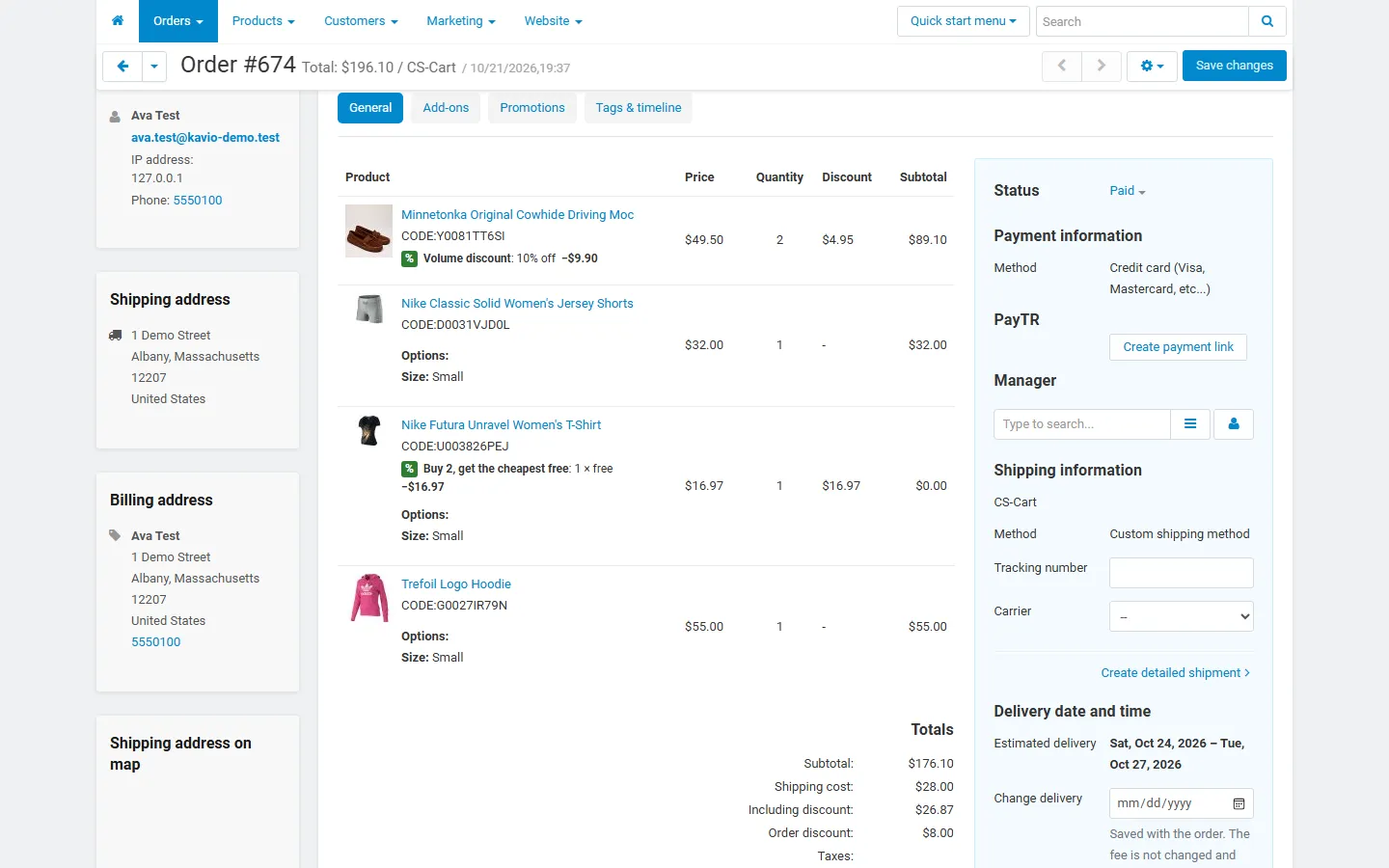
Section titled “What shoppers see”Each discounted line shows a note in the cart, in the checkout summary and in the order details, for example Buy 2, get the cheapest free: 1 × free −$16.97 or Volume discount: 10% off −$9.90. The amounts follow the selected currency. The admin and vendor order pages show the same notes.
How the money is calculated
Section titled “How the money is calculated”- The discount of a line is spread over its units and written like a core product discount, so taxes use the discounted price in both tax calculation methods. A remainder of a cent or two goes to the order discount (see Cents of line discounts).
- Percentages are taken from the line’s current price, after catalog promotions and promotions with a higher priority. A line never goes below zero.
- Amounts are in the primary currency; shoppers see them converted.
- Coupons, priorities and Stop other rules work as in core: a core order discount after an add-on bonus is calculated on the already discounted subtotal.
- Multi-Vendor: the split of the parent order is kept exactly in every vendor suborder. With Direct Customer-to-Vendor Payments each vendor’s cart is calculated on its own; vendors who may manage promotions see the same editor (without vendor pickers) and their promotions only touch their own products.
- Editing a placed order keeps the stored discounts, as for core product discounts.