

Configuration
Add-on settings
Section titled “Add-on settings”Add-ons → Manage add-ons → Smart Collections → Settings → General.
| Setting | Default | Description |
|---|---|---|
| Enable | On | Switches every sync and the Smart collection block filling on or off. Products already linked to collection categories stay where they are. |
| Update collections when a product is saved | On | Saved, cloned and status-toggled products (and stock changes from orders, when a collection uses a stock rule) are re-checked at the end of the same request. Collections with a product limit are re-synced by the next scheduled run. |
| Full re-sync every (hours) | 24 | Every collection is fully re-synced at least this often, so time-based rules (new arrivals, date windows, bestsellers) and schedules stay current. 1 to 720. |
| Link changes per collection and run | 500 | The maximum number of category links one sync run adds, removes or re-orders per collection. Larger collections continue on the next run. 50 to 20000. |
| Run the sync after admin page views | On | Without a cron job, the sync runs at most every 10 minutes after an admin page view, with a small batch. |
| Cron URL key | empty | Any random text. Needed only for the cron URL. |
Scheduled sync (cron)
Section titled “Scheduled sync (cron)”The settings page shows the exact commands for your store. Run the sync every 15 minutes:
*/15 * * * * php /path/to/store/admin.php --dispatch=kv_smart_collections.cronHosting panels that only call URLs can use https://yourstore.com/index.php?dispatch=kv_smart_collections.cron&key=YOUR_KEY after you set a Cron URL key.
Collection settings
Section titled “Collection settings”Products → Smart collections → Add collection.
| Field | Description |
|---|---|
| Name | Shown in the admin panel and in the Block Manager. In category mode the storefront shows the category name. |
| Status | Disabled collections are empty: their category links are removed by the next sync. |
| Delivery | Category: fill a real category with additional links. Blocks only: no category links; use the Products block filling Smart collection. |
| Category | The category the collection fills (one collection per category). Create a new category with the collection name creates it for you, at the top level or under a parent. |
| Hide the category while inactive | Sets the category to Hidden while the collection is disabled or outside its schedule, and back to Active when it starts again. Only a status this add-on changed is restored. |
| Sort by | Newest, recently updated, price (low to high / high to low), bestselling, most popular, best rated, biggest discount, name, random. Pinned products always come first. In category mode the order is written to the product positions of the category, so a category sorted by position shows it. |
| Maximum products | 0 = all matching products, otherwise the top N in the chosen order. |
| Include hidden products | By default only active products are collected. Disabled products never are. |
| Active from / Active until | Optional schedule. Outside the dates the collection is empty and comes back automatically. |
Conditions
Section titled “Conditions”Choose all conditions (AND) or any condition (OR), then add rules:
| Rule | Parameters |
|---|---|
| Price | from / to (base price) |
| On sale (discount) | minimum discount in % (list price higher than the price) |
| Stock | in stock (quantity above 0 or stock not tracked), out of stock, or quantity between |
| New arrivals | created in the last N days |
| Created between | date range |
| Recently updated | updated in the last N days |
| Bestsellers | at least N units sold in the last D days (0 = all time; paid and completed orders) |
| Rating | average rating at least X with at least N reviews (Product reviews or Comments and reviews add-on) |
| In categories / Not in categories | categories, with or without subcategories; “main category only” |
| Feature value | a feature and its values (select features), a number range (number features), yes/no (checkbox features) or “has a value” |
| Brand | values of your brand features |
| Vendor (Multi-Vendor) | selected vendors, or all vendors except the selected ones |
| Tags | comma-separated tags (Tags add-on) |
| Product code | comma-separated patterns, * matches any text |
| Name contains | text in the product name (any language) |
| Free shipping | products with the Free shipping option |
Preview shows how many products the current rules match and the first of them, without saving.
Pinned and excluded products
Section titled “Pinned and excluded products”Pinned products are always in the collection, first and in the order you add them, even when they do not match the rules. Excluded products are never in it.
License
Section titled “License”The license status is shown in a License card at the top of the add-on page, above the tabs, so you see it on every tab. The License tab holds the key itself. The key is stored once for the whole installation.
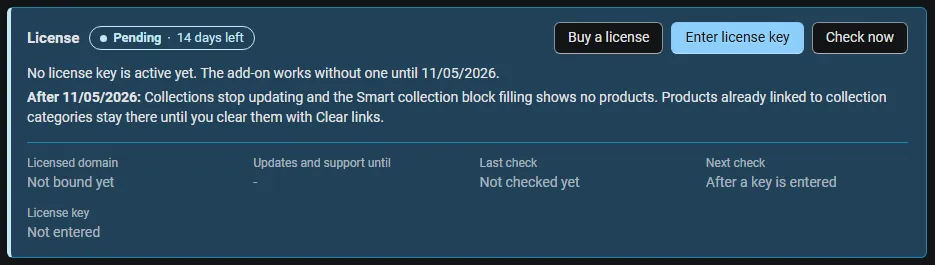
The License card shows:
- the status in color: green when valid, blue for a development host or the 14-day period before a key is required (with the days left), amber when the license server could not be reached (with the days left) or a Marketplace number is still being verified, red when the add-on is switched off;
- in plain words what the status means and, when the add-on is (or will be) switched off, what stops: collections stop updating and the Smart collection block filling shows no products; products already linked to collection categories stay there until you clear them with Clear links;
- the licensed domain, every storefront with its result (covered, development host, not covered), the end of the updates and support period, the last and the next check, and the key in use (masked);
- the actions Enter license key / Change license key (opens the License tab), Check now (verifies at once and stays on the page), Manage license (your licenses on cs-cart.kaviolabs.com) and, without a valid license, Buy a license.
In Add-ons → Manage add-ons the add-on’s row shows a small license badge next to its name, for example License: Valid or License: Pending · 9 days left.
The add-on’s own admin pages (collections list, collection editor, import and export) show the license status in a bar at the top: a small green chip when the license is valid, or a banner with the status, what is switched off and the same actions as the card.
| Setting | Description |
|---|---|
| License key | Your Kavio Labs license key (KAVIO-XXXX-XXXX-XXXX-XXXX, from My licenses on cs-cart.kaviolabs.com) or your CS-Cart Marketplace license number. If you entered the Marketplace license number in Add-ons → Manage add-ons (the add-on’s license field), leave this empty: the add-on uses that number. |
| License status | Points to the License card and explains what the check sends. |
What the license covers. A license is bound to the base domain you entered at purchase (for example yourstore.com) and covers every subdomain of it (www.yourstore.com, shop.yourstore.com, staging.yourstore.com). Local development hosts are always allowed: localhost, 127.0.0.1 and other private IP addresses, and host names ending in .localhost, .test, .local, .example or .invalid. A store on a different base domain needs its own license. If you move your store to a new domain, contact support.
When the add-on checks. When you save the key, and then once a day. The check runs only in the admin panel (on a page you open) or from cron, never while customers browse the storefront or place orders, and takes a few seconds at most. A cron job keeps the license verified even when nobody opens the admin panel:
php /path/to/store/admin.php --dispatch=kv_smart_collections_license.checkWhat is sent. The check sends this to https://cs-cart.kaviolabs.com and nothing else: the license key, the add-on ID and version, the host names of your storefronts, your CS-Cart version and edition, and a random one-time value. No customer or order data is sent. The server answers with a digitally signed result, so a forged answer is ignored.
Statuses.
| Status (card) | Color | What happens |
|---|---|---|
| Valid | Green | The license is valid for this domain. Everything works. |
| Development host | Blue | The store runs on a local development host, which every license covers. Everything works. |
| Pending verification | Amber | A CS-Cart Marketplace license number was accepted, but the Marketplace has not confirmed it yet. Everything works. |
| Pending · N days left | Blue | No verified key yet (a new installation). Everything works for 14 days. |
| Grace period · N days left | Amber | The last checks failed (for example a network problem). The add-on keeps working for 14 days after the first failed check. |
| Not activated, Invalid key, Revoked, Domain mismatch, Not verified | Red | Collections stop updating: no sync runs (on product save, by cron, by the admin fallback or with Sync now), and Products blocks with the Smart collection filling show no products. Products already linked to collection categories stay there, so no category page breaks; Clear links and disable on a collection removes them. Editing, deleting and exporting collections keep working. Domain mismatch shows the licensed domain next to the domain your store runs on. |
When your updates and support period ends, the add-on keeps working. Only updates and support stop.
License information appears in the admin panel only, and only for administrators who may manage add-ons; vendors and customers never see it. When the add-on is switched off, other admin pages also show a notice once per session with a link to the add-on page; the add-on page and the add-on’s own pages show the card or the status bar instead.