

Usage
Everything is under Orders → Order messaging in the admin panel, with four sections: Delivery log, Rules, Customer opt-ins and Settings. Each page shows the license status in a small bar at the top (see License).
A rule sends one text to one kind of recipient on one channel when its event happens. Rules are grouped by event; each row shows the recipient, the channel (with a warning when the channel is not set up yet), a preview of the text with sample data and the status. Use Add rule to create one, the row’s gear menu to edit, disable or delete it, and the bulk actions to activate, disable or delete several.

| Event | When | Recipients |
|---|---|---|
| Order placed | An order leaves the “incomplete” state: right away for offline payments, after payment for online payments. On Multi-Vendor every vendor order counts once (the parent order of a multi-vendor checkout never does), like the core order e-mails. | Staff, vendor, customer |
| Order status changed | An order moves to another status. Pin the rule to one status (for example Complete) or leave it on Any status. Placement itself is not a status change. | Staff, vendor, customer |
| Shipment created | A shipment with a tracking number or a carrier is created. | Staff, vendor, customer |
| Low stock | A product’s stock drops to the Low stock threshold (Settings → General) or below, the same condition as the core low-stock e-mail. At most once a day per product. | Staff, vendor |
| New product review | A customer posts a review (CS-Cart Product reviews add-on). | Staff, vendor |
Recipients. Store staff are the Telegram chats and numbers on the General tab. Vendor is the vendor of the order or product, on the channels the vendor set up (Multi-Vendor). Customer is the phone number of the order (contact phone, else billing, else shipping phone), only on WhatsApp or SMS and only with consent (see below). A rule whose channel is not set up, or a recipient without a number or chat for that channel, simply sends nothing.
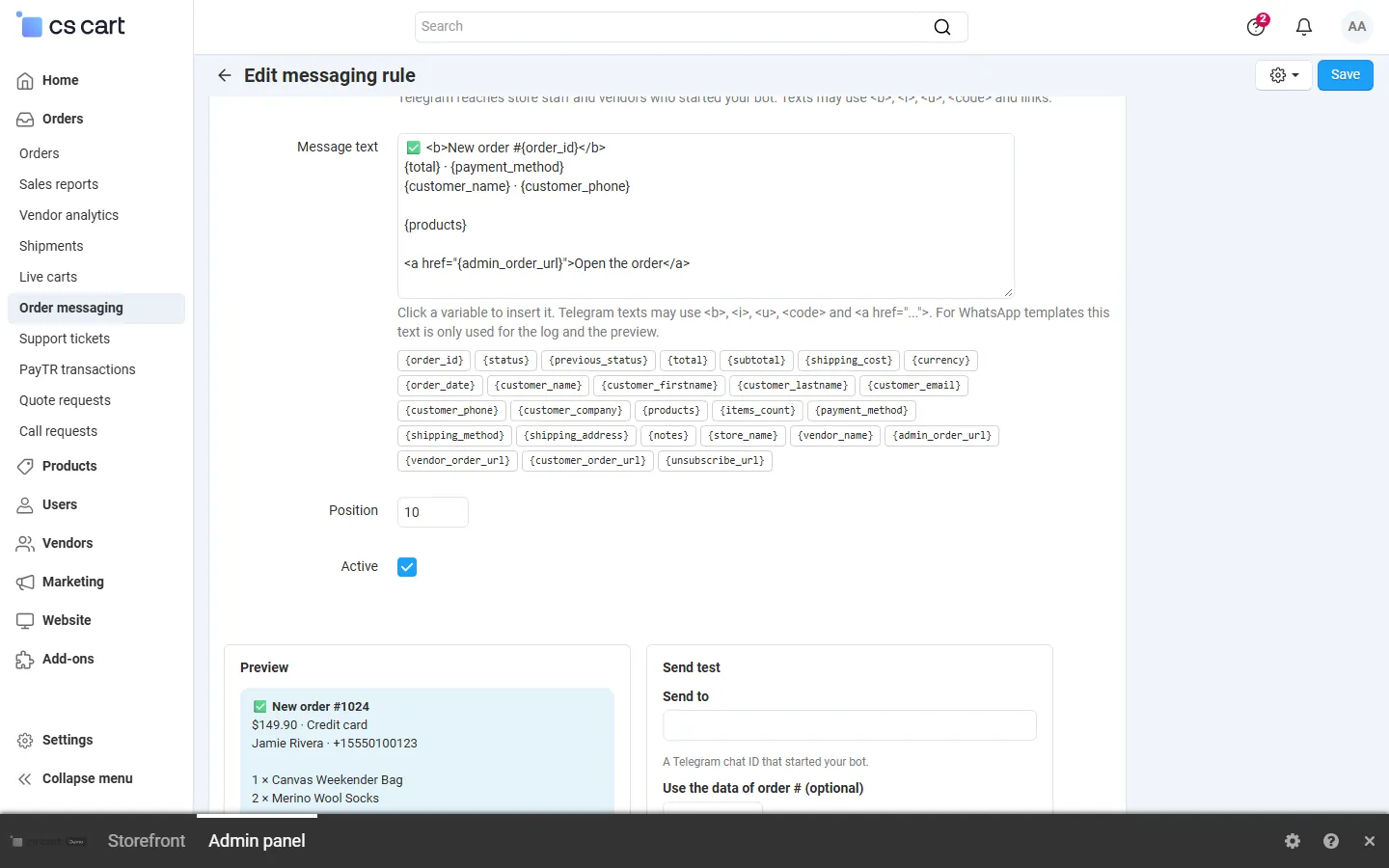
The editor
Section titled “The editor”- Message text: plain text with variables in braces. Click a variable to insert it at the cursor. On Telegram you may use
<b>,<i>,<u>,<code>and links; emoji are fine. - Preview: shows the text with sample values while you type, in the colors of the channel.
- Send test: sends the text as it is on the screen (also before you save) to a chat ID or phone number you enter, with sample values or with the data of a real order (Use the data of order #). The test appears in the delivery log.
- Position orders rules within an event; Active switches the rule on or off.
Variables
Section titled “Variables”| Events | Variables |
|---|---|
| Order events | {order_id}, {status}, {previous_status}, {total}, {subtotal}, {shipping_cost}, {currency}, {order_date}, {customer_name}, {customer_firstname}, {customer_lastname}, {customer_email}, {customer_phone}, {customer_company}, {products} (one line per product, 2 × Name, up to 10), {items_count}, {payment_method}, {shipping_method}, {shipping_address}, {notes}, {store_name}, {vendor_name}, {admin_order_url}, {vendor_order_url}, {customer_order_url}, {unsubscribe_url} (customers only) |
| Shipment created | all order variables plus {tracking_number}, {carrier}, {tracking_url} (the carrier’s tracking page when CS-Cart knows the carrier), {shipment_comment} |
| Low stock | {product_name}, {product_code}, {product_id}, {stock}, {threshold}, {admin_product_url}, {vendor_name}, {store_name} |
| New product review | {product_name}, {product_code}, {product_id}, {rating}, {review_author}, {review_text}, {admin_review_url}, {vendor_name}, {store_name} |
Prices use the currency the customer ordered in. Status names use the order’s language. A misspelled variable stays visible in the text, so a test shows it at once.
WhatsApp templates
Section titled “WhatsApp templates”For a WhatsApp rule, enter the Template name, the Template language (for example en_US, as approved) and the Body parameters: a comma-separated list, one item per {{1}}, {{2}}, … of the template body. Each item may combine text and variables ({order_id}, Order {order_id}); write \, for a comma inside an item. Empty values are sent as -, because WhatsApp rejects empty parameters. The message text of a template rule is only used for the log and the preview. Leave the template name empty to send the message text as plain WhatsApp text (only reaches people who wrote to your number in the last 24 hours; useful for staff).
Customer consent
Section titled “Customer consent”With Customer messages: Only customers who opted in (the default), a customer gets WhatsApp or SMS updates only after agreeing:
- At checkout: “Send me order updates on WhatsApp or by SMS” next to the terms checkbox (the label names only the channels you set up). Ticked: the order’s phone number is opted in. Unticked: an earlier opt-in of that number is withdrawn.
- In the profile: the same checkbox in My account → Profile details, for the phone number of the profile.
- Opt-out link: put
{unsubscribe_url}into SMS texts. It opens a small page where the customer stops (or restarts) updates for that number with one click; the link is signed and only works for that number.

Customer opt-ins lists every number with the customer, the status (opted in or out), the source (checkout, profile, opt-out link, administrator) and the date. Use the gear menu to mark a number as opted in or out, or delete entries. Consent is stored per phone number (with the IP address and time of the choice), so it also covers guest orders.
The opt-in checkbox appears only when a customer channel (WhatsApp or SMS) is set up, the add-on is licensed and Show the opt-in checkbox is on. With the CS-Cart GDPR add-on, a customer’s opt-ins and the messages sent to their numbers are part of the personal data export and are deleted on anonymization.
Vendors (Multi-Vendor)
Section titled “Vendors (Multi-Vendor)”Vendors open Orders → Message notifications in the vendor panel:
- Telegram: Open the bot opens your store’s bot in Telegram with the vendor’s personal start code; after pressing Start there, Check connection finds the chat and shows “Connected to …”. A group or channel ID can also be typed in.
- WhatsApp number and SMS number, shown only for channels the marketplace set up.
- Send me: the events the vendor wants. Events without an active vendor rule are marked “not offered by the marketplace”.
- Recent messages to you: the vendor’s last messages with their status.
Vendors only receive their own orders (vendor orders of a multi-vendor checkout), their own products’ low stock and reviews. To help a vendor with the setup, an administrator can open the same page at admin.php?dispatch=kv_order_notifications_messaging.vendor&company_id=<vendor ID>.

Delivery log
Section titled “Delivery log”The log lists every message: date, event and order, recipient (staff, vendor or customer; customer numbers masked), channel, a one-line summary of the text and the status. Click the summary to see the full text, the WhatsApp template and parameters, the provider, its message ID, the attempts and the HTTP status.
| Status | Meaning |
|---|---|
| Queued / Sending | Waiting to be sent (normally for a second). |
| Retry scheduled | The provider was unreachable, busy or rate-limited. The add-on retries after 1, 5, 15, 60 and 180 minutes (or when Telegram says), up to 6 attempts. |
| Sent | The provider accepted the message. With delivery reports connected, Delivered, Read or Not delivered is shown below. |
| Failed | The provider refused the message (for example an invalid number, a blocked bot, a template that is not approved). The reason is shown in red. |
| Expired | Not sent within 48 hours (for example while the license was not valid); old order updates are not sent late. |
The counters at the top cover the last 7 days. Filter by recipient or error text, order ID, channel, status, recipient type and event. Send again re-queues selected messages; Send queued now runs the queue at once. Old rows are deleted after the retention period.