

Configuration
Open Add-ons → Manage add-ons → Vendor Onboarding & Registration Builder (or Settings in the gear menu of the Vendor applications page). The form itself is built on its own page, see Usage.
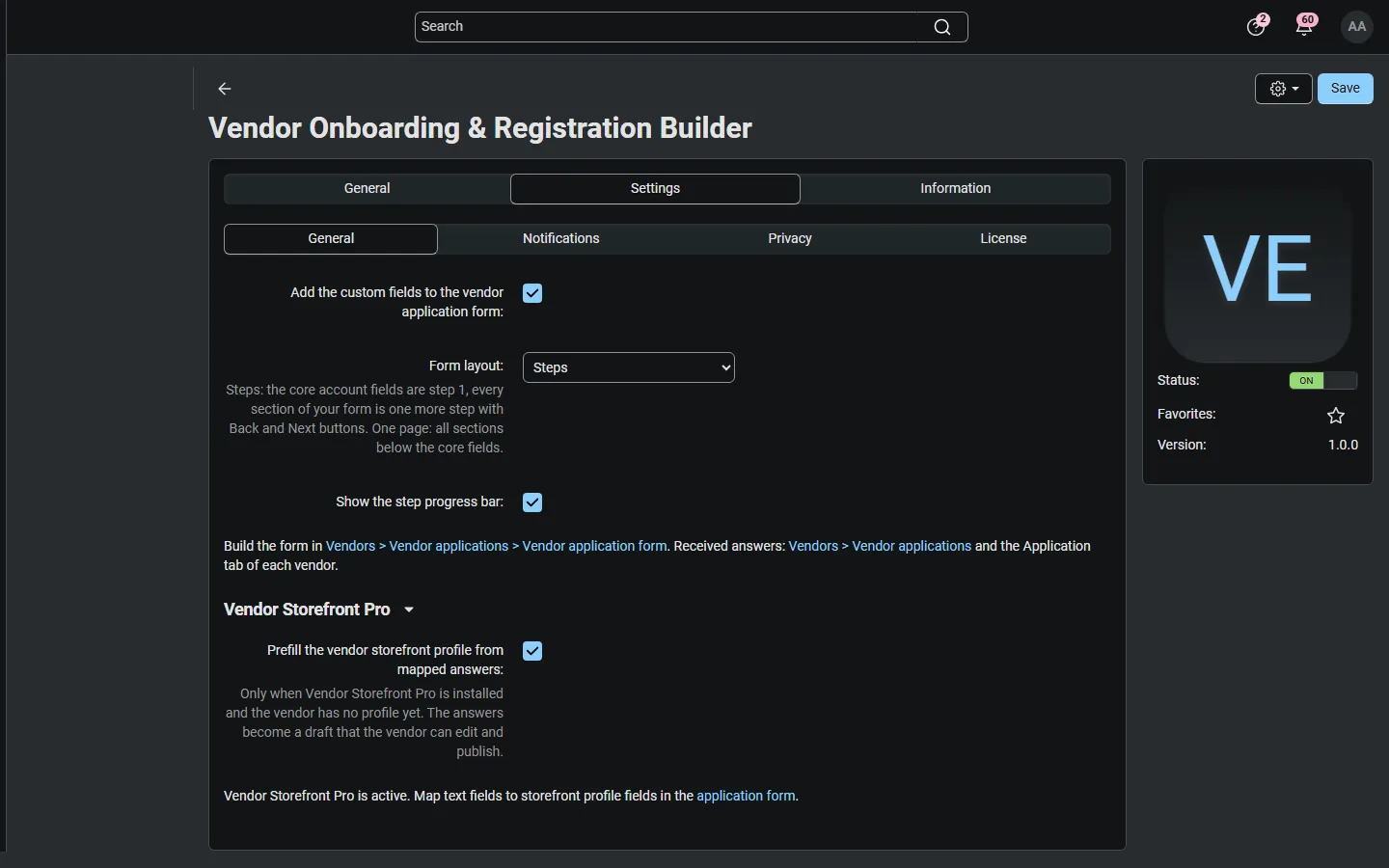
General
Section titled “General”| Setting | Default | Description |
|---|---|---|
| Add the custom fields to the vendor application form | On | Off: the application page shows only the core fields again. Stored answers stay available. |
| Form layout | Steps | Steps: step 1 is the core account form, every section is one more step with Back and Next buttons; the GDPR agreement, the image verification and the Submit button appear on the last step. One page: all sections below the core fields. Without JavaScript the form is always one page. |
| Show the step progress bar | On | Numbered steps with their titles above the form (on phones only the current title is shown). Off: only “Step 2 of 4: …”. |
| Prefill the vendor storefront profile from mapped answers | On | Only with Vendor Storefront Pro: mapped text answers become the vendor’s profile draft when the vendor has no profile yet. |
Notifications
Section titled “Notifications”| Setting | Default | Description |
|---|---|---|
| Send the application details to | empty | Comma-separated e-mail addresses for the e-mail with all answers. Empty: the Help/Support department e-mail of the marketplace (Settings → Company). |
Both e-mails (to your team and the copy for the applicant) can be switched off in Settings → Notifications, event Vendor application with answers. The texts are in Design → E-mail templates (kv_vendor_registration_builder_admin and _applicant). The core e-mails about new vendor applications are not changed.
Privacy
Section titled “Privacy”| Setting | Default | Description |
|---|---|---|
| Delete answers and documents of disapproved applications after (days) | 90 | Counted from the day you disapproved the application (status New → Disabled). The answers and files are deleted; the vendor record itself stays as the core keeps it. Approving the vendor later stops the countdown. 0 = keep. |
The cleanup runs at most once an hour while an administrator uses the admin panel, and from cron:
php /path/to/store/admin.php --dispatch=kv_vendor_registration_builder.cleanupLicense
Section titled “License”The license status is shown in a License card at the top of the add-on page, above the tabs, so you see it on every tab. The License tab holds the key itself. The key is stored once for the whole installation.
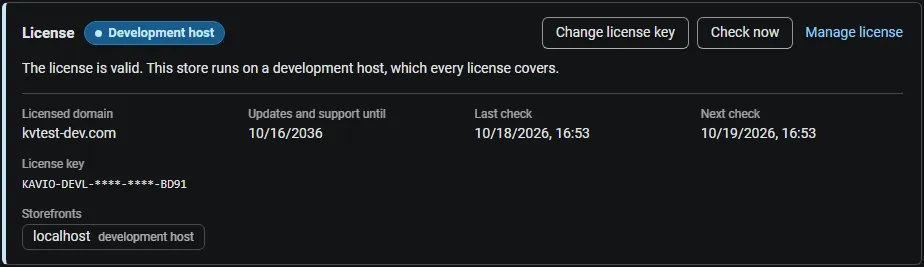
The License card shows:
- the status in color: green when valid, blue for a development host or the 14-day period before a key is required (with the days left), amber when the license server could not be reached (with the days left) or a Marketplace number is still being verified, red when the add-on is switched off;
- in plain words what the status means and, when the add-on is (or will be) switched off, what stops: the custom fields and steps disappear from the vendor application form and new applications use only the core fields; answers and documents already received stay available on the vendor pages, in the applications list and in the CSV export;
- the licensed domain, every storefront with its result (covered, development host, not covered), the end of the updates and support period, the last and the next check, and the key in use (masked);
- the actions Enter license key / Change license key (opens the License tab), Check now (verifies at once and stays on the page), Manage license (your licenses on cs-cart.kaviolabs.com) and, without a valid license, Buy a license.
In Add-ons → Manage add-ons the add-on’s row shows a small license badge next to its name, for example License: Valid or License: Pending · 9 days left. The Vendor applications pages show the license status in a bar at the top.
| Setting | Description |
|---|---|
| License key | Your Kavio Labs license key (KAVIO-XXXX-XXXX-XXXX-XXXX, from My licenses on cs-cart.kaviolabs.com) or your CS-Cart Marketplace license number. If you entered the Marketplace license number in Add-ons → Manage add-ons (the add-on’s license field), leave this empty: the add-on uses that number. |
| License status | Points to the License card and explains what the check sends. |
What the license covers. A license is bound to the base domain you entered at purchase (for example example.com) and covers every subdomain of it (www.example.com, shop.example.com, staging.example.com). Local development hosts are always allowed: localhost, 127.0.0.1 and other private IP addresses, and host names ending in .localhost, .test, .local, .example or .invalid. A store on a different base domain needs its own license. If you move your store to a new domain, contact support.
When the add-on checks. When you save the key, and then once a day. The check runs only in the admin panel (on a page you open) or from cron, never while visitors browse the storefront or apply, and takes a few seconds at most. A cron job keeps the license verified even when nobody opens the admin panel:
php /path/to/store/admin.php --dispatch=kv_vendor_registration_builder_license.checkWhat is sent. The check sends this to https://cs-cart.kaviolabs.com and nothing else: the license key, the add-on ID and version, the host names of your storefronts, your CS-Cart version and edition, and a random one-time value. No vendor, application, document or other personal data is sent. The server answers with a digitally signed result, so a forged answer is ignored.
Statuses.
| Status (card) | Color | What happens |
|---|---|---|
| Valid | Green | The license is valid for this domain. Everything works. |
| Development host | Blue | The store runs on a local development host, which every license covers. Everything works. |
| Pending verification | Amber | A CS-Cart Marketplace license number was accepted, but the Marketplace has not confirmed it yet. Everything works. |
| Pending · N days left | Blue | No verified key yet (a new installation). Everything works for 14 days. |
| Grace period · N days left | Amber | The last checks failed (for example a network problem). The add-on keeps working for 14 days after the first failed check. |
| Not activated, Invalid key, Revoked, Domain mismatch, Not verified | Red | The custom fields and steps disappear from the vendor application form; new applications use only the core fields and are still accepted. Answers and documents already received stay on the vendor pages, in the applications list and in the CSV export; approving and disapproving vendors is not affected. Domain mismatch shows the licensed domain next to the domain your store runs on. |
When your updates and support period ends, the add-on keeps working. Only updates and support stop.
License information appears in the admin panel only, and only for administrators who may manage add-ons; vendors and applicants never see it.