

Usage
How invoices are issued
Section titled “How invoices are issued”- A customer places an order. Nothing is numbered yet.
- The order reaches a status from Issue the invoice when the order reaches (by default Paid or Complete). At that moment the invoice gets the next number of its series and the current date, and its content is frozen.
- The status e-mail to the customer carries the invoice: as a PDF file when the PDF documents add-on is active, otherwise as a link to the invoice page.
- Later status changes never renumber the invoice. If the order is canceled, a credit note for the open amount is issued (see below).
You can also issue the invoice of a single order by hand (Issue invoice now on the order’s Invoices tab), whatever its status, and invoice existing orders in bulk (see Installation).
Invoices and Credit notes lists
Section titled “Invoices and Credit notes lists”Orders → Invoices and Orders → Credit notes list the issued documents.
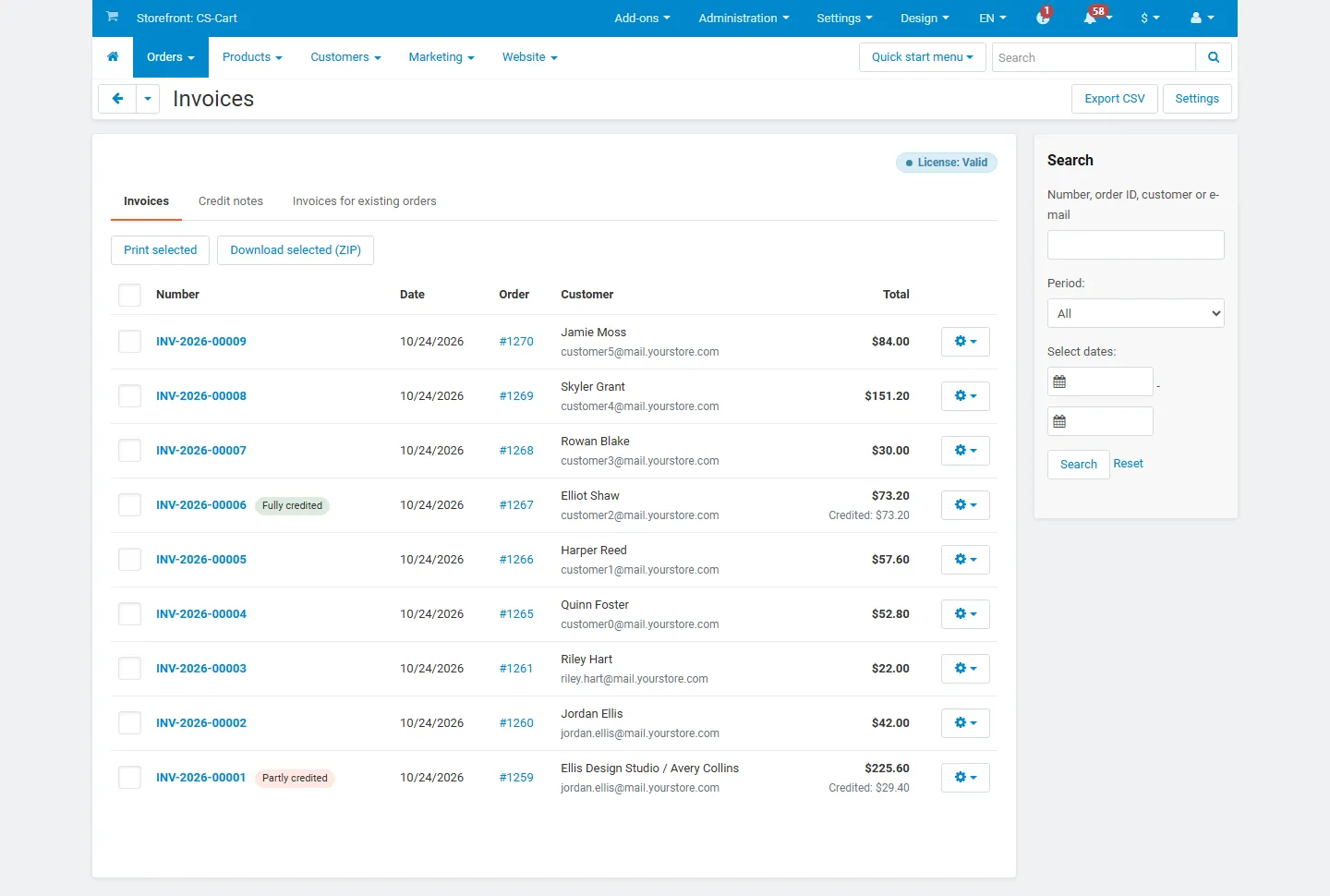
- Search by number, order ID, customer name or e-mail, filter by period and, on Multi-Vendor or with several storefronts, by vendor or storefront. Click a column title to sort.
- The invoices list shows how much of each invoice is credited (Partly credited, Fully credited). The credit notes list shows the invoice and the reason of every credit note.
- Print selected opens the selected documents in one print view (one document per page). Download selected gives a ZIP file with one PDF per document (or one HTML page per document without the PDF add-on).
- Export CSV exports the documents that match the filters: number, date, order, customer, seller, currency, total and tax in the document currency and in the base currency, credited amount or invoice reference and reason.
The Orders list has an Invoice column with the invoice number of each order. In its bulk menu (Print documents) you find Numbered invoices and Numbered invoices (ZIP) for the selected orders.
The Invoices tab of an order
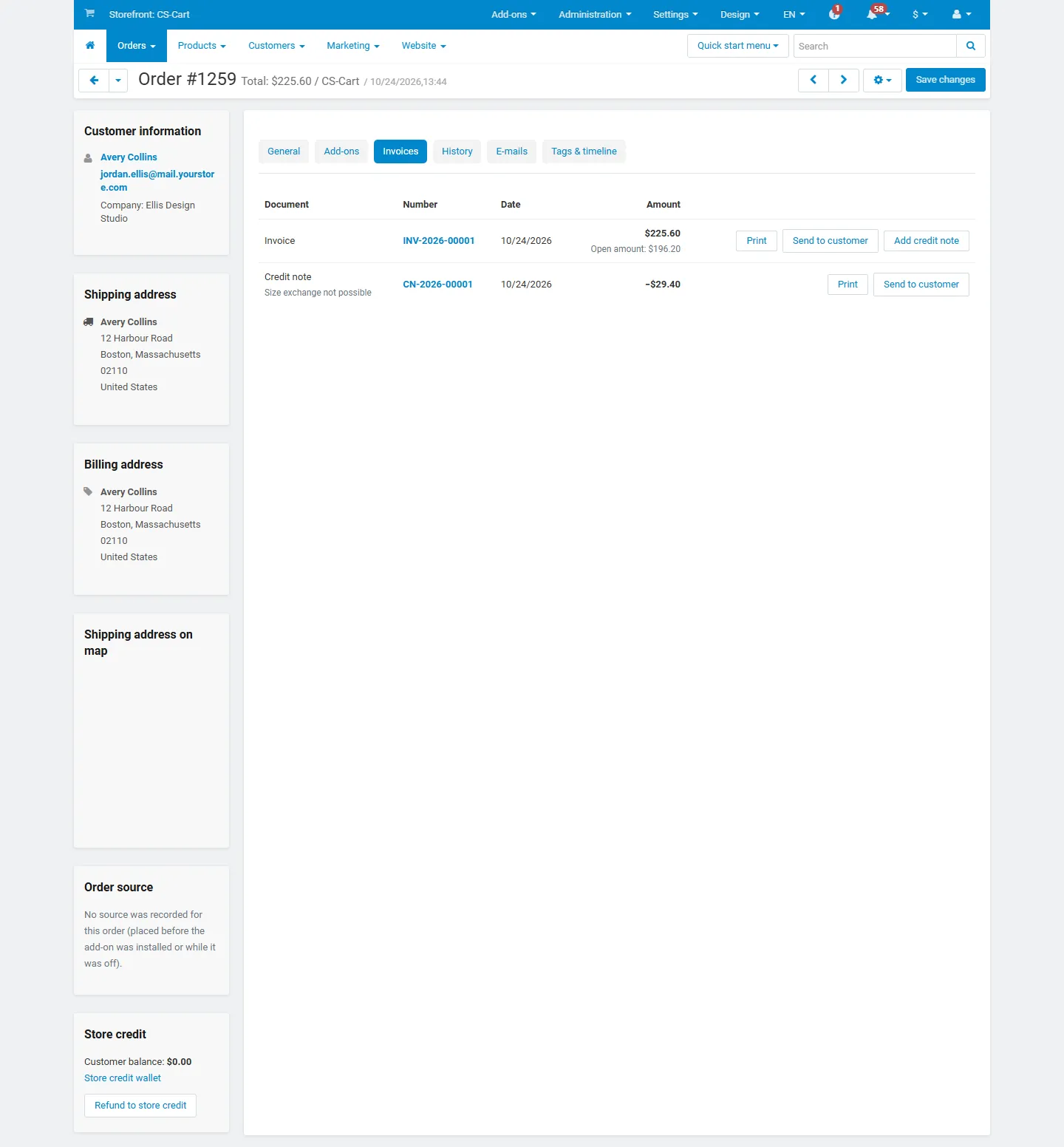
Section titled “The Invoices tab of an order”Every order page has an Invoices tab with the invoice and its credit notes: number, date, amount and open amount, with Print, PDF, Send to customer and Add credit note. The order’s tools menu also has Print invoice INV-…. The core Print invoice keeps working as before.
Credit notes
Section titled “Credit notes”An issued invoice is never edited. To correct it, issue a credit note; if the order is then invoiced again in another way, use a new order.
Automatic credit notes
- Canceled order (or another status from Credit the open amount when the order reaches): a credit note for everything not credited yet.
- Return (core RMA): when a return with a refund action reaches a status from Credit returned items when a return reaches, the accepted items are credited, with their share of taxes.
- Refund to the Customer Wallet: the refunded amount is credited.
Automatic credit notes never exceed the open amount of the invoice and are issued once per event.
Manual credit notes
Click Add credit note on the order’s Invoices tab or in the invoices list.
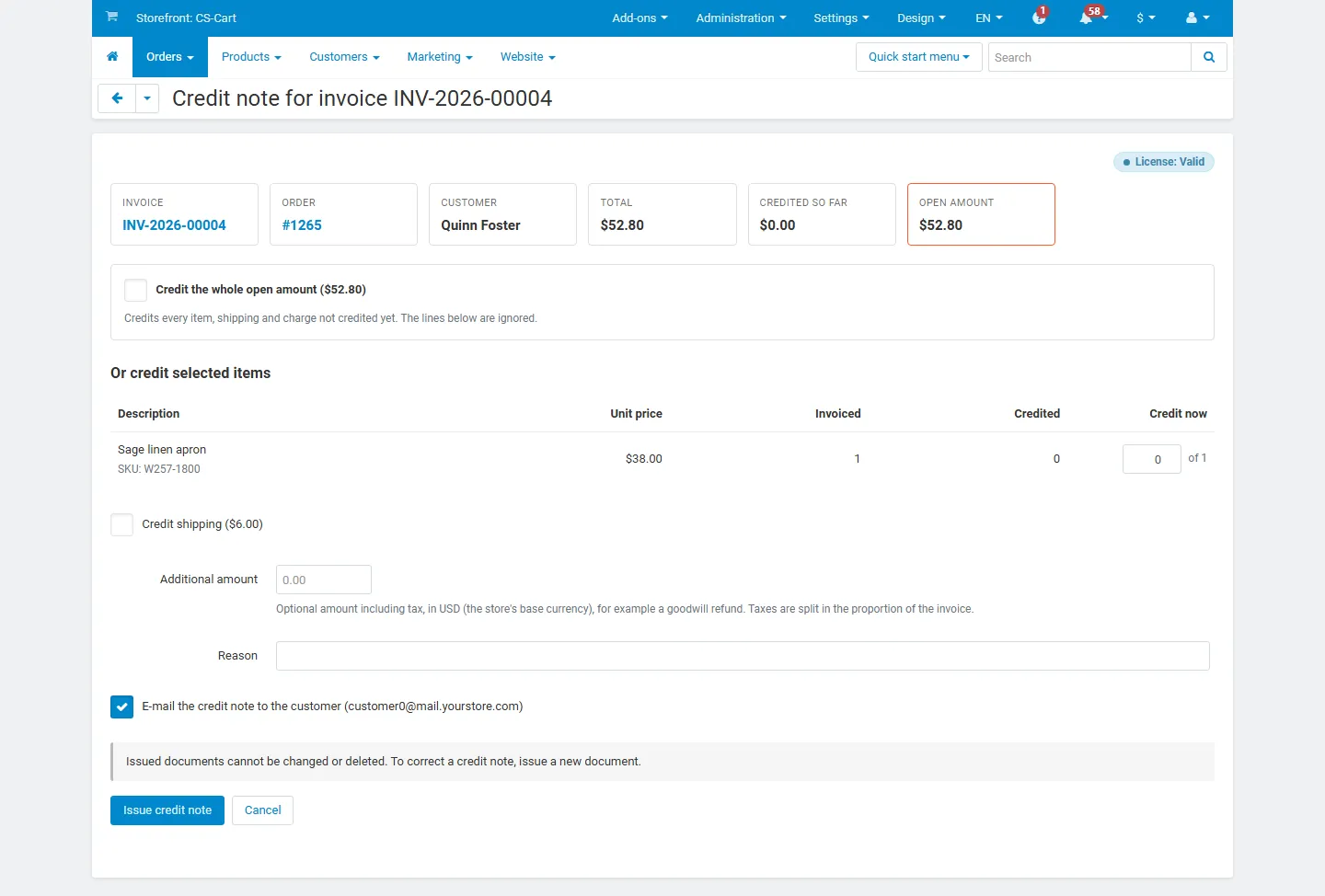
- Credit the whole open amount, or
- choose quantities per item (up to what is not credited yet), shipping, the payment surcharge and/or an additional amount (including tax, in the base currency, for example a goodwill refund);
- enter a reason (printed on the credit note) and choose whether to e-mail it to the customer.
Taxes are split in the proportion of the invoice: product taxes follow the credited items, shipping taxes the credited shipping, an additional amount the invoice total. Order discounts are credited in proportion to the credited items.
The document template
Section titled “The document template”The layout of both documents is edited in Design → Documents → Invoice (Invoices & Credit Notes) and Credit note (Invoices & Credit Notes), like the core invoice. The document body calls code snippets (Seller and document details, Bill to and ship to, Line items, Totals, Tax summary, Notes and footer); edit a snippet on the Code snippets tab, or restore the default at any time. Use Preview to see the latest document (or a sample).
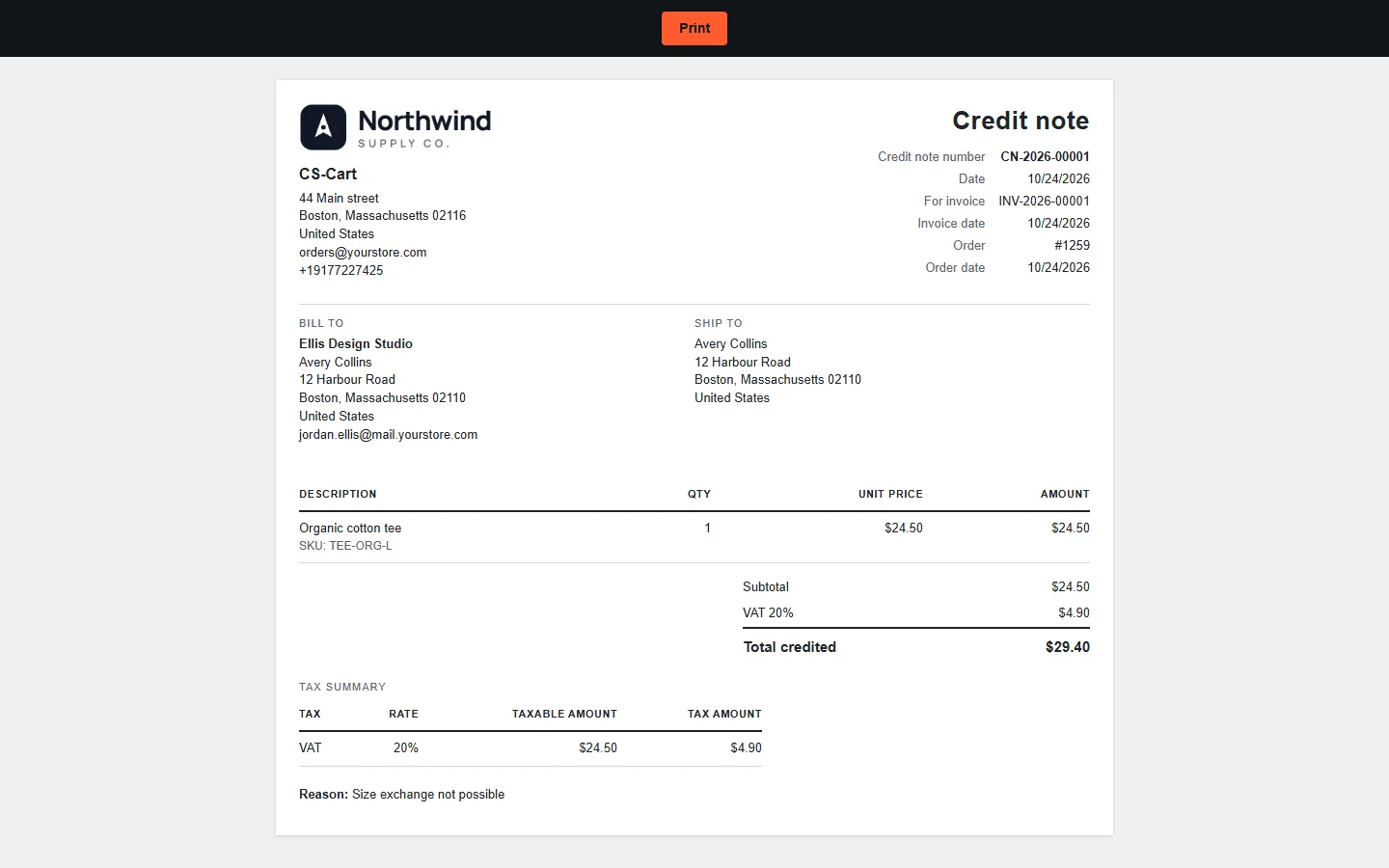
Available variables (all values are already HTML-escaped):
| Variable | Contents |
|---|---|
d (document) |
title, number_label, number, date, order_id, order_date, payment, shipping_method, sold_by, invoice_number / invoice_date / reason (credit notes), lines[] (name, code, options, qty, unit_price, total), taxes[] (name, rate, base, amount, included), totals (subtotal, discount, shipping, surcharge, adjustment, total and has_… flags), total_label, notes, footer |
s (seller) |
name, address_lines[], tax_id, email, phone, url, logo_url |
b (buyer) |
name, company, address_lines[], shipping_lines[], email, phone, tax_id, reverse_charge_note |
Template changes apply to every document, also to documents issued earlier, because the content is frozen but the layout is not. If you keep printing the core invoice instead, add {{ kv_invoice.number }}, {{ kv_invoice.date }} or {{ kv_invoice.credit_notes }} to its template to print our numbers there.
Customers
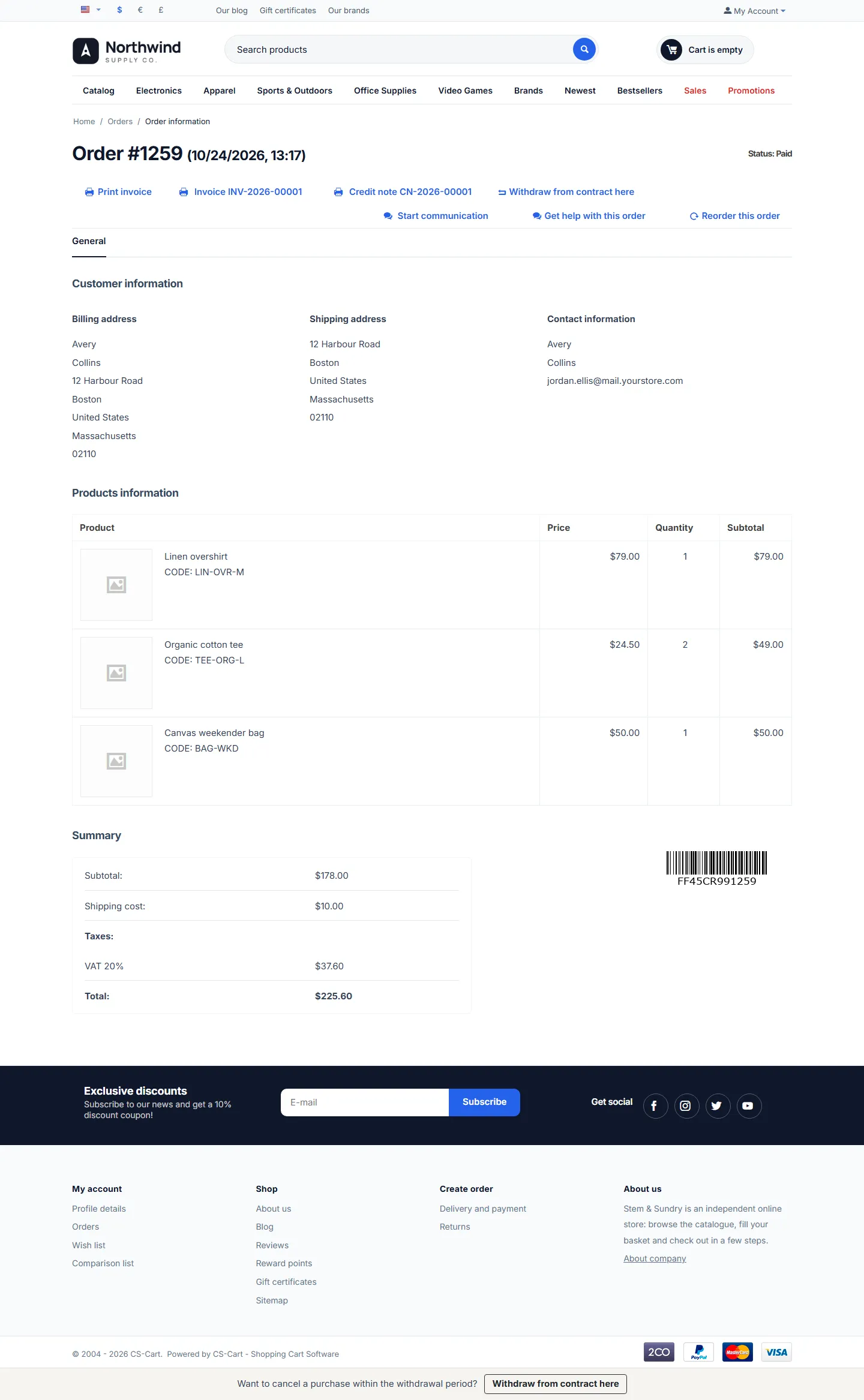
Section titled “Customers”On the order page in the customer account, the customer sees Invoice INV-… and Credit note CN-… links (and PDF when available). The document page has Print, Download PDF and Back to the order. Only the customer of the order (or the guest with access to that order) can open it.
Vendors (Multi-Vendor)
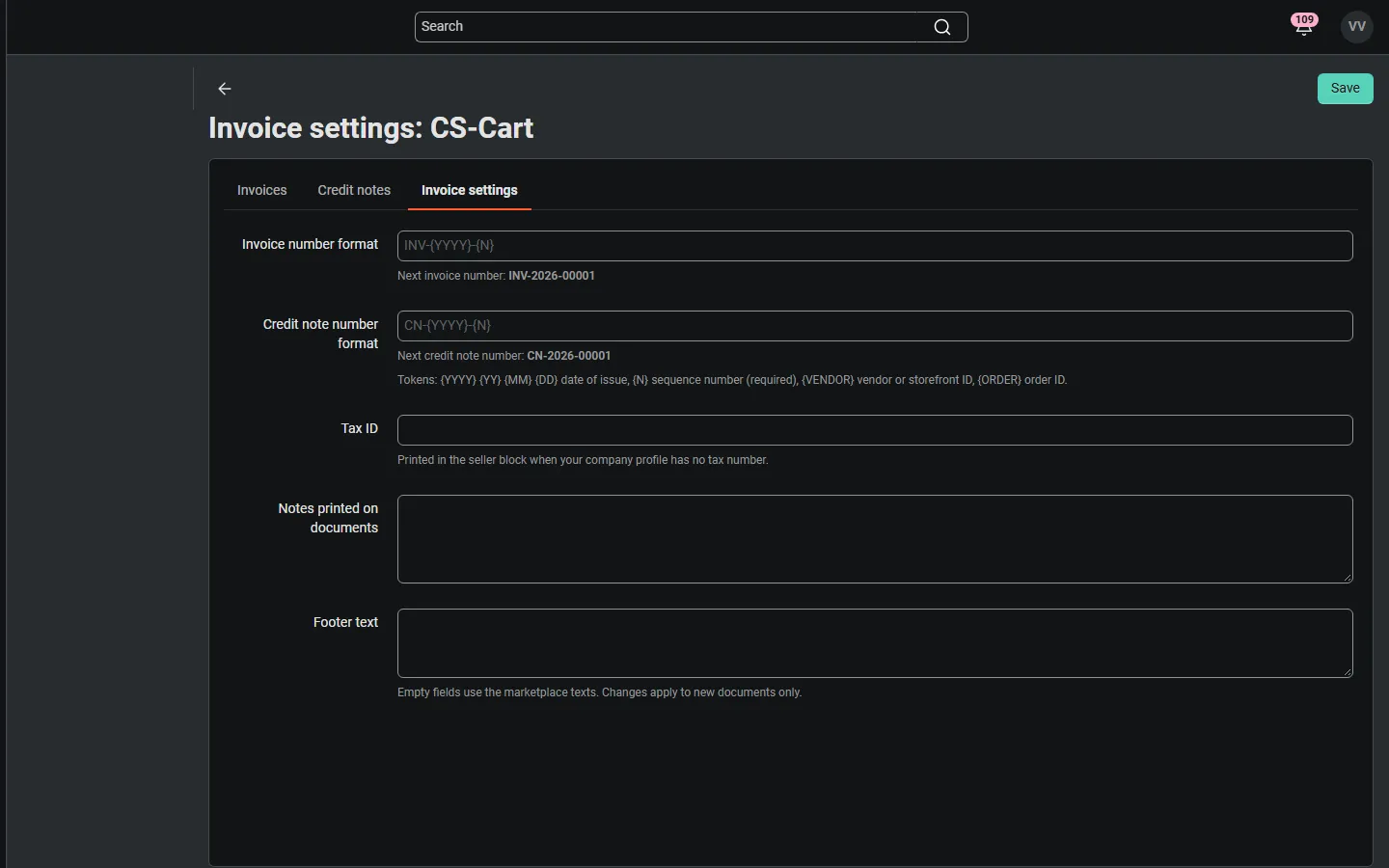
Section titled “Vendors (Multi-Vendor)”Vendors find Orders → Invoices and Orders → Credit notes in the vendor panel with the documents of their own orders, the same print, ZIP and CSV tools, the Invoices tab on their orders and, when allowed, Add credit note. Invoice settings holds their own number formats, tax ID, notes and footer.
When the license is not active
Section titled “When the license is not active”No new invoice or credit note numbers are issued and nothing is attached to e-mails. Everything issued so far stays viewable, printable and downloadable for you, your vendors and your customers. Orders keep their statuses and the checkout is not affected. Orders that reached an invoice status meanwhile can be invoiced later with Issue invoice now or the tool for existing orders.