

Configuration
Open Add-ons > Manage add-ons > Size Guide & Fit Finder > Settings. On CS-Cart Ultimate the General and Fit feedback settings can differ per storefront.
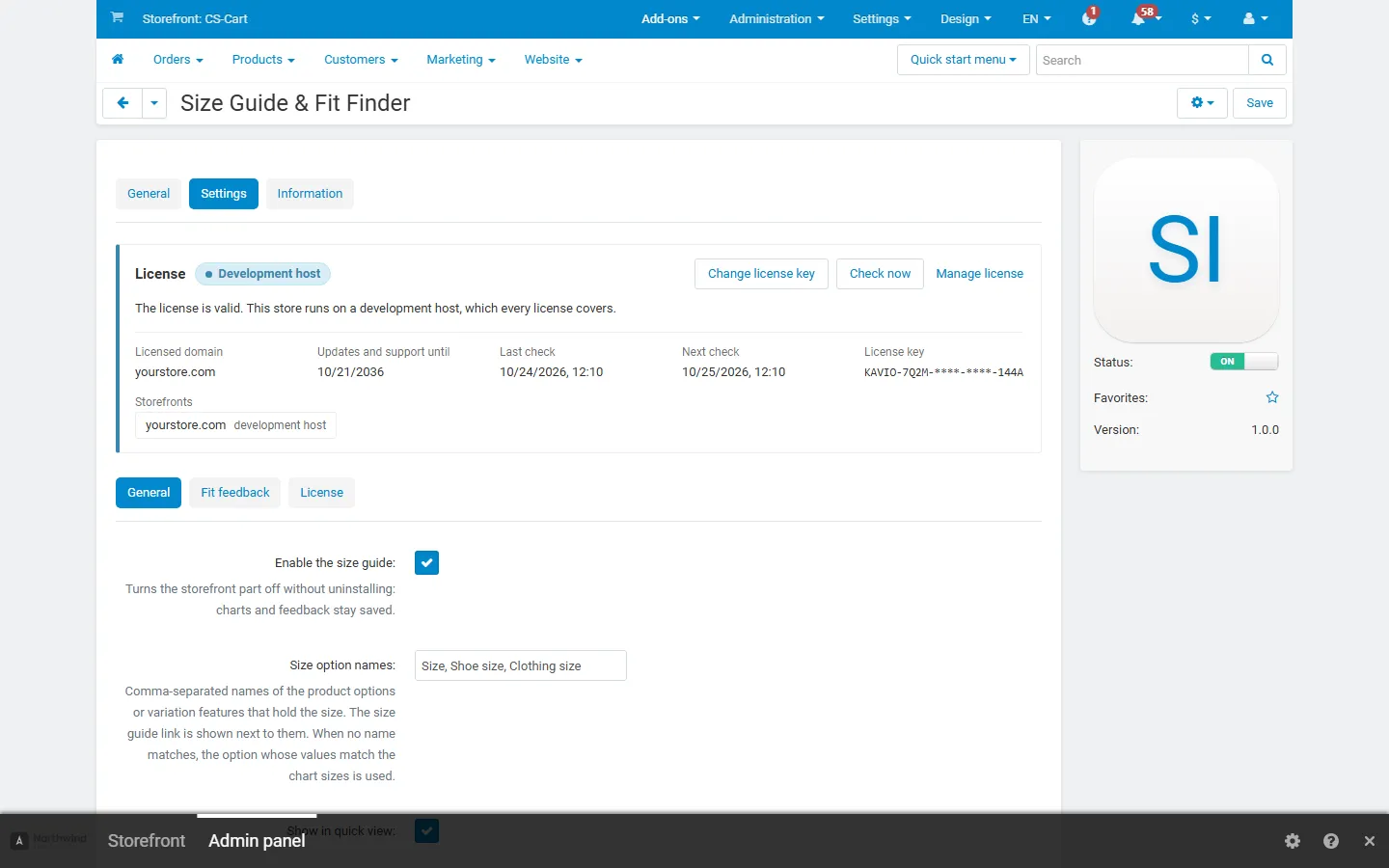
General
Section titled “General”| Setting | Default | What it does |
|---|---|---|
| Enable the size guide | On | Turns the storefront part off without uninstalling. Charts and feedback stay saved. |
| Size option names | Size, Shoe size, Clothing size | Names of the product options or variation features that hold the size (comma-separated, not case-sensitive). The link is placed next to that selector. When no name matches, the selector whose values match the chart sizes is used (at least two matches). |
| Show in quick view | On | Shows the link in the quick view window too. |
| Show “Find my size” | On | Offers the recommender. Each chart can also switch it off. |
| Units shown first | As in the chart | Which units the table and the measurement form start with. Shoppers can always switch. |
| Brand feature | Detect automatically | The product feature used for brand-based assignment. “Detect automatically” uses the first active feature of the Brand/Manufacturer type. |
| Allow vendors to manage size charts | Off | Multi-Vendor only. See Vendors. |
Size names are matched without case, spaces or dashes, and spelled-out sizes match their codes: “X Large”, “Extra large” and “XL” are the same size; so are “Small” and “S”. Add other names as aliases in the chart (for example 38 for M).
Fit feedback
Section titled “Fit feedback”| Setting | Default | What it does |
|---|---|---|
| Ask buyers how the product fits | On | Shows “How did it fit?” on the customer’s order page for products that have a size guide. |
| Order statuses that allow feedback | Complete | The order must have one of these statuses. |
| Feedback window | 90 days | Days after the order date during which buyers can answer (0 = no limit). |
| Approve feedback before it counts | On | New answers wait in Products > Size charts > Fit feedback until you approve them. Turn off to count them at once. |
| Minimum votes for a fit hint | 3 | The product page shows a fit hint from this number of approved answers. |
| Show “True to size” hints | On | Also shows positive hints, not only “Runs small” and “Runs large”. |
A product runs small (or large) when at least half of the approved answers say so and that side has more answers than the opposite side; it is true to size when at least half say so. Answers of all variations of one product (sizes and colors) count together.
Vendors (Multi-Vendor)
Section titled “Vendors (Multi-Vendor)”With Allow vendors to manage size charts on, vendors find Products > Size charts in the vendor panel. They create charts from the templates or from scratch, import CSV files and assign charts to categories, brands and their own products. A vendor’s chart applies only to that vendor’s products; vendors never see or change the administrator’s charts. The marketplace administrator’s charts apply to every vendor’s products. Fit feedback moderation stays with the administrator.
License
Section titled “License”The license status is shown in a License card at the top of the add-on page, above the tabs, so you see it on every tab. The License tab holds the key itself. The key is stored once for the whole installation.
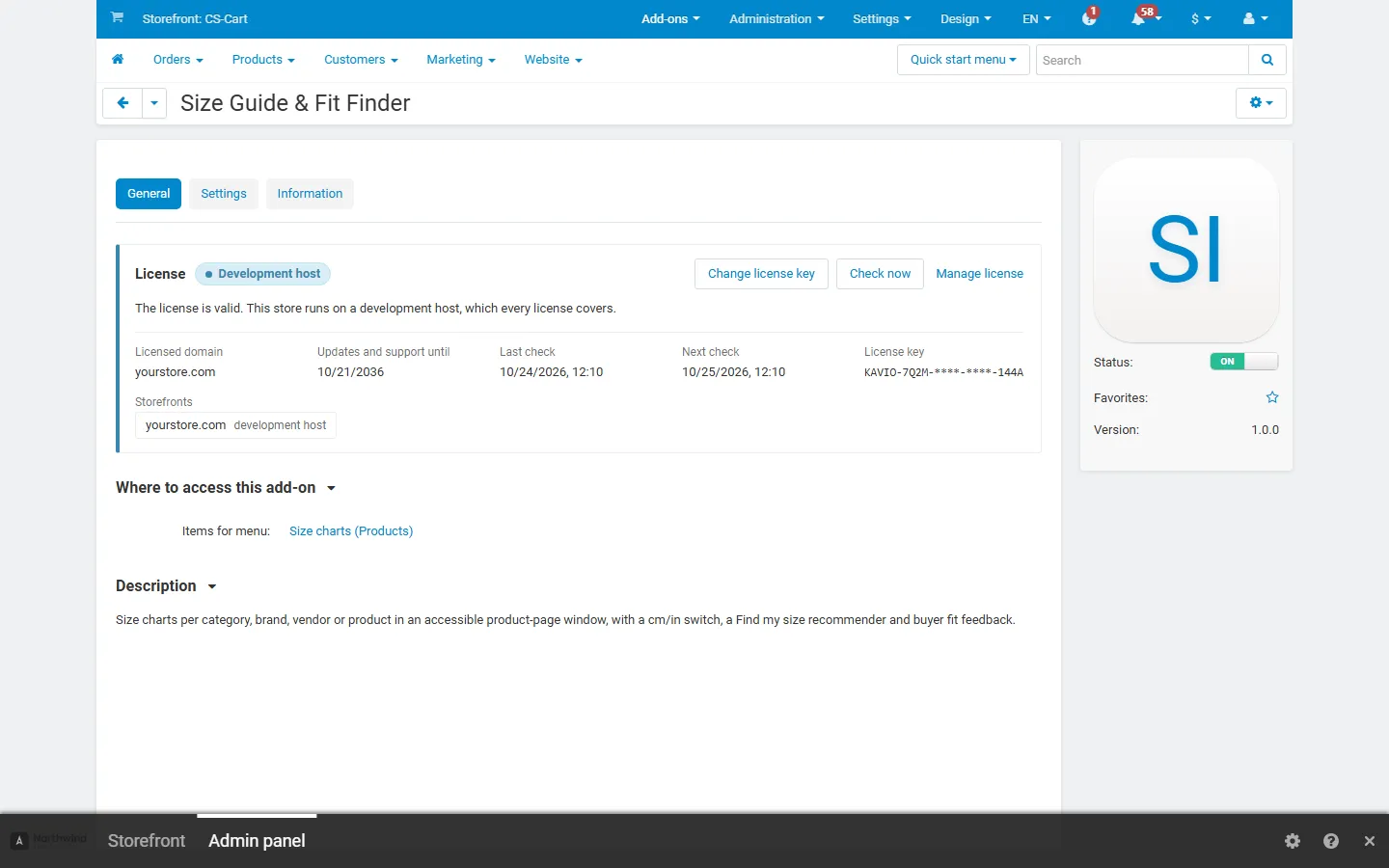
The License card shows:
- the status in color: green when valid, blue for a development host or the 14-day period before a key is required (with the days left), amber when the license server could not be reached (with the days left) or a Marketplace number is still being verified, red when the add-on is switched off;
- in plain words what the status means and, when the add-on is (or will be) switched off, what stops: the size guide link, size chart window, Find my size and fit hints are hidden on the storefront and no new fit feedback is collected; your charts, assignments and feedback stay saved and editable;
- the licensed domain, every storefront with its result (covered, development host, not covered), the end of the updates and support period, the last and the next check, and the key in use (masked);
- the actions Enter license key / Change license key (opens the License tab), Check now (verifies at once and stays on the page), Manage license (your licenses on cs-cart.kaviolabs.com) and, without a valid license, Buy a license.
The check runs only in the admin panel and from cron (php admin.php --dispatch=kv_size_guide_fit_license.check), never on the storefront.