

Configuration
Overview · Installation · Usage · Developer notes · FAQ
Settings live in Add-ons → Manage add-ons → Captcha Pro → Settings. The forms and their rate limits are on the page Customers → Spam protection.
Settings
Section titled “Settings”| Setting | Default | Description |
|---|---|---|
| Status | Shows whether forms are protected, which check is used, and notes about Google reCAPTCHA, missing keys or invalid allow-list entries. | |
| Check forms with Captcha Pro | On | Off: CS-Cart works as before (Google reCAPTCHA, if you set it up). Form settings and statistics are kept. |
| Spam check | Built-in check | Built-in check (no third party, no cookies), Cloudflare Turnstile or hCaptcha. A provider without both keys falls back to the built-in check. |
| Proof-of-work strength | Normal | How much work the browser does before a form can be sent: low about 0.01 s, normal about 0.05 s, high about 0.4 s on a phone. Visitors who send many forms get a harder task automatically. |
| Minimum time to fill in a form (seconds) | 2 | Forms sent faster than this after the visitor started typing are refused. Real visitors never notice: the form waits and is sent by itself. 0 switches it off. |
| Show the spam protection badge on forms | On | A small line under each protected form shows that the check is running and when it is done. Not shown on one-line subscribe forms. |
| Turnstile site key / secret key | From the Cloudflare dashboard, Turnstile → Add widget. Add your store domain to the hostnames. | |
| Turnstile theme, size, appearance | Automatic, Flexible, Always visible | Only when interaction is needed keeps the widget hidden unless Cloudflare asks the visitor to click. |
| hCaptcha site key / secret key | From the hCaptcha dashboard, Sites; the secret key is in your account settings. | |
| hCaptcha theme, size | Light, Normal | |
| If Turnstile or hCaptcha cannot be reached | Use the built-in check | When the provider is down or its script is blocked in the browser, the form is accepted if it passes the built-in check. Refuse the form rejects it until the provider works again. |
| Send the visitor’s IP address to the provider | Off | Off for privacy; Turnstile and hCaptcha work without it. |
| Skip the check for signed-in customers | On | Sign-in, registration, password recovery and guest checkout are only checked for guests anyway. Administrators and vendors who are signed in are never checked. |
| Allowed IP addresses | Empty | One address or range per line, for example 203.0.113.7 or 198.51.100.0/24 or 2001:db8::/32. These visitors are not checked and not rate limited. |
| Trusted proxies | Empty | Only behind a CDN or proxy on another server, such as Cloudflare: enter its address ranges. Then the visitor address is read from CF-Connecting-IP or X-Forwarded-For. Proxies on the same server or a private network are trusted automatically; forwarded headers from other senders are ignored. |
| Keep statistics for (days) | 90 | Daily counters per form and result. |
In CS-Cart Ultimate the check, keys and allow-list can differ per storefront (select the storefront first). Turnstile and hCaptcha site keys are bound to domains, so each storefront domain needs to be listed at the provider.
Cloudflare Turnstile
Section titled “Cloudflare Turnstile”- In the Cloudflare dashboard open Turnstile, click Add widget, enter a name and your store domain(s), choose Managed mode.
- Copy the Site key and Secret key into the add-on settings and choose Cloudflare Turnstile as the spam check.
- Open your sign-in page: the Turnstile box appears where the form is.
hCaptcha
Section titled “hCaptcha”- In the hCaptcha dashboard add a site with your domain and copy its Site key; copy the Secret key from your account settings.
- Enter both in the add-on settings and choose hCaptcha.
Protected forms
Section titled “Protected forms”Customers → Spam protection lists every form with:
- Protection: Spam check + rate limit (the check, the honeypot, the minimum time and the attempt limit), Rate limit only (no visible check and no script, only the hidden field and the attempt limit) or Off;
- Attempts per IP address: how many submissions one IP address may send within the time window;
- the number of checked and blocked submissions in the last 30 days.
Forms of add-ons that are installed but disabled are shown dimmed and keep their settings. Forms of other add-ons that use CS-Cart’s image verification appear as well and are off until you turn them on.
| Form | Default | Attempts |
|---|---|---|
| Sign in | Spam check + rate limit | 10 per 10 min |
| Registration, Password recovery | Spam check + rate limit | 5 per 60 min |
| Guest checkout | Spam check + rate limit | 10 per 10 min |
| Product reviews, Comments and reviews, Newsletter, E-mail marketing, Call requests, Vendor sign-up | Spam check + rate limit | 5 per 60 min |
| Contact forms (Form builder) | Spam check + rate limit | 5 per 30 min |
| Back-in-stock notifications | Rate limit only | 20 per 60 min |
| Order tracking, Gift certificates, Polls | Off | 10 per 10 min |
| Admin and vendor panel sign-in | Off | 10 per 15 min |
If you turn on the admin panel sign-in check and ever lock yourself out, add define('KV_CP_EMERGENCY_OFF', true); to config.local.php; it switches off the check of the admin and vendor panel sign-in only.
License
Section titled “License”The license status is shown in a License card at the top of the add-on page, above the tabs, so you see it on every tab. The License tab holds the key itself. The key is stored once for the whole installation.
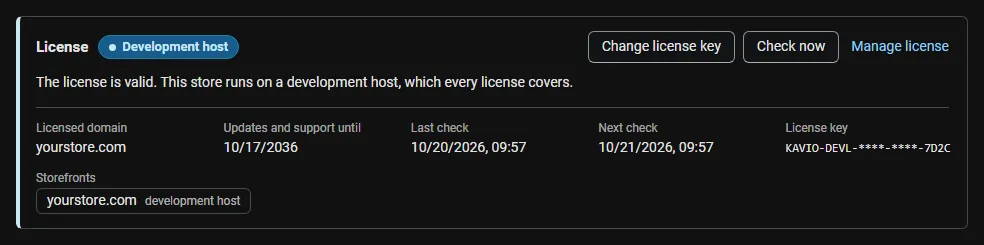
The License card shows:
- the status in color: green when valid, blue for a development host or the 14-day period before a key is required (with the days left), amber when the license server could not be reached (with the days left) or a Marketplace number is still being verified, red when the add-on is switched off;
- in plain words what the status means and, when the add-on is (or will be) switched off, what stops: Captcha Pro stops checking forms and its rate limits stop; CS-Cart’s own behaviour returns (Google reCAPTCHA, if you set it up), and your form settings, keys and statistics are kept;
- the licensed domain, every storefront with its result (covered, development host, not covered), the end of the updates and support period, the last and the next check, and the key in use (masked);
- the actions Enter license key / Change license key, Check now, Manage license and, without a valid license, Buy a license.
In Add-ons → Manage add-ons the add-on’s row shows a small license badge next to its name. The Spam protection page shows the license status in a bar at the top.