

Usage
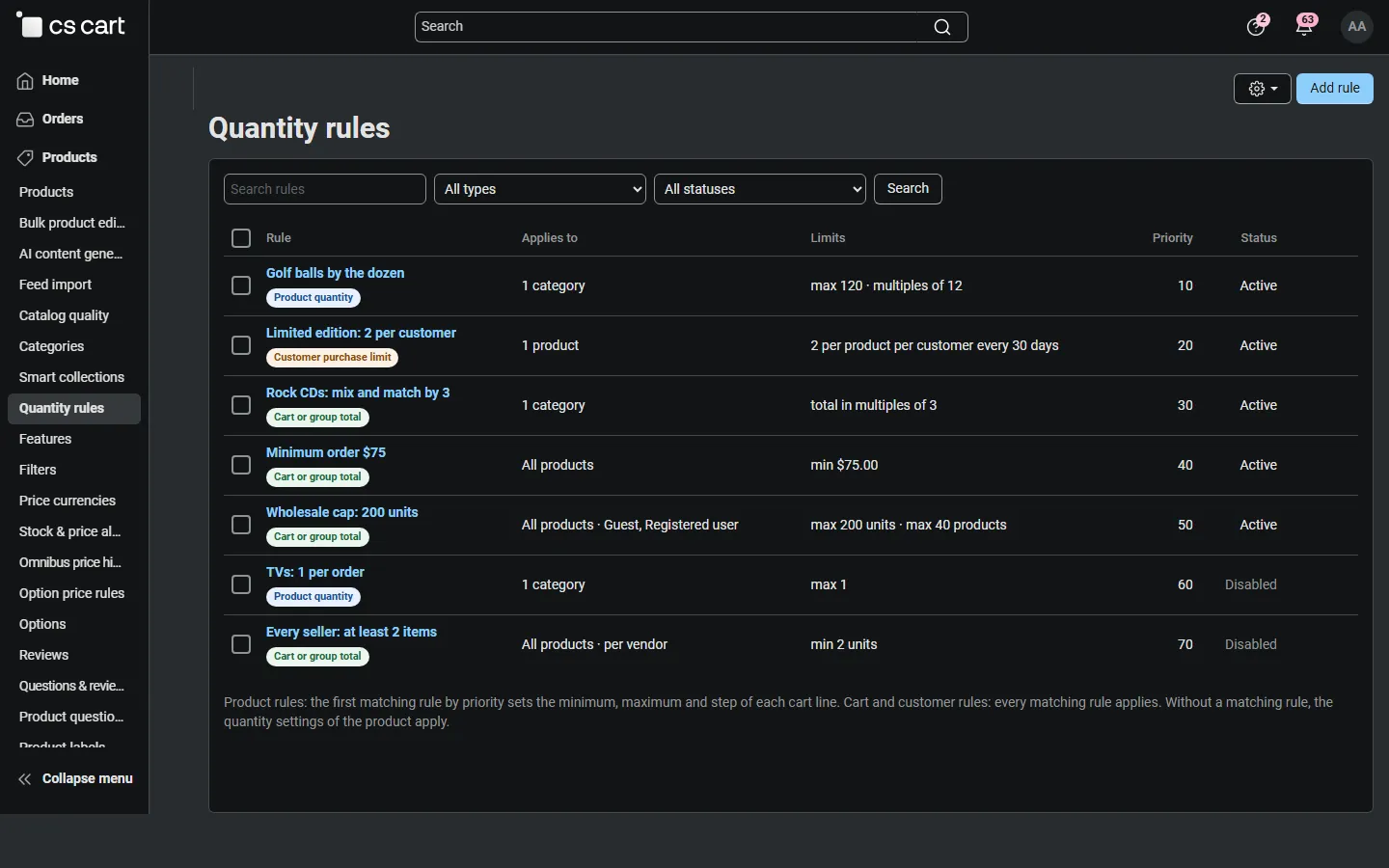
Rule types
Section titled “Rule types”Product quantity
Section titled “Product quantity”Minimum quantity, maximum quantity and Sold in multiples of for each cart line of the matching products.
- The rule is combined with the product’s own quantity settings: the higher minimum and the lower maximum apply; a step set in the rule replaces the product’s step.
- When several product rules match a product, the one with the lowest priority number wins.
- On the product page and in the cart the quantity field steps by the pack size (a list of allowed quantities or a stepper, depending on the theme).
- While shopping, CS-Cart corrects the quantity with its usual messages: 1 becomes 6, 8 becomes 12, 30 becomes the maximum.
Example: Golf balls by the dozen: categories Golf Balls, sold in multiples of 12, maximum 120.
Cart or group total
Section titled “Cart or group total”Limits for all cart items that match the rule, together:
- minimum and maximum amount, calculated from the cart subtotal before order discounts or after order discounts and coupons;
- minimum and maximum total quantity;
- total quantity in multiples of N (mixed case: the products may be combined freely);
- minimum and maximum number of different products;
- Per vendor (Multi-Vendor): each vendor’s items are checked separately.
With Applies to: All products the rule is a cart rule (for example a minimum order of $75 for wholesale customers). With categories it is a group rule (for example Rock CDs: total in multiples of 3). A group rule applies only when the cart contains matching products.
Adding a product that would break a maximum (amount, total quantity or different products) is refused with a message, so the cart never goes over the limit. Minimums are shown in the cart until they are met.
Customer purchase limit
Section titled “Customer purchase limit”How many units one customer may buy in a period, for example 2 per customer every 30 days for a limited edition.
- Each product separately or All matching products together.
- Earlier orders count, except failed, declined, canceled and incomplete ones. Registered customers are recognized by account; guests by the e-mail address they enter at checkout (setting Count guest purchases by e-mail).
- When the customer adds more than the remaining allowance, the quantity is lowered with a message (“limited to 2 per customer every 30 days. Your quantity was set to 1”). When nothing is left, the product is not added.
What shoppers see
Section titled “What shoppers see”- Product page: the rules of the product under the quantity field, for example Sold in packs of 12, Limit: 2 per customer every 30 days, Minimum order amount: $75.00, This seller’s minimum order: $200.00.
- Cart: a “Before you check out” panel below the items lists every rule the cart does not meet yet, with how much to add or remove; each cart line shows its own notes.
- Checkout: opens only when the cart meets every rule. Otherwise the shopper goes back to the cart with the messages, the same way CS-Cart handles its own minimum order amount.
Orders created in the admin panel
Section titled “Orders created in the admin panel”The order editor (Orders → Add order or editing an order) shows the unmet rules as warnings. Quantities are not changed automatically. With Warn and allow the administrator can still place the order; with Block the order cannot be placed until it meets the rules. When an order is edited, the order itself is not counted twice for customer purchase limits.
REST API orders
Section titled “REST API orders”POST /api/orders is checked like a storefront order. When a rule is not met, the API answers 403 with message (all rule messages) and kv_order_quantity_rules (a list of code, rule_id, message). Quantities are not corrected silently.
Multi-Vendor
Section titled “Multi-Vendor”- Set a minimum order on the vendor page (amount and/or quantity). Shoppers see This seller’s minimum order on the vendor’s product pages and Your order from
: the minimum order is … in the cart. - Any cart rule can be checked per vendor.
- Rules can apply to the products of chosen vendors.
- Vendors have no access to the rules pages. With Vendors can set their own minimum order they edit their own minimum on their profile.
Items that are never limited
Section titled “Items that are never limited”Free gifts of promotions, items added as part of another product (child items) and items of an accepted quote (Kavio Labs B2B Quote Request) are exempt from the rules.