

Usage
Overview · Installation · Configuration · Developer notes · FAQ
What visitors see
Section titled “What visitors see”The chat button sits at the bottom of the page. After a few seconds a greeting bubble appears next to it (once per session). A click:
- with one contact (for example only your WhatsApp number) opens that chat at once, in a new tab for WhatsApp, Messenger and Telegram;
- with several contacts opens the chat panel: agents with photo or initials, role and online state, then the store channels (WhatsApp, Messenger, Telegram, Call us, Send an SMS, E-mail us, Open a support ticket). A click on a row opens that chat with the message already typed.
The panel closes with the close button, the Escape key or a click outside. It works with the keyboard and screen readers.
Online and offline. An agent is online during the working hours of today in the agent’s time zone. Offline agents show when they are back (“Back today at 14:00”, “Back tomorrow at 08:00”, “Back Monday at 09:00”) and, with Leave a message, the hint that the visitor can still write. In Rotate mode the panel shows one “Chat with our team” row; a click picks an online agent at random, and the visitor keeps that agent for the rest of the session.
Ask about this product. On product pages a button below the add-to-cart buttons opens the panel with the product name on top. The message contains the product name, the SKU of the selected variation, the options the visitor selected at that moment and the product link:
Hello! I have a question about this product:65" Class (64.5" Diag.) LED 8000 Series Smart TVSKU: D00014MK1Phttps://yourstore.com/electronics/tv-and-video/65-class-led-8000-series-smart-tv/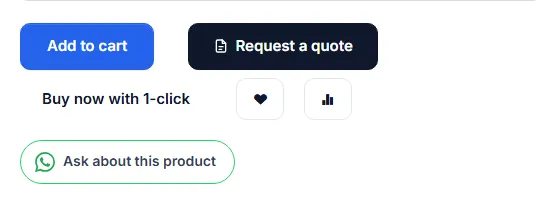
Cart and checkout. Below the cart buttons and below Place order a strip says “Questions about your order? Chat with us”. The message lists the cart (up to 10 lines: quantity, name, options, SKU) and the total in the visitor’s currency, and it is updated when the cart changes.

Position. The button never covers sticky add-to-cart bars, the bottom navigation of mobile themes or cookie notices: it moves above them while they are visible (Move above sticky bars automatically).
Messages
Section titled “Messages”Every channel uses the same message:
| Channel | Link | Message |
|---|---|---|
https://wa.me/<number>?text=... |
typed into the chat | |
| Messenger | https://m.me/<page>?text=... |
typed into the chat |
| Telegram | https://t.me/<name> |
Telegram links cannot carry a message |
| Call us | tel:<number> |
none |
| Send an SMS | sms:<number>?&body=... |
typed into the SMS |
| E-mail us | mailto:<address>?subject=...&body=... |
subject “Question” (on product pages “Question about |
The visitor can change the text before sending. Nothing is sent until the visitor presses send in their own app.
Click statistics
Section titled “Click statistics”Marketing → WhatsApp chat → Click statistics shows the clicks of the last 7, 30, 90 or 365 days: the total, per channel, per place (floating button, chat panel, Ask about this product, cart and checkout), per agent and, on Multi-Vendor, per vendor, plus a bar per day.
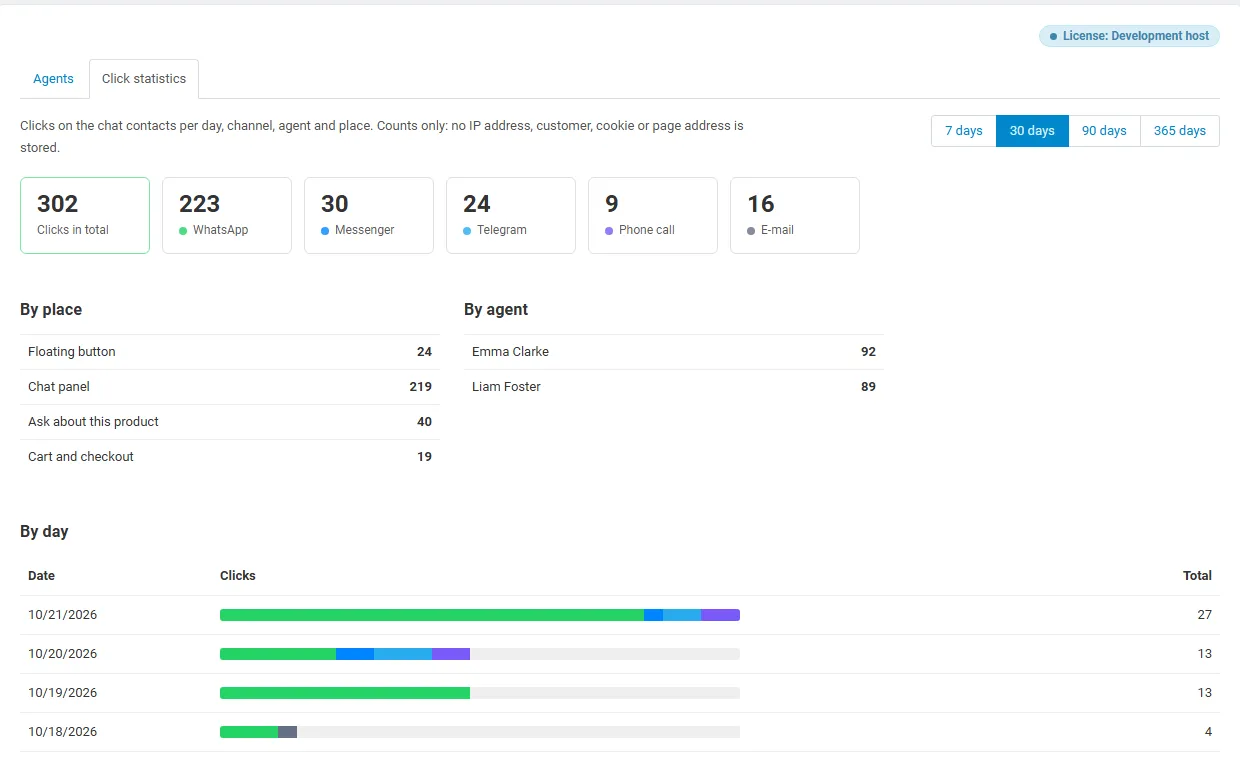
A click is counted when the visitor opens a contact. Whether a message was actually sent is not known to the store. The statistics store counts only: no IP address, customer, cookie or page address.
Analytics events
Section titled “Analytics events”With Send click events to Google Analytics / Tag Manager on, the button sends two events:
| Event | When | Parameters |
|---|---|---|
kv_chat_open |
the panel opens | chat_source (float, product, cart), page_type |
kv_chat_click |
a contact is opened | chat_channel (whatsapp, messenger, telegram, phone, sms, email, ticket), chat_agent (agent name, store or vendor), chat_source (float, panel, product, cart), chat_online, page_type |
When our Ecommerce Tracking Pro add-on is active, the events go through it (GA4 and Google Tag Manager with its consent handling). Otherwise they are pushed to window.dataLayer and, with gtag.js, sent with gtag('event', ...). In Google Tag Manager create a Custom Event trigger for kv_chat_click and mark it as a conversion.
Multi-Vendor
Section titled “Multi-Vendor”- A vendor with an own number (see Configuration) is shown first on their product pages and on their store page, with your store support below it under “Store support”.
- Ask about this product on a vendor’s product goes to the vendor.
- Vendors see the clicks on their own number on Marketing → WhatsApp chat → Click statistics in the vendor panel; the administrator sees all clicks and a per-vendor list.
- Vendors cannot see or edit the agents or the add-on settings.
CS-Cart Ultimate
Section titled “CS-Cart Ultimate”All settings are per storefront, so every storefront can have its own number, colours and texts. Agents are shared by all storefronts or belong to one; each storefront shows the shared agents and its own. The statistics count clicks per storefront; a storefront administrator sees the clicks of their storefront.
Without a valid license
Section titled “Without a valid license”The chat button, the “Ask about this product” button and the cart help link are hidden on the storefront and no new clicks are counted; agents, settings and statistics stay in the admin panel. Once the license is valid again, everything is back.