

Usage
Everything is in Products → Purchase orders, with four tabs: Purchase orders, Reorder suggestions, Suppliers and Report.
Suppliers
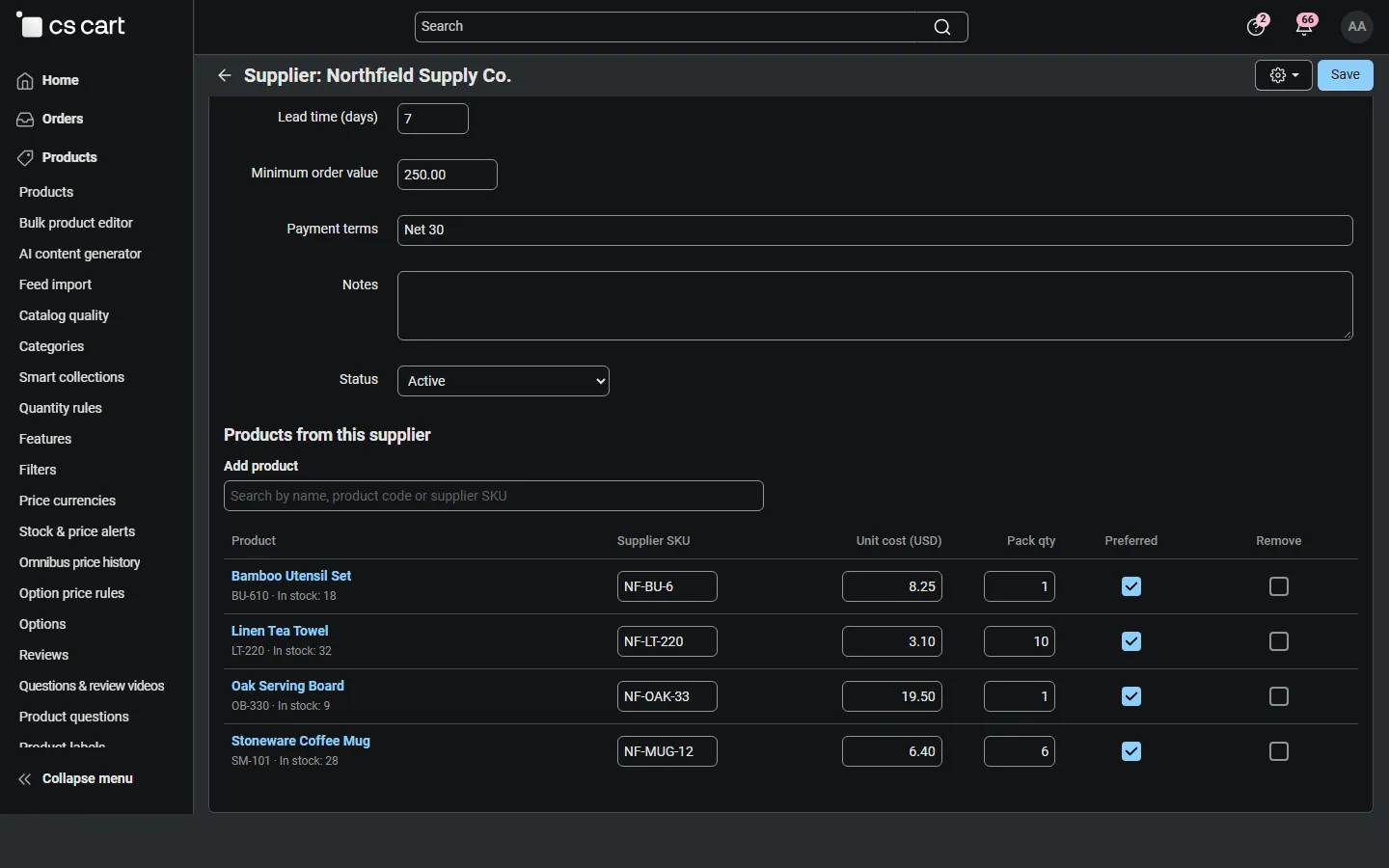
Section titled “Suppliers”- Open Suppliers and click +.
- Enter the name and the PO e-mail (purchase orders go there), optional copy addresses, contact person, phone and address.
- Set the purchasing terms: currency, lead time in days (the default expected delivery), minimum order value (purchase orders below it show a warning) and payment terms (printed on the purchase order).
- Save. In Products from this supplier, search products and enter the supplier SKU, the unit cost in the supplier’s currency and the pack quantity (suggestions are rounded up to it). Tick Preferred for the supplier that the suggestions should use.
You can also set the preferred supplier, supplier SKU, unit cost, reorder point and target stock in the product editor, under In stock.
Core Suppliers add-on: when it is active, its suppliers appear here automatically. Name, phone and address stay managed in Customers → Suppliers; you add the purchasing terms here. A product linked to a core supplier uses it in the suggestions until you give the product a supplier of its own.
Reorder suggestions
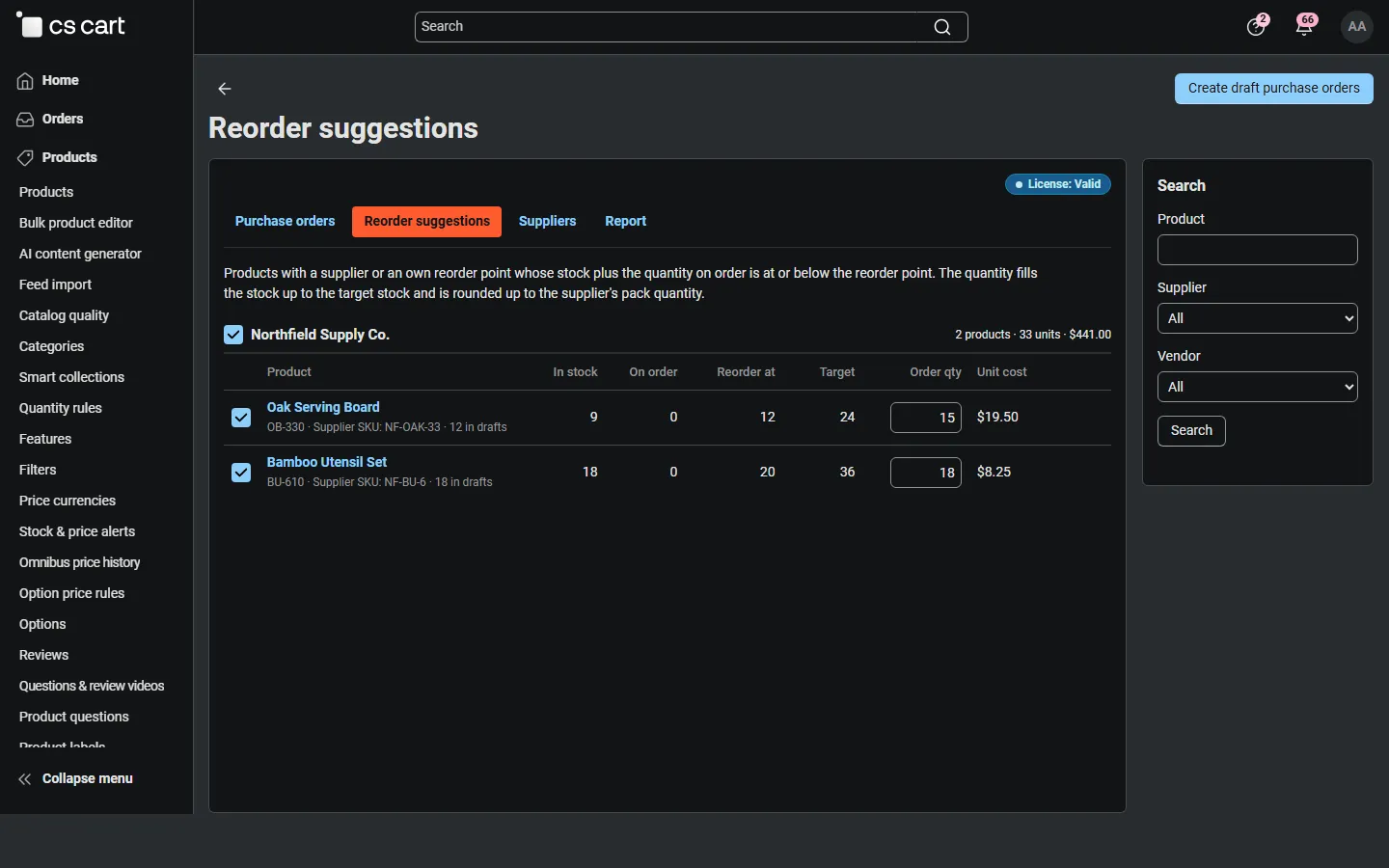
Section titled “Reorder suggestions”The Reorder suggestions tab lists products whose stock plus the quantity on order (sent and partially received purchase orders) is at or below the reorder point, grouped by preferred supplier. The quantity is target stock − in stock − on order, rounded up to the pack quantity. Drafts are shown as “in drafts” but do not count as on order until they are sent.
- Change quantities if needed and untick what you do not want.
- Products without a supplier: choose one in the last column.
- Click Create draft purchase orders: one draft per supplier, with the supplier SKUs and costs filled in.
Purchase orders
Section titled “Purchase orders”New purchase order: click +, choose the supplier, add products with the search field (name, product code or supplier SKU), enter quantities and unit costs, shipping and other costs, the expected delivery date, the delivery address and notes for the supplier. Save draft gives the purchase order its number; Save and send opens the send form right away.
A purchase order can be edited until goods are received. Duplicate creates a new draft with the same lines.
Sending
Section titled “Sending”On the purchase order page, Send to supplier e-mails the purchase order to the supplier’s PO e-mail (and copy addresses), with your optional message. With the core PDF documents add-on the purchase order is attached as a PDF; otherwise it is shown in the e-mail and the supplier gets a link to a printable page that needs no login. Mark as sent changes the status without an e-mail (for example when you order by phone). Print opens the printable purchase order.
Receiving
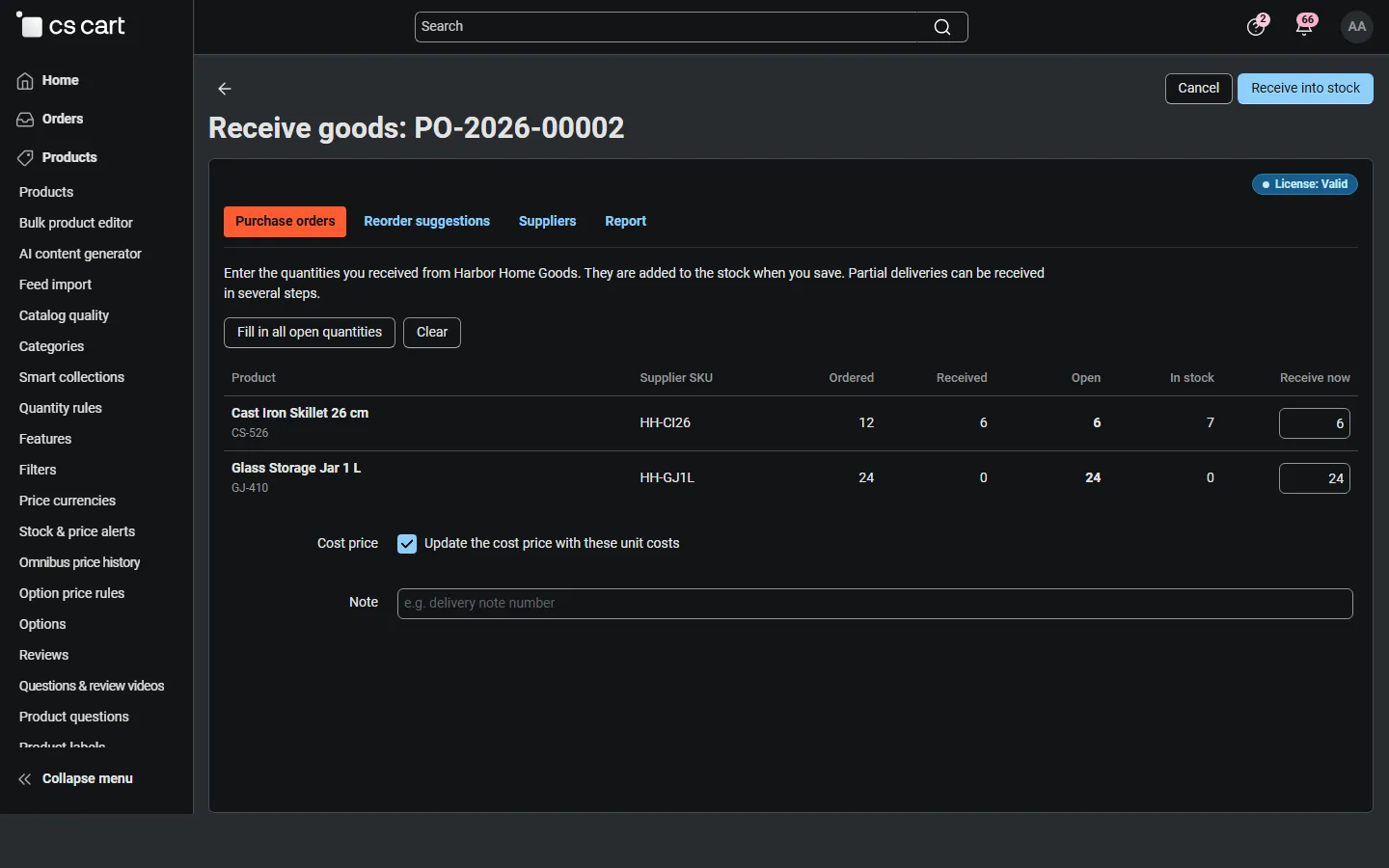
Section titled “Receiving”- Click Receive goods.
- Enter the quantities delivered (or Fill in all open quantities), an optional note such as the delivery note number, and whether to update the cost price.
- Click Receive into stock. The stock of each product goes up by the received quantity; the purchase order becomes Partially received or Received.
Receive the rest later in the same way. Every receipt is listed with the user, the note and the stock before and after. Products that do not track stock are logged without a stock change. Cancel purchase order closes it; quantities already received stay in stock.
Product list and editor
Section titled “Product list and editor”The product list shows +N on order under the quantity (with the next delivery date as a tooltip) and the margin against the last purchase cost. The product editor shows the quantity on order, the next delivery, the last and average cost, and the purchasing fields.
Report
Section titled “Report”The Report tab shows the open order value by supplier (in each supplier’s currency, totals in your primary currency), open and overdue purchase orders, the next delivery per supplier, and the goods received in the selected period. Export to CSV in the purchase order list exports one row per purchase order line with the current filters.
Storefront
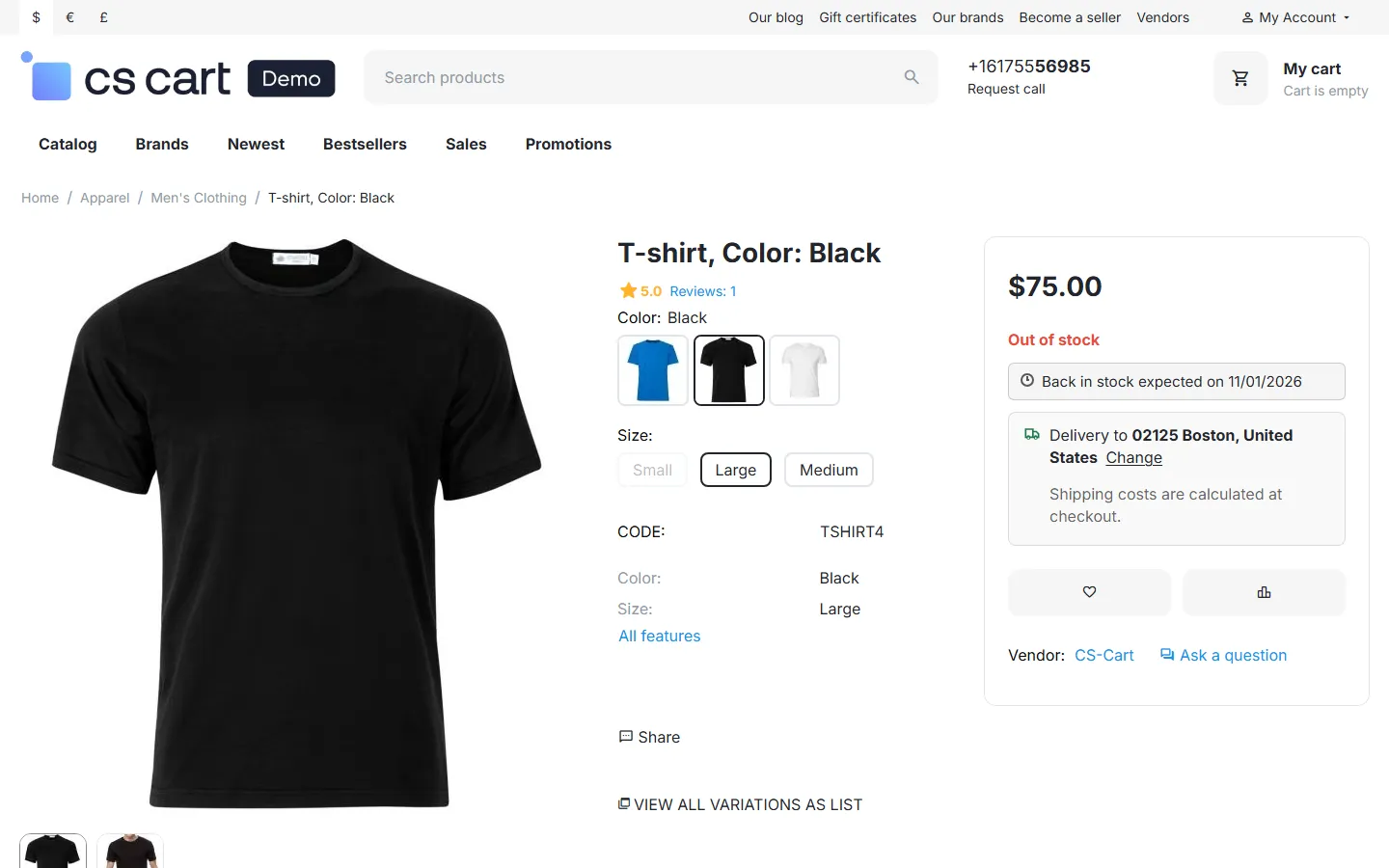
Section titled “Storefront”With Show expected delivery on product pages on, an out-of-stock product that is on an open purchase order shows “Back in stock expected on …” below the stock status.
Vendors (Multi-Vendor)
Section titled “Vendors (Multi-Vendor)”With Vendors manage purchase orders on, vendors find the same pages in their panel under Products → Purchase orders. They see and manage only their own suppliers and purchase orders, and can only order their own products. The administrator sees all purchase orders and can filter by vendor.