

Configuration
Open Add-ons → Manage add-ons → Shipping Goal Progress Bar → Settings.
Every setting can be overridden per storefront. In CS-Cart (Ultimate), select a store in the admin store picker. In Multi-Vendor with several storefronts, use the storefront switcher. The setting type is ROOT,STOREFRONT.
General → Goals
Section titled “General → Goals”| Setting | Default | Description |
|---|---|---|
| Free shipping goal source | Automatic | Automatic reads the threshold from your shipping rates and from cart promotions with a Free shipping bonus. The manual threshold is used only when nothing is detected for the cart. Manual threshold only always uses the threshold below. |
| Free shipping threshold | (empty) | Order amount in the primary currency from which shipping is free. Leave it empty to disable the manual goal. This value only drives the bar. Configure a shipping rate or promotion that actually makes shipping free from this amount. |
| Thresholds per currency | (empty) | Optional. One line per currency, with the amount in that currency, for example EUR=45 and GBP: 40. When the visitor uses that currency, this amount replaces the converted primary-currency threshold, so you can keep “round” amounts in every currency. |
| Compare the manual threshold with | Cart subtotal | Cart subtotal or Cart subtotal after order discounts. Applies to the manual threshold only. Automatic detection uses the same order cost as the shipping rate calculation. |
| Show promotion goals | On | Adds goals from active cart promotions that have a Subtotal is greater than (or equal to) condition. Coupon promotions and promotions with the Hidden status are never shown. |
| Upcoming goals shown on the bar | 3 | How many not-yet-reached goals are drawn as tiers on one bar (1–10). The message always names the nearest goal. |
| Multi-Vendor: free shipping is measured | Per vendor | (Multi-Vendor only.) Applies to the manual threshold. Per vendor: each vendor’s part of the cart is compared with the threshold, which matches how Multi-Vendor splits shipping. For the whole cart: the cart subtotal is compared, which suits marketplace-wide free-shipping promotions. Automatic detection always works per vendor. |
General → Behavior
Section titled “General → Behavior”| Setting | Default | Description |
|---|---|---|
| Show when the cart is empty | On | Shows an intro message such as “Free shipping on orders over $50”. |
| Hide when all goals are reached | Off | Hides the bar after the last goal is reached instead of showing the celebration state. |
General → Detected goals
Section titled “General → Detected goals”A read-only preview of what Automatic mode finds right now:
- Shipping methods with a free shipping threshold: manual-rate shipping methods and rate areas whose cost-based rate drops to 0 from a certain amount, with the amount. The preview uses a one-item, minimal-weight package. Weight-based or item-based ranges can shift the real threshold for a specific order.
- Cart promotions with a subtotal condition: active promotions with a “Subtotal” condition, their bonuses and the subtotal amount. Promotions that need a coupon are flagged as not shown on the bar.
Use the preview to check your setup before you go live.
Placements
Section titled “Placements”| Setting | Default | Where |
|---|---|---|
| Mini-cart | On | Top of the dropdown of the core Cart content block. |
| Cart page | On | Top of the totals box on checkout.cart. |
| Checkout (above shipping methods) | On | Above the shipping method list on the one-page checkout. |
| “Added to cart” popup | On | Inside the notification shown after Add to cart. |
| Product page (below the add to cart button) | Off | Below the product form on the product page. Loaded by AJAX, see Usage. |
| Sticky bar | Off | Top of the page (sticks while scrolling) or Bottom of the page (fixed). Not shown on the checkout and order confirmation pages. |
| Customers can close the sticky bar | On | Shows a close button. A closed bar stays hidden for the rest of the browser session (cookie kv_fspb_sticky_closed). |
For any other position, add the Shipping goal progress bar block in Block Manager (see Usage).
Appearance
Section titled “Appearance”| Setting | Default | Description |
|---|---|---|
| Progress color | (empty → #1f8a4c) |
Fill color of the bar and icon. |
| Goal reached color | (empty → #1f8a4c) |
Fill, border and icon color in the reached state. |
| Track (background) color | (empty → 9% black) | Color of the unfilled part. |
| Text color | (empty → inherit) | Leave empty to inherit the theme text color. |
| Sticky bar background | (empty → white) | Background of the sticky bar. |
| Show icons | On | Truck, gift, tag, star and check icons (inline SVG). |
| Animate progress | On | Smooth fill transition. Disabled automatically for visitors with prefers-reduced-motion. |
| Celebrate reached goals | On | A short “pop” and shine animation when the last goal is reached. |
Colors accept hex values only: #rgb, #rrggbb or #rrggbbaa. The leading # is optional. Invalid values are ignored, so the add-on never writes unchecked input into the page.
License
Section titled “License”The license status is shown in a License card at the top of the add-on page, above the tabs, so you see it on every tab. The License tab holds the key itself. The key is stored once for the whole installation (not per storefront).
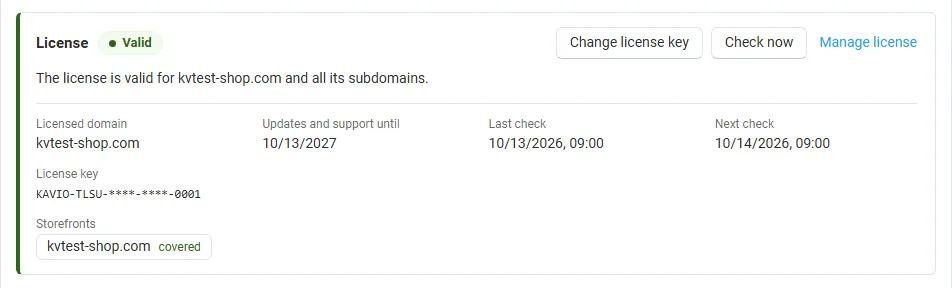
The License card shows:
- the status in color: green when valid, blue for a development host or the 14-day period before a key is required (with the days left), amber when the license server could not be reached (with the days left) or a Marketplace number is still being verified, red when the add-on is switched off;
- in plain words what the status means and, when the add-on is (or will be) switched off, what stops: the progress bar is hidden on the storefront, in every placement and block; cart and checkout keep working;
- the licensed domain, every storefront with its result (covered, development host, not covered), the end of the updates and support period, the last and the next check, and the key in use (masked);
- the actions Enter license key / Change license key (opens the License tab), Check now (verifies at once and stays on the page), Manage license (your licenses on cs-cart.kaviolabs.com) and, without a valid license, Buy a license.
In Add-ons → Manage add-ons the add-on’s row shows a small license badge next to its name, for example License: Valid or License: Pending · 9 days left.
| Setting | Description |
|---|---|
| License key | Your Kavio Labs license key (KAVIO-XXXX-XXXX-XXXX-XXXX, from My licenses on cs-cart.kaviolabs.com) or your CS-Cart Marketplace license number. If you entered the Marketplace license number in Add-ons → Manage add-ons (the add-on’s license field), leave this empty: the add-on uses that number. |
| License status | Points to the License card and explains what the check sends. |
What the license covers. A license is bound to the base domain you entered at purchase (for example example.com) and covers every subdomain of it (www.example.com, shop.example.com, staging.example.com). Local development hosts are always allowed: localhost, 127.0.0.1 and other private IP addresses, and host names ending in .localhost, .test, .local, .example or .invalid. A store on a different base domain needs its own license. If you move your store to a new domain, contact support.
When the add-on checks. When you save the key, and then once a day. The check runs only in the admin panel (on a page you open) or from cron, never while customers browse the storefront, and takes a few seconds at most. A cron job keeps the license verified even when nobody opens the admin panel:
php /path/to/store/admin.php --dispatch=kv_free_shipping_progress_bar_license.checkWhat is sent. The check sends this to https://cs-cart.kaviolabs.com and nothing else: the license key, the add-on ID and version, the host names of your storefronts, your CS-Cart version and edition, and a random one-time value. No customer, order or personal data is sent. The server answers with a digitally signed result, so a forged answer is ignored.
Statuses.
| Status (card) | Color | What happens |
|---|---|---|
| Valid | Green | The license is valid for this domain. Everything works. |
| Development host | Blue | The store runs on a local development host, which every license covers. Everything works. |
| Pending verification | Amber | A CS-Cart Marketplace license number was accepted, but the Marketplace has not confirmed it yet. Everything works. |
| Pending · N days left | Blue | No verified key yet (a new installation, or right after upgrading from 1.0.x). Everything works for 14 days. |
| Grace period · N days left | Amber | The last checks failed (for example a network problem). The add-on keeps working for 14 days after the first failed check. |
| Partly valid | Amber | (CS-Cart with several storefronts) Some storefronts run on another base domain. The progress bar is hidden on those storefronts only. |
| Not activated, Invalid key, Revoked, Domain mismatch, Not verified | Red | The progress bar is no longer shown on the storefront. Checkout, the cart and the rest of your store are not affected. Domain mismatch shows the licensed domain next to the domain your store runs on. |
When your updates and support period ends, the add-on keeps working. Only updates and support stop.
License information appears in the admin panel only, and only for administrators who may manage add-ons; vendors (Multi-Vendor) and customers never see it. When the add-on is switched off, other admin pages also show a notice once per session with a link to the add-on page; the add-on page itself shows the card instead.
All storefront texts are language variables. Edit them in Administration → Languages → Translations (4.18: Administration → Texts & languages) by searching for kv_free_shipping_progress_bar. (see Usage).