

Usage
Where customers find the form
Section titled “Where customers find the form”- The quick order page at
index.php?dispatch=kv_b2b_quick_order_form.view. Add it to your header or footer menu in Design → Menus (link type URL). With the SEO add-on you can give it a short address such as/quick-orderin Website → SEO → SEO rules. - The account menu: signed-in customers see a Quick order link (setting Show a “Quick order” link).
- The block (see below) on any page, for example the home page of a B2B store or a “Trade” landing page.
The block
Section titled “The block”In Design → Layouts, open the page (for example Homepage), click + in a grid, choose Create new block → Quick order form and save. The block shows the same form as the page. It prints the same markup for every visitor, so pages with the block stay cacheable; prices and customer data are loaded separately for each visitor.
Ordering
Section titled “Ordering”- Type a SKU or part of a product name. Suggestions show the image, SKU, vendor (Multi-Vendor), stock and price; use the arrow keys and Enter, or click. Typing an exact SKU and pressing Enter works without the list.
- Enter the quantity and press Enter: the next line opens (a new one at the end). Every line is checked as soon as the product or the quantity changes.
- Click Add all to cart (or press Ctrl + Enter). Lines that were added leave the form; lines that need attention stay with their message. A summary says how many lines and items were added, with a View cart button. The cart widget in the header updates.
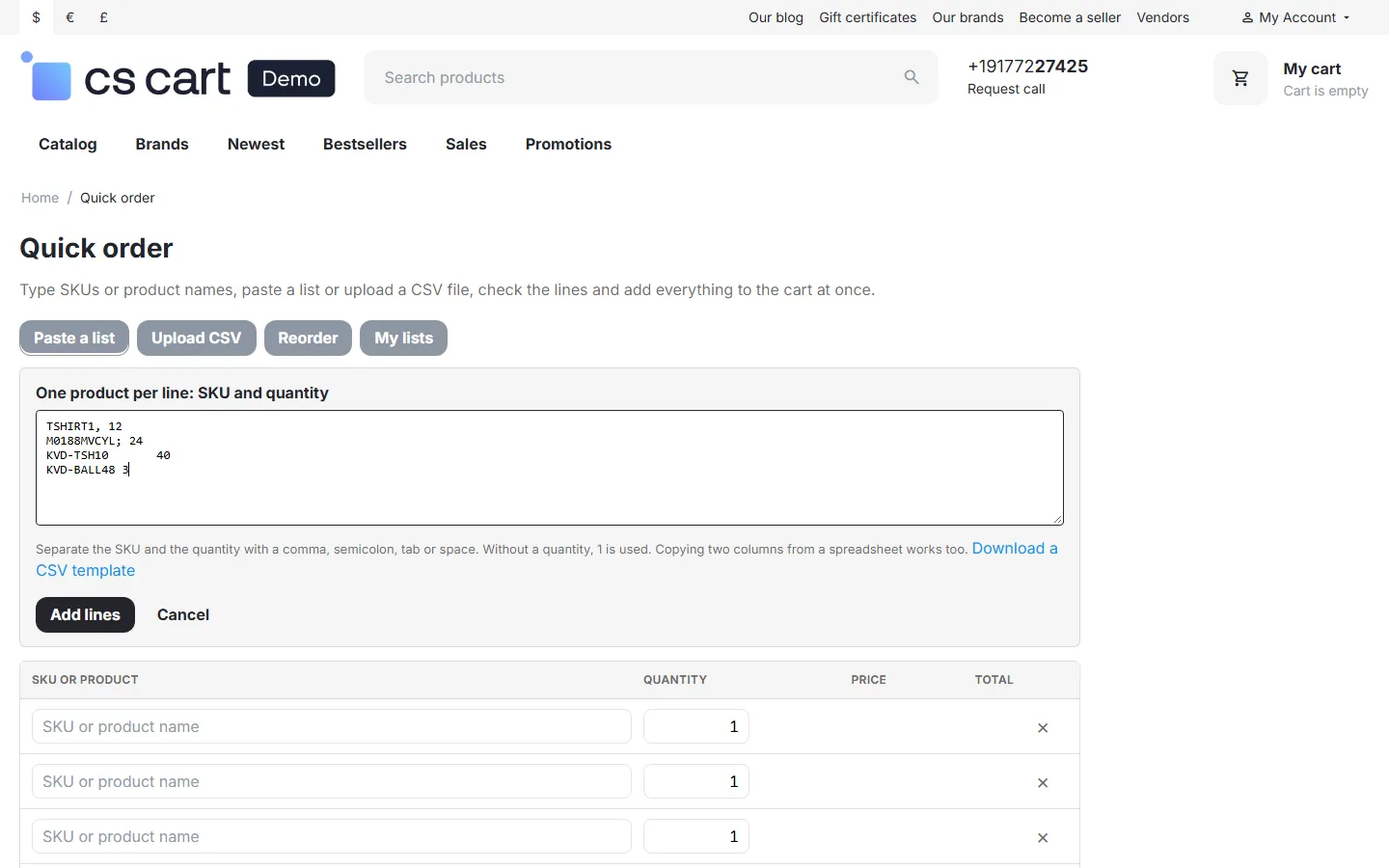
Paste a list. Click Paste a list and paste lines like ABC-100, 12. Comma, semicolon, tab and spaces all work, so two columns copied from a spreadsheet go straight in. Without a quantity, 1 is used; a header row (sku,qty) is skipped. Pasting several lines into a SKU field does the same.
Upload CSV. Click Upload CSV and choose a .csv or .txt file with the SKU in the first column and the quantity in the last one (up to 2 MB). The file is read in the customer’s browser and never stored on your server. Download a CSV template gives a file with the current lines (or two sample lines).
What the line checks mean
Section titled “What the line checks mean”| Message | Why |
|---|---|
| SKU “…” not found. | No active product has this exact SKU (letter case does not matter). |
| This product is not available to order. | The product exists but this customer may not see or buy it (user group, storefront, vendor not active). |
| Minimum order quantity is 6. / Sold in multiples of 6. / Maximum order quantity is 60. | The product’s quantity rules. Depending on your setting, the quantity is corrected (amber line) or the line waits for the customer (red line). |
| Quantity reduced to the stock available. / Not enough stock: only 4 left. / Out of stock. | Stock, counting what is already in the cart. Products that allow pre-orders show Pre-order: ships when back in stock. and are added. |
| Choose the options on the product page. | The product has a required option (text, checkbox, file) or your setting sends every product with options to its page. The Open product link opens it. |
| This product cannot be ordered online. | Zero price that CS-Cart does not allow to buy. |
| Added to the line above with the same product. | The same product twice: the quantities are combined in the first line. |
Prices are the customer’s own: user-group prices, quantity tiers (shown as “from 10: $15.00”), catalog promotions and price lists of other add-ons are calculated by CS-Cart exactly as in the cart. The estimated total is a guide; final prices, taxes, shipping and cart promotions are calculated in the cart.
Reorder
Section titled “Reorder”Signed-in customers click Reorder, see their recent orders (date, number of products, total) and click Load: the products of that order fill the form with the ordered quantities and are checked at once. Products that are no longer sold show a message; product options of the old order are not copied (products with required options link to their page).
Saved order lists
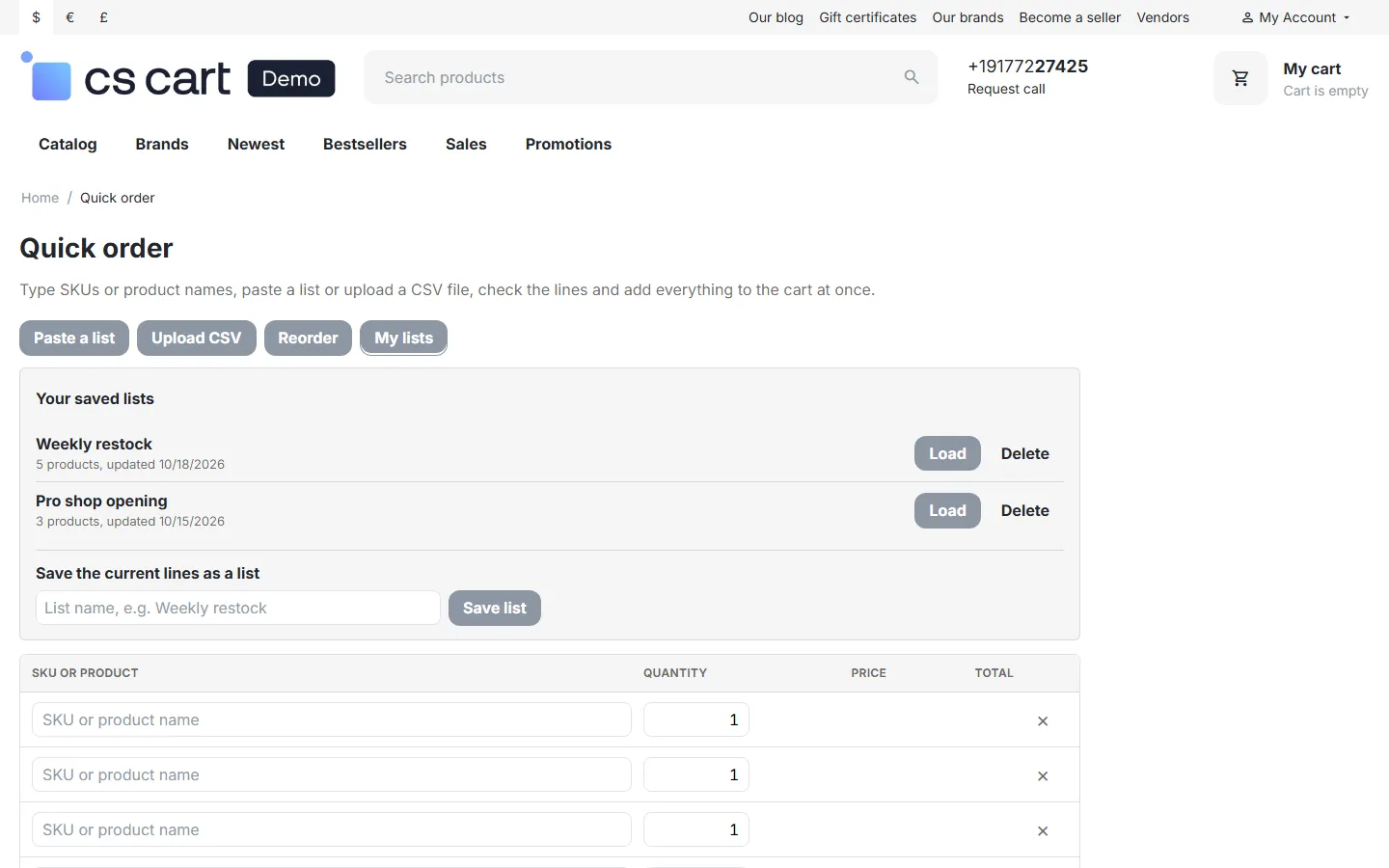
Section titled “Saved order lists”Signed-in customers click My lists:
- Save list: saves the current lines under a name, for example Weekly restock.
- Load: fills the form with the list and checks every line.
- Update “…”: after loading a list, saves the changed lines back into it.
- Delete: removes the list.
Lists belong to the customer (and, on CS-Cart Ultimate, to the storefront) and are deleted together with the customer account.
Who can use it
Section titled “Who can use it”With Who can use the form set to Customers in selected user groups, only those groups see the form. Other signed-in customers see a short message; guests see a Sign in button. When our B2B Registration & Approval add-on is active, the message links to the trade account application, so a new trade customer goes from application to approval to quick ordering without your help.
Multi-Vendor
Section titled “Multi-Vendor”The form searches the products of all vendors and shows the vendor of each product. If several vendors sell the same SKU, the form takes the vendor that has it in stock at the lowest price for this customer. Common products (Master products add-on) are bought from their best vendor offer the same way. The cart splits the order by vendor at checkout as usual. The vendor panel is not changed.
CS-Cart Ultimate
Section titled “CS-Cart Ultimate”Settings, saved lists and orders for Reorder are per storefront. Each storefront offers only its own products.
Using it with the Forge theme
Section titled “Using it with the Forge theme”Our Forge theme has its own Quick order pad on the home page. Both work side by side: they use different code and addresses. The Forge header link Quick order keeps scrolling to the theme’s pad; to send it to this add-on’s page instead, link the header menu to the quick order page.