

Configuration
Setup takes four steps:
- Get your iyzico API keys.
- Create a payment method with the iyzico processor.
- Optionally, register the webhook URL in the iyzico panel.
- Review the add-on settings.
1. Get your iyzico API keys
Section titled “1. Get your iyzico API keys”Sandbox (testing)
Section titled “Sandbox (testing)”- Sign up for a free account in the iyzico sandbox merchant panel (
sandbox-merchant.iyzipay.com). No contract is needed. - In the sandbox panel, open Settings → Company Settings (Ayarlar → Firma Ayarları).
- Copy the API Key and the Secret Key. Sandbox keys start with
sandbox-.
- Apply for an iyzico merchant account at iyzico.com and complete onboarding. iyzico reviews your store and your documents.
- Once you are approved, open the merchant panel (
merchant.iyzipay.com) → Settings → Company Settings. - Copy the live API Key and Secret Key.
Things iyzico enables on your account
Section titled “Things iyzico enables on your account”These settings live in iyzico, not in CS-Cart. Ask iyzico support if one is missing:
| Feature | Where |
|---|---|
| Installments and who pays the installment interest | iyzico merchant panel, installment settings, or through your iyzico account manager |
| Foreign currency (USD, EUR, GBP) payments | Enabled by iyzico on request |
| Pay with iyzico | Enabled by default for Checkout Form merchants |
| Marketplace (sub-merchants, split payments) | Requires an iyzico Marketplace agreement |
| Merchant notifications (webhooks) | Merchant panel → Settings → Merchant Notifications |
2. Create the payment method
Section titled “2. Create the payment method”Administration → Payment methods → +:
- Name: for example Credit card (iyzico).
- Processor: iyzico. The configuration tab appears.
- Template, Payment category, User groups, Surcharge: work as for any payment method. The surcharge is sent to iyzico as a basket item.
- Fill in the Configure tab (below) and click Create.
- Open the method again and click Test connection. The add-on sends an installment query with the keys of the selected mode.
To offer the Pay with iyzico wallet next to card payments, create a second payment method with the same keys and set Integration to Pay with iyzico.
On CS-Cart (Ultimate) with several storefronts, create the payment method per storefront (or share it). Each method has its own keys, so storefronts can use different iyzico accounts.
Configure tab
Section titled “Configure tab”API credentials
| Option | Description |
|---|---|
| Mode | Sandbox sends requests to sandbox-api.iyzipay.com, Live to api.iyzipay.com. |
| Sandbox API key / secret key | Keys from the sandbox panel. |
| Live API key / secret key | Keys from the live merchant panel. Both pairs are stored, so you can switch the mode without retyping them. |
Checkout
| Option | Default | Description |
|---|---|---|
| Integration | Checkout Form | Checkout Form: card payment with 3D Secure. Pay with iyzico: the iyzico wallet page. |
| Checkout Form display | Embedded | Embedded (responsive): the iyzico form is part of a store page. Popup: the form opens over the store page. iframe: the iyzico hosted page is shown inside a store page. Redirect: the customer goes to the iyzico page. All four use iyzico’s form, so card data never reaches your server. |
| Always use 3D Secure | Yes | Sends forceThreeDS. Turn it off only if iyzico allows non-3DS payments on your account. |
| Charge currency | Store primary currency | Store primary currency: the order total is charged in the primary currency. Customer’s selected currency: charges in the currency the customer selected, when it is TRY, USD, EUR or GBP. Amounts are converted with your store currency rates. When no supported currency is available, the method is hidden at checkout. |
| iyzico form language | Customer language | Follows the language of the storefront visitor when iyzico offers it, English otherwise. You can also force one language. |
Installments
| Option | Default | Description |
|---|---|---|
| Allowed installments | none checked (all) | The installment counts the form may offer (enabledInstallments). When none is checked, every count enabled on your iyzico account is allowed. The bank and card still decide what is actually available. |
| Show installment table at checkout | Yes | Shows a collapsible table under the payment method: one row per card family, with the monthly and total amount per installment count for the current cart total. The data comes live from the iyzico installment API and is cached for 10 minutes per cart total. |
| Add installment interest to the order total | No | When the customer pays installment interest, the charged amount is higher than the order total. When this is on, the difference is added to the order as a payment surcharge, so the order total equals the amount charged. On Multi-Vendor, only the parent order total changes; vendor orders keep their totals. |
Buyer identity (TCKN)
iyzico requires an identity number for every buyer.
| Option | Description |
|---|---|
| Source | Always send the default value, or Profile field, default value when empty. |
| Profile field | A text field you created in Settings → Profile fields, for example “T.C. Kimlik No”. Values with 5 to 20 letters or digits are sent; anything else falls back to the default. |
| Default identity number | 11111111111, which iyzico accepts for buyers who don’t provide a number. |
Order statuses
| Option | Default |
|---|---|
| Order status after a successful payment | Processed (P) |
| Order status while iyzico fraud review is pending | Open (O). The money is captured, but iyzico is still reviewing the payment (fraudStatus = 0). |
| Order status after a failed payment | Failed (F) |
Notification URL
This shows the webhook URL. See step 3.
3. Register the webhook (recommended)
Section titled “3. Register the webhook (recommended)”Normally the customer returns from the payment form to the callback URL, which the add-on sends with every payment, and the order is completed there. If the customer closes the browser after paying, only a webhook tells the store about the payment.
- Copy the URL from Add-ons → iyzico Payments → Settings → General → Webhook URL:
https://your-store.com/index.php?dispatch=payment_notification.webhook&payment=kv_iyzico_payments - In the iyzico merchant panel, open Settings → Merchant Notifications, enter the URL and enable notifications for Checkout Form / Pay with iyzico payments.
The add-on checks the X-Iyz-Signature-V3 header with your secret key, and then fetches the result from the iyzico API before it changes the order. Webhooks and callbacks can arrive in any order and any number of times; each payment is processed exactly once.
Without a webhook, an unfinished payment can be checked at any time: open the order, go to the iyzico tab and click Check payment status at iyzico.
4. Add-on settings
Section titled “4. Add-on settings”Add-ons → iyzico Payments → Settings.
General
Section titled “General”| Setting | Default | Description |
|---|---|---|
| Webhook URL | (info) | The URL for step 3. |
| Order status after a full refund | Do not change | Applied when the whole paid amount of an order has been refunded from the iyzico tab. |
| Order status after a cancel | Canceled (I) | Applied after a successful same-day cancel. |
| Log API requests and responses | No | Adds the full, masked request and response of every iyzico call to Administration → Logs. Errors and payment events are always logged. Turn it on to troubleshoot, then off again. |
Which events are logged is set in Settings → Logging → iyzico (Errors, Warnings, Payment events).
Marketplace (Multi-Vendor only)
Section titled “Marketplace (Multi-Vendor only)”| Setting | Default | Description |
|---|---|---|
| Enable iyzico Marketplace mode | No | Splits payments with sub-merchants. See Usage → Multi-Vendor marketplace mode. Ignored when the Direct Customer-to-Vendor Payments add-on is active. |
| Use API credentials of | First active iyzico payment method | The payment method whose keys and mode are used to create and update sub-merchants. |
| Sub-merchant external ID prefix | vendor- |
subMerchantExternalId = prefix + vendor ID. Change it only before the first vendor is synced. Use different prefixes when several stores share one iyzico account. |
| Send vendor data to iyzico on save | Yes | When a vendor profile with iyzico data is saved, the sub-merchant is created or updated right away. |
| Require admin approval for vendor payout detail changes | Yes, always (recommended) | Yes, always: when a vendor changes their own IBAN, business type, identity number, tax office, tax number, legal company title, contact name or mobile number (including the first registration), the change waits for you in Vendors → iyzico payout changes. The current details stay active at iyzico until you approve it. Only when Vendor data premoderation checks vendor profile changes: approval is needed only while that add-on is active and its Approval of vendor profile updates is All vendors, or Custom for vendors with pre-moderation turned on. No: vendor changes apply and are sent to iyzico immediately (not recommended: a stolen vendor password could redirect payouts). Changes you make as an administrator always apply immediately. The vendor status never changes because of this data. See Usage → Payout detail changes. |
| Approve vendor items automatically | No | iyzico holds the vendor share until each item is approved. When on, items are approved when the vendor order reaches one of the statuses below. |
| Approve when the vendor order status becomes | Complete | One or more order statuses. |
| Status | (info) | How many active vendors have a sub-merchant, and whether credentials are configured. |
License
Section titled “License”The license status is shown in a License card at the top of the add-on page, above the tabs, so you see it on every tab. The License tab holds the key itself. The key is stored once for the whole installation (not per storefront).
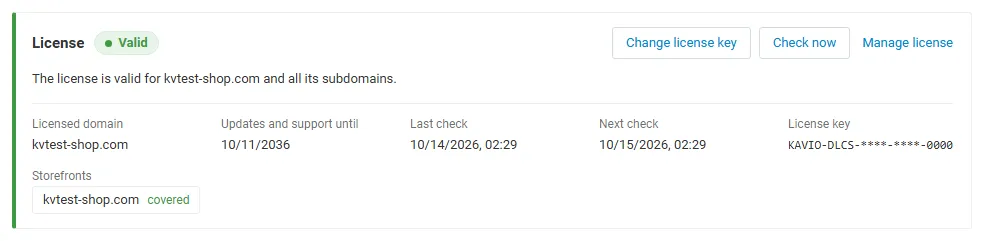
The License card shows:
- the status in color: green when valid, blue for a development host or the 14-day period before a key is required (with the days left), amber when the license server could not be reached (with the days left) or a Marketplace number is still being verified, red when the add-on is switched off;
- in plain words what the status means and, when the add-on is (or will be) switched off, what stops: iyzico is no longer offered at checkout; payments that have already started, callbacks, webhooks, refunds, cancels and marketplace approvals of existing orders keep working;
- the licensed domain, every storefront with its result (covered, development host, not covered), the end of the updates and support period, the last and the next check, and the key in use (masked);
- the actions Enter license key / Change license key (opens the License tab), Check now (verifies at once and stays on the page), Manage license (your licenses on cs-cart.kaviolabs.com) and, without a valid license, Buy a license.
In Add-ons → Manage add-ons the add-on’s row shows a small license badge next to its name, for example License: Valid or License: Pending · 9 days left. The add-on’s own admin pages show the same status in a small bar at the top.
| Setting | Description |
|---|---|
| License key | Your Kavio Labs license key (KAVIO-XXXX-XXXX-XXXX-XXXX, from My licenses on cs-cart.kaviolabs.com) or your CS-Cart Marketplace license number. If you entered the Marketplace license number in Add-ons → Manage add-ons (the add-on’s license field), leave this empty: the add-on uses that number. |
| License status | Points to the License card and explains what the check sends. |
What the license covers. A license is bound to the base domain you entered at purchase (for example example.com) and covers every subdomain of it (www.example.com, shop.example.com, staging.example.com). Local development hosts are always allowed: localhost, 127.0.0.1 and other private IP addresses, and host names ending in .localhost, .test, .local, .example or .invalid. A store on a different base domain needs its own license. If you move your store to a new domain, contact support.
When the add-on checks. When you save the key, and then once a day. The check runs only in the admin panel (on a page you open) or from cron, never while customers browse the storefront, and takes a few seconds at most. A cron job keeps the license verified even when nobody opens the admin panel:
php /path/to/store/admin.php --dispatch=kv_iyzico_payments_license.checkWhat is sent. The check sends this to https://cs-cart.kaviolabs.com and nothing else: the license key, the add-on ID and version, the host names of your storefronts, your CS-Cart version and edition, and a random one-time value. No customer, order or personal data is sent. The server answers with a digitally signed result, so a forged answer is ignored.
Statuses.
| Status (card) | Color | What happens |
|---|---|---|
| Valid | Green | The license is valid for this domain. Everything works. |
| Development host | Blue | The store runs on a local development host, which every license covers. Everything works. |
| Pending verification | Amber | A CS-Cart Marketplace license number was accepted, but the Marketplace has not confirmed it yet. Everything works. |
| Pending · N days left | Blue | No verified key yet (a new installation, or right after upgrading from 1.0.x). Everything works for 14 days. |
| Grace period · N days left | Amber | The last checks failed (for example a network problem). The add-on keeps working for 14 days after the first failed check. |
| Partly valid | Amber | (CS-Cart with several storefronts) Some storefronts run on another base domain. The iyzico payment methods are hidden at checkout on those storefronts only. |
| Not activated, Invalid key, Revoked, Domain mismatch, Not verified | Red | The iyzico payment methods are no longer offered at checkout. Payments that have already started still complete, and existing orders are not affected: the payment page, callbacks and webhooks, the iyzico order tab (refunds, cancels, status checks), marketplace item approvals and vendor sub-merchant data keep working. Domain mismatch shows the licensed domain next to the domain your store runs on. |
When your updates and support period ends, the add-on keeps working. Only updates and support stop.
License information appears in the admin panel only, and only for administrators who may manage add-ons; vendors (Multi-Vendor) and customers never see it. When the add-on is switched off, other admin pages also show a notice once per session with a link to the add-on page; the add-on page itself shows the card instead.