

Configuration
Open Add-ons → Manage add-ons → Invoices & Credit Notes → Settings. On CS-Cart (Ultimate) every storefront has its own settings: select the storefront at the top of the admin panel before you change them.
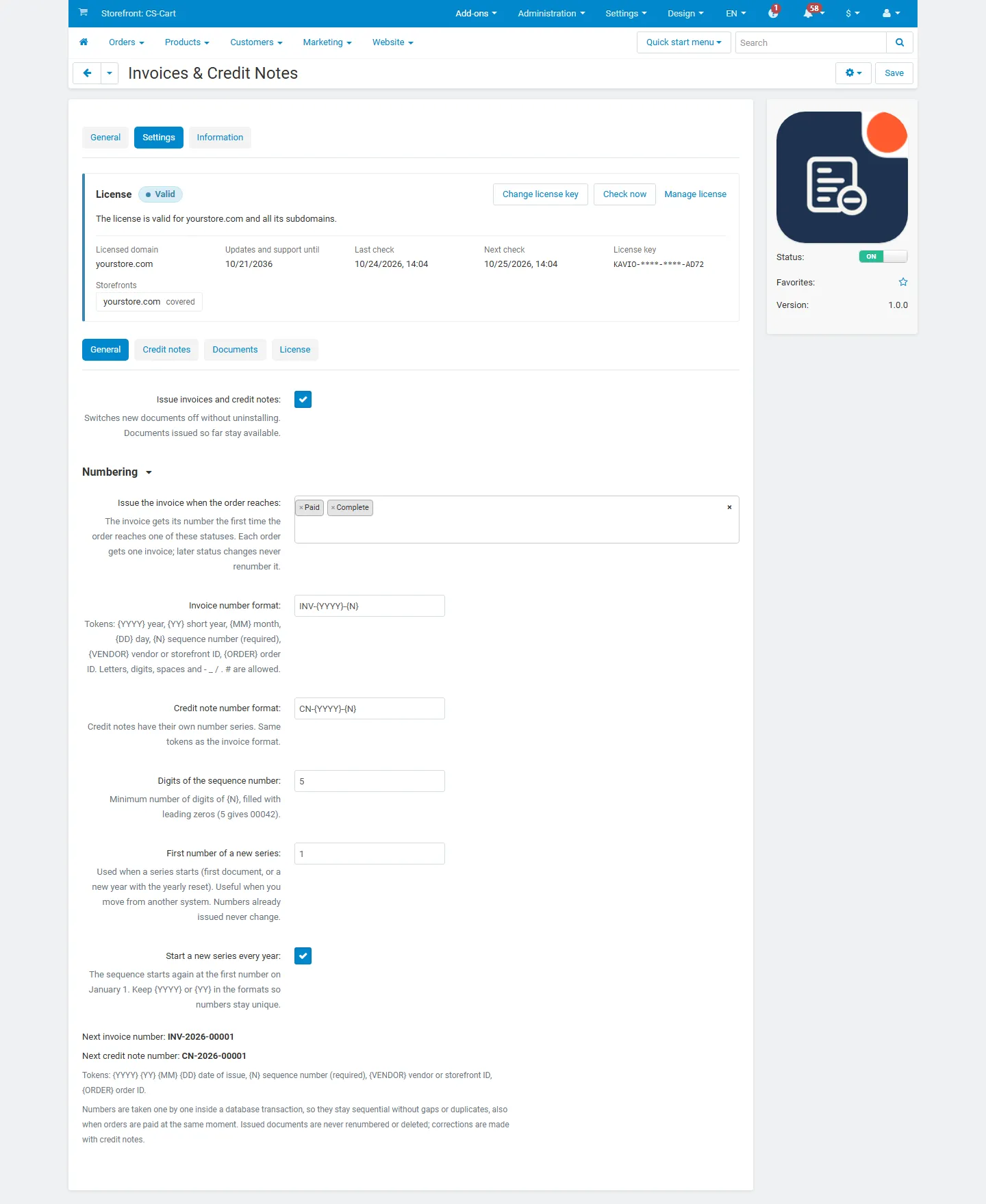
General
Section titled “General”| Setting | Default | Description |
|---|---|---|
| Issue invoices and credit notes | On | Switches new documents off without uninstalling. Documents issued so far stay available. |
| Issue the invoice when the order reaches | Paid, Complete | The invoice gets its number the first time the order reaches one of these statuses. Each order gets one invoice. |
| Invoice number format | INV-{YYYY}-{N} |
See the tokens below. |
| Credit note number format | CN-{YYYY}-{N} |
Credit notes have their own series. |
| Digits of the sequence number | 5 | {N} is filled with leading zeros: 5 gives 00042. |
| First number of a new series | 1 | Used when a series starts, for example to continue the numbers of your previous system. |
| Start a new series every year | On | The sequence starts again on January 1. Keep {YYYY} or {YY} in the formats so numbers stay unique. |
| Numbering and seller on invoices (Multi-Vendor) | Per vendor | Per vendor: every vendor issues its own invoices with its own series and company details. Marketplace: one series for all orders, issued by the marketplace company, with a “Sold by” line for the vendor. |
| Next numbers | – | Shows the next invoice and credit note number of the current series. Nothing is reserved. |
Format tokens
| Token | Value |
|---|---|
{YYYY} / {YY} |
Year of issue (2026 / 26) |
{MM} / {DD} |
Month / day of issue |
{N} |
Sequence number, required |
{VENDOR} |
Vendor ID (Multi-Vendor) or storefront ID (CS-Cart) |
{ORDER} |
Order ID |
Letters, digits, spaces and - _ / . # are allowed. Examples: INV-{YYYY}-{N} → INV-2026-00042, {YY}{MM}/{N} → 2603/00042, S{VENDOR}-{N} → S12-00042.
A changed format applies to the next number; numbers already issued never change. When you change the format in the middle of a year, the sequence continues (the series depends on the storefront or vendor and the year, not on the format).
Credit notes
Section titled “Credit notes”| Setting | Default | Description |
|---|---|---|
| Credit the open amount when the order reaches | Canceled | When an invoiced order moves to one of these statuses, a credit note for the amount not credited yet is issued. Credit notes from earlier refunds are taken into account. |
| Credit returned items when a return reaches | Completed | With the core RMA add-on: a return with a refund action that reaches one of these return statuses gets a credit note for its accepted items. |
| Credit refunds to the customer wallet | On | With the Customer Wallet & Store Credit add-on: a refund to the wallet for an order gets a credit note for that amount (never more than the open amount). |
| Vendors may issue credit notes (Multi-Vendor) | On | Vendors can issue credit notes for their own invoices (numbering per vendor only). |
| E-mail credit notes from returns and refunds to the customer | On | Sends the Invoice or credit note e-mail. Credit notes from a status change ride on that status e-mail instead. |
Documents
Section titled “Documents”| Setting | Default | Description |
|---|---|---|
| Seller tax ID | – | Printed in the seller block when the company details have no tax ID. With EU VAT Validation installed, its “Store VAT number” is used. On Multi-Vendor the vendor’s tax number (vendor profile) is used. |
| Notes printed on documents | – | For example payment terms or bank details. |
| Footer text | – | For example the company registration details. |
| Customers can open their documents | On | Shows invoice and credit note links on the customer’s order page. |
| Add documents to customer e-mails | On | A document issued during a status change is added to that status e-mail: as a PDF when the PDF documents add-on is active, otherwise as a link. |
| Output | – | Shows whether PDF files are available, whether VAT numbers come from EU VAT Validation, and links to the two document templates. |
Texts are copied into each document when it is issued. Changing them later affects new documents only.
Multi-Vendor
Section titled “Multi-Vendor”- Per vendor (default): each vendor’s orders are invoiced in the vendor’s name, from the vendor’s own series. A marketplace order with several vendors gets one invoice per vendor order.
- Marketplace: all invoices come from one series in the marketplace’s name; the vendor appears as “Sold by”.
- Vendors open Orders → Invoices and Orders → Credit notes in the vendor panel and see only their own documents. Under Invoices → Invoice settings they set their own number formats, tax ID, notes and footer (per vendor numbering only). Empty fields use the marketplace settings.
- The tool for existing orders is for the marketplace administrator only.
License
Section titled “License”The license status is shown in a License card at the top of the add-on page, above the tabs, so you see it on every tab. The License tab holds the key itself. The key is stored once for the whole installation.
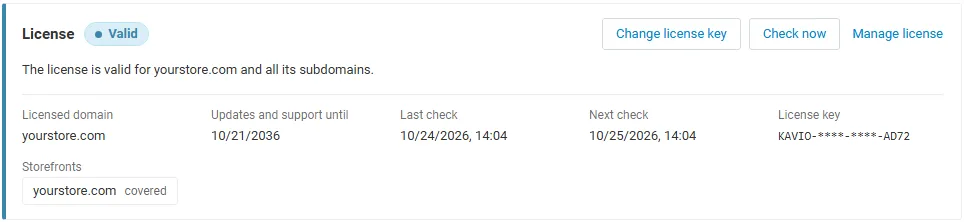
The License card shows:
- the status in color: green when valid, blue for a development host or the 14-day period before a key is required (with the days left), amber when the license server could not be reached (with the days left) or a Marketplace number is still being verified, red when the add-on is switched off;
- in plain words what the status means and, when the add-on is (or will be) switched off, what stops: no new invoice or credit note numbers are issued and nothing is attached to e-mails; invoices and credit notes issued so far stay viewable, printable and downloadable for you, your vendors and your customers;
- the licensed domain, every storefront with its result (covered, development host, not covered), the end of the updates and support period, the last and the next check, and the key in use (masked);
- the actions Enter license key / Change license key (opens the License tab), Check now (verifies at once and stays on the page), Manage license (your licenses on cs-cart.kaviolabs.com) and, without a valid license, Buy a license.
The check runs only in the admin panel and from cron (php admin.php --dispatch=kv_invoice_builder_license.check), never on the storefront.