Usage
The e-mail log
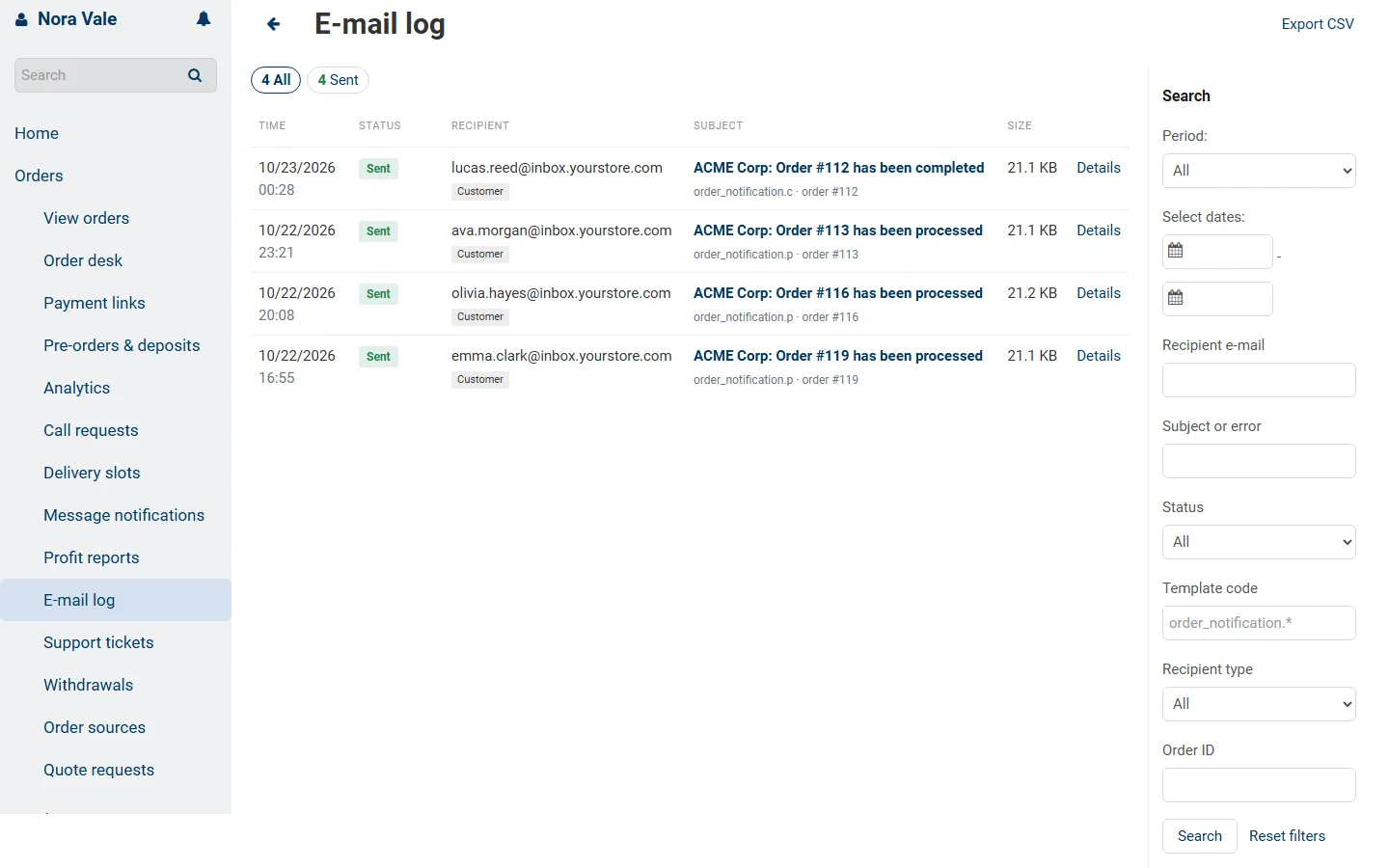
Section titled “The e-mail log”Open Administration > E-mail log. The newest e-mails come first. Each row shows the time, the status, the first recipient (and how many more), the recipient type, the subject, the template, the order and the error of failed e-mails.
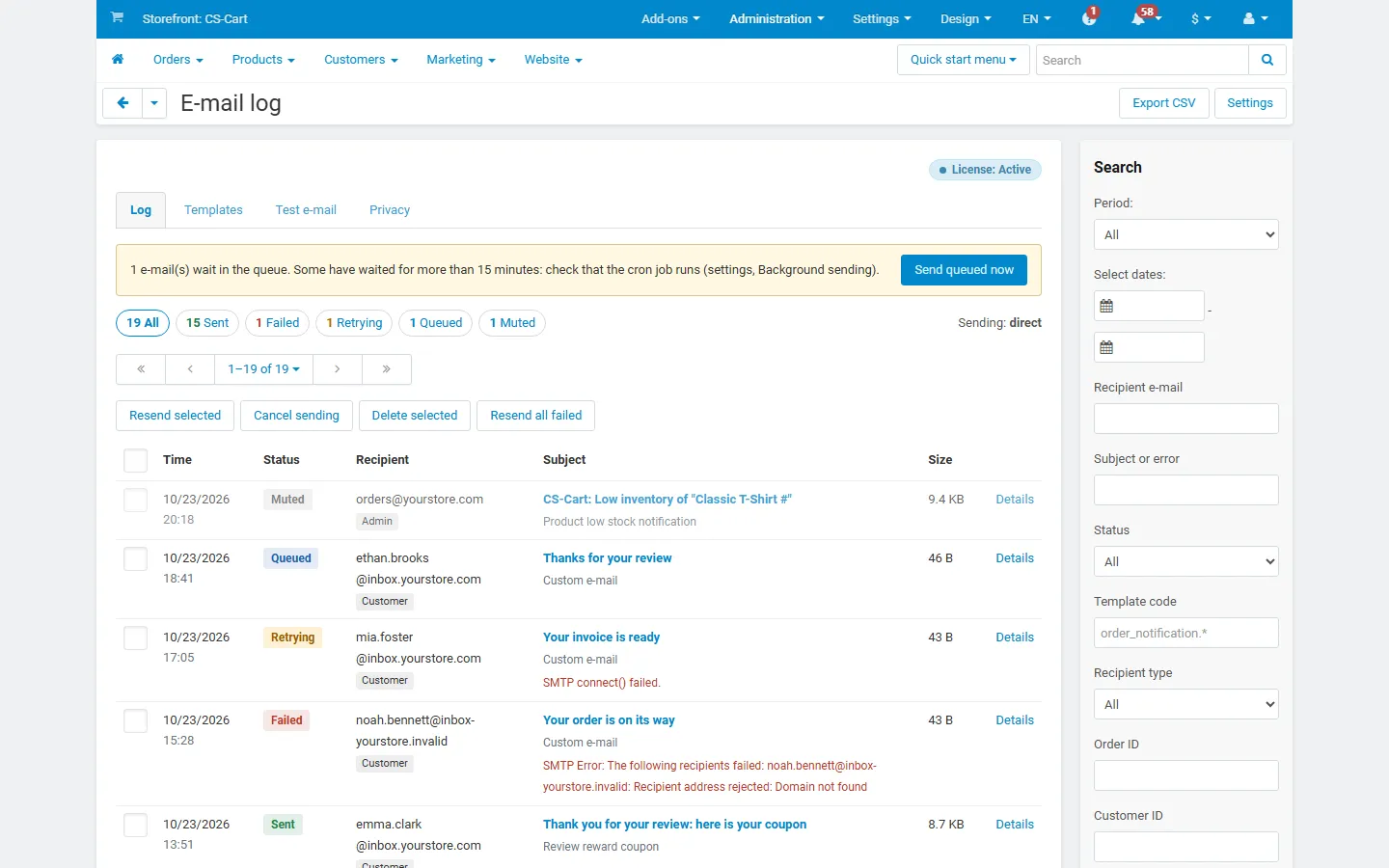
- Status counts at the top filter the list: Sent, Failed, Retrying, Queued, Muted.
- Search in the sidebar: period, recipient e-mail (exact, or with
*), subject or error text, status, template code (order_notification.*), recipient type, order ID, customer ID, vendor or storefront, and origin (store, resend, test). - Bulk actions: select entries and click Resend selected, Cancel sending (queued or retrying e-mails) or Delete selected. Resend all failed queues every failed e-mail of the current filter (up to 500) and sends them right away within the rate limit.
- Export CSV downloads the filtered list (without messages).
- Maintenance in the sidebar deletes entries older than a number of days.
- When e-mails wait in the queue, a notice shows how many and offers Send queued now. It turns yellow when some have waited for more than 15 minutes, which usually means the cron job does not run.
E-mail details
Section titled “E-mail details”Click a subject or Details.
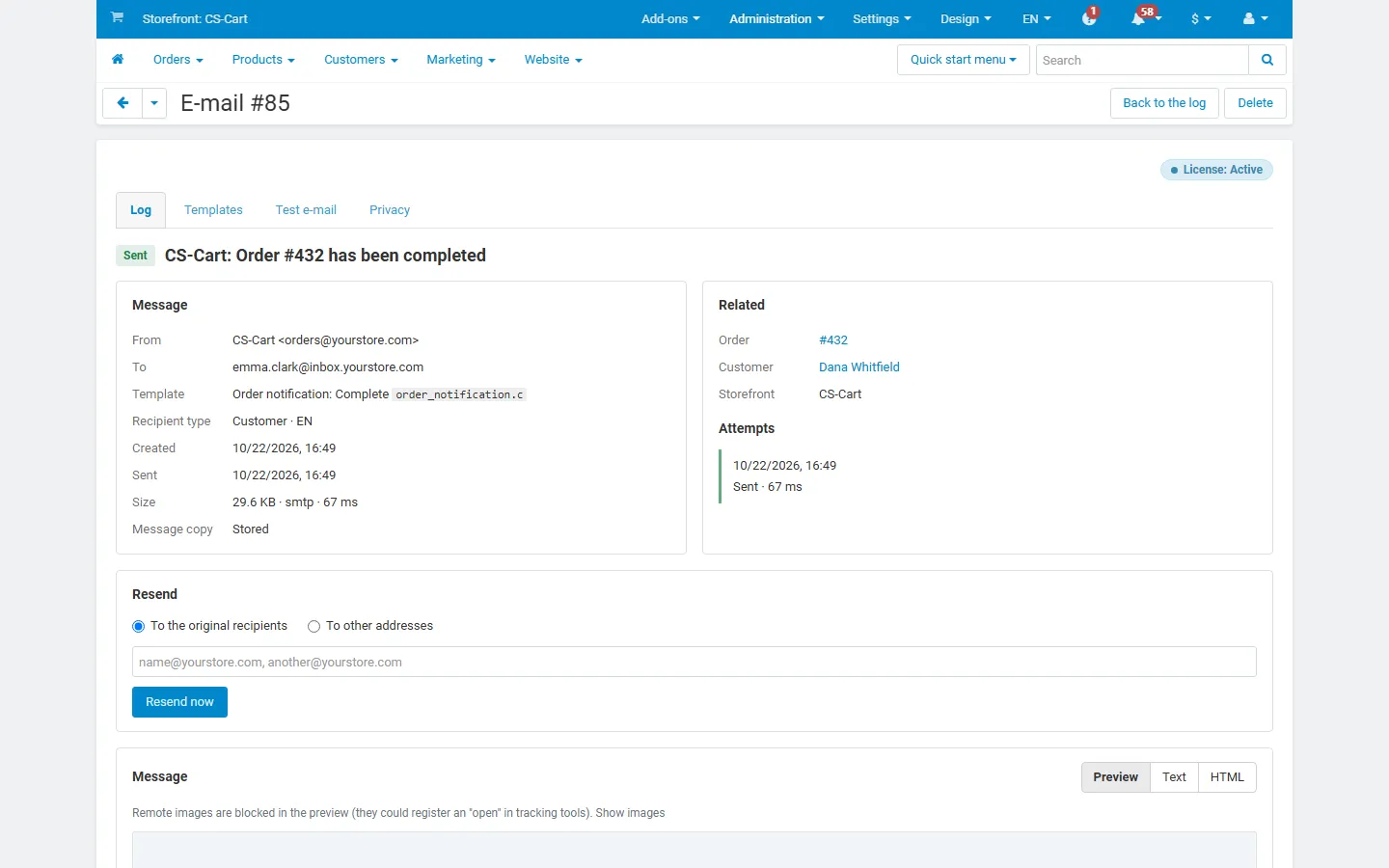
- Message: from, to, CC, BCC, reply-to, template (name and code), recipient type and language, created and sent time, size, transport and duration, and whether the message is stored.
- Related: the order, the customer, the vendor or storefront, and links between an e-mail and its resends.
- Attachments: name, size and type; stored copies can be downloaded.
- Attempts: every try with time, result, duration and error. Retrying e-mails show the next attempt.
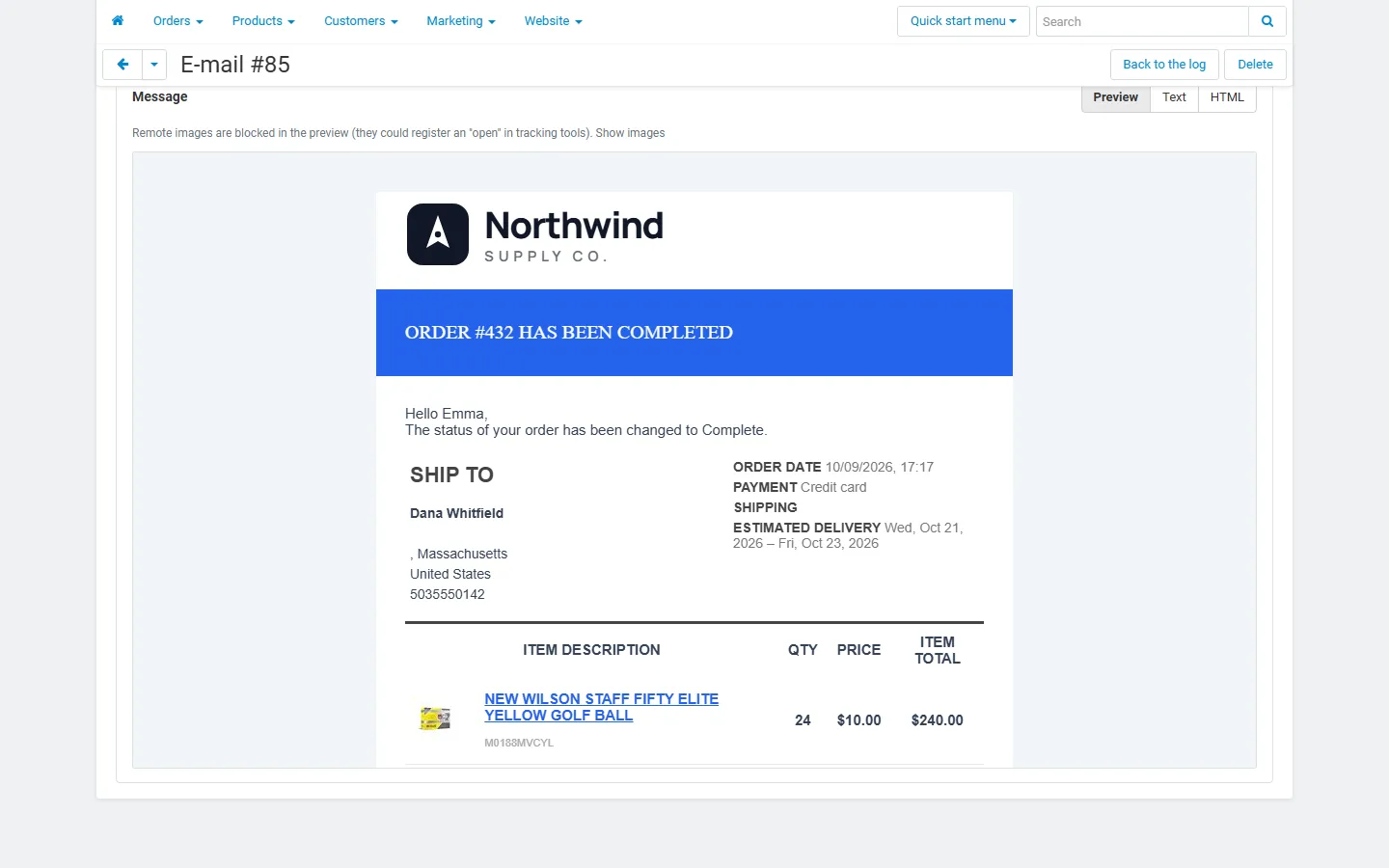
- Message: Preview shows the e-mail as sent, in a sandboxed frame without scripts. Embedded images (the logo, product images) are shown; remote images are blocked until you click Show images, so tracking pixels (for example the open tracking of review requests) do not count your look as an open. Text shows a plain-text version, HTML the source.
Resend
Section titled “Resend”Choose To the original recipients or To other addresses (comma-separated) and click Resend now. The e-mail is sent at once with the store’s transport and logged as a new entry linked to the original. Attachments are included when their copies were kept (setting Keep copies of attachments) or the original file still exists; otherwise you get a notice. E-mails without a stored message cannot be resent.
Failed and retrying e-mails
Section titled “Failed and retrying e-mails”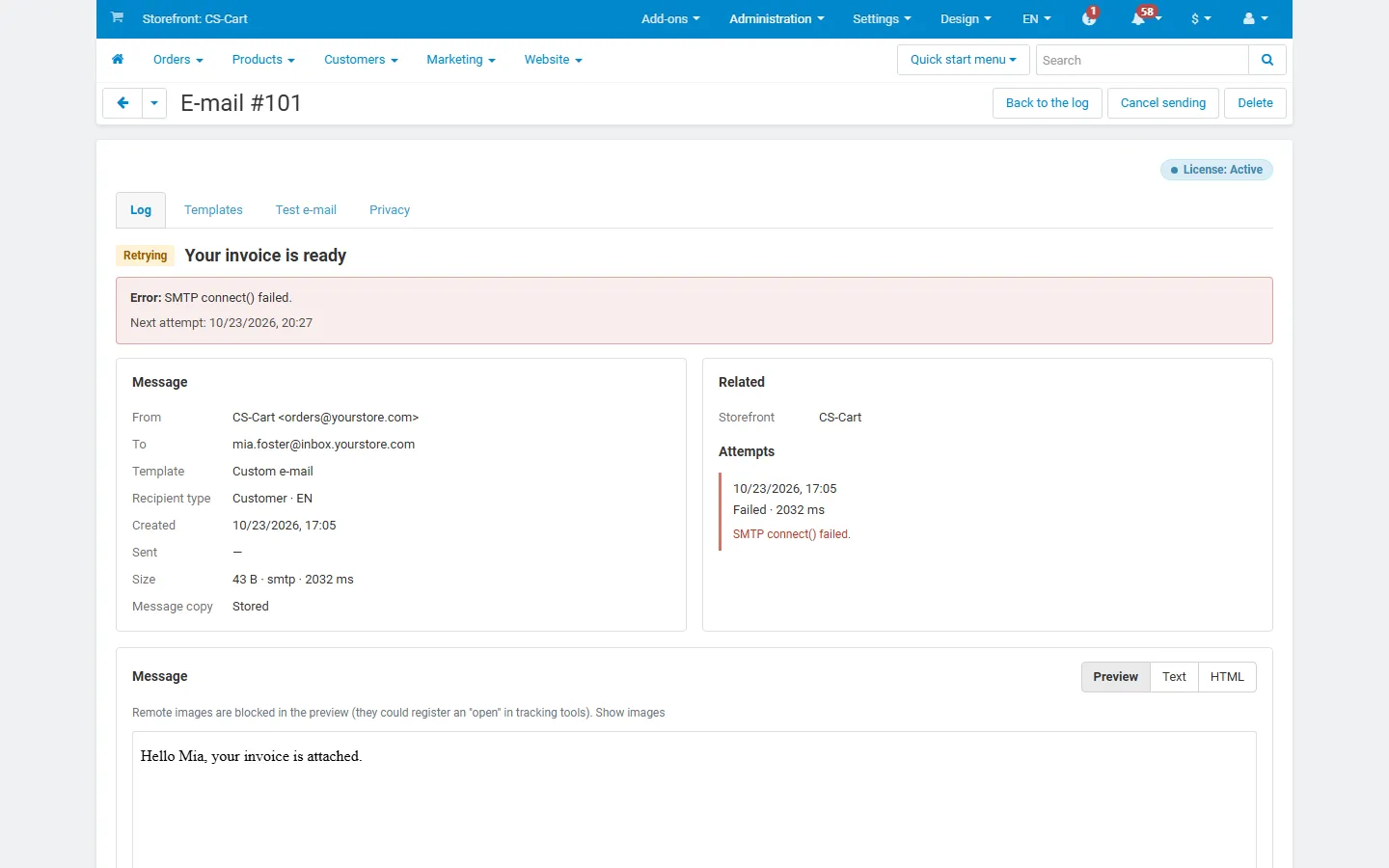
The error is the answer of the mail server or of PHP, for example SMTP connect() failed, Recipient address rejected or Could not instantiate mail function. Temporary errors are retried automatically; you can also resend or cancel.
Templates
Section titled “Templates”The Templates tab lists every e-mail template of the store and every template seen in the log, with the number of logged and failed e-mails and the last one.
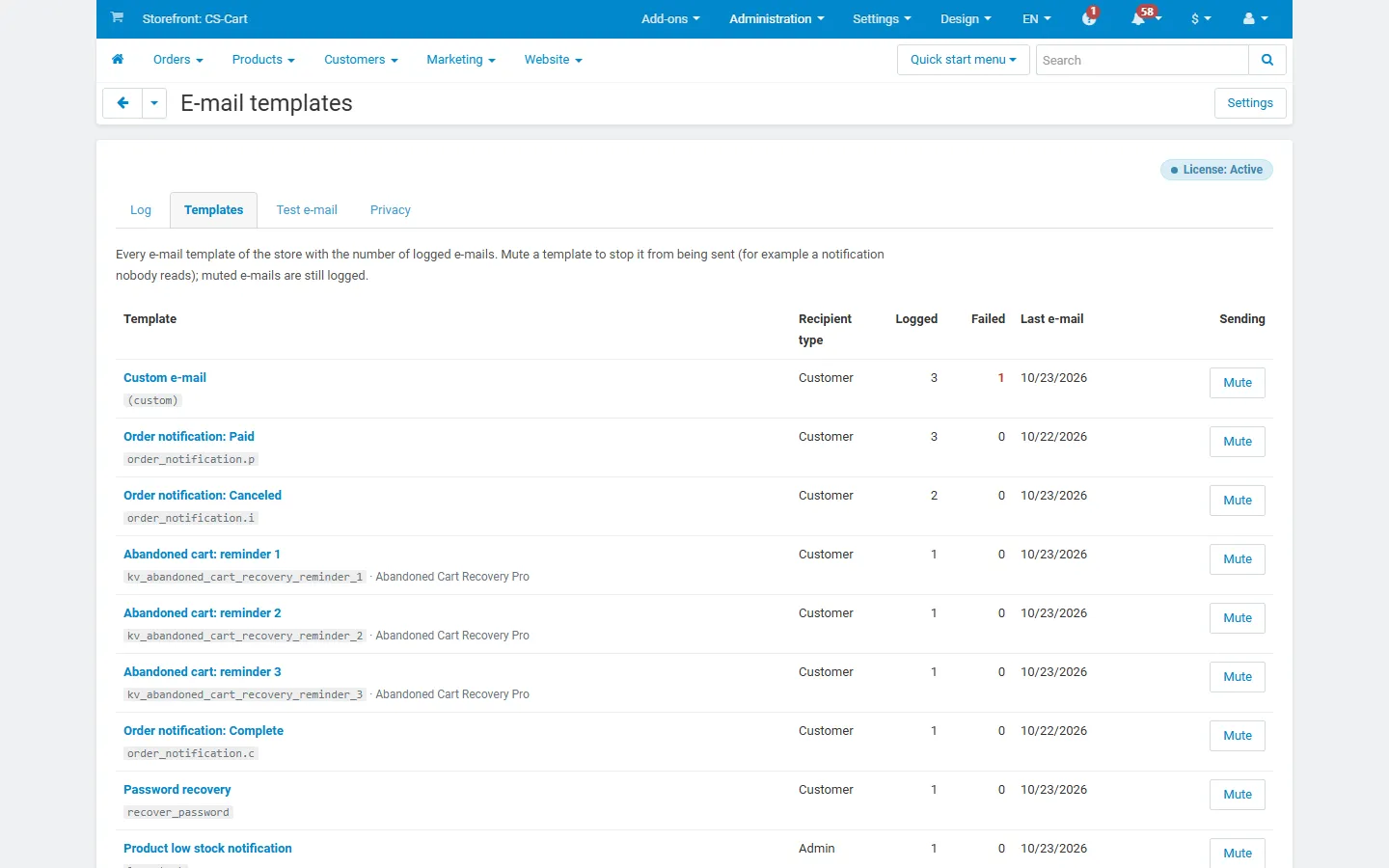
Click Mute to stop a template from being sent. Muted e-mails are logged with the status Muted, so you can still see what would have been sent. Unmute sends it again. The admin and the customer version of a template are muted separately. Wildcards from the settings (for example A:order_notification.*) are shown as by a wildcard in the settings.
Test e-mail
Section titled “Test e-mail”The Test e-mail tab shows the mail transport every e-mail uses (method, server, encryption, authentication with the user name partly hidden, sender) and sends a test e-mail to the address you enter.
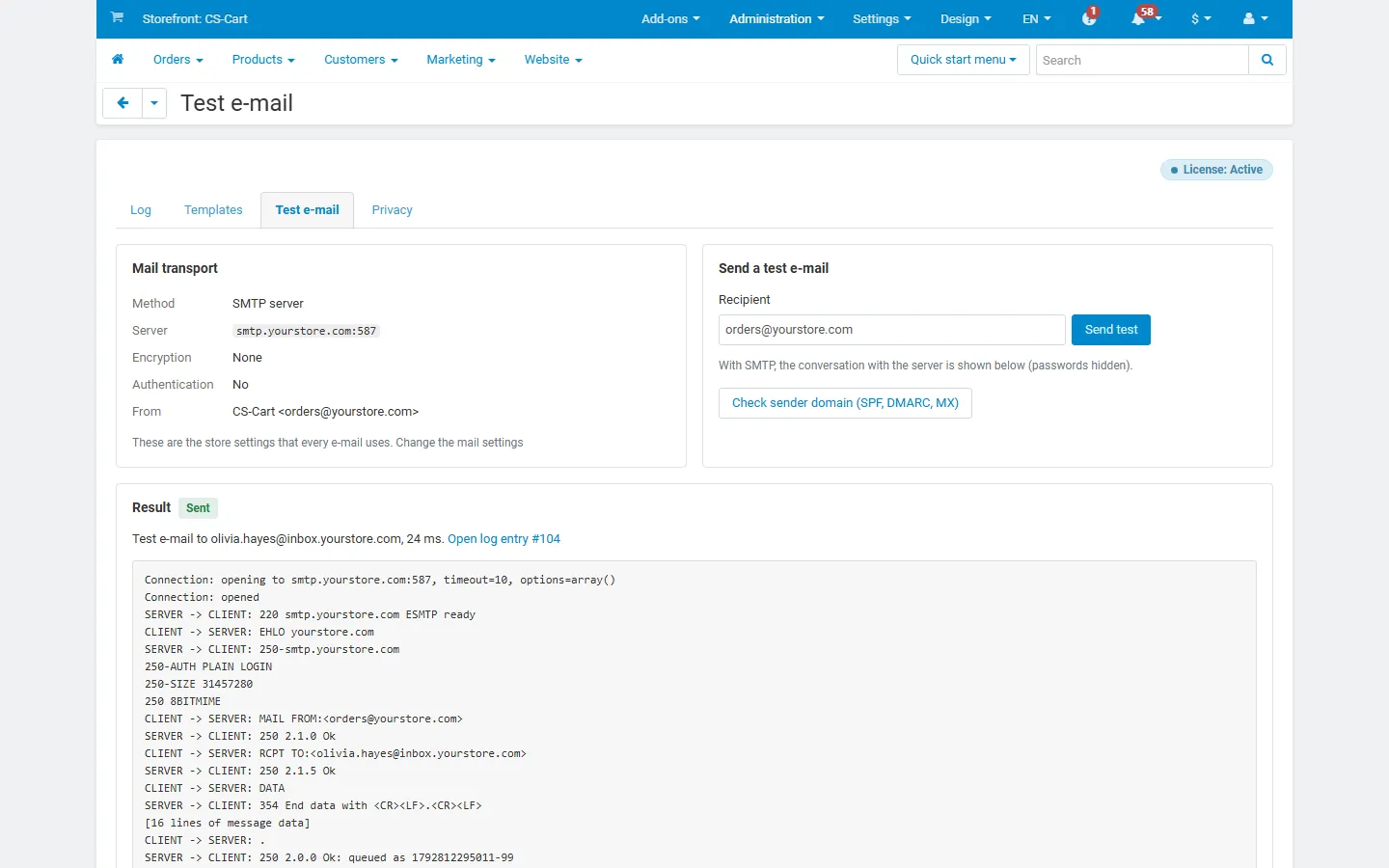
With SMTP the conversation with the server is shown; passwords and the authentication exchange are hidden, and the message itself is summarised. Check sender domain looks up the SPF, DMARC and MX records of the sender’s domain, the usual reasons why mail lands in spam.
Privacy
Section titled “Privacy”The Privacy tab finds every logged e-mail sent to or from an address (as recipient, CC, BCC or sender).
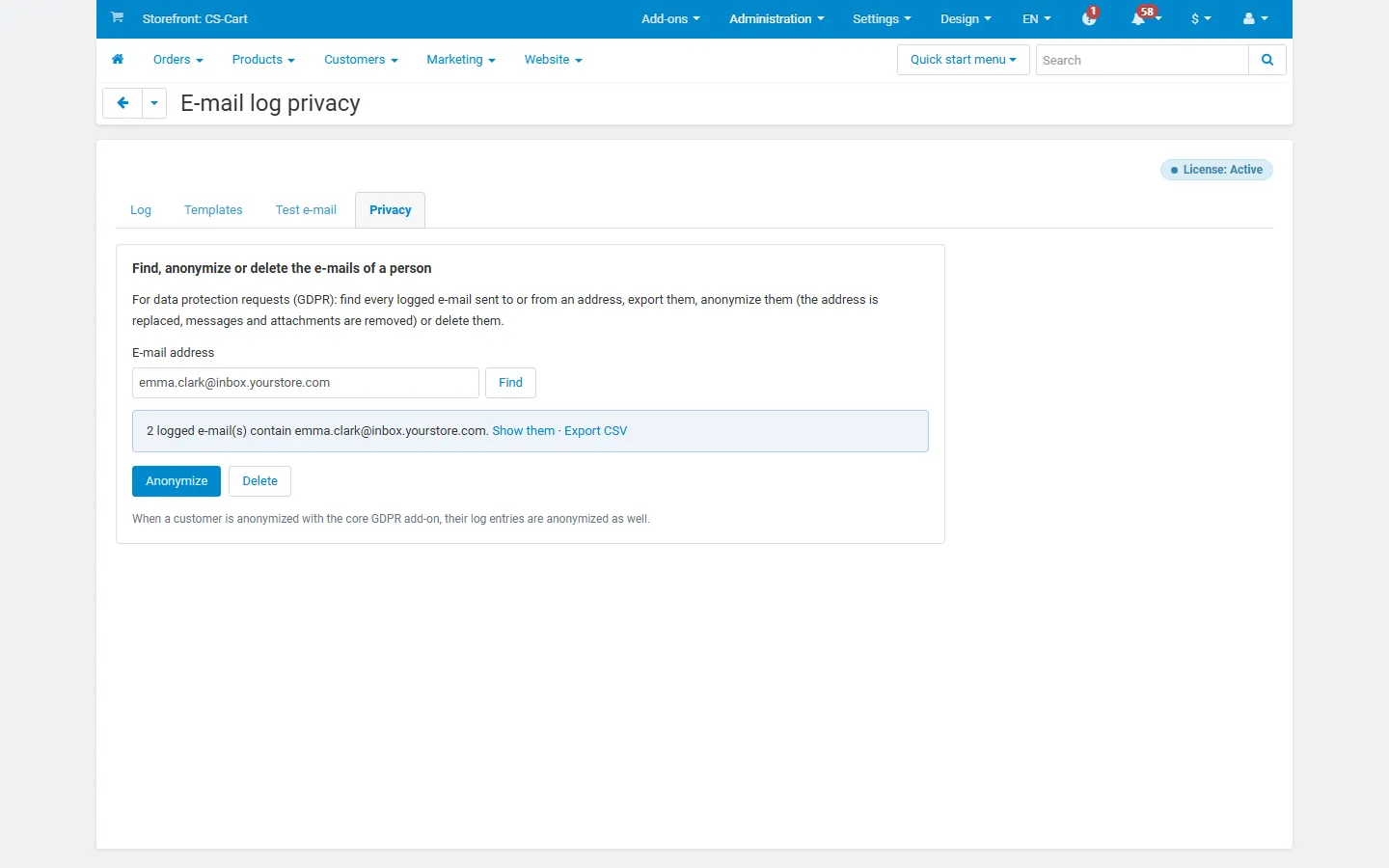
- Show them / Export CSV: for a data access request.
- Anonymize: the address is replaced by an anonymous one, subjects, messages and attachment copies are removed, the customer link is cleared and queued e-mails to the address are cancelled. Order links stay for your records.
- Delete: removes the entries completely.
When a customer is anonymized with the core GDPR add-on, their log entries are anonymized the same way.
E-mails tab on orders and customers
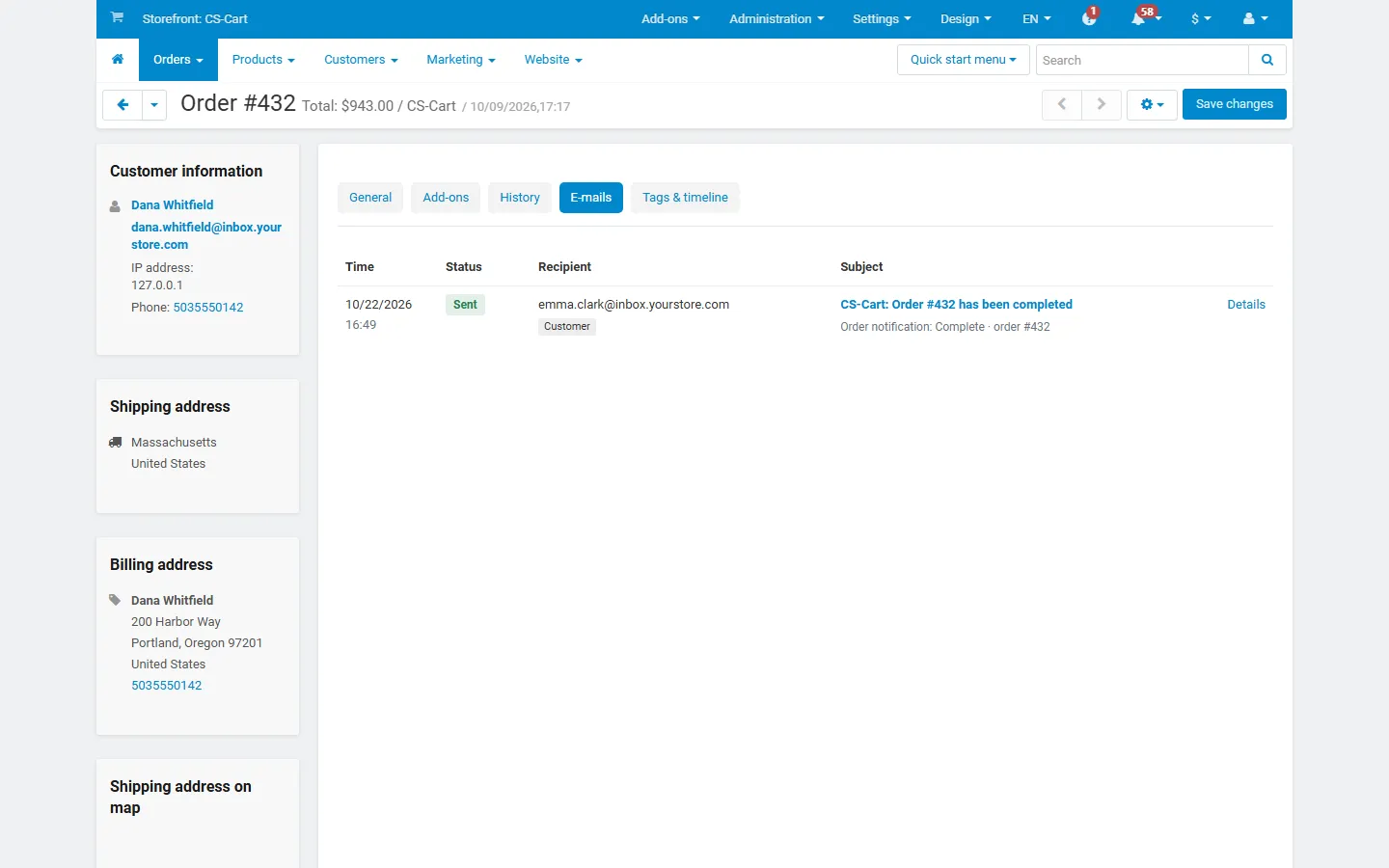
Section titled “E-mails tab on orders and customers”The order page and the customer page get an E-mails tab with every e-mail about that order or to that customer.
Vendor panel (Multi-Vendor)
Section titled “Vendor panel (Multi-Vendor)”With Vendors see the e-mails of their orders on, vendors find Orders > E-mail log. They see the customer e-mails of their own orders and the e-mails sent to them, can open the details and the preview, and use the E-mails tab of their orders. They cannot resend, delete, export or change anything, and they never see e-mails of other vendors or of the marketplace administration.