

Usage
Setting up a product
Section titled “Setting up a product”- Products > Personalization templates > New template. Name it, decide whether shoppers must approve the design, and add the products or categories it applies to.
- Views and print areas: keep the main product image as the first view and draw a print area for each field. Add a second view (an additional product image or an own mock-up) for the back.
- Fields: add a text field (for example “Front text”, 20 characters, 2 lines, three fonts, your colours, 0.40 per character after the first 5), an image field (“Your photo”, JPG/PNG, at least 600 x 600 px, 6.00) and a choice field (“Gift packaging”).
- Save and click Test proof on each view to check the areas.
- Open the product on the storefront and try it.
You can also choose the template in the product editor (General tab, Personalization): a template, No personalization or Inherit (from the category or the vendor).
What shoppers see
Section titled “What shoppers see”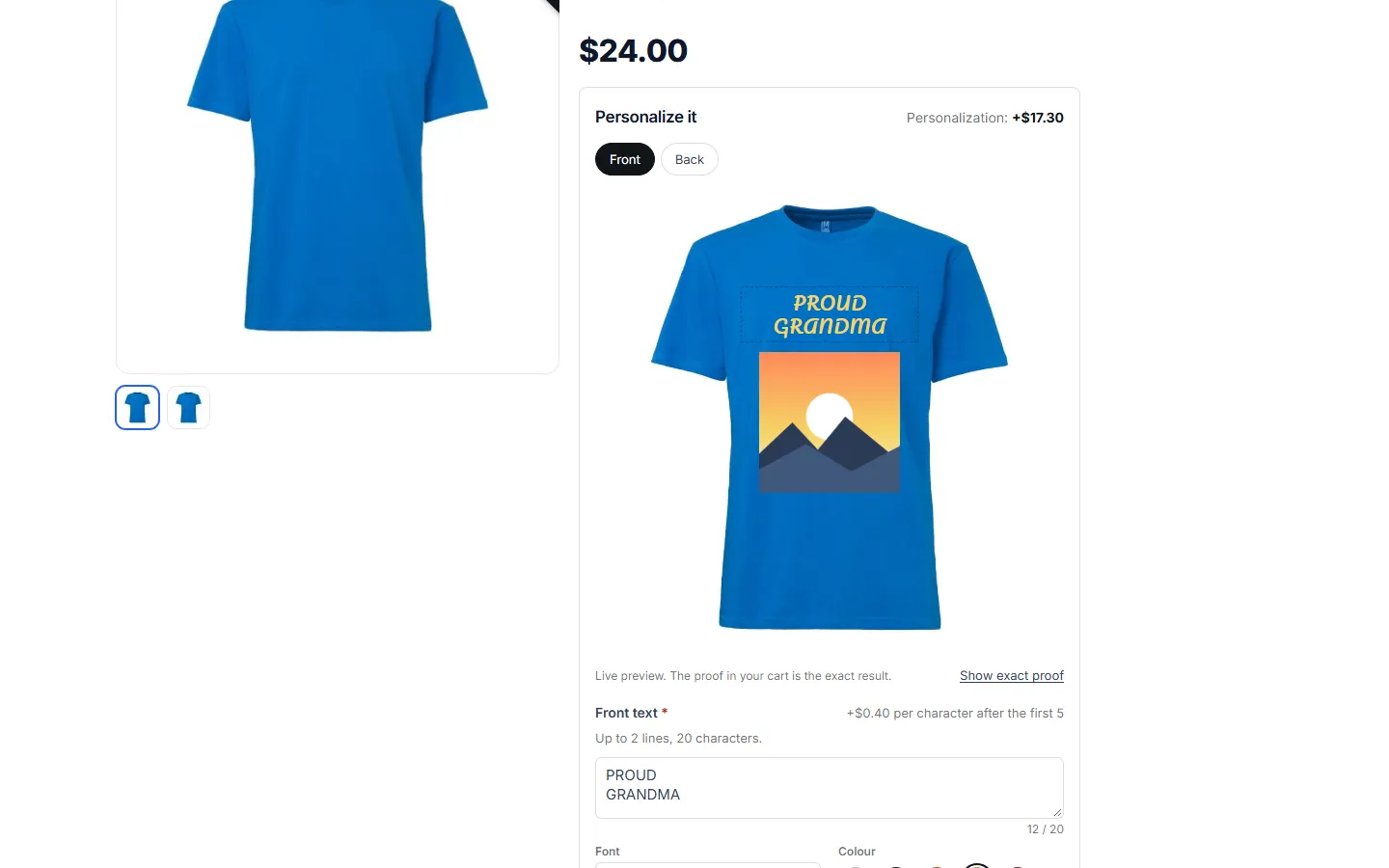
- The personalizer appears below the product options. Each field has its label, the surcharge and the help text.
- While typing, the live preview shows the text in the chosen font and colour, fitted into its print area on the product image. The counter shows the characters left. Characters that cannot be produced are reported at once.
- Choose image uploads a photo. It is checked right away (type, size, minimum pixels) and shown in its area. The upload can be removed or replaced.
- With two or more views, tabs switch between them (for example front and back).
- Show exact proof renders the proof on the server, exactly as it will be produced.
- I approve this design must be ticked when the template asks for it.
- Add to cart checks everything again on the server. Missing required fields, too long texts or a missing approval are shown next to the fields; nothing is added until they are fixed.
- The personalization surcharge is shown above the fields and added to the price per item.
In quick view and in product lists, products that need personalization show Select options / Personalize on the product page instead of a direct add to cart.
On phones the preview sits above the fields and every control is large enough to tap; the personalizer works with the keyboard and screen readers (labels, error messages and counters are announced).
The cart
Section titled “The cart”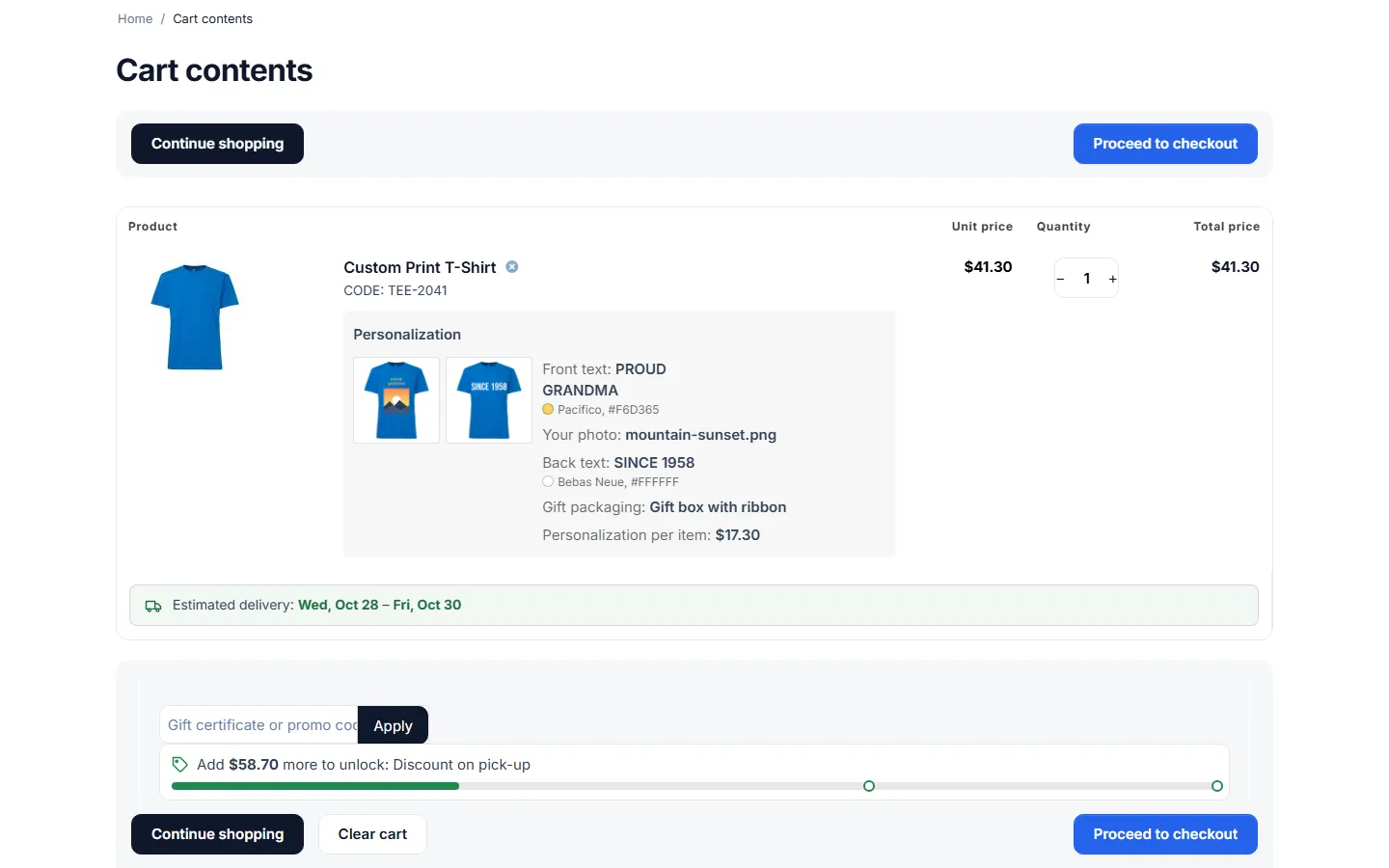
Each personalized item is its own cart line, with the values (text, font and colour, image name, chosen options), a proof thumbnail (click to open the full proof) and the surcharge per item. Adding the same personalization again increases the quantity of that line; a different personalization makes a new line.
Uploaded images are kept for Keep unused uploads for (days). If a customer comes back after that, the item is removed from the cart with a notice asking to personalize it again.
Orders
Section titled “Orders”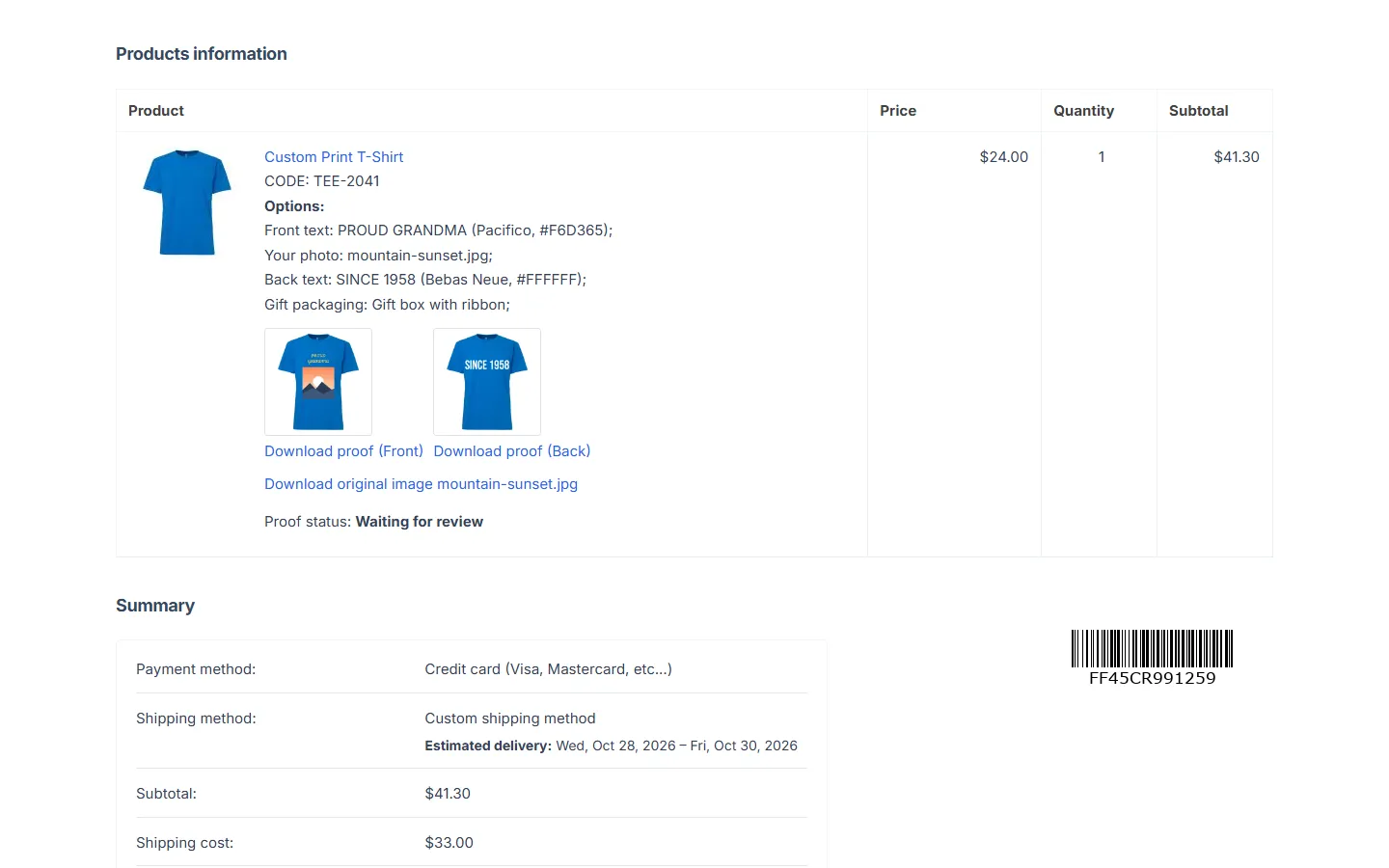
The personalization lines join the product options of the order item, so they are shown in the order details (customer, admin and vendor), in the invoice and in the order e-mails. The order details also show:
- proof thumbnails per view, Download proof and Download original image;
- the proof status and your note, when proofs are reviewed.
Customers can download only their own files; staff see the files of the orders they may open.
Reviewing proofs
Section titled “Reviewing proofs”Orders > Personalized items lists every personalized order item with its proof, values and status. Use the tabs Waiting for review, Approved and Changes needed.
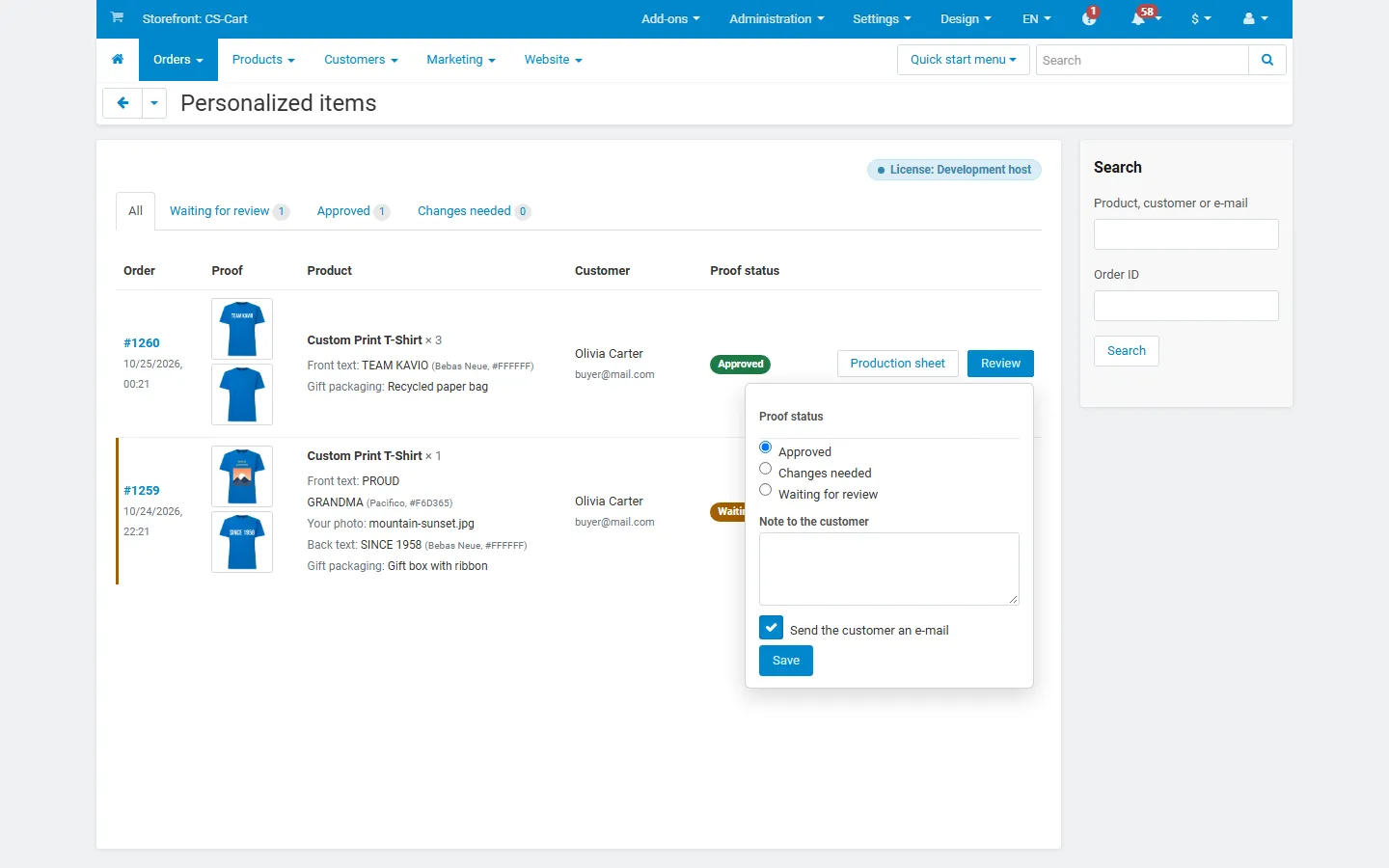
Review sets the status:
- Approved: the item can be produced. The customer gets an e-mail (optional).
- Changes needed: write what the customer should change (required). The customer gets an e-mail with your note and replies to it; you can update the order and approve later.
- Waiting for review: back to the start.
Production sheet
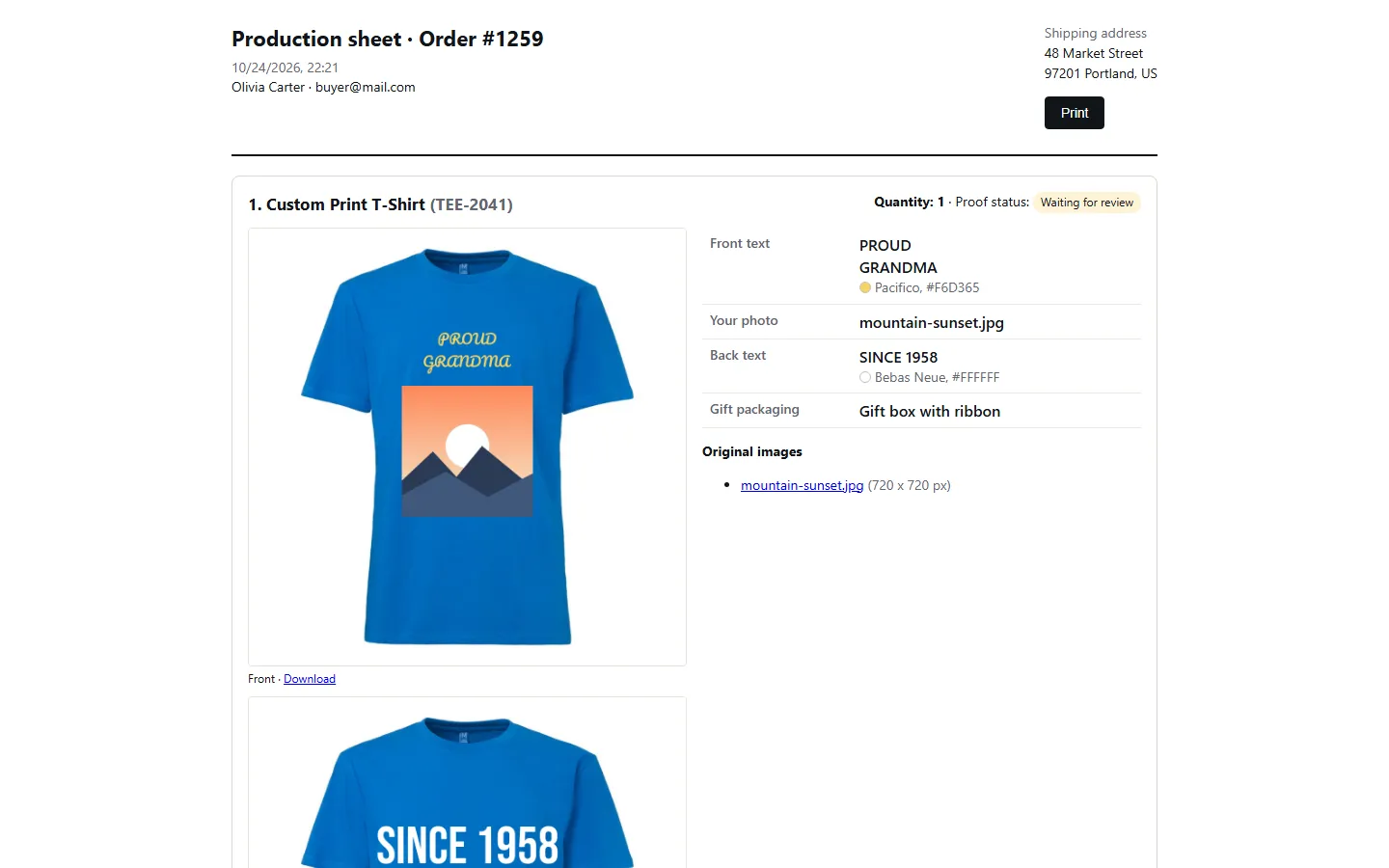
Section titled “Production sheet”Production sheet (in the list and on the order page) opens a print-ready page for the order: shipping address, every personalized item with its quantity, the full proofs, the values with font names and colour codes, the links to the original images and your notes.
Multi-Vendor
Section titled “Multi-Vendor”- Vendors create templates for their own products (Products > Personalization templates in the vendor panel) while Vendors manage their own templates is on, and can assign them to their products or to All my products. Category assignments are for the marketplace administrator.
- Vendors see the personalized items of their own orders, review the proofs, print production sheets and download the files. Other vendors’ templates, orders and files are never shown.
- The administrator sees and manages every template and every personalized item.
License switched off
Section titled “License switched off”When the license is not valid, the personalizer is hidden and no new personalized items can be added; items already in carts keep their personalization and price, and placed orders keep their personalization, proofs and downloads. Templates stay saved.