

Usage
Statuses
Section titled “Statuses”Products → Stock statuses → Statuses lists every status with a live preview, its lead time, the feed value and how many products show it.
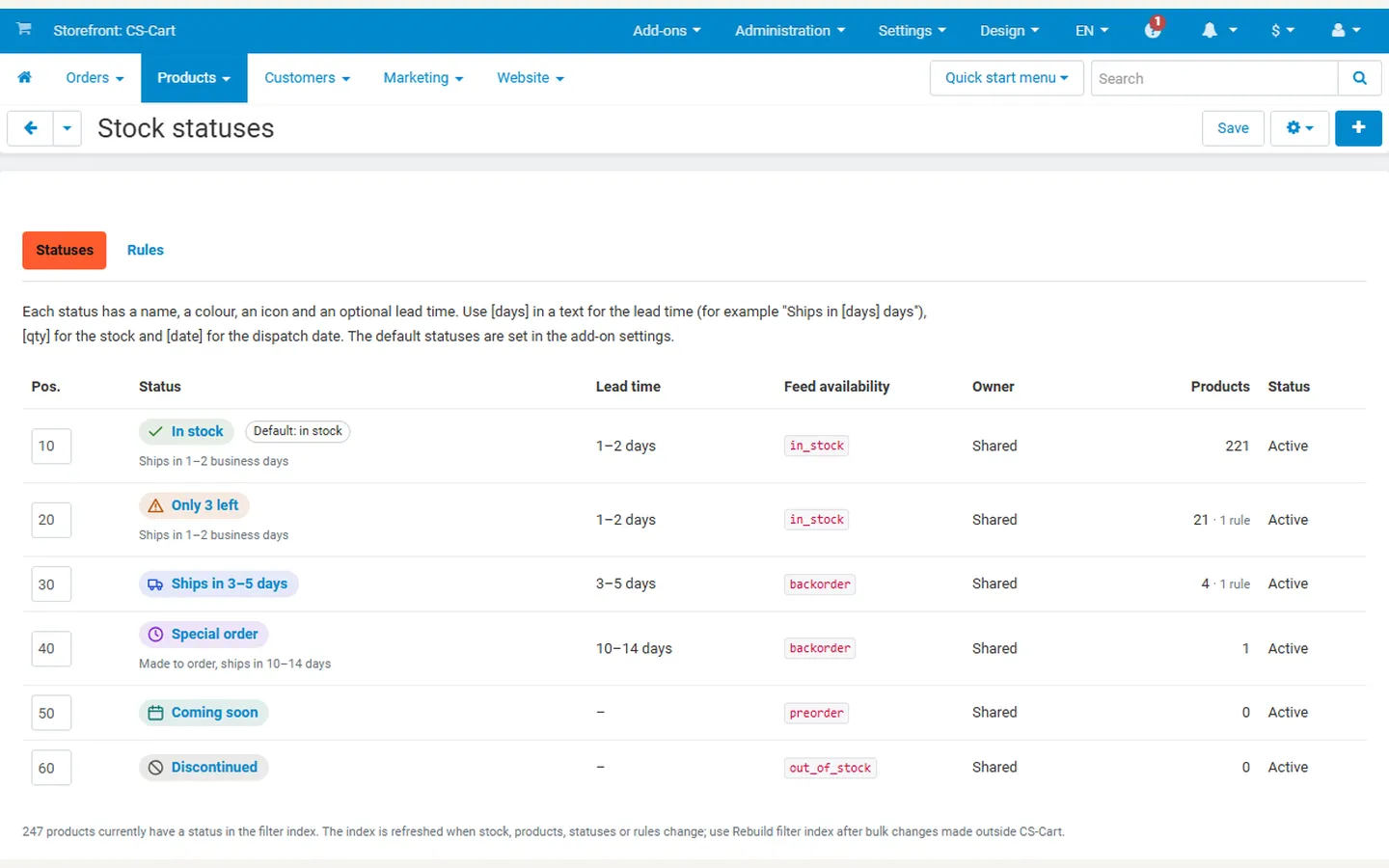
Click a status to edit it, or + to add one:
| Field | Notes |
|---|---|
| Name | What shoppers see. Tokens: [days] lead time (“3–5”), [qty] stock, [date] dispatch date. |
| Second line | Optional, shown under the name on the product page, for example “Made to order in our workshop”. Tokens work here too. |
| Colour | The colour of the icon and a light tint behind the status. The text keeps your theme’s text colour, so it stays readable on light and dark themes. |
| Icon | Check, truck, clock, box, calendar, not available, alert or dot. |
| Lead time | From–to in days. Leave empty when the status has no lead time. |
| Show dispatch date | Adds a “Dispatches by” line with the date under the status on the product page (today plus the longest lead time). |
| Feed availability | The value product feeds send for products with this status: in_stock, out_of_stock, backorder, preorder, or Automatic (the feed decides from the stock). |
| Filter label | The name in the storefront filter; empty = the name without [qty] and [date]. |
| Position, Status | Order in the lists; a disabled status is never shown. |
Texts are saved in the language you are editing (the language selector of the admin panel); a new status starts with the same text in every language.
Deleting a status also deletes the rules that set it; products that used it go back to their rules.
How a product gets its status
Section titled “How a product gets its status”For every product the add-on checks, in this order:
- Pre-orders: a product in pre-order mode of the Kavio Labs Pre-Orders & Deposits add-on (before its release date or while out of stock) shows the pre-order label of that add-on and no status.
- Product setting: the status chosen in the product editor for “in stock” or “out of stock”.
- Rules: the first active rule that matches, by position. On Multi-Vendor, the vendor’s own rules come before shared rules.
- Defaults from the settings.
- Nothing matched: the standard CS-Cart stock text.
A product counts as in stock when its stock is above 0, or when it does not track stock.
Products → Stock statuses → Rules
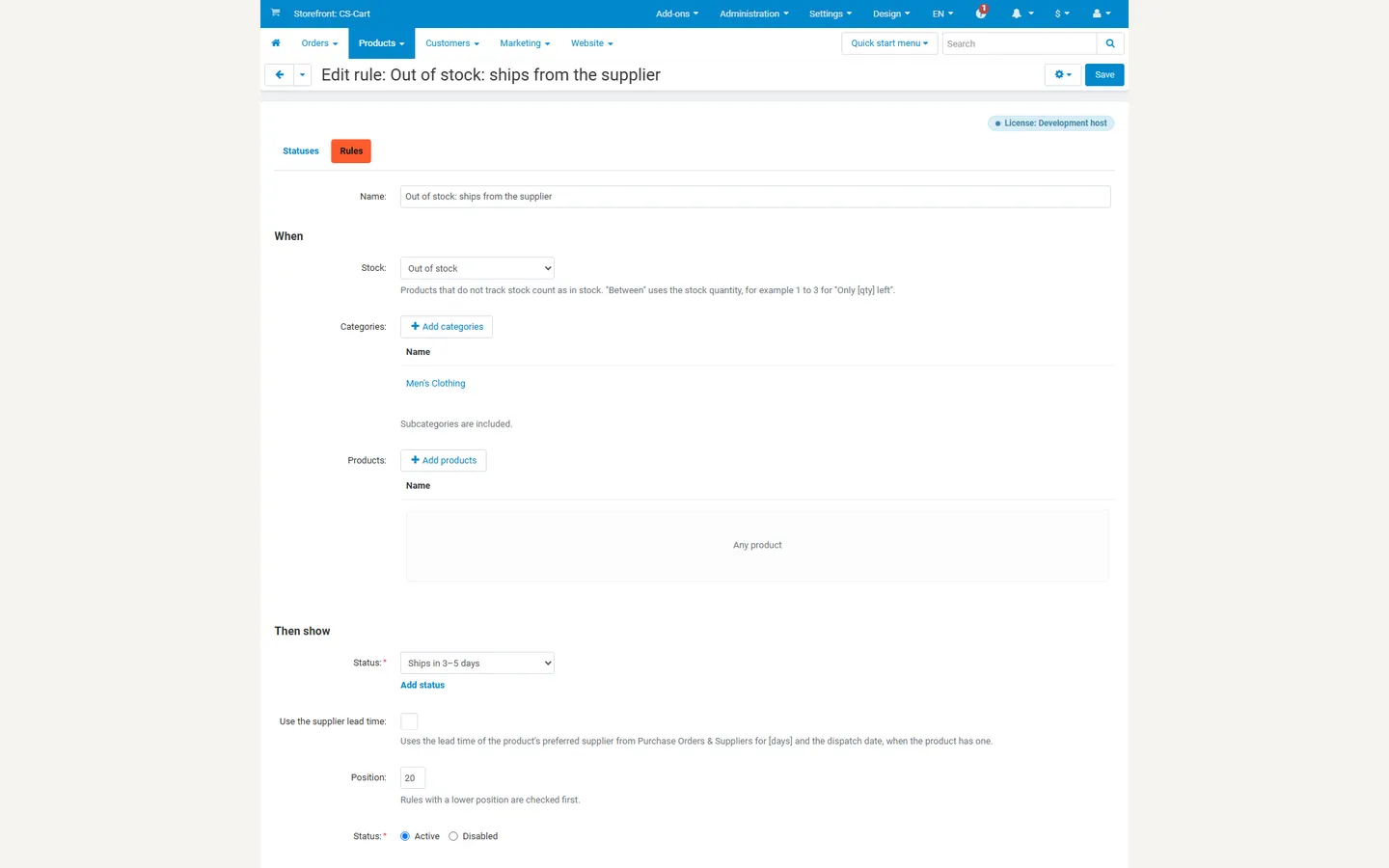
| Field | Notes |
|---|---|
| Stock | Any stock level, In stock, Out of stock, or Stock between (for example 1 to 3; leave “to” empty for no upper limit). |
| Stock in | With the core Warehouses add-on: the stock of one warehouse or store instead of the total, for example “Not in the main warehouse: Ships in [days] days”. |
| Categories | Products in these categories or their subcategories. Empty = any category. |
| Products | Only these products. Empty = any product. |
| Vendors | Multi-Vendor administrators: only products of these vendors. |
| Then show | The status. |
| Use the supplier lead time | With Purchase Orders & Suppliers: [days] and the dispatch date use the lead time of the product’s preferred supplier. |
| Position | Lower positions are checked first. |
Examples:
| Rule | Shows |
|---|---|
| Stock between 1 and 3 | Only 2 left |
| Out of stock, category Furniture | Ships in 3–5 days |
| Out of stock, category Clearance | Discontinued |
| Any stock, product “Custom sofa” | Special order |
Product settings
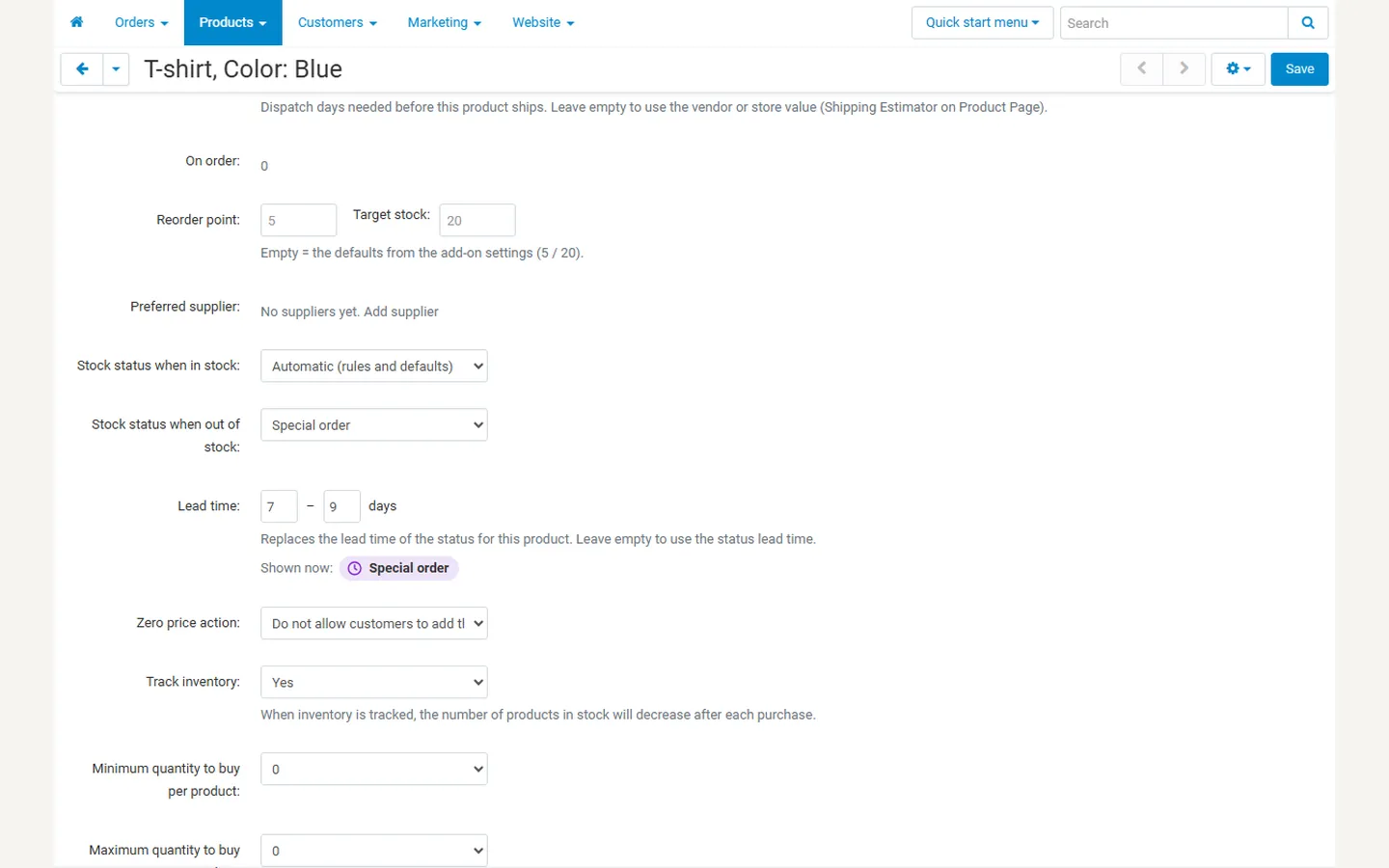
Section titled “Product settings”In the product editor, under In stock:
- Stock status when in stock and Stock status when out of stock: Automatic (rules and defaults) or a fixed status.
- Lead time: replaces the lead time of the status for this product.
- Shown now: the status the storefront shows at the moment.
Each variation is a product, so variations can have their own settings.
Storefront
Section titled “Storefront”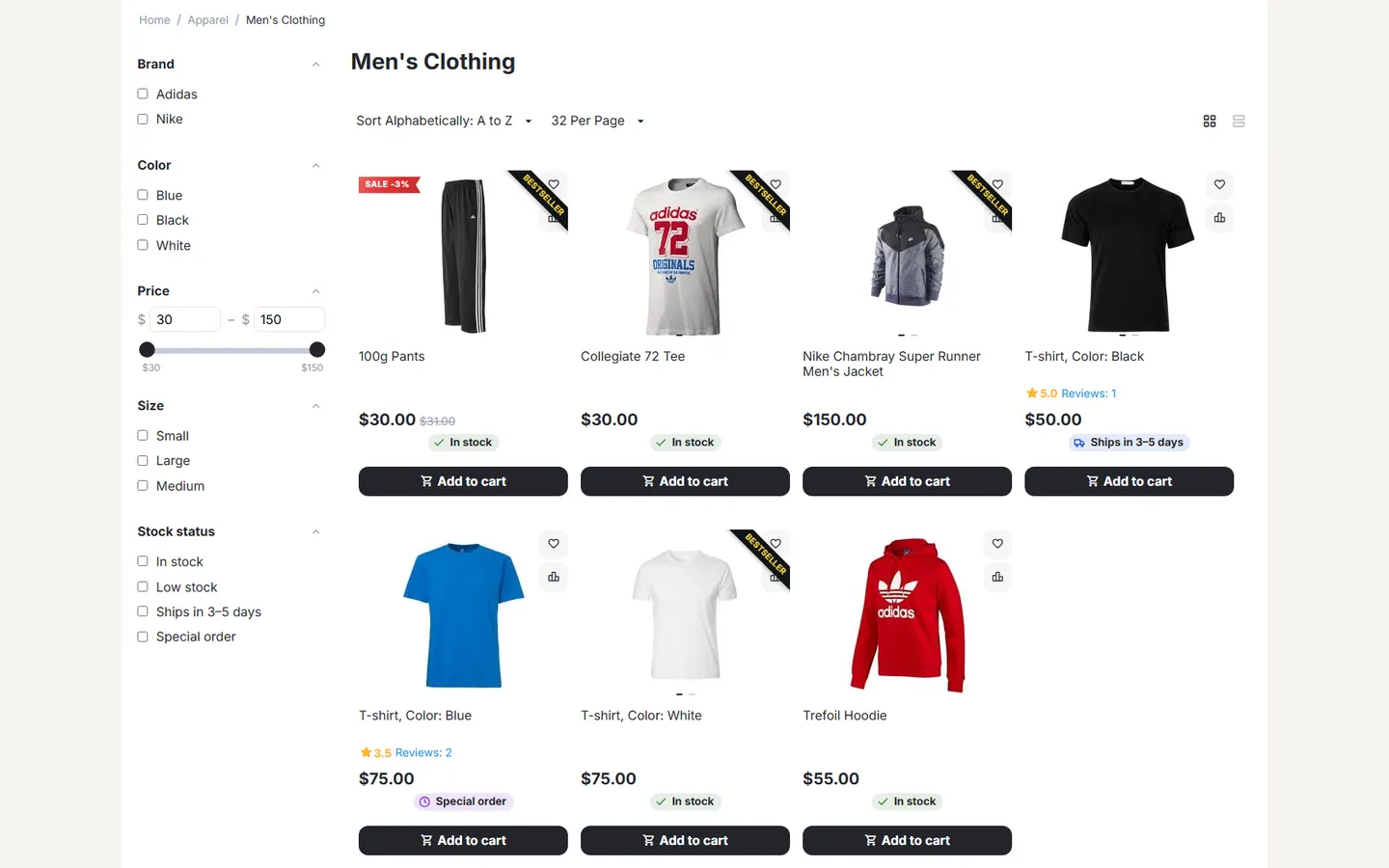
- Product page and quick view: the status in the Availability line, with the second line and the dispatch date. When options or variations change, the status follows.
- Lists: a compact status under the price.
- Cart: each line shows its status.
Storefront filter
Section titled “Storefront filter”- Open Products → Filters and click +.
- Choose Filter by: Stock status, set the categories where it appears and save.
- Shoppers can now filter a category by status, for example only “In stock” and “Ships in 3–5 days”.
The filter uses an index that is refreshed when stock, products, statuses, rules or defaults change, and after product imports. After bulk changes made outside CS-Cart (for example directly in the database), use Rebuild filter index in the gear menu of the Statuses page.
Orders and e-mails
Section titled “Orders and e-mails”When an order is placed, each line keeps the status it had at that moment. It appears as “Availability: Ships in 3–5 days” in the customer’s order details, the admin order page, notification e-mails and invoices, and it does not change when the status is edited later.
Product feeds
Section titled “Product feeds”Each status has a feed availability value; backorder and preorder come with a date from the lead time. Product Feed Pro for Google Merchant Center (1.1.2 or later) and Multichannel Product Feeds (1.0.1 or later) use it automatically: products with a status that sets a value are sent with that value, and Automatic leaves the value to the feed. Other feed add-ons can read it through the add-on’s API (see Developer notes).
Multi-Vendor
Section titled “Multi-Vendor”- Vendors see Products → Stock statuses when Vendor access allows it. Shared statuses are read-only; vendors create statuses and rules for their own products only.
- In the product editor, vendors choose from the shared statuses and their own.