

Usage
The customer’s side
Section titled “The customer’s side”Finding the withdrawal function
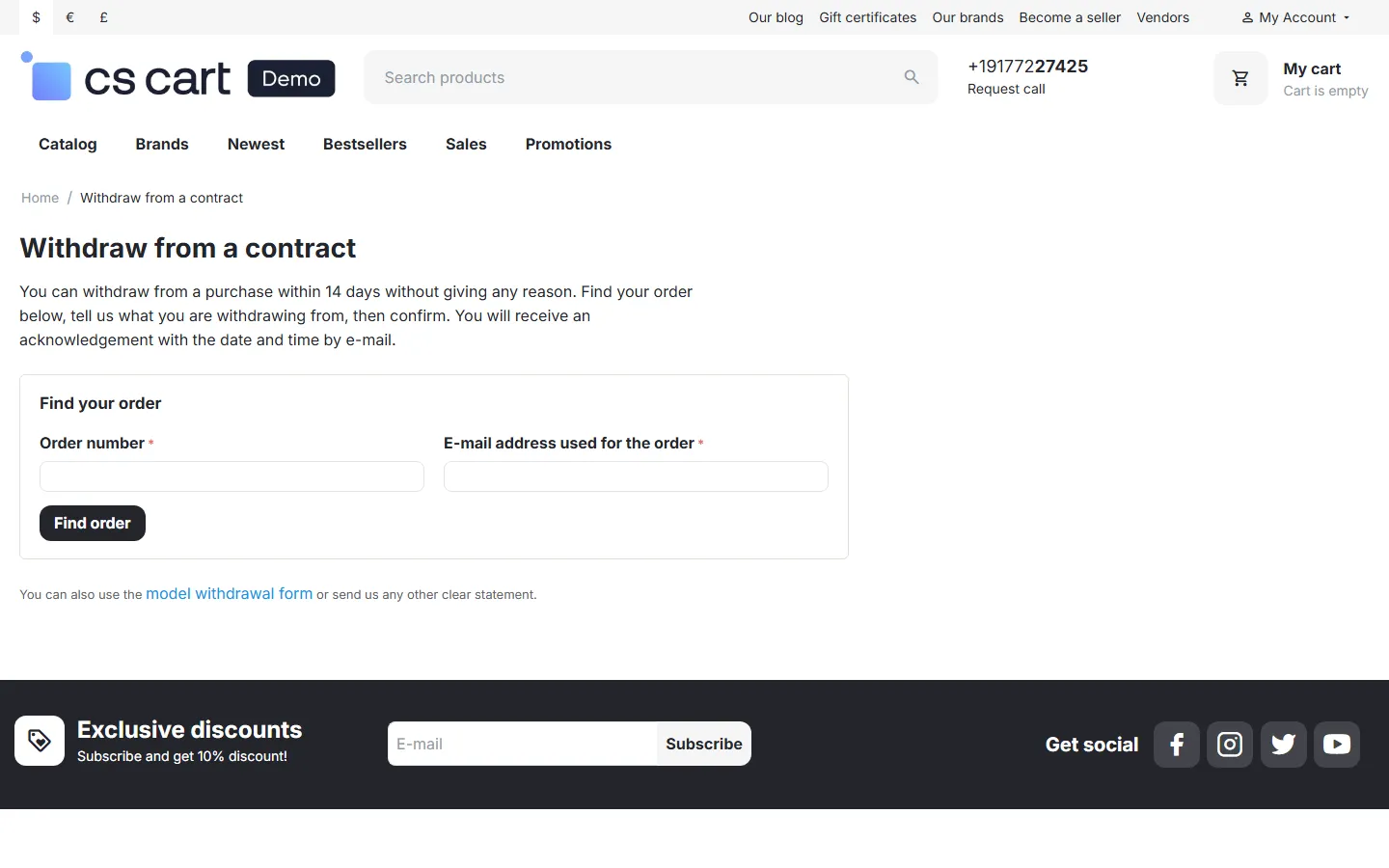
Section titled “Finding the withdrawal function”- Every storefront page shows a “Withdraw from contract here” strip below the footer (setting Footer strip on every page).
- Signed-in customers also find it in the My account menu, as a Withdrawal column in Orders and as a button on each order page while the order can be withdrawn.
- Customer order e-mails contain a box with a signed link that opens the statement for that order directly.
- You can place the Withdrawal button block anywhere with the Block Manager.
Step 1: the statement
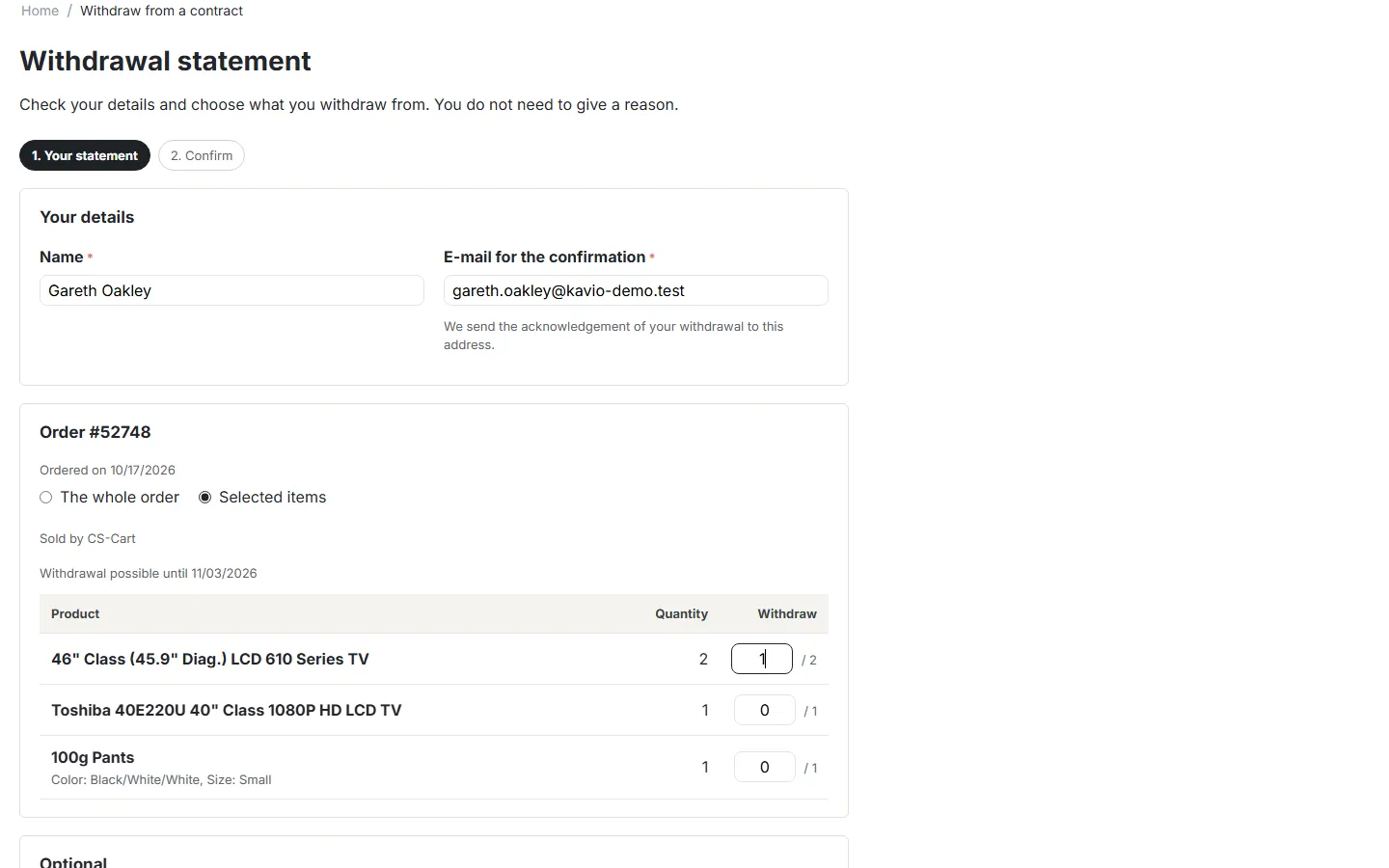
Section titled “Step 1: the statement”- Find the order. Signed-in customers pick one of their orders. Guests enter the order number and the e-mail address used for the order. A link from an order e-mail skips this step.
- Check the details. The name and e-mail are prefilled from the order and can be changed. The acknowledgement goes to this e-mail address.
- Choose what to withdraw from. The whole order (default) or Selected items with a quantity for each line. Items you excluded are listed as Not covered. On Multi-Vendor, the parts of the order are listed per vendor.
- Optional: a reason from your list and a comment. The page says that no reason is needed.
- Click Continue.
Step 2: confirm
Section titled “Step 2: confirm”The summary shows the statement (“I hereby give notice that I withdraw from my contract of sale of the goods listed below”), the name, the e-mail and the items. Nothing is sent until the customer clicks Confirm withdrawal. Change goes back to step 1.
The confirmation
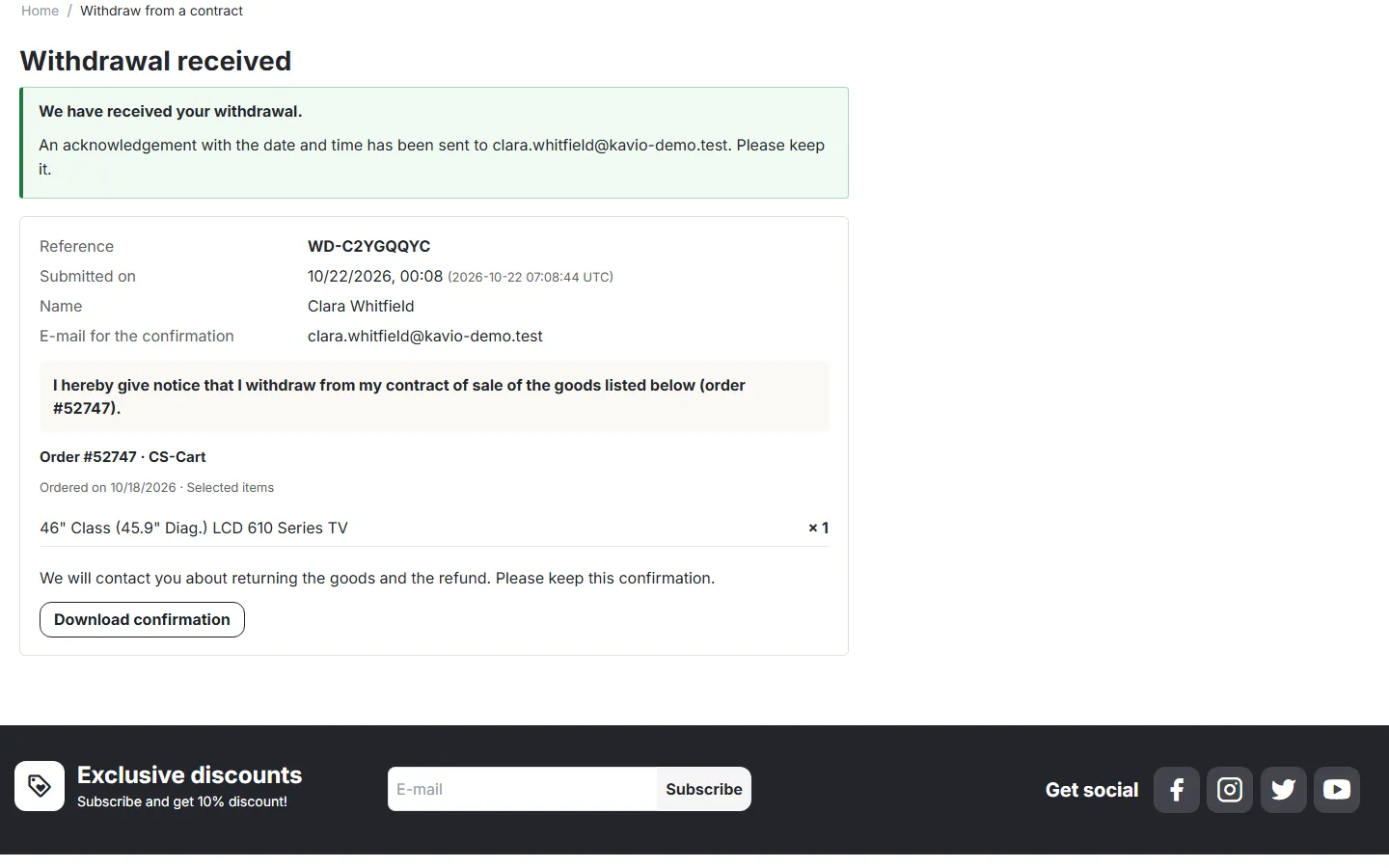
Section titled “The confirmation”After the click the customer sees Withdrawal received with the reference (for example WD-7KQ2M9XA), the submission date and time in the store’s time zone and in UTC, the items and a Download confirmation button. The acknowledgement e-mail with the same content and the attached confirmation is sent at the same time. If the e-mail cannot be sent (for example the store’s mail server is down), the page says so and the confirmation can still be downloaded; the register marks the statement, and you can resend the e-mail later.
A statement is saved only once: clicking the confirm button twice or reloading the page does not create a second statement. The statement form expires after an hour.
The store’s side
Section titled “The store’s side”Withdrawal register
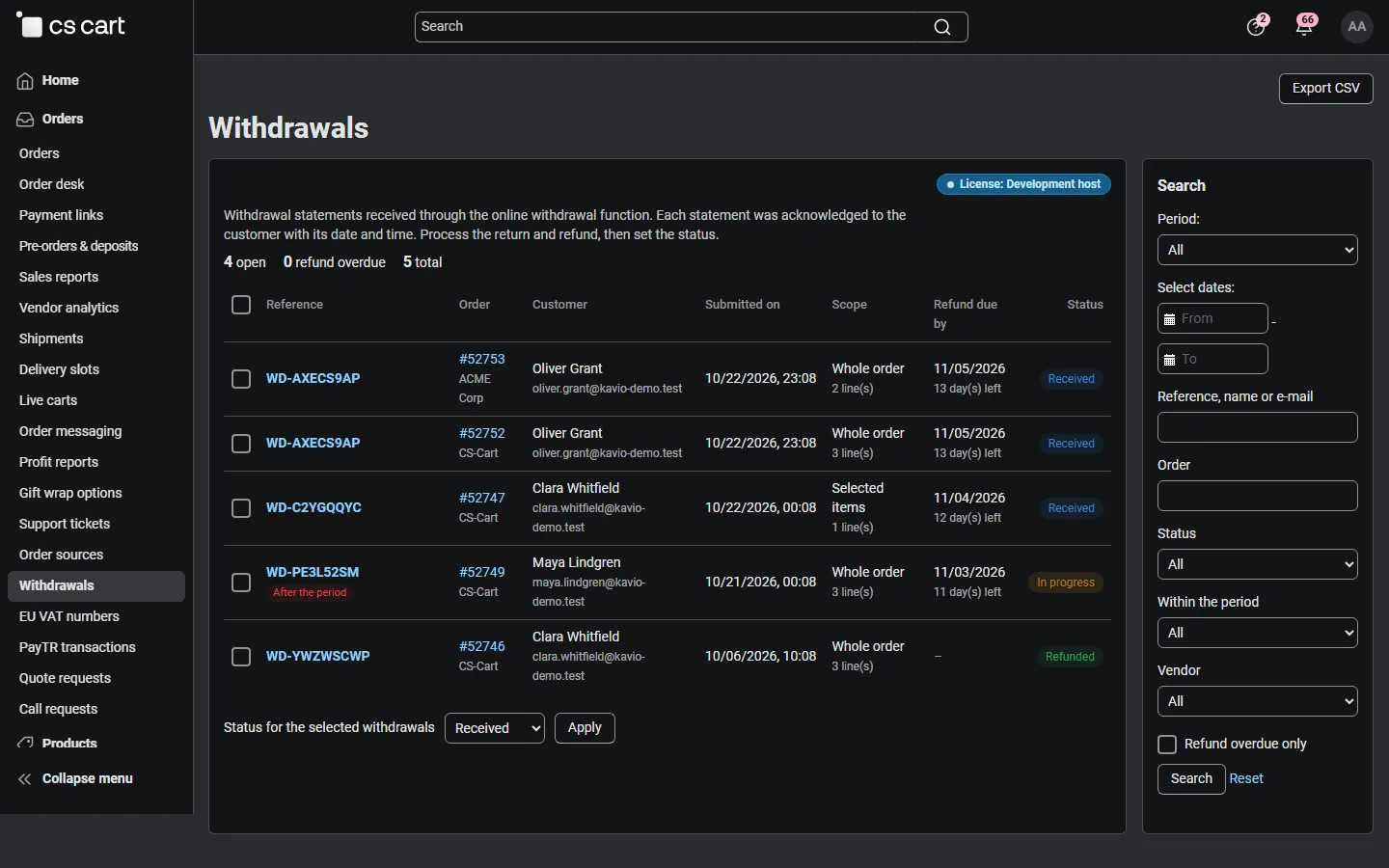
Section titled “Withdrawal register”Orders → Withdrawals lists every statement: reference, order (and vendor on Multi-Vendor), customer, submission time, scope, refund deadline with the days left or overdue, and status. Statements sent after the withdrawal period and failed acknowledgement e-mails are flagged.
- Filters: period, reference, name or e-mail, order, status, within the period, vendor, only overdue refunds.
- Status: Received → In progress → Refunded or Closed; Declined for statements you reject. Select several rows and use Status for the selected withdrawals to change them together.
- Export CSV: the filtered list with the items, the times in UTC and the automatic action.
Withdrawal details
Section titled “Withdrawal details”The details page shows the full statement, the items, the period end, the acknowledgement time, the automatic action (order cancelled with its previous status, or the RMA return request with a link) and the IP address. On the right you set the status and keep internal notes. View confirmation opens the document the customer received; Resend acknowledgement sends the e-mail again.
The admin order page shows a notice when the order has a withdrawal.
Follow-up actions
Section titled “Follow-up actions”- A statement for a whole order that has not shipped (no shipment, status in Cancel orders in these statuses) changes the order to the cancel status. Stock and customer e-mails follow your status settings.
- Otherwise, with the RMA add-on active, a return request is created for the withdrawn items (status Requested, the action from the settings, the reason when it matches an RMA reason). Process it in Orders → Return requests as usual.
- Refunds are never made automatically. The register counts down the refund deadline (14 days after the statement by default).
Multi-Vendor
Section titled “Multi-Vendor”- A marketplace order with products of several vendors is one statement for the customer, one reference and one acknowledgement, and one record per vendor in the register.
- Each vendor gets a notice and sees only their own records in the vendor panel (Orders → Withdrawals), where they can set the status and keep notes.
- Cancellation and RMA requests work per vendor order.
E-mails
Section titled “E-mails”| To | Content | |
|---|---|---|
| Withdrawal: acknowledgement | the e-mail from the statement | Reference, submission date and time (store time and UTC), name, trader, the statement, the orders and items, reason and comment, next steps, a link to the confirmation and the attached confirmation |
| Withdrawal: notice | the store’s orders e-mail (or your list), and the vendor on Multi-Vendor | Reference, order, time, customer, scope, within the period, automatic action, refund deadline, items, link to the register |
Both are Twig templates in Settings → Notifications and can be edited like any other e-mail.