

Configuration
Overview · Installation · Usage · Developer notes · FAQ
Providers
Section titled “Providers”Customers → Social sign-in (Users → Social sign-in in CS-Cart 4.21) lists the eight providers with their state (Ready or Keys missing), the number of connected customer accounts, the button position and whether the button is shown. Click the status to show or hide a button; change the positions and click Save order to sort the buttons. The Redirect URI at the top is the one address to register at every provider (also called callback or return URL); it is the same for all providers.
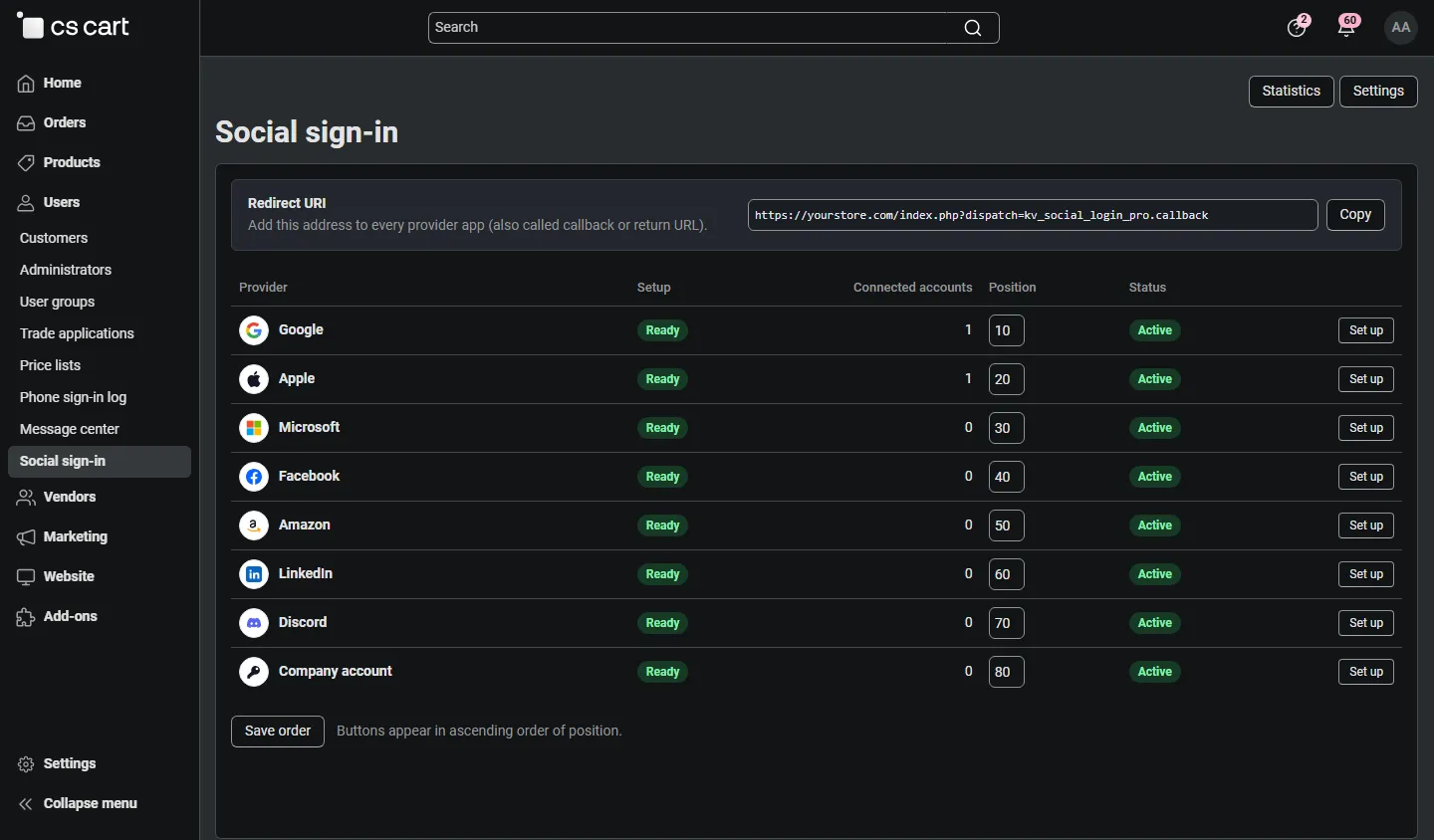
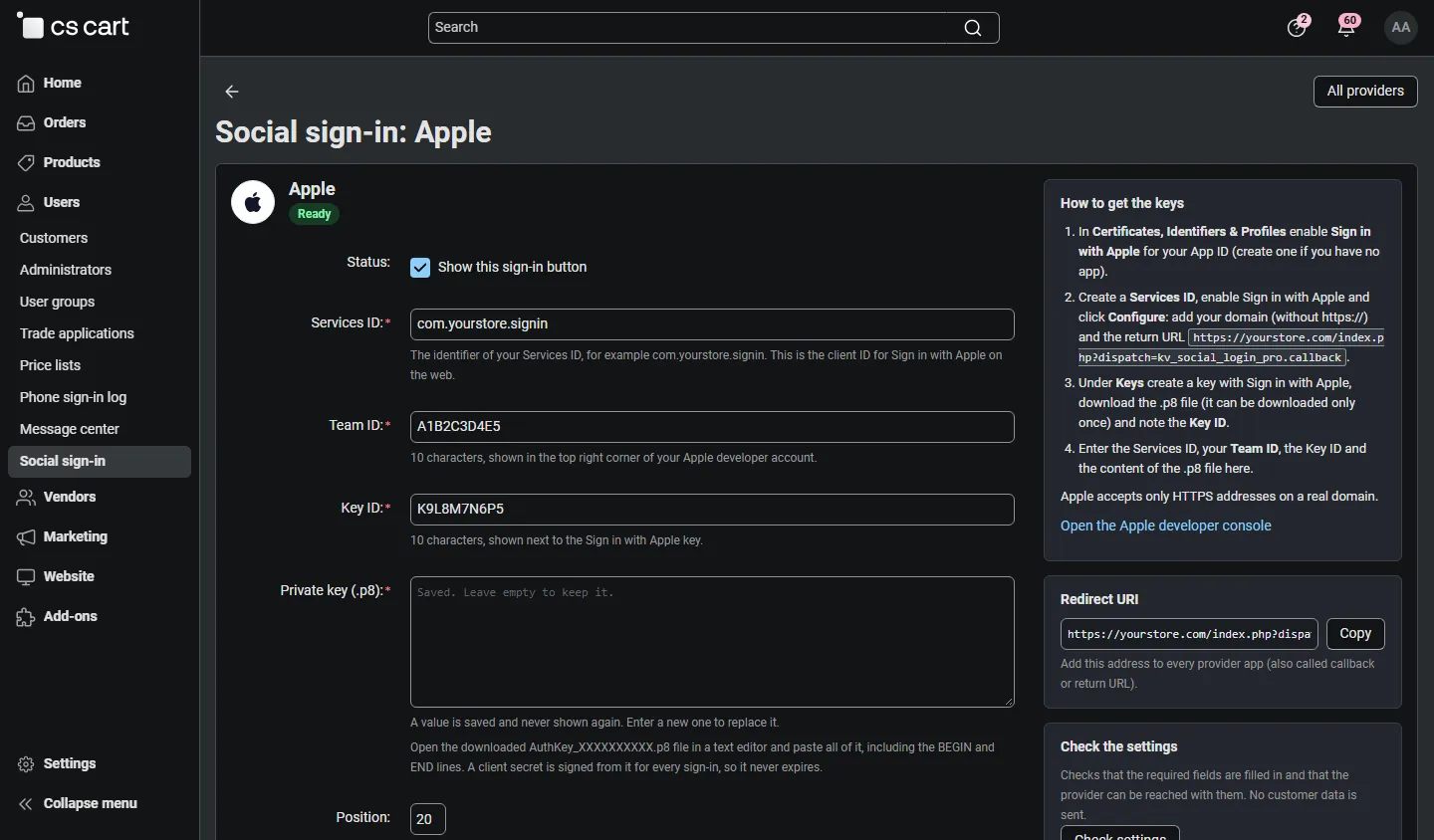
Set up opens a provider. The right column shows the numbered steps for that provider’s developer console with your redirect URI filled in, and a link to the console. Fields:
| Provider | Fields | Notes |
|---|---|---|
| Client ID, client secret | OAuth client of type Web application. Add your store address to Authorized JavaScript origins for One Tap. | |
| Apple | Services ID, Team ID, Key ID, private key (.p8) | Paste the whole content of the downloaded .p8 file. The add-on signs a fresh client secret from it for every sign-in, so there is nothing to renew every six months. Apple accepts only HTTPS on a real domain. |
| Microsoft | Application (client) ID, client secret, tenant | Tenant common (default) accepts personal, work and school accounts; consumers only personal accounts; organizations only work and school accounts; a tenant ID only your organization. Client secrets expire: renew before the date shown in the Entra admin center. |
| App ID, app secret, Graph API version | The version defaults to v26.0; change it only when Meta retires a version. | |
| Amazon | Client ID, client secret | Login with Amazon security profile; add your store address to Allowed Origins. |
| Client ID, client secret | The app needs the product Sign In with LinkedIn using OpenID Connect. | |
| Discord | Client ID, client secret | |
| OpenID Connect | Button label, issuer URL, client ID, client secret, scopes | Any standard provider (Okta, Auth0, Keycloak, Microsoft Entra External ID, …). The endpoints and keys are read from <issuer>/.well-known/openid-configuration. |
Secrets are stored encrypted and never shown again: the field says Saved. Leave empty to keep it. Enter a new value only to replace it.
Check settings tests the configuration without a customer: required fields, the Apple key (it must be able to sign), the provider’s signing keys and, for OpenID Connect, the discovery document. A real sign-in on the storefront completes the test.
Settings
Section titled “Settings”Add-ons → Manage add-ons → Social Login Pro. The General tab starts with an overview (active providers, links to the providers and the statistics).
| Setting | Default | Description |
|---|---|---|
| Enable social sign-in | On | Switch off to hide every button and One Tap without changing the providers. |
| Button style | Filled (brand colours) | Filled uses each provider’s official colours, Outline neutral buttons with coloured marks, Icons only a row of round marks. |
| Button shape | Rounded | Rounded, pill or square. |
| Button layout | One per row | Grid places two buttons per row on wide screens; on phones they always stack. |
| Position in sign-in forms | Below the form | Below the Sign in button with an or divider, or above the e-mail field. |
| Show on sign-in forms | On | The sign-in page and the sign-in pop-up. |
| Show at checkout | On | The sign-in form of the checkout. |
| Show on the registration page | On | A Sign up faster with row above the registration form. |
| Create accounts for new customers | On | Off: only customers who already have an account can sign in with a provider (they connect it first or use a confirmed e-mail). |
| When the e-mail belongs to an existing account | Connect it and sign in | Applies when the provider confirms the e-mail address. Ask for the account password once is stricter. Unconfirmed addresses always ask for the password. |
| Send the welcome e-mail to new accounts | On | The standard CS-Cart profile e-mail. The add-on never sends a password. |
| Keep statistics (days) | 180 | Older sign-in events are deleted. |
Google One Tap tab:
| Setting | Default | Description |
|---|---|---|
| Show Google One Tap to guests | Off | Needs an active Google provider. Google shows the prompt only to visitors who are signed in to a Google account in that browser, and pauses it for a while after a visitor closes it. |
| Sign returning customers in automatically | Off | Google signs in without a click when exactly one Google account was used on your store before. |
| Close the prompt on a click outside | On | |
| Show One Tap on checkout pages | Off | Keeps checkout free of pop-ups. |
Vendor panel tab (Multi-Vendor):
| Setting | Default | Description |
|---|---|---|
| Social sign-in for vendors | Off | Adds the buttons to the vendor panel sign-in page and a Connected accounts section to the vendor’s profile. |
| Match vendors by confirmed e-mail | On | A vendor administrator whose e-mail the provider confirms is signed in and the provider is connected. Off: vendors connect the provider in their profile first. |
In CS-Cart Ultimate the button and account settings and the providers can differ per storefront: select the storefront in the admin panel before you change them. A storefront without its own provider uses the provider set for all storefronts.
License
Section titled “License”The license status is shown in a License card at the top of the add-on page, above the tabs, so you see it on every tab. The License tab holds the key itself. The key is stored once for the whole installation.
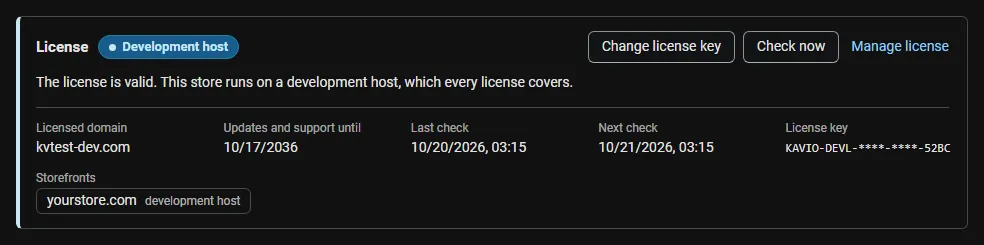
The License card shows:
- the status in color: green when valid, blue for a development host or the 14-day period before a key is required (with the days left), amber when the license server could not be reached (with the days left) or a Marketplace number is still being verified, red when the add-on is switched off;
- in plain words what the status means and, when the add-on is (or will be) switched off, what stops: the social sign-in buttons and Google One Tap are hidden and no new social sign-ins start; customers sign in with e-mail and password as before, and connected accounts, provider settings and statistics are kept;
- the licensed domain, every storefront with its result (covered, development host, not covered), the end of the updates and support period, the last and the next check, and the key in use (masked);
- the actions Enter license key / Change license key (opens the License tab), Check now (verifies at once and stays on the page), Manage license (your licenses on cs-cart.kaviolabs.com) and, without a valid license, Buy a license.
In Add-ons → Manage add-ons the add-on’s row shows a small license badge next to its name, for example License: Valid or License: Pending · 9 days left. The Social sign-in and Statistics pages show the license status in a bar at the top.
| Setting | Description |
|---|---|
| License key | Your Kavio Labs license key (KAVIO-XXXX-XXXX-XXXX-XXXX, from My licenses on cs-cart.kaviolabs.com) or your CS-Cart Marketplace license number. If you entered the Marketplace license number in Add-ons → Manage add-ons (the add-on’s license field), leave this empty: the add-on uses that number. |
| License status | Points to the License card and explains what the check sends. |
What the license covers. A license is bound to the base domain you entered at purchase (for example example.com) and covers every subdomain of it (www.example.com, shop.example.com, staging.example.com). Local development hosts are always allowed: localhost, 127.0.0.1 and other private IP addresses, and host names ending in .localhost, .test, .local, .example or .invalid. A store on a different base domain needs its own license. If you move your store to a new domain, contact support.
When the add-on checks. When you save the key, and then once a day. The check runs only in the admin panel (on a page you open) or from cron, never while customers browse the storefront or sign in, and takes a few seconds at most. A cron job keeps the license verified even when nobody opens the admin panel:
php /path/to/store/admin.php --dispatch=kv_social_login_pro_license.checkWhat is sent. The check sends this to https://cs-cart.kaviolabs.com and nothing else: the license key, the add-on ID and version, the host names of your storefronts, your CS-Cart version and edition, and a random one-time value. No customer, account, order or personal data is sent. The server answers with a digitally signed result, so a forged answer is ignored.
Statuses.
| Status (card) | Color | What happens |
|---|---|---|
| Valid | Green | The license is valid for this domain. Everything works. |
| Development host | Blue | The store runs on a local development host, which every license covers. Everything works. |
| Pending verification | Amber | A CS-Cart Marketplace license number was accepted, but the Marketplace has not confirmed it yet. Everything works. |
| Pending · N days left | Blue | No verified key yet (a new installation). Everything works for 14 days. |
| Grace period · N days left | Amber | The last checks failed (for example a network problem). The add-on keeps working for 14 days after the first failed check. |
| Not activated, Invalid key, Revoked, Domain mismatch, Not verified | Red | The social sign-in buttons and Google One Tap are hidden and no new social sign-ins start. A sign-in that already started at the provider is still completed, and customers can still disconnect providers. Customers sign in with e-mail and password as before; connected accounts, provider settings and statistics are kept. Domain mismatch shows the licensed domain next to the domain your store runs on. |
When your updates and support period ends, the add-on keeps working. Only updates and support stop.
License information appears in the admin panel only, and only for administrators who may manage add-ons; vendors and customers never see it.