

Usage
How a KSeF invoice is made
Section titled “How a KSeF invoice is made”- An order reaches one of the issue statuses (default Processed or Complete), or you click Create KSeF invoice on the KSeF tab of the order, or you select orders in the orders list and choose Create KSeF invoices.
- The add-on builds the FA(3) invoice from the order, gives it the next number and checks it against the official FA(3) schema and its own rules.
- The invoice is sent to KSeF: at once when you created it in the admin panel, otherwise by the queue (cron or Send queue now).
- KSeF assigns the KSeF number. The add-on stores it with the official receipt (UPO) and builds the verification link and QR code (KOD I).
Orders without a buyer tax ID are skipped unless B2C invoicing is on. Parent orders of a Multi-Vendor checkout are not invoiced; their vendor orders are.
Statuses
Section titled “Statuses”| Status | Meaning |
|---|---|
| Queued | Waiting to be sent. With the offline mark: KSeF could not be reached, the invoice is sent in offline mode by the next run; Send by shows the deadline (the next business day). |
| Waiting | The seller has no active KSeF connection yet, the KSeF login failed, or a correction waits for the KSeF number of its invoice. Sent automatically once the reason is gone. |
| Processing | Sent; KSeF has not assigned the number yet. The queue asks again. |
| Accepted | KSeF number and UPO stored. |
| Rejected | KSeF refused the invoice (the reason and code are shown, for example a duplicate number). Fix the data and click Rebuild from order. |
| Check failed | The invoice did not pass the checks and was not sent (for example an invalid buyer NIP). Fix the data and rebuild. |
Orders → KSeF invoices
Section titled “Orders → KSeF invoices”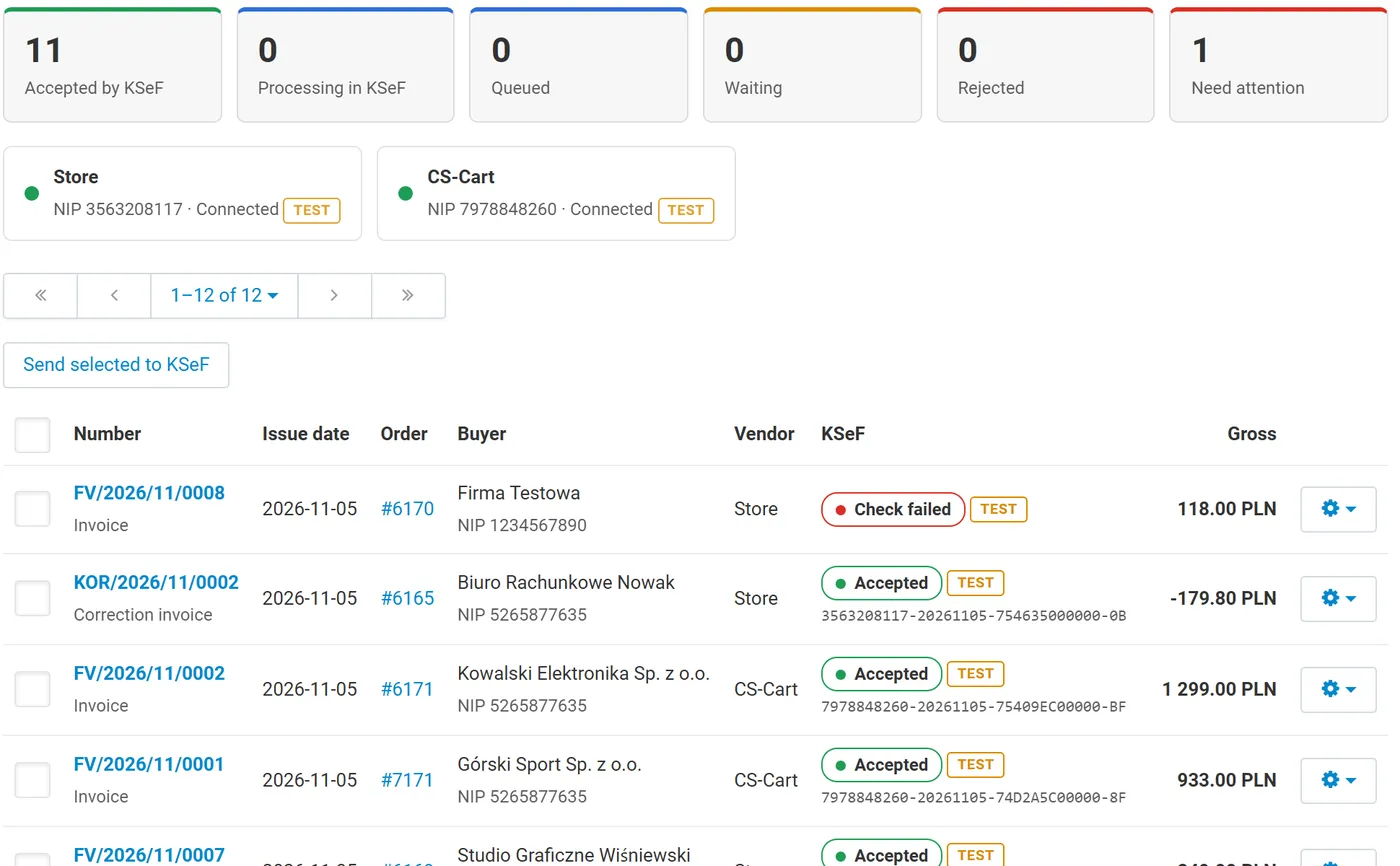
Tiles count the documents per status and filter the list. The connection cards show each seller’s NIP, environment and last connection result. Select documents and click Send selected to KSeF, or Send queue now for everything due. Search by number, buyer, NIP, KSeF number or order.
The document page
Section titled “The document page”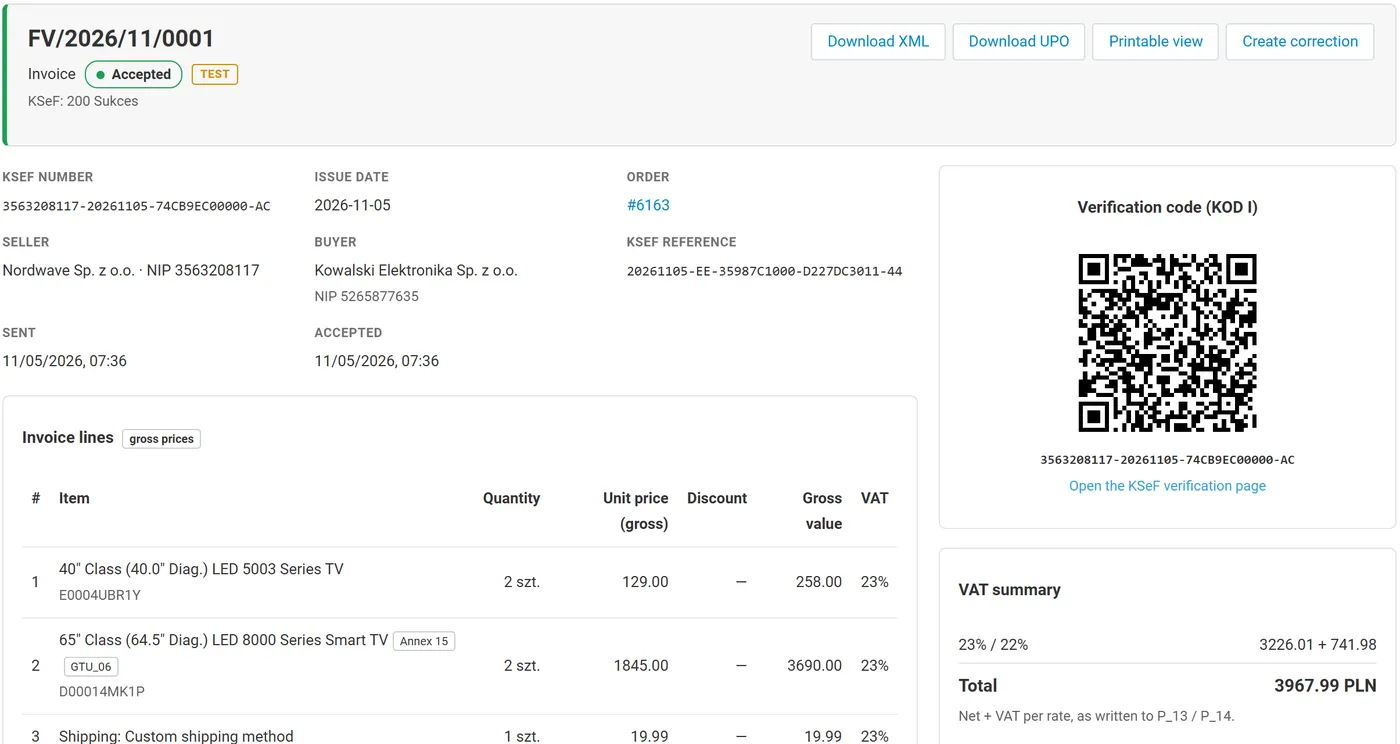
- KSeF number, KSeF reference, sent and accepted times, the order and the buyer.
- The verification QR code (KOD I) with the link to the KSeF verification page. Print it on your own invoice layouts if you like.
- The invoice lines (net or gross prices, discounts, VAT rates, GTU and Annex 15 marks), the VAT summary per rate, the checks, the history and the FA(3) XML.
- Download XML, Download UPO, Printable view, Create correction, Send to KSeF now / Check KSeF status, Rebuild from order and Discard (only for documents KSeF never accepted).
Corrections
Section titled “Corrections”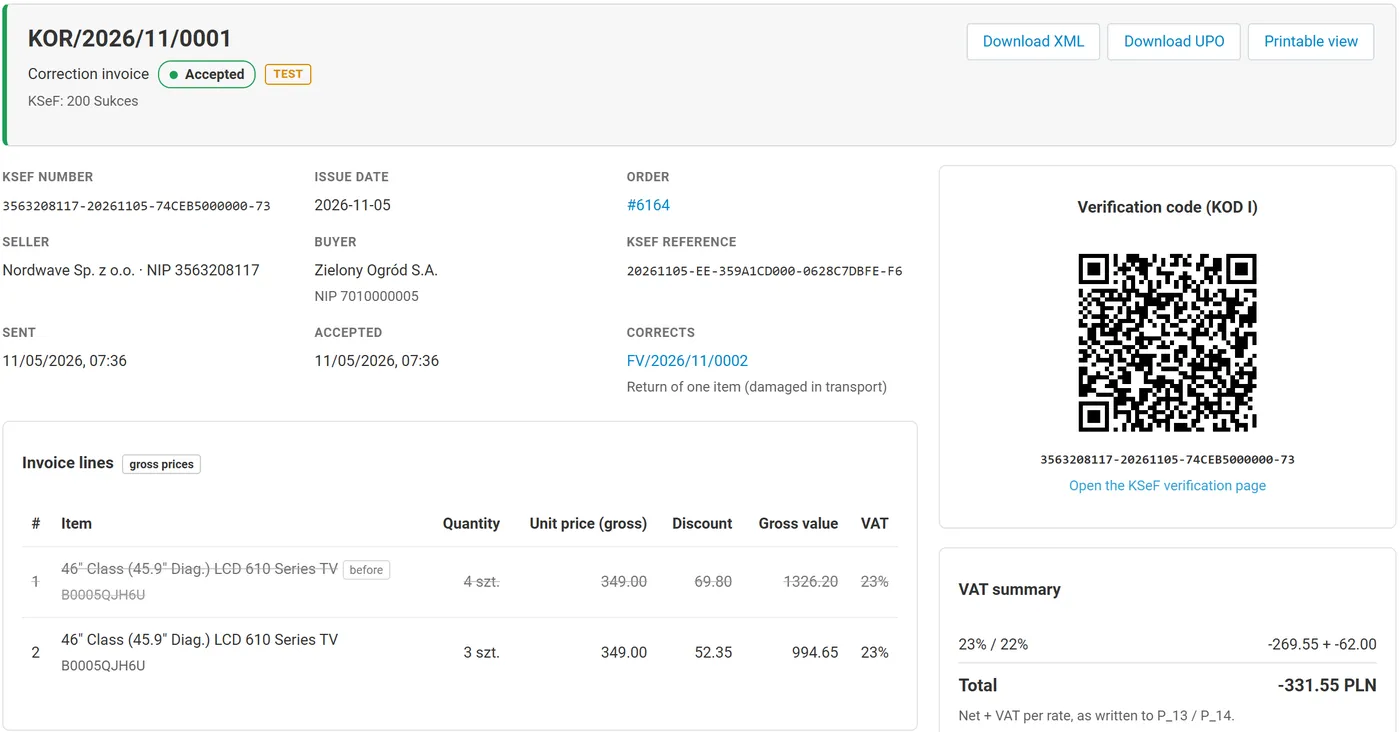
Create correction opens a form with the current lines of the invoice (after earlier corrections). Enter the new quantities of the lines that change, or tick Full correction, and give a reason. The correction invoice (FA(3) type KOR) lists each changed line before and after the change, refers to the KSeF number of the invoice and carries the difference as its total.
Full corrections are also created automatically when an order reaches a correction status (for example Canceled). A correction of an invoice that has no KSeF number yet waits and is sent right after it.
Offline mode
Section titled “Offline mode”When KSeF cannot be reached (network problem or an announced KSeF outage), the invoice keeps its number and issue date, gets the offline mark and its send deadline, and the queue retries with growing intervals. Invoices sent after their issue date are sent with the offline flag, as KSeF requires. The verification QR code shows OFFLINE until the KSeF number is assigned.
The add-on cannot know about outages that the Ministry of Finance announces; check the KSeF communications for the deadlines that apply during a failure.
Incoming invoices
Section titled “Incoming invoices”Orders → KSeF invoices → Incoming invoices lists the purchase invoices your suppliers sent to KSeF for your NIP (last 7–90 days) with their KSeF numbers and amounts, loaded from KSeF when you ask. Download XML gets the structured invoice. Nothing is stored in the store.
Customers
Section titled “Customers”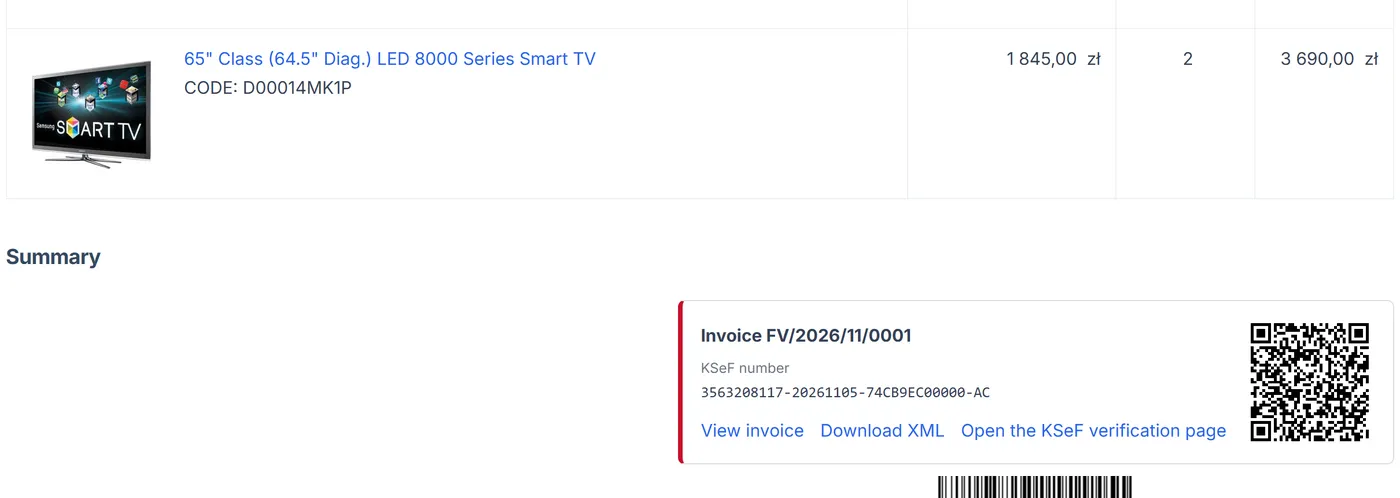
On the order page of the customer account (and for guests who placed the order in their session) the add-on shows the KSeF invoices of the order with the KSeF number, the verification QR code, a printable view and the XML download. Customers never see documents of other orders, nor documents that KSeF did not accept.
Vendors (Multi-Vendor)
Section titled “Vendors (Multi-Vendor)”When vendors issue their own invoices, each vendor connects its own NIP and token under Orders → KSeF invoices → KSeF connection in the vendor panel. Vendors see and send only the documents of their own orders, check incoming invoices of their own NIP, and have their own gapless numbering.