

Configuration
Everything about dates lives on one page: Settings → Delivery calendar (CS-Cart 4.17: Administration → Shipping & taxes → Delivery calendar; also the Delivery dates and slots button on the shipping methods page). The add-on settings (Add-ons → Manage add-ons → Delivery Date & Time Slots) only control what the storefront shows.
How dates are calculated
Section titled “How dates are calculated”- Dispatch day. An order placed on a working day before the cut-off is processed that day; later orders, and orders on non-working days, start on the next working day. Then the processing days are added (working days only). Closed days that close dispatch are skipped.
- Delivery day. From the dispatch day, the transit days are counted on delivery days (closed days that close delivery are skipped). Transit 0 means delivery on the dispatch day.
- Processing time of an order is the slowest product: the product’s own value, else its main category (or the nearest parent category with a value), else the calendar value. A shipping method can add extra days.
- Estimate = the fastest and the slowest transit time, shown as one date (“get it by Thu, Oct 22”) or a range (“between Thu, Oct 22 and Mon, Oct 26”).
The Next order windows box on the calendar page shows the result for the next five cut-offs with the default processing and transit time.
Calendar tab
Section titled “Calendar tab”| Field | Description |
|---|---|
| Working days | Days on which orders are packed and dispatched. |
| Order cut-off | Orders placed on a working day before this time are processed the same day. The store time zone (Settings → Appearance) is used. |
| Processing time | Working days between the order and dispatch. Products and categories can override it on their Add-ons tab (Processing time (working days); empty = inherit). |
| Delivery days | Days on which parcels are delivered. |
| Transit time | Fastest and slowest delivery days from dispatch. Used for product-page estimates and for shipping methods without their own transit time. |
Multi-Vendor vendors and CS-Cart Ultimate storefronts see an extra choice at the top: Use the marketplace calendar (the calendar of all storefronts) or Use my own calendar.
Holidays tab
Section titled “Holidays tab”Add closed days with a date, a name, what they close (Dispatch and delivery, Dispatch only — e.g. a stock-take day — or Delivery only) and Every year for recurring dates such as New Year’s Day. Closed days of the marketplace (or of all storefronts) always apply; a vendor’s or storefront’s own closed days apply in addition once its own calendar is in use.
Shipping methods tab
Section titled “Shipping methods tab”Lists the shipping methods with their delivery option, transit time and number of slots. Click a method to edit it.
| Field | Description |
|---|---|
| Customers | Off (no estimate and no picker, e.g. pickup or digital goods), Estimate only (default), Choose a delivery day, Choose a day and time slot. |
| Choice required | Customers cannot place the order without choosing. When off, the picker offers “No preference (earliest possible delivery)”. |
| Transit time | Fastest and slowest delivery days of this method. Empty = the calendar value. 0 = same-day delivery. |
| Extra processing days | Added to the processing time, e.g. 1 for a carrier that collects only the next day. |
| Delivery days | Optionally other delivery days than the calendar, e.g. Monday to Friday for a courier. |
| Days to offer | Number of delivery days shown in the picker (1–60). |
| Booking closes | Day and slot mode: a slot can be booked until this many minutes before it starts (lead time). |
| Orders per day | Day mode: daily capacity (0 = unlimited). |
Time slots (day and time slot mode): one row per slot with its weekdays, start and end time, capacity (0 = unlimited), fee and an Active switch. Add slot adds a row; Create slots in one step fills consecutive slots between two times (for example 08:00–22:00 in 2-hour slots). Rows are saved together with the method.
How capacity works: an order books its slot from the moment it is placed. Orders in the statuses chosen in Order statuses that free a booked slot (default: Canceled, Failed, Declined) no longer count. Parent orders of Multi-Vendor checkouts never count; their vendor orders do.
How the fee works: the fee of the chosen slot is added to the shipping cost of the method, so it appears in the shipping line, is taxed like shipping and, on Multi-Vendor, belongs to the vendor’s shipping. The slot tiles show “+$4.50” or “No extra charge”.
Vendors and storefronts: the method settings of the marketplace (or of all storefronts) apply until the vendor or storefront saves its own settings for that method; Return to the marketplace settings removes them again.
Add-on settings
Section titled “Add-on settings”| Setting | Default | Description |
|---|---|---|
| Enable | On | Switches every storefront output (estimates, picker, fees, checks) on or off. Admin pages keep working. |
| Delivery calendar | Links to the calendar and the slot board. | |
| Show the delivery estimate on product pages | On | The line under the buy buttons. |
| Show the delivery estimate in the cart and at checkout | On | Per package in the cart and under shipping methods in estimate mode. |
| Show the countdown when the cut-off is less than (hours) away | 12 | Earlier the line says “Get it by …”. 0 = never a countdown. |
| Show estimates for products that are out of stock | Off | Back-ordered products have no reliable dispatch date. |
| Date format | Thu, Oct 22 | Also Thursday, October 22 or Thu 22 Oct. Week day and month names come from your store languages. |
| Time format | As in Settings → Appearance | Or 24-hour (18:00) / 12-hour (6 pm). |
| Say “today” and “tomorrow” | On | Relative labels in estimates and day tabs. |
| Order statuses that free a booked slot | Canceled, Failed, Declined | See capacity above. |
| Vendors may set their own calendar, methods and time slots | On | Multi-Vendor only. Off: every vendor uses the marketplace calendar and the vendor panel shows only the slot board. |
| Count capacity of marketplace time slots across all vendors | Off | Multi-Vendor only. On when the marketplace delivers for all vendors (one courier fleet). Off: every vendor has the full capacity of each marketplace slot. |
CS-Cart Ultimate: all settings can differ per storefront.
License
Section titled “License”The license status is shown in a License card at the top of the add-on page, above the tabs, so you see it on every tab. The License tab holds the key itself. The key is stored once for the whole installation.
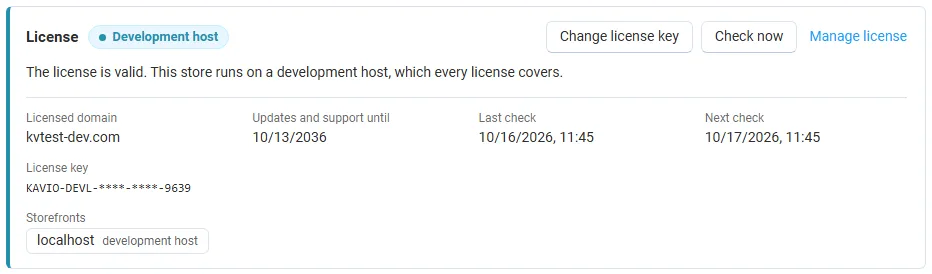
The License card shows:
- the status in color: green when valid, blue for a development host or the 14-day period before a key is required (with the days left), amber when the license server could not be reached (with the days left) or a Marketplace number is still being verified, red when the add-on is switched off;
- in plain words what the status means and, when the add-on is (or will be) switched off, what stops: delivery estimates, the countdown and the delivery date and time slot picker are hidden on the storefront, and slot fees are not added; checkout, orders and delivery slots already booked keep working;
- the licensed domain, every storefront with its result (covered, development host, not covered), the end of the updates and support period, the last and the next check, and the key in use (masked);
- the actions Enter license key / Change license key (opens the License tab), Check now (verifies at once and stays on the page), Manage license (your licenses on cs-cart.kaviolabs.com) and, without a valid license, Buy a license.
In Add-ons → Manage add-ons the add-on’s row shows a small license badge next to its name, for example License: Valid or License: Pending · 9 days left.
The add-on’s own admin pages (delivery calendar, shipping method, slot board) show the license status in a bar at the top: a small green chip when the license is valid, or a banner with the status, what is switched off and the same actions as the card. Vendors never see license information.
| Setting | Description |
|---|---|
| License key | Your Kavio Labs license key (KAVIO-XXXX-XXXX-XXXX-XXXX, from My licenses on cs-cart.kaviolabs.com) or your CS-Cart Marketplace license number. If you entered the Marketplace license number in Add-ons → Manage add-ons (the add-on’s license field), leave this empty: the add-on uses that number. |
| License status | Points to the License card and explains what the check sends. |
What the license covers. A license is bound to the base domain you entered at purchase (for example example.com) and covers every subdomain of it (www.example.com, shop.example.com, staging.example.com). Local development hosts are always allowed: localhost, 127.0.0.1 and other private IP addresses, and host names ending in .localhost, .test, .local, .example or .invalid. A store on a different base domain needs its own license. If you move your store to a new domain, contact support.
When the add-on checks. When you save the key, and then once a day. The check runs only in the admin panel (on a page you open) or from cron, never while customers browse the storefront or place orders, and takes a few seconds at most. A cron job keeps the license verified even when nobody opens the admin panel:
php /path/to/store/admin.php --dispatch=kv_delivery_date_time_slots_license.checkWhat is sent. The check sends this to https://cs-cart.kaviolabs.com and nothing else: the license key, the add-on ID and version, the host names of your storefronts, your CS-Cart version and edition, and a random one-time value. No customer, vendor, order or personal data is sent. The server answers with a digitally signed result, so a forged answer is ignored.
Statuses.
| Status (card) | Color | What happens |
|---|---|---|
| Valid | Green | The license is valid for this domain. Everything works. |
| Development host | Blue | The store runs on a local development host, which every license covers. Everything works. |
| Pending verification | Amber | A CS-Cart Marketplace license number was accepted, but the Marketplace has not confirmed it yet. Everything works. |
| Pending · N days left | Blue | No verified key yet (a new installation). Everything works for 14 days. |
| Grace period · N days left | Amber | The last checks failed (for example a network problem). The add-on keeps working for 14 days after the first failed check. |
| Not activated, Invalid key, Revoked, Domain mismatch, Not verified | Red | No estimates, no countdown and no picker on the storefront, no slot fees and no slot check when an order is placed. Checkout and orders keep working with the normal shipping rates. The calendar, the slots and the delivery data of earlier orders are kept and still shown on order pages, invoices and e-mails. Domain mismatch shows the licensed domain next to the domain your store runs on. |
When your updates and support period ends, the add-on keeps working. Only updates and support stop.
License information appears in the admin panel only, and only for administrators who may manage add-ons; vendors and customers never see it. When the add-on is switched off, other admin pages also show a notice once per session with a link to the add-on page; the add-on page and the add-on’s own pages show the card or the status bar instead.