

Usage
How a vendor save is handled
Section titled “How a vendor save is handled”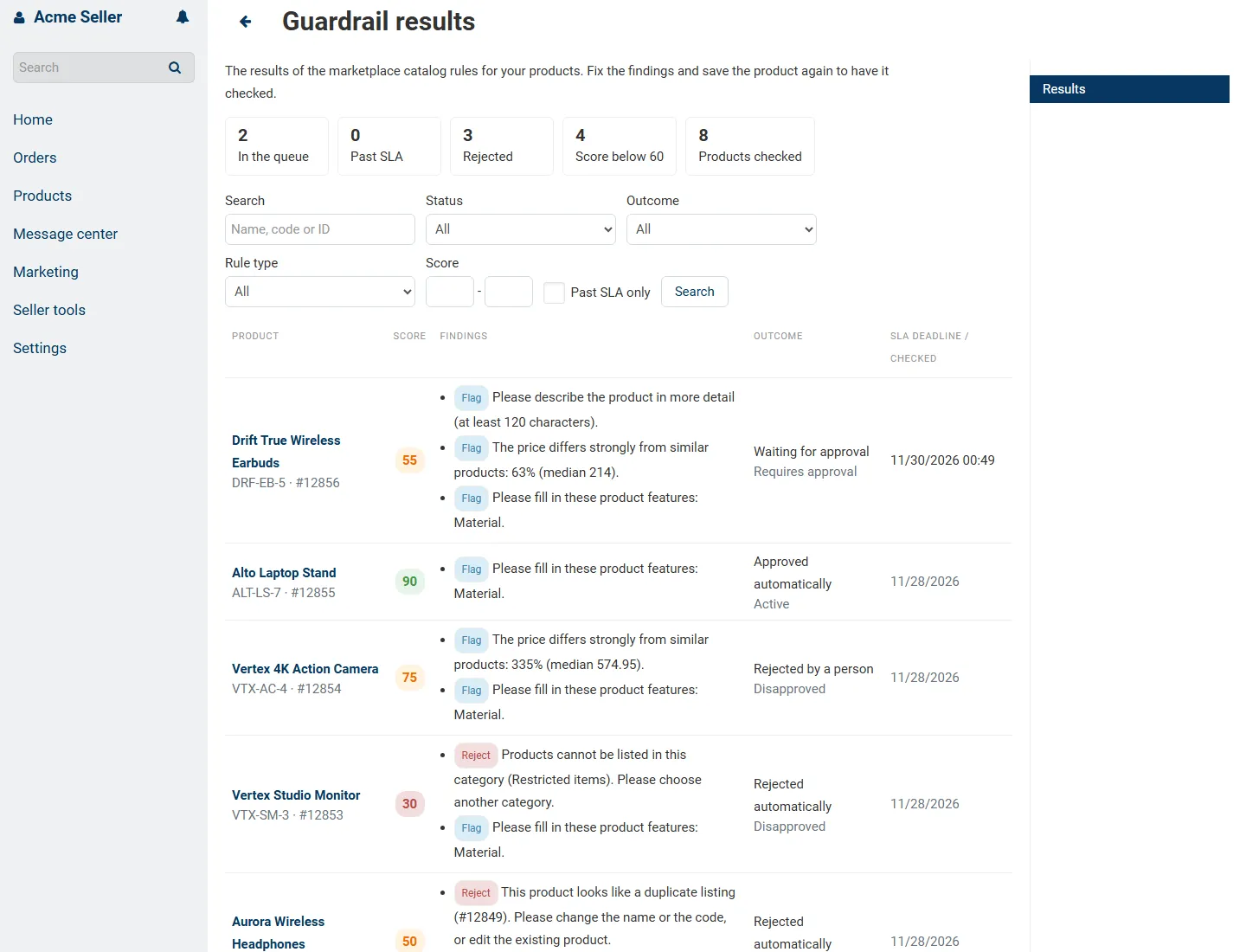
- The vendor saves a product in the vendor panel (or through the API or an import).
- Rules with the action Block are checked first. A failed rule refuses the save and shows the reason.
- CS-Cart’s premoderation runs as usual and may put the product into “Requires approval”.
- The rules run over the saved product and compute the score.
- The decision:
- a failed Reject rule: the product is disapproved with the reason (when “Auto-reject” is on);
- else a score at or above the threshold (own threshold for trusted vendors) with “Auto-approve” on: approved;
- else findings or no auto-approve: the product waits in the Moderation queue.
- The vendor reads the result in a notification, on the product page and in Products → Guardrail results. The core disapproval e-mail carries the same reason.
Moderation queue
Section titled “Moderation queue”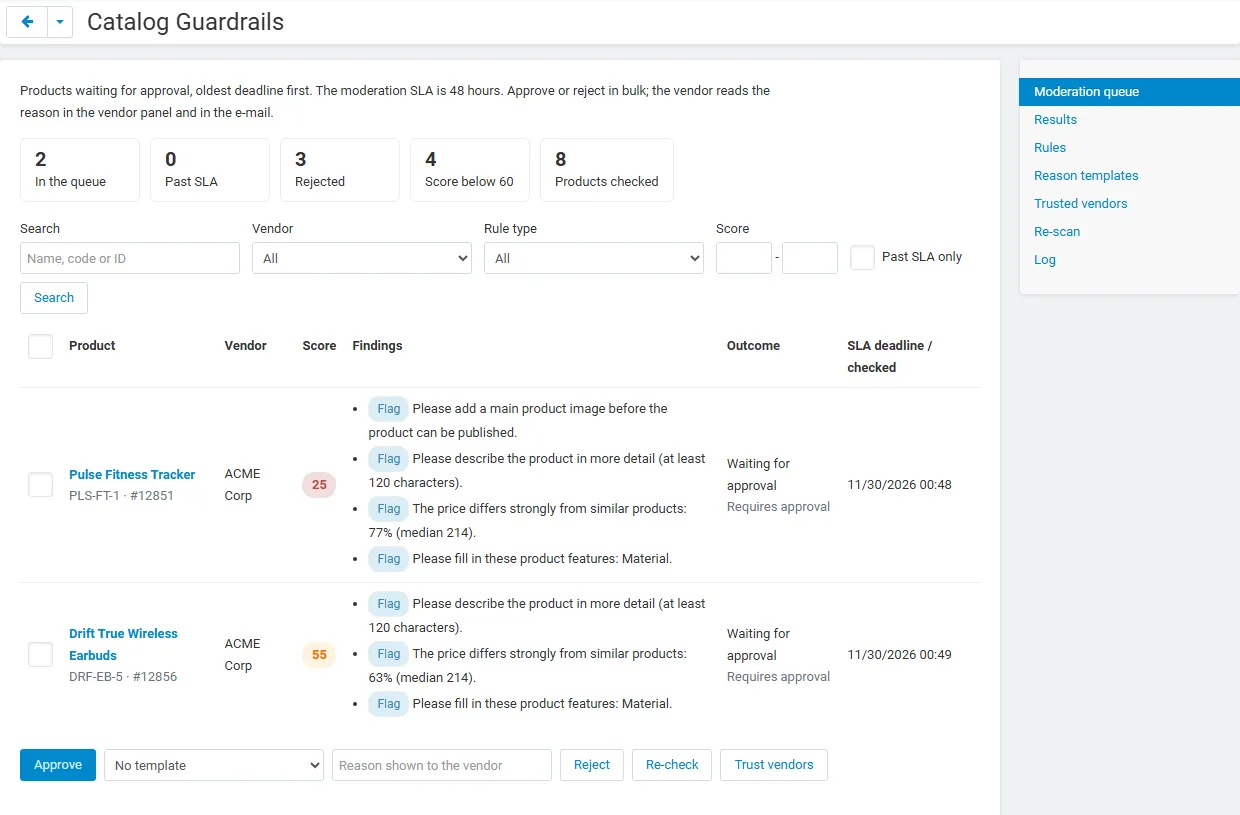
Vendors → Catalog Guardrails → Moderation queue lists the products that wait for approval, the oldest deadline first. Filters: text, vendor, rule type, score range, past SLA only. Select products and:
- Approve: the product goes live and the entry is closed;
- Reject: pick a reason template or type the reason; the vendor reads it;
- Re-check: runs the rules again (after you changed a rule);
- Trust vendors: puts the vendors of the selected products on the trusted list.
The Results tab shows the latest check of every product, decided or not. Products approved or disapproved on core’s own “Requires approval” page close their queue entry automatically.
Trusted vendors
Section titled “Trusted vendors”Trusted vendors lists all vendors. Mark the ones you rely on: they are auto-approved from a lower score. Reject rules still apply to them.
Re-scan the existing catalog
Section titled “Re-scan the existing catalog”Re-scan runs the rules over products that already exist and stores the results. Without “Apply the decisions” nothing changes on the products. With it, products that fail a Reject rule are disapproved and products that fail below the threshold go back to “Requires approval”, so they leave the storefront until fixed (for example products without a main image). The run works in batches; press Continue when it pauses.
Overdue alert
Section titled “Overdue alert”Products past the SLA are marked overdue. For an e-mail, enter the address in the settings and call the cron URL hourly. Each product is reported once.
REST API
Section titled “REST API”/api/kv_vcg_checks (administrators; vendor administrators can read their own):
GET /api/kv_vcg_checkswithstate(O open, D decided),company_id,resolution,score_from,score_to,overdue=Y,rule_type,q,page,items_per_page;GET /api/kv_vcg_checks/<product_id>one product with its findings;POST /api/kv_vcg_checkswithproduct_id(andapply=true) re-checks a product;PUT /api/kv_vcg_checks/<product_id>withaction=approveorreject(andreason).
- Start with flags and a high threshold, look at the Results tab for a week, then turn the confident rules into Reject or Block.
- Give each vendor plan its own category rules: a rule applies to all vendors, to vendors without a plan, or to one plan.
- Several rules can fail at once; the weights add up (the score never goes below 0).