

Usage
Everything lives in Products → Data Act notices (tabs: Profiles, Coverage, Import / export) and in the “Data Act notice” tab of the product editor.
1. Find your connected products
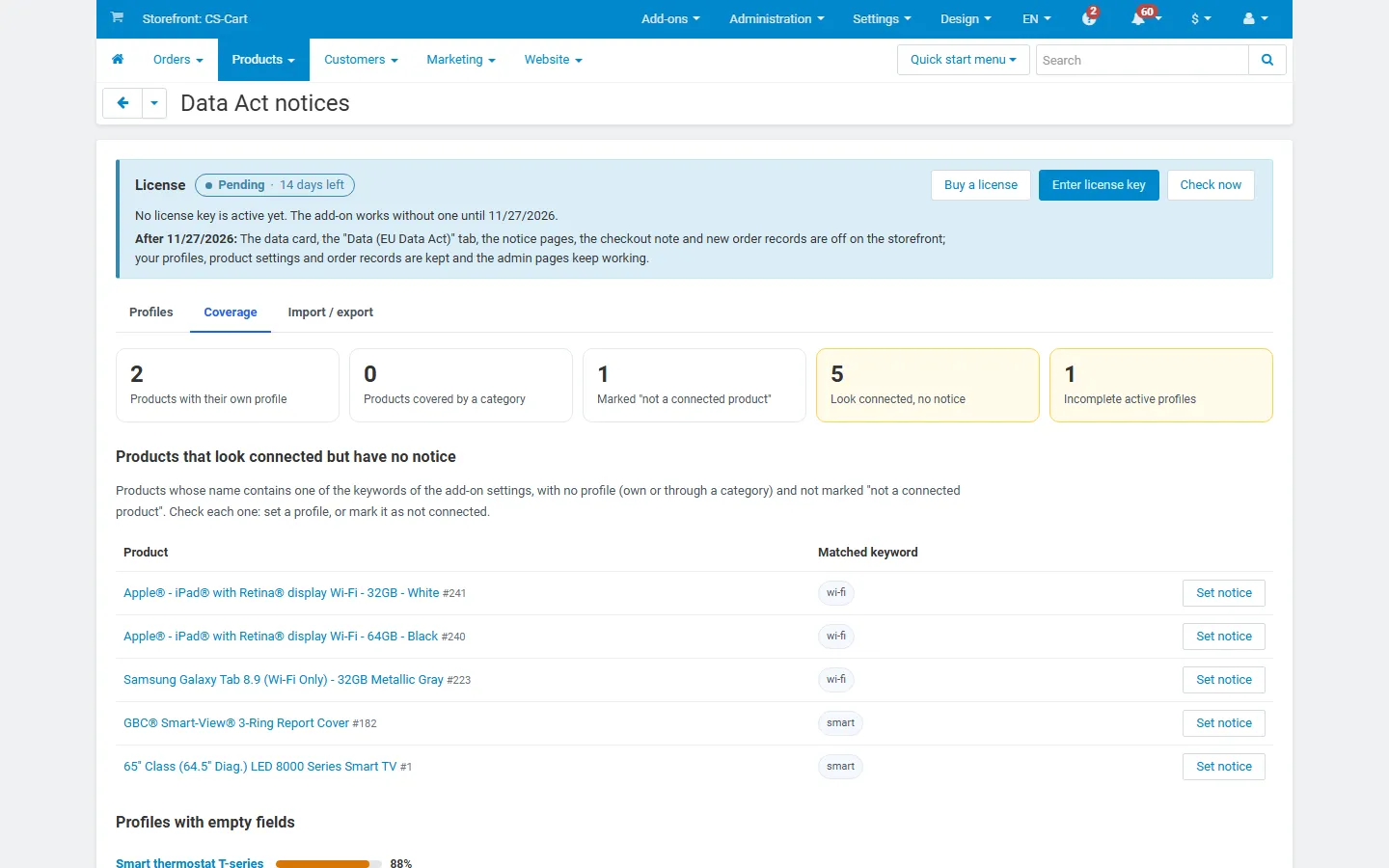
Section titled “1. Find your connected products”Open Coverage. It lists products whose names contain one of the keywords of the settings (“smart”, “Wi-Fi”, “Bluetooth”, “Zigbee”, “smartwatch”, “e-bike”…) and that have no notice yet, plus the number of products already covered. Use it as a to-do list; it is a name search, not a legal classification.
2. Create a profile per device family
Section titled “2. Create a profile per device family”Click Add profile. A profile describes one family of devices that share the same data behaviour, for example “Smart thermostat T-series” or “Fitness tracker band 5”. The texts are saved in the content language selected at the top of the page; a new profile copies them to every language, so translate them afterwards by switching the language.
Data the product generates (Article 3(2)(a)-(c))
- Type of data, Format, Estimated volume;
- Generated continuously and in real time: Yes / No, with optional details;
- Where the data is stored: on the device, on a remote server, both, or not stored;
- Intended retention period (asked when the product stores data).
Access, retrieval and erasure (Article 3(2)(d))
- How you access, retrieve or erase the data, with the technical means (app menu, export, local API);
- Access page or app link (optional);
- Erasing the data: possible / not possible / not relevant;
- Terms of use and quality of service: text, a link, or both.
Related service (Article 3(3)): tick “The product comes with a related service” when the device needs the manufacturer’s app or cloud service for one or more of its functions. Then fill in the data the provider obtains and generates, its use of the data, the data holder’s name, address and contact, other processing parties, how to share data with a third party, the complaint right (a standard sentence is shown when empty), trade secrets and the contract duration. This is the provider’s information duty; copy it from the manufacturer’s or provider’s documents.
More information: a link to the manufacturer’s own data information page and a free note.
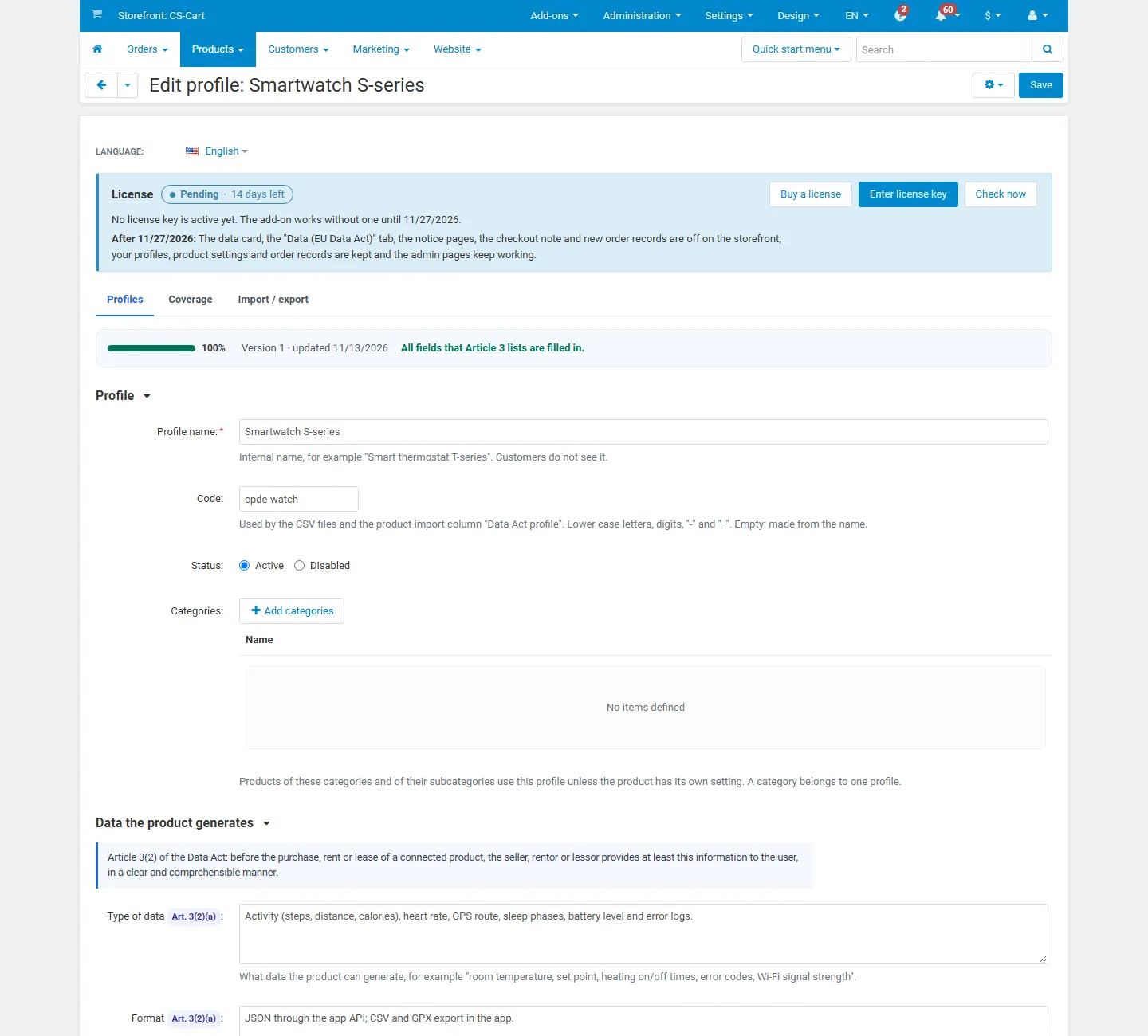
Each field shows the article it comes from. The bar at the top shows how many of the listed fields are filled; empty fields are listed by name. The notice is shown with the filled fields even when some are missing.
Every saved change raises the profile version. Order records keep the version they showed.
3. Link profiles to products
Section titled “3. Link profiles to products”-
By category: in the profile, pick categories. Products of those categories and of their subcategories get the profile. A category belongs to one profile. On Multi-Vendor only shared (marketplace) profiles can be linked to categories.
-
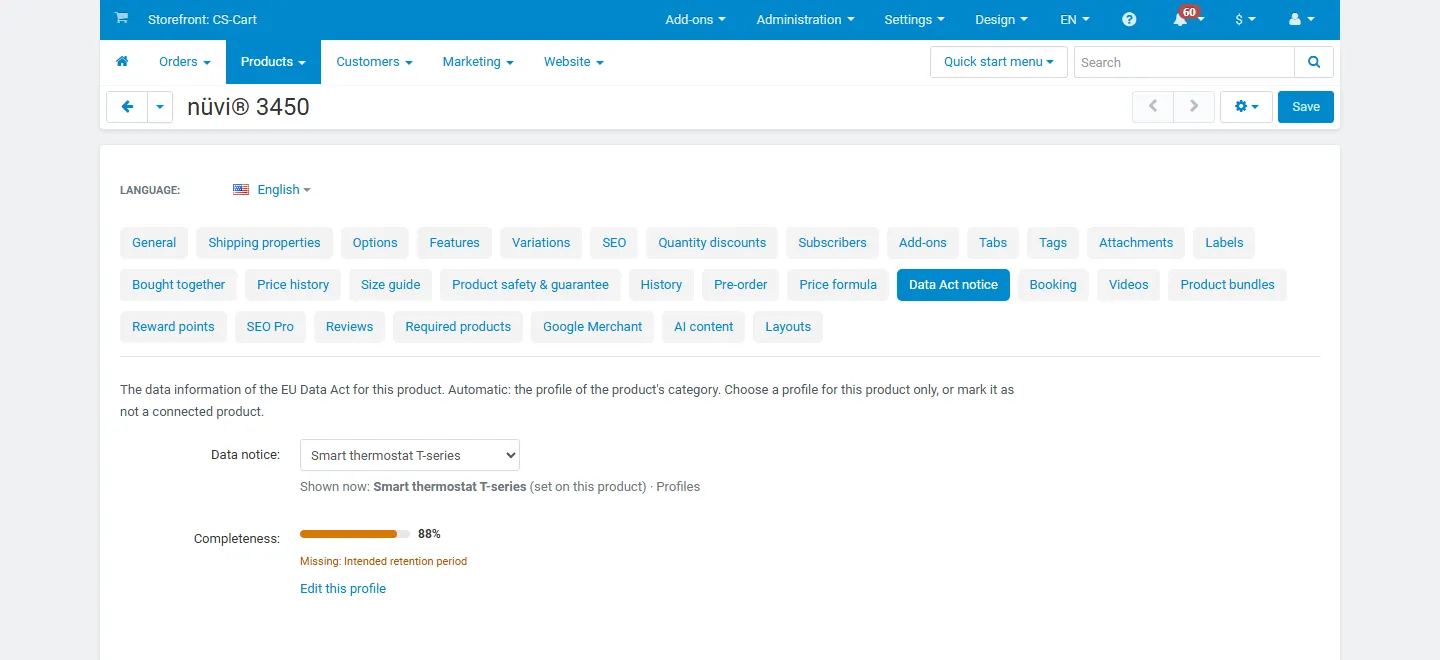
Per product: product editor → tab Data Act notice → choose a profile, Automatic (category) or Not a connected product. The tab shows which profile is shown now and where it comes from.
-
In bulk: core product export / import, column “Data Act profile”: a profile code,
noneor-(back to automatic). An empty cell changes nothing.
4. What customers see
Section titled “4. What customers see”-
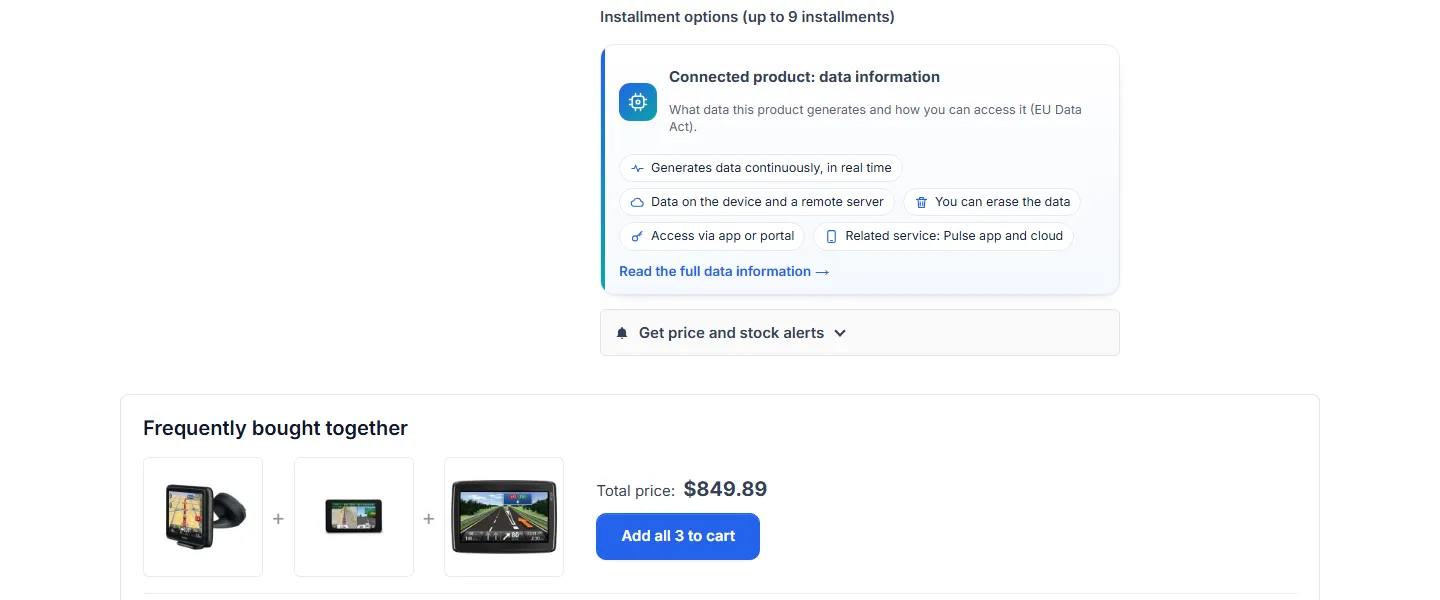
Product page card under the description: “Connected product: data information”, key facts as chips and a link to the full information.
-
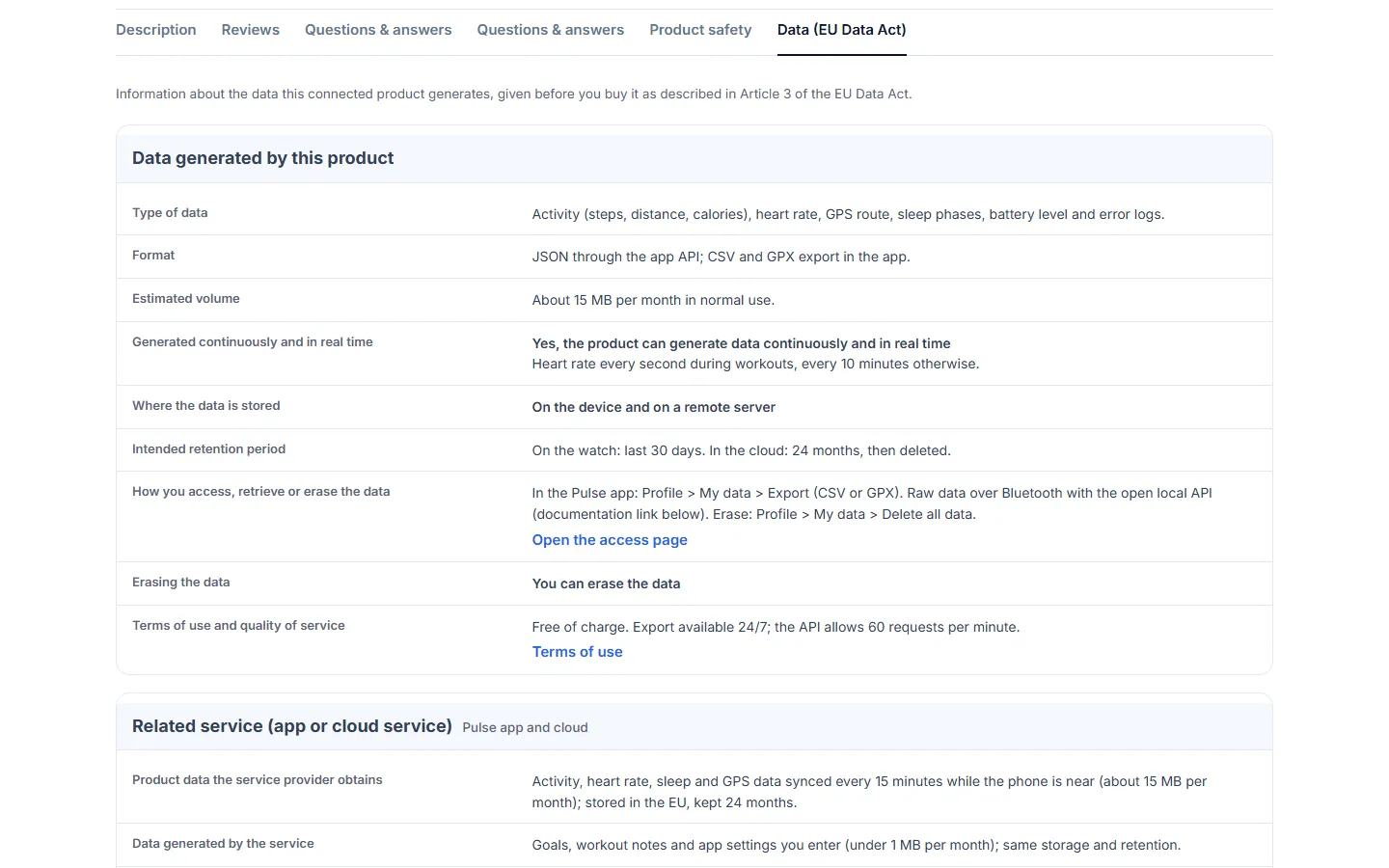
“Data (EU Data Act)” tab with the full table, grouped by “Data generated by this product” and the related service.
-
Notice page (
dispatch=kv_connected_product_data.view&product_id=N): the same information on its own page with version and date and a “Print or save as PDF” button. The page is marked noindex; the product page stays the indexed content.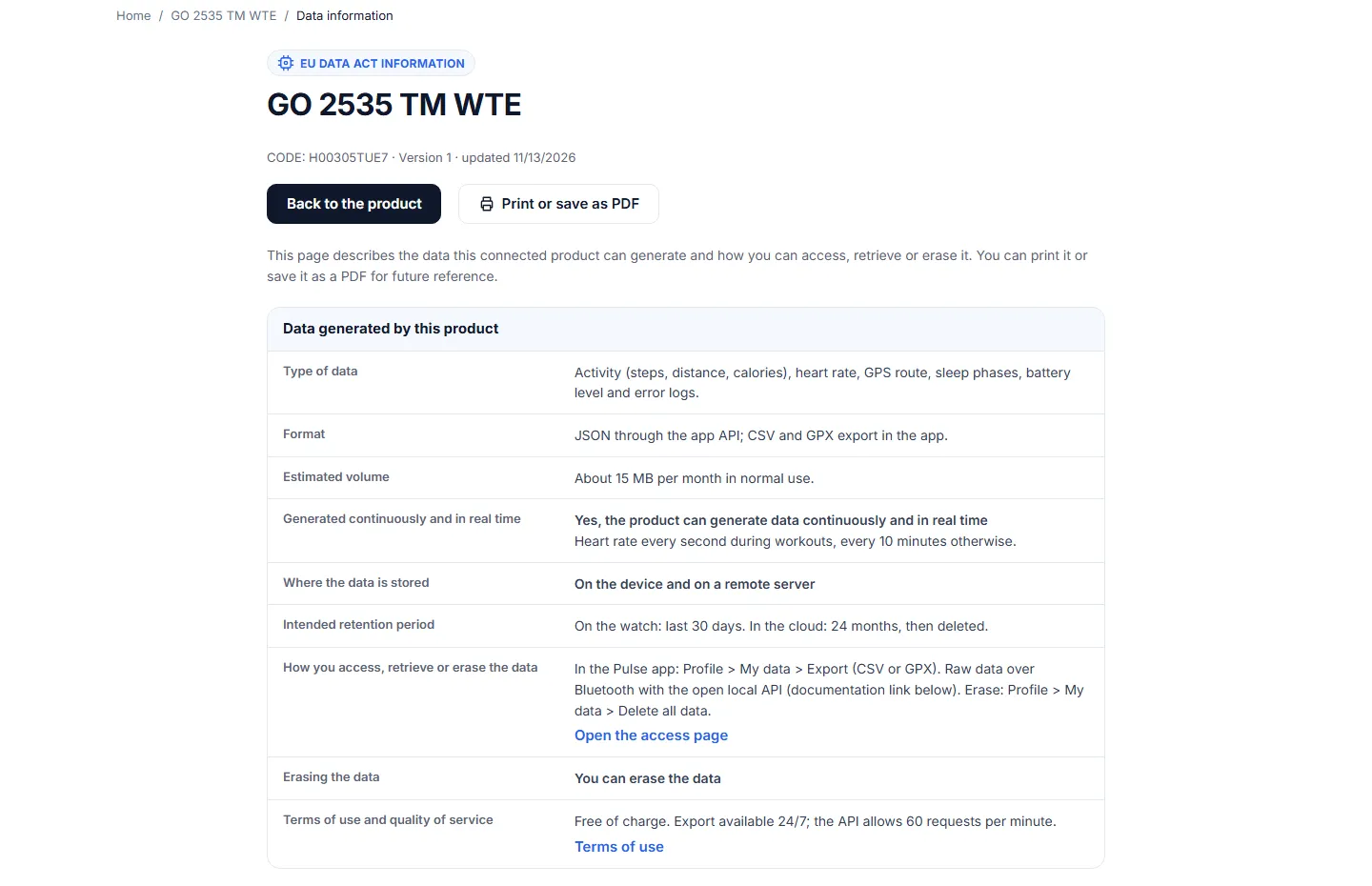
-
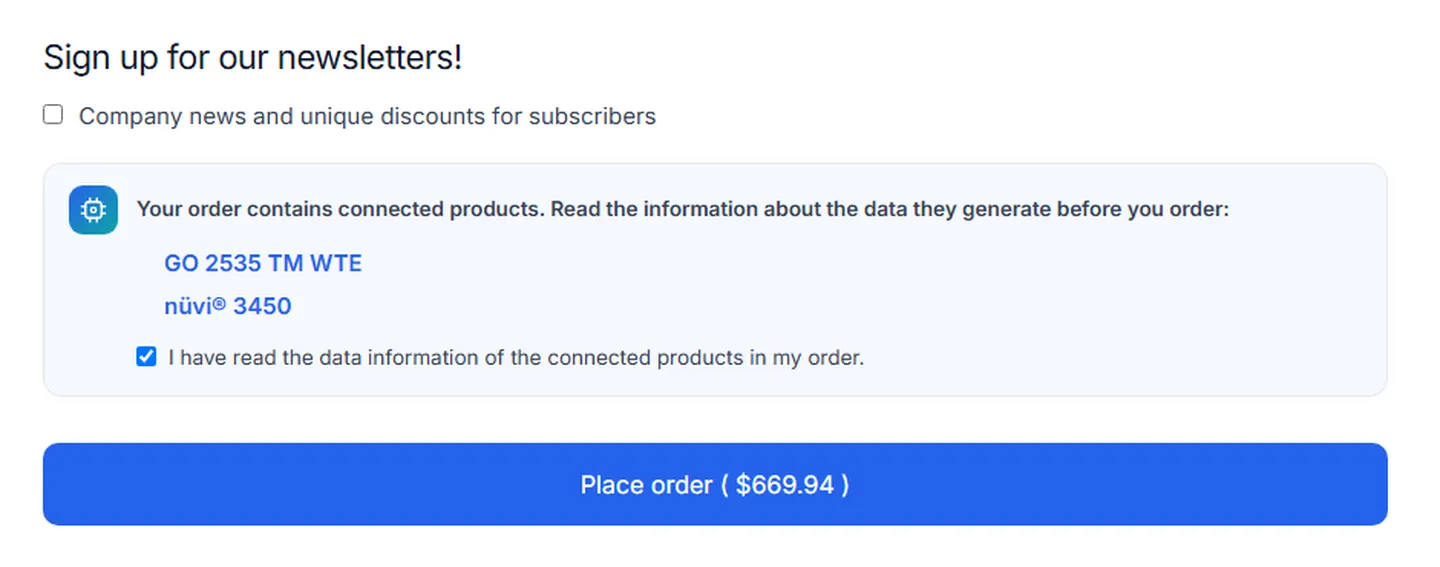
Checkout: before “Place order”, a note lists the connected products in the cart with links to their notice pages. With “Ask customers to confirm at checkout” on, a checkbox must be ticked to place the order.
-
Order page (customer account): under each connected product, a link “Data information (as shown before your order)” opens the recorded text.
5. Order records
Section titled “5. Order records”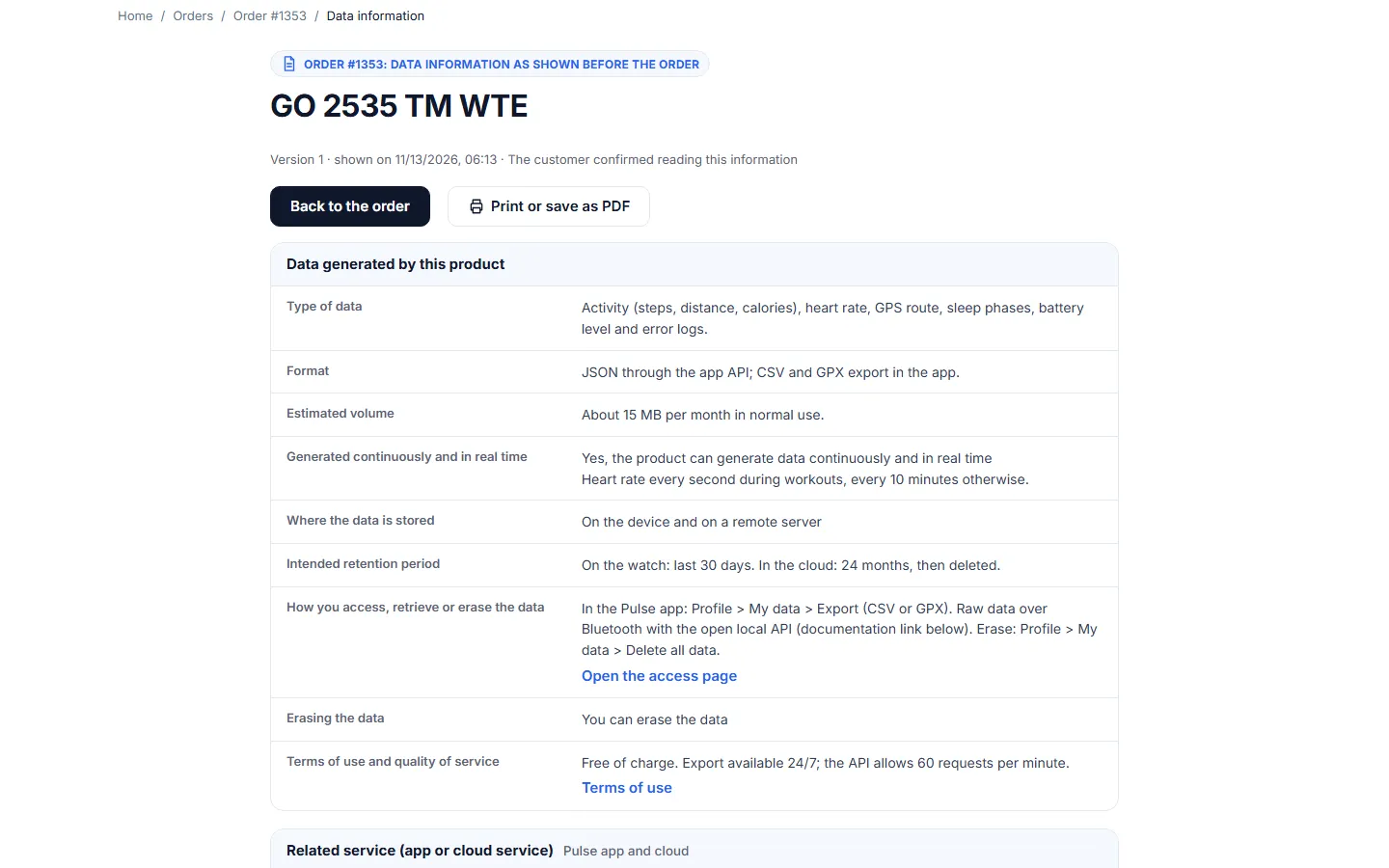
For each storefront order the add-on stores, per connected product, the rendered notice (labels and texts in the customer’s language), the profile version, the time and a SHA-1 fingerprint of the stored text. The admin order page shows them in the sidebar (“Data Act notices shown”); click a product to see the text. If the stored text no longer matches its fingerprint, the record is not shown. Records are kept when a profile changes or is deleted.
6. Import / export profiles
Section titled “6. Import / export profiles”Import / export → Export CSV writes one row per profile and language (columns listed on the page). Edit it in a spreadsheet, save as CSV (UTF-8, comma or semicolon) and Import CSV: rows are matched by code; existing profiles are updated in the language of the row, new codes create profiles. Cells starting with =, +, - or @ are written with a leading ' so spreadsheets do not run them as formulas; the import removes it again.
Multi-Vendor
Section titled “Multi-Vendor”- Vendors see Products → Data Act notices with their own profiles and the shared ones (read-only), their own Coverage and CSV, and the “Data Act notice” tab of their own products.
- The administrator sees all profiles, the owner of each, and a per-vendor count on the Coverage page.
- Order records are written for the order the customer placed; each vendor order shows the records of its own products.
Ultimate
Section titled “Ultimate”Settings can differ per storefront. Profiles created while a storefront is selected belong to that storefront; profiles created for “All storefronts” are shared.
Uninstall and data
Section titled “Uninstall and data”See Installation: by default uninstalling keeps profiles, settings and order records unless “Permanently delete all data notice profiles and order records on uninstall” is ticked.