

Configuration
Open Add-ons → Manage add-ons → Connected Product Data Notice (EU Data Act) → Settings. On CS-Cart Ultimate the storefront settings can be set per storefront.
General
Section titled “General”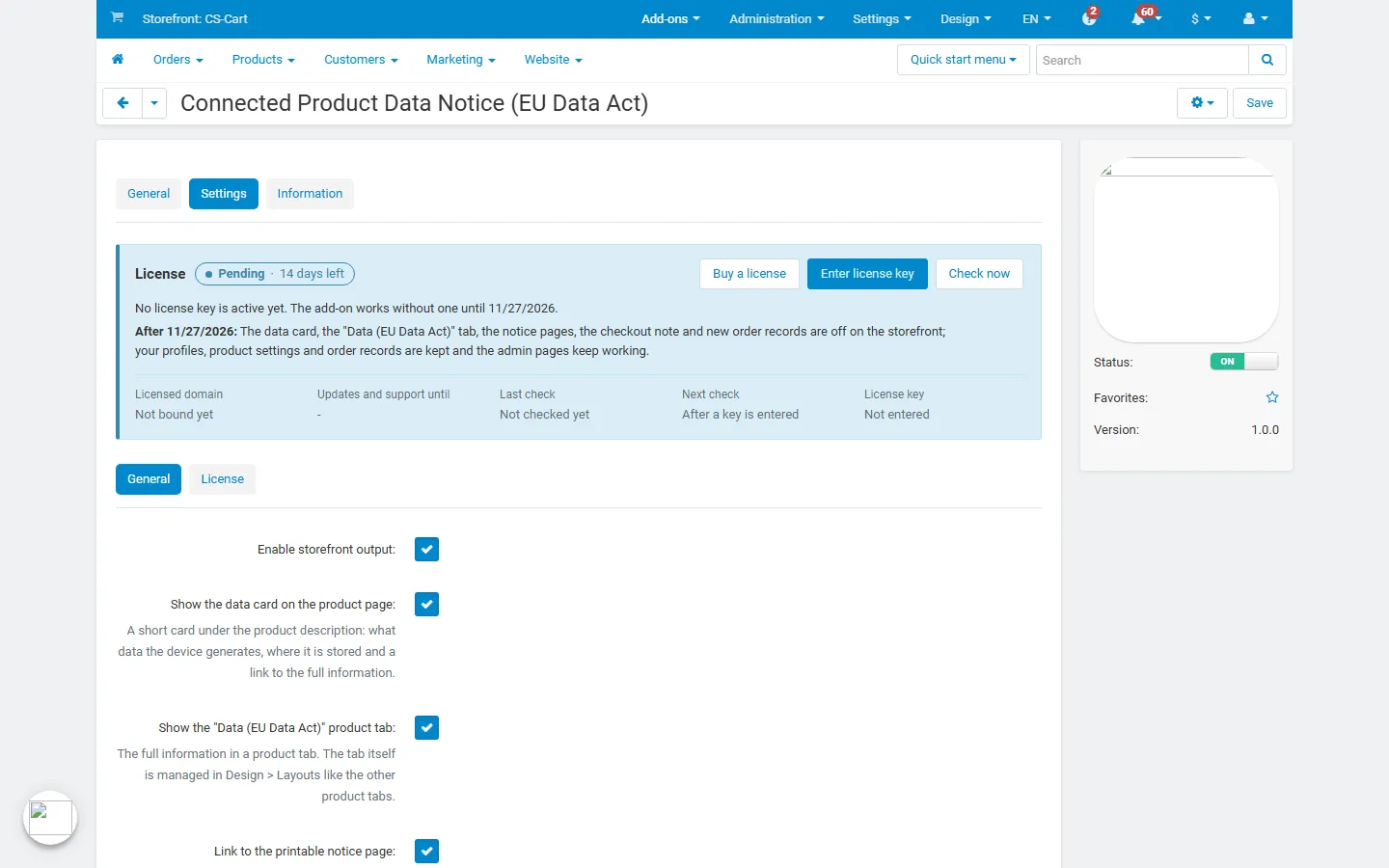
| Setting | Default | What it does |
|---|---|---|
| Enable storefront output | On | Master switch of the storefront output. Admin pages and data always work. |
| Show the data card on the product page | On | A short card under the product description with key facts and a link to the full information. |
| Show the “Data (EU Data Act)” product tab | On | The full information in a product tab. Position and status of the tab: Design → Layouts → Product tabs. |
| Link to the printable notice page | On | Links to a stable page per product (index.php?dispatch=kv_connected_product_data.view&product_id=N) that customers can print or save as PDF. |
| List connected products at checkout | On | A note before the “Place order” button with the connected products of the cart and links to their information. |
| Ask customers to confirm at checkout | Off | The Data Act does not ask for a confirmation. When on, the order is placed only after the customer ticks “I have read the data information of the connected products in my order”. The answer is saved with the order record. |
| Keep a record per order | On | Saves, for each connected product of a storefront order, the information shown (text, version, date, SHA-1 fingerprint). |
| Vendors manage the notices of their own products | On | Multi-Vendor only. Vendors create their own profiles and set the notice of their own products; shared marketplace profiles are read-only for them. Off: vendors only see the order records of their orders. |
| Keywords for the coverage check | smart, wifi, bluetooth, … | Words that make a product “look connected” on the Coverage page. Separated by commas. |
| Permanently delete all data notice profiles and order records on uninstall | Off | See Installation. |
License
Section titled “License”Enter the Kavio Labs license key, or leave it empty when you entered the CS-Cart Marketplace license number in Add-ons → Manage. Without a valid license the storefront output is off (card, tab, pages, checkout note, new order records); your profiles, product settings and records are kept and the admin pages keep working.
Product tab
Section titled “Product tab”The tab is created on install as “Data (EU Data Act)” in Design → Layouts → Product tabs. Rename it, move it or switch it off there. The tab shows only on products that have a notice.
Page cache
Section titled “Page cache”The card and the tab are the same for every visitor of a product page, so the CS-Cart 4.21 full page cache can store them. Saving a profile, a link or a product setting refreshes the CS-Cart block cache of the product page (the add-on registers its tables as cache update handlers). The full page cache keeps an already cached page until it expires: after changing a profile that many products use, clear the cache (Administration → Storage → Clear cache) so every product page shows the new text at once. Checkout and order pages are never cached.