Usage
As the marketplace operator
Section titled “As the marketplace operator”- Create the event in Marketing > Campaign events > Add event. Save it as Draft while you prepare it.
- Publish it. Vendors see it in their panel and can nominate during the nomination period.
- Review in Nominations: filter by status, search by product, look at the regular price, the reference price (30-day lowest or regular), the event price and the discount. Rows with a yellow note no longer pass a rule (for example the stock dropped).
- Approve or reject the selected rows. A rejection can carry a reason the vendor sees. Approval runs every rule again with the current data and freezes the regular price used for funding.
- Correct a price or a unit limit directly in the list and click Save prices and limits. An approved row stays approved after a passing check.
- Add products yourself with Add products on behalf of their vendors (the nomination belongs to the product’s vendor).
- Link the event page from a menu, banner or newsletter. Its address is shown on the Storefront tab.
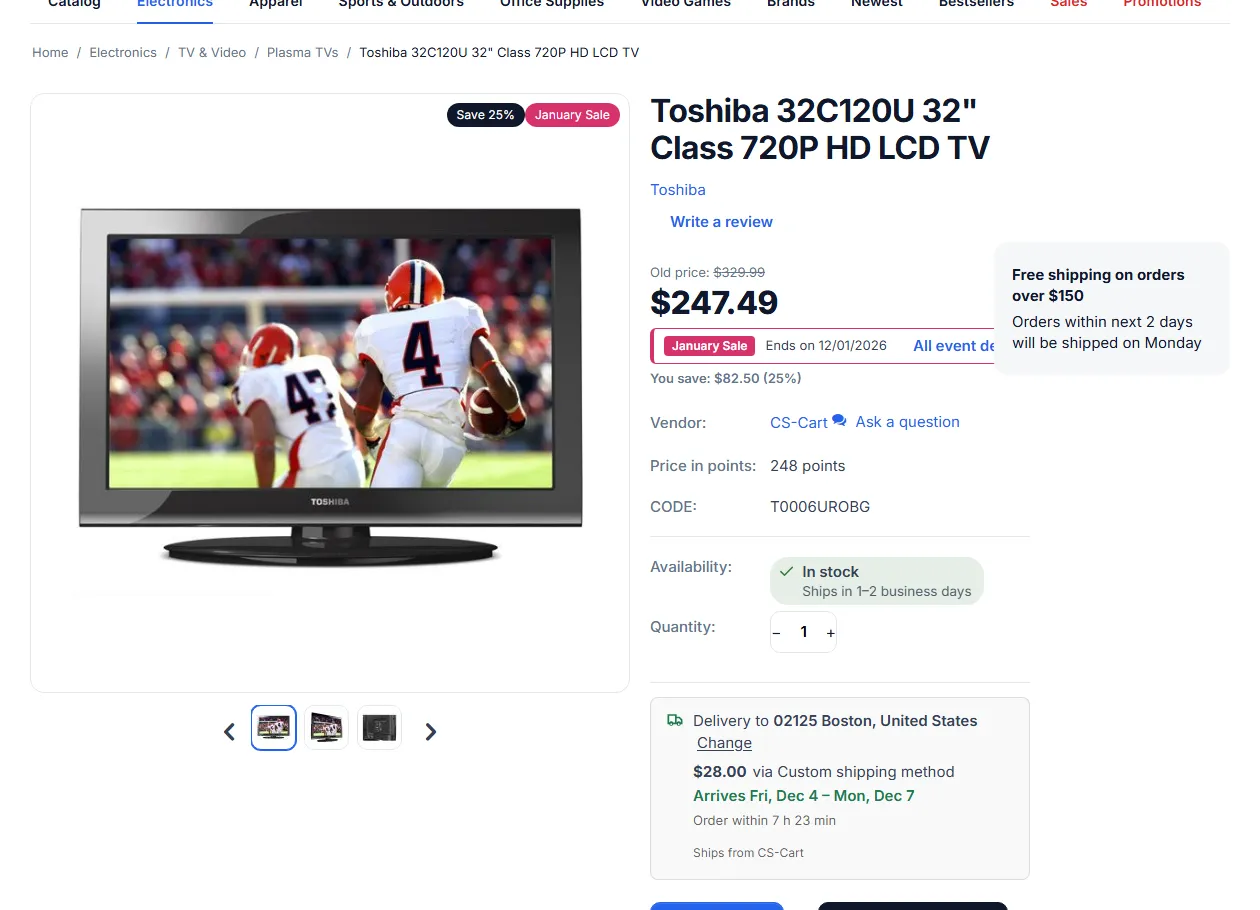
While the event runs, approved products sell at their event price. Under the price shoppers see the event badge, the end of the event (countdown in the last days) and a link to all event deals.
As a vendor
Section titled “As a vendor”- Open Marketing > Campaign events in the vendor panel and open an event.
- Read the rules and the note, pick products, enter the discount and an optional unit limit, and click Nominate. Products that do not pass a rule are listed with the reason.
- Change the event price or the limit of pending nominations, or withdraw them, while nominations are open. An approved nomination can be changed or withdrawn only before the event starts; a change sends it back for review.
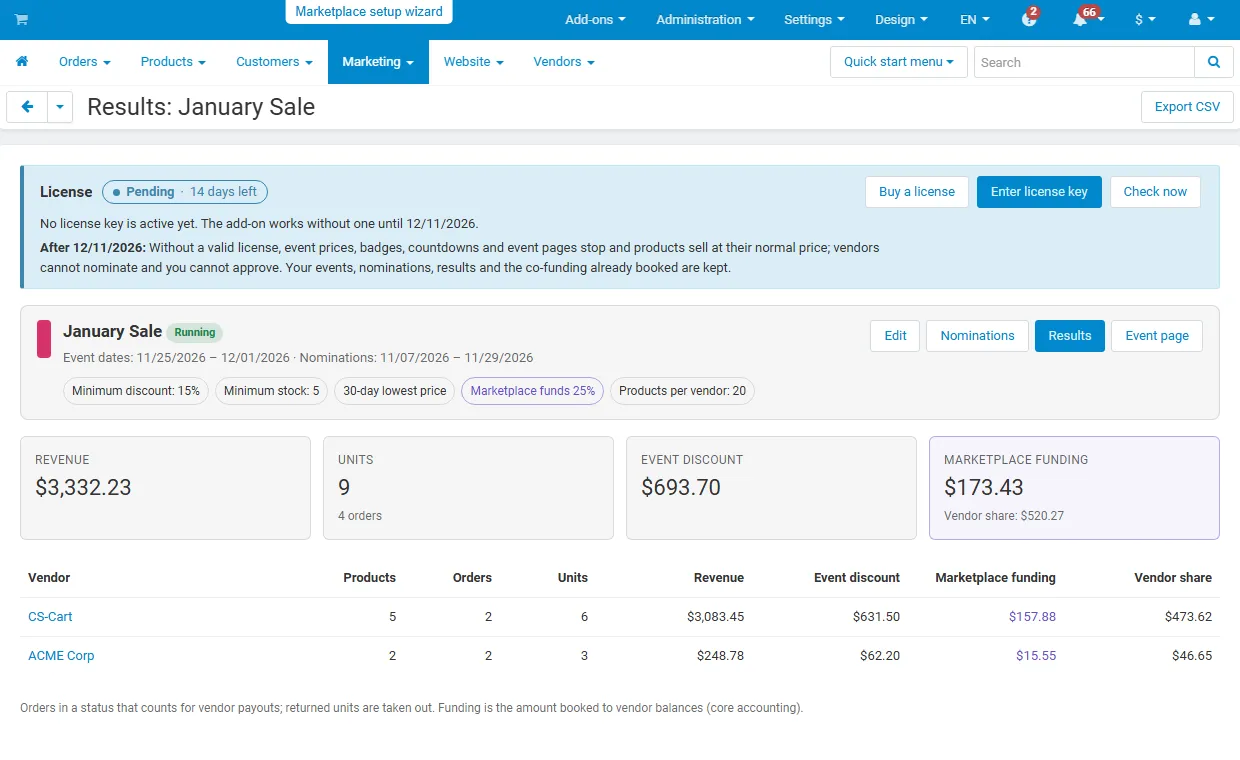
- After the event, open Results for your orders, units, revenue, discount and the funding credited to you.
Money: who pays the discount
Section titled “Money: who pays the discount”The event price lowers the order total, so the vendor’s order income is lower, as with any promotion. The marketplace share is booked separately: for every vendor order with event lines, one Payout transaction with a negative amount (a credit) is added to the vendor in Vendors > Accounting, with the event name and order number in the comment.
Example: regular price 100.00, event price 80.00, 2 units, funding 25% → discount 40.00, marketplace share 10.00 credited to the vendor, vendor share 30.00.
- The credit carries the order id, so core counts it only while the order is in a status that counts for vendor payouts (like the order itself). Cancel the order and the credit no longer counts; reopen it and it counts again.
- An order edit updates the same transaction; nothing is booked twice.
- A refunded RMA return books a charge back for the share of the returned units.
- The funding is computed on the discount the event applied, never more than the regular price frozen at approval minus the event price, so a price raised after approval is not co-funded.
Unit limit
Section titled “Unit limit”With a unit limit, the event price applies until that many units are sold in orders that are not incomplete, cancelled, declined or failed. After that the product sells at its regular price. A cart line with more units than are left gets the regular price.
Results
Section titled “Results”Results shows, per vendor, approved products, orders, units, revenue at the event price, the event discount, the marketplace funding and the vendor share, counting orders in payout statuses and taking returned units out. Export CSV downloads the same table.