

Usage
How it works
Section titled “How it works”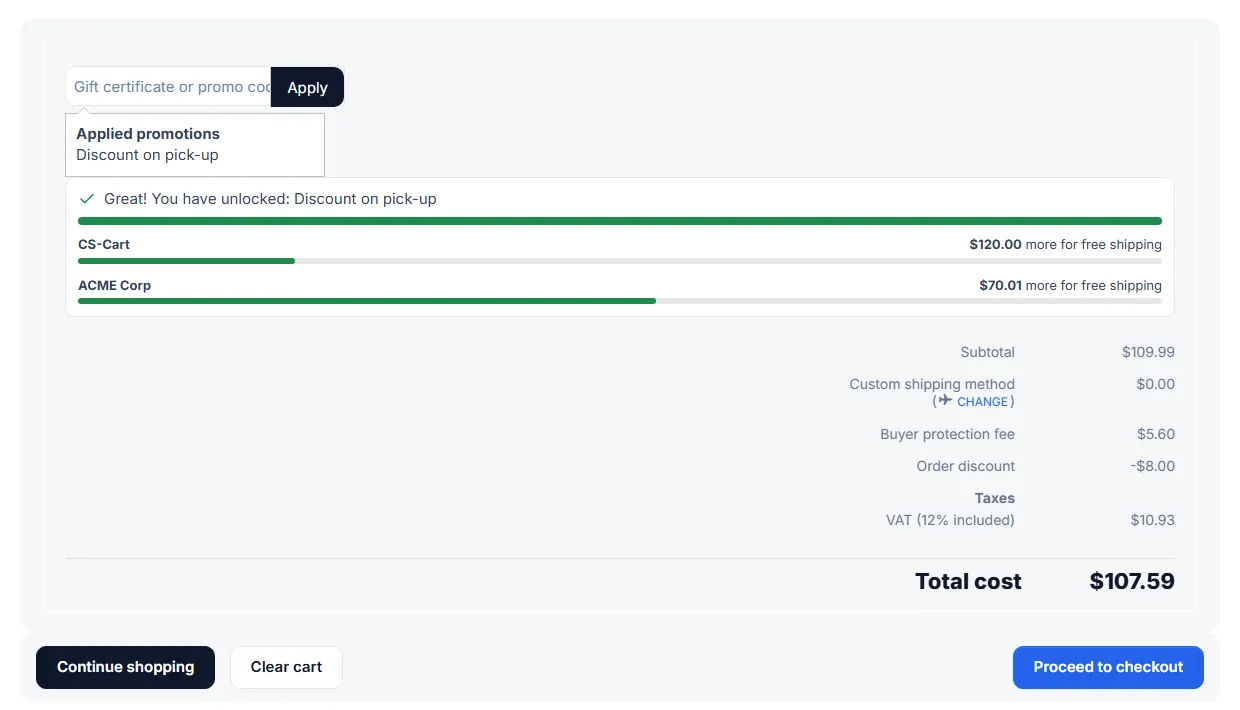
The buyer sees one extra line, named as you like, for example “Buyer protection fee”, in the cart, in the checkout summary, on the order page, on the printed invoice and in the order e-mails. The fee is added after discounts, shipping and product taxes were calculated, so it never changes a product price, a promotion condition or a free shipping threshold.
The fee is calculated by the first active rule that matches the cart. Where it is stored depends on the setting Where the fee is charged:
- Once per checkout (default): the fee is calculated once on the whole cart and the buyer sees one fee line in the cart and checkout. In the orders, every vendor order carries its share of the fee (split by the value of the vendor orders; the shares add up to the cent), the same way core splits a payment surcharge. A buyer who buys from one vendor only has one order; that order carries the whole fee.
- Per vendor order: every vendor order of the cart gets its own fee (and can match a different rule, for example by vendor plan). The parent order shows the sum.
What the vendor gets
Section titled “What the vendor gets”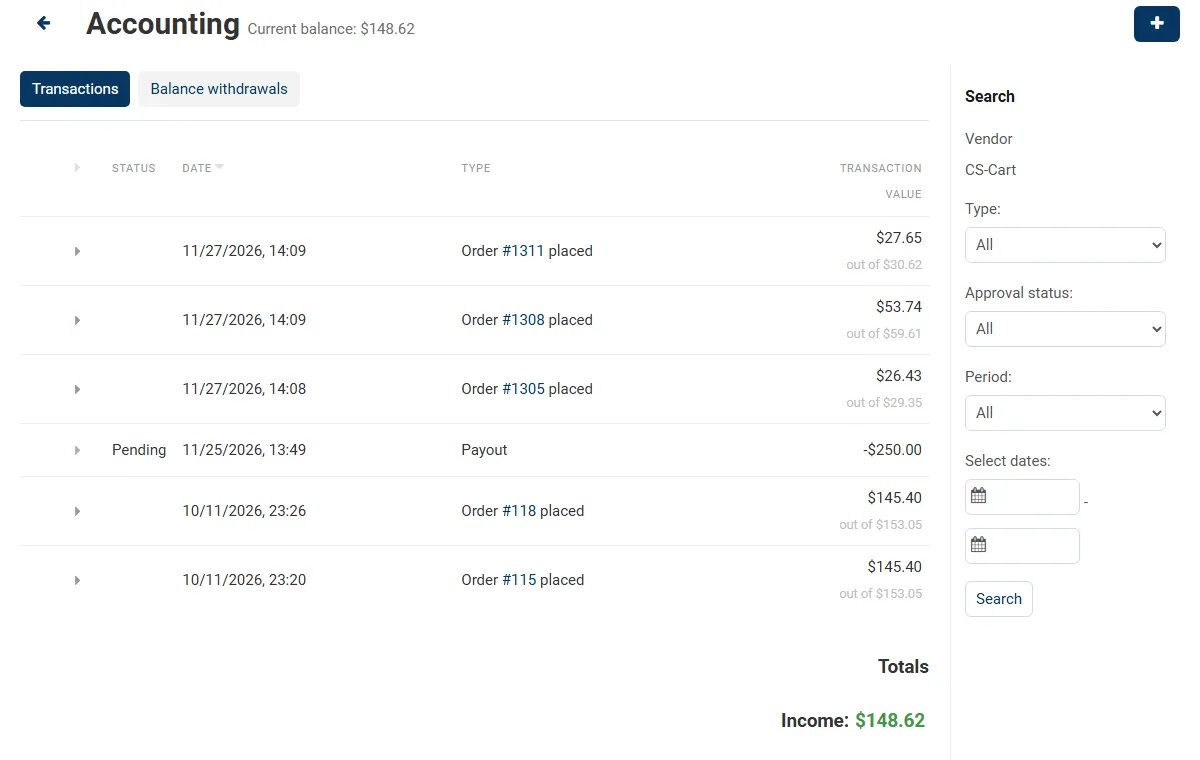
The vendor payout of an order is the same as for the same order without the fee:
- The vendor commission is not charged on the fee.
- The fee is not part of the vendor income or balance.
- The whole fee, with its tax, is part of the marketplace profit of the order (Vendors → Balance / payouts of the administrator, and the order’s commission details).
- With Direct Payments (the buyer pays the vendor directly) the fee is part of the commission amount the vendor owes the marketplace.
- A refund through the RMA add-on does not take the fee back from the vendor.
Common tasks
Section titled “Common tasks”Charge 5 % plus 0.70, at least 1.00 and at most 25.00
Section titled “Charge 5 % plus 0.70, at least 1.00 and at most 25.00”- Open Orders → Buyer service fees and click Add rule.
- Enter a name, set the status to Active, put 5 in Percent, 0.70 in Fixed amount, 1.00 in Minimum fee and 25.00 in Maximum fee.
- Save. The next cart shows the fee.
Exempt business customers or a country
Section titled “Exempt business customers or a country”- Add a rule with 0 percent and no fixed amount, choose the customer group (or the countries) and give it a position lower than your normal rule, for example 1.
- Your normal rule gets position 10. Carts that match the exempt rule pay no fee.
Different fee for a vendor plan or a category
Section titled “Different fee for a vendor plan or a category”Add a rule, tick the vendor plan or pick the category, and give it a position lower than the general rule. A category rule is calculated only on the products of that category.
Add tax to the fee
Section titled “Add tax to the fee”- In the add-on settings choose the tax in Tax on the fee. Create the tax first under Administration → Shipping & taxes → Taxes.
- The fee amount in the rules is without tax. A tax that is not included in the price is added on top and shown on the documents; an included tax stays inside the fee amount.
Refund or cancel
Section titled “Refund or cancel”- An order that is cancelled, declined or failed marks its fee (its share) refunded; each vendor order follows its own status, and the total of the checkout is refunded when every vendor order is cancelled.
- On the admin order page the fee row has the links Mark fee refunded and Reinstate fee for a manual decision. The payment itself is returned in your payment gateway, as for any order.
- An order that is edited keeps its fee, or recalculates it with the same rule, as set in When an order is edited.
See the fee revenue
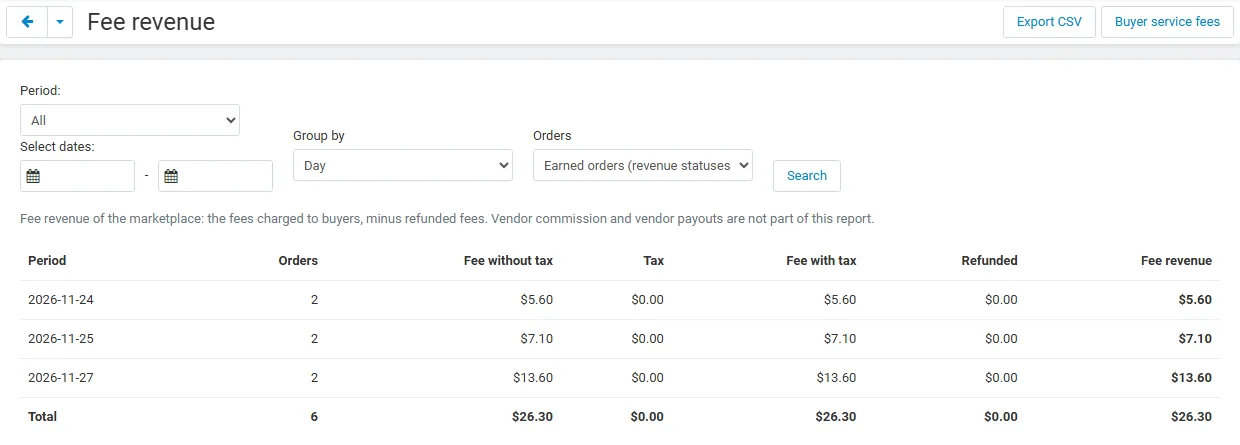
Section titled “See the fee revenue”Open Orders → Fee revenue. Choose the period, group by day, month, year or vendor, and export the table as CSV. Only orders in the revenue statuses count; refunded fees are shown in their own column and taken off the revenue.
Explain the fee to buyers
Section titled “Explain the fee to buyers”Create a page in your CMS that explains the fee, paste its URL in Buyer protection page URL, and switch on Show a fee note on product pages. The note under the price is the same text for everybody.