

Usage
All pages are under Products → SKU & codes. Vendors (Multi-Vendor) and store-bound administrators (CS-Cart Ultimate) see the same pages for their own products only.
1. Write a pattern
Section titled “1. Write a pattern”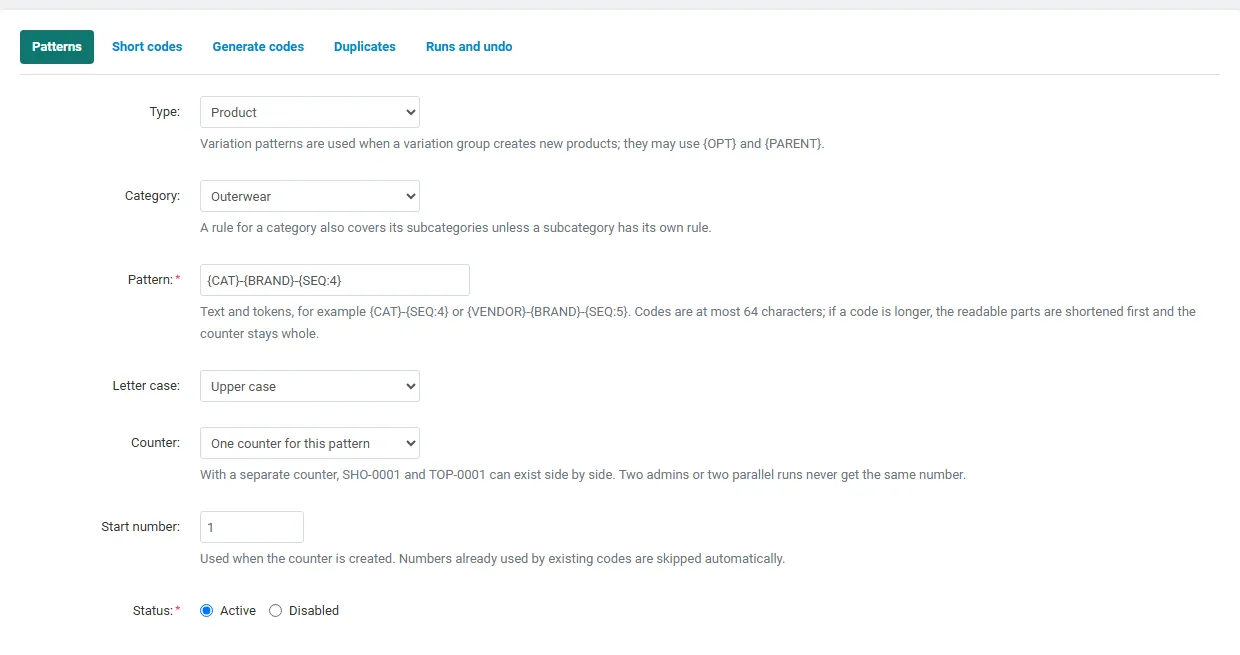
Open Patterns → Add pattern. A pattern is fixed text mixed with tokens in braces.
| Token | Value |
|---|---|
{CAT} |
Short code of the main category. |
{BRAND} |
Short code of the value of the brand feature (see Configuration). |
{FEATURE:12} |
Short code of the value of feature 12. Use the feature id. Text and number features give the first characters of the value. |
{OPT} |
The option values of a variation in the order of the variation features, for example BLK42. Variation patterns only. |
{PARENT} |
The code of the main product of the variation group. Variation patterns only. |
{VENDOR} |
The vendor prefix (Multi-Vendor) or the store prefix (Ultimate). |
{SEQ:4} |
A counter with zero padding: 0042. Padding 1 to 12. |
{RAND:4} |
Random characters from an alphabet without 0, O, 1, I and L. Length 2 to 16. |
{ID} |
The product id. Not available in variation patterns, because the variation does not exist yet when its code is made. |
{YYYY} {YY} {MM} {DD} |
The date the code is made. |
Examples: {CAT}-{SEQ:4} gives SHO-0042, {VENDOR}-{BRAND}-{SEQ:5} gives NRD-ACM-00042, {PARENT}-{OPT} gives SHO-0042-BLK42.
- Type: a Product pattern is used for products; a Variation pattern for the products a variation group creates. A variation without a variation pattern uses the product pattern.
- Category: a pattern for a category also covers its subcategories unless a subcategory has its own pattern. Default covers everything else.
- Counter: one counter per pattern, or a separate counter for every different prefix, so
SHO-0001andTOP-0001can exist side by side. The start number is used when the counter is created. Numbers that existing codes already use are skipped. - Letter case: upper (default), lower or as typed.
2. Set short codes
Section titled “2. Set short codes”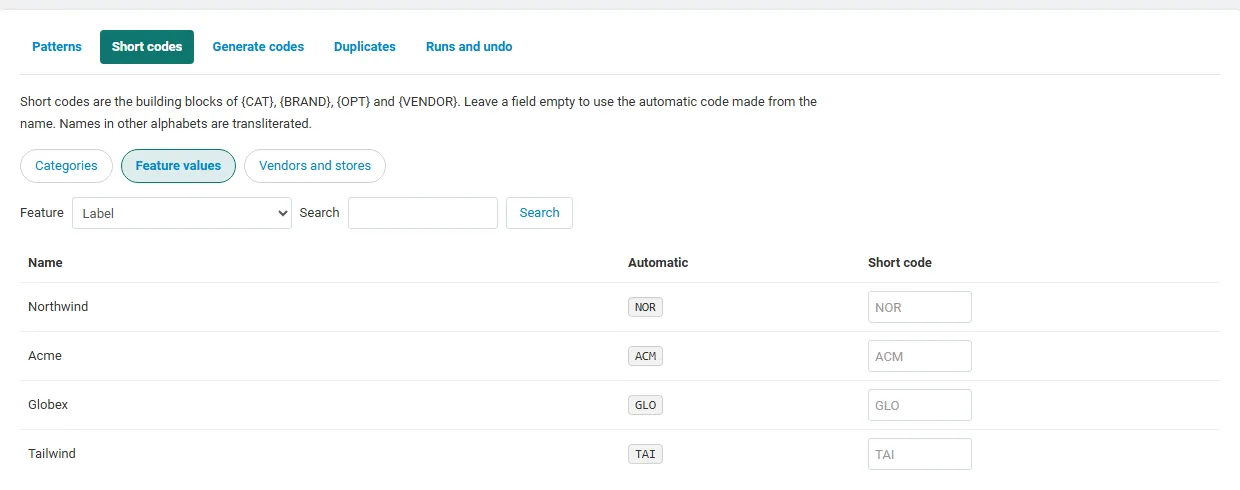
Short codes are the building blocks of {CAT}, {BRAND}, {OPT} and {VENDOR}. The page has one tab for categories, one for the values of a feature and one for vendors (stores on Ultimate). The Automatic column shows the code made from the name: one word gives its first three letters (Shirts gives SHI), several words give their initials (Men's Shoes gives MS). Names in other alphabets are transliterated first. Type your own code in the last column to override it; clear the field to go back to the automatic code. Codes may use letters, digits, -, _ and ., up to 16 characters.
3. New products and new variations
Section titled “3. New products and new variations”Save a product with an empty SKU field and the code from your pattern is written. The product form says so under the field. A new variation (Products → Product variations, or a feature variant combination) gets a code from the variation pattern. A code you type is never replaced.
On the product form, Lock code protects the code from every bulk run.
4. Fill empty codes in bulk
Section titled “4. Fill empty codes in bulk”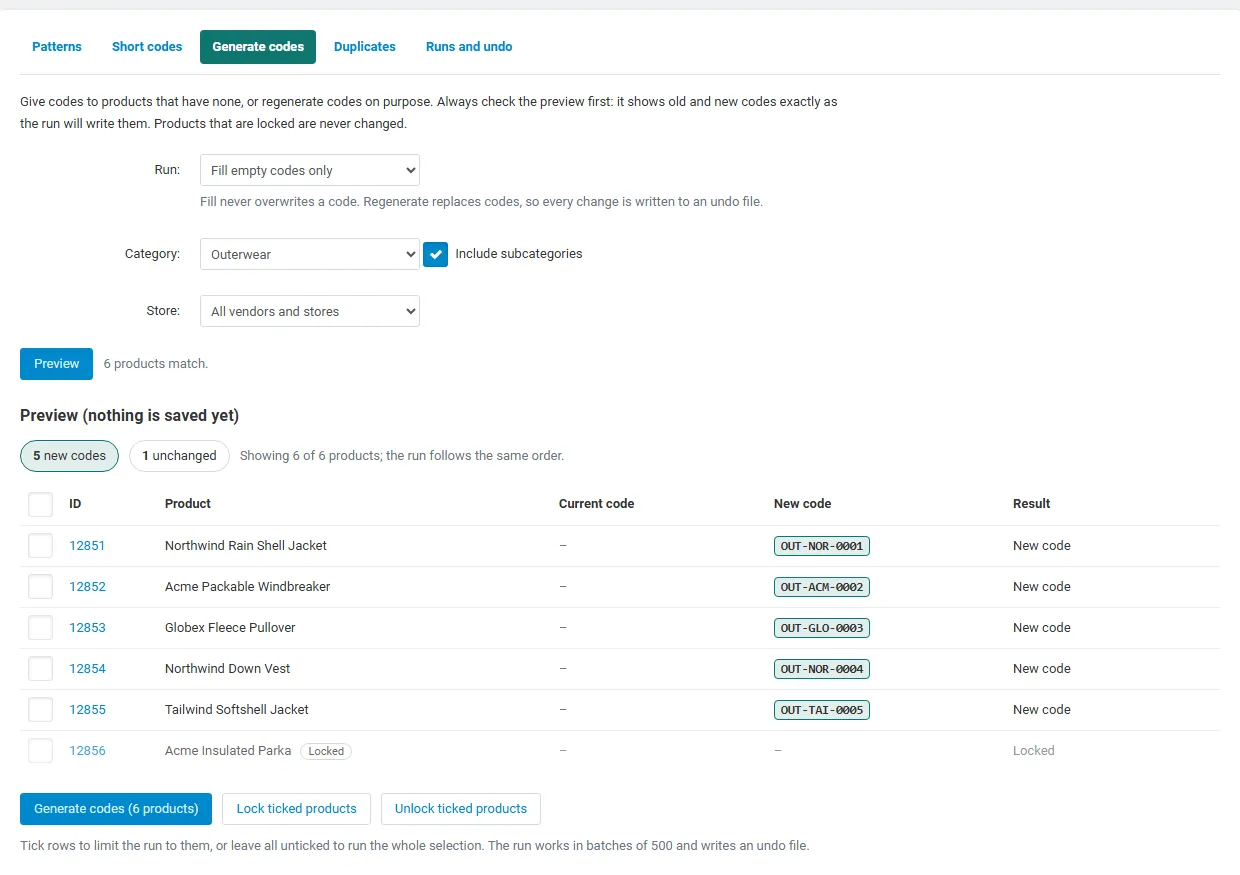
Open Generate codes, choose Fill empty codes only and, if you like, a category (with subcategories) or a vendor, then press Preview. The table shows the old and the new code of the first 200 products exactly as the run will write them; the run follows the same order. Tick rows to limit the run to them, or leave them all unticked to run the whole selection, then press Generate codes. The run works in batches of 500 and shows a progress bar. Keep the page open until the bar is full; if the page is closed, open the run again from Runs and undo to see where it stopped.
Regenerate codes replaces filled codes too, so use it on purpose: locked products are always skipped, and the old codes are kept in an undo file.
You can lock or unlock the ticked products from the same page.
5. Runs and undo
Section titled “5. Runs and undo”Every bulk run is logged with who started it, when, how many codes changed and how many were left as they were. The old codes of a run are kept in an undo file for 30 days. Undo restores them, and only for products that still have the code the run gave them, so a code you edited afterwards is not overwritten.
6. Duplicates
Section titled “6. Duplicates”Duplicates lists every code that two or more products use (the check ignores upper and lower case), with a link to each product. CS-Cart allows duplicate codes; feeds, marketplaces and warehouse picking usually do not.
Multi-Vendor
Section titled “Multi-Vendor”- The marketplace owner writes patterns for all vendors and sets the vendor prefixes. With Vendor patterns = Vendors write their own, a vendor adds patterns for their products; with Owner, vendors use the owner’s patterns with their own prefix.
- A vendor can only preview, run, undo and lock their own products. A direct request for another vendor’s run or product is refused by the server.
- The uniqueness check covers all vendors: two vendors never get the same generated code.
CS-Cart Ultimate
Section titled “CS-Cart Ultimate”Patterns, short codes and runs belong to a storefront. A store-bound administrator sees and changes only their own store; the all-stores view sees everything. A shared product keeps one code, made by the rules of the store that owns it. On Multi-Vendor Ultimate the storefronts are not companies: rules and runs belong to the vendor, as on Multi-Vendor, not to a storefront.
Barcode Labels
Section titled “Barcode Labels”Barcode Labels can print the product code as a label (“Product code” source). Generate the codes here first; GTIN numbers stay with the GS1 tools of Barcode Labels.