

Usage
What the customer sees
Section titled “What the customer sees”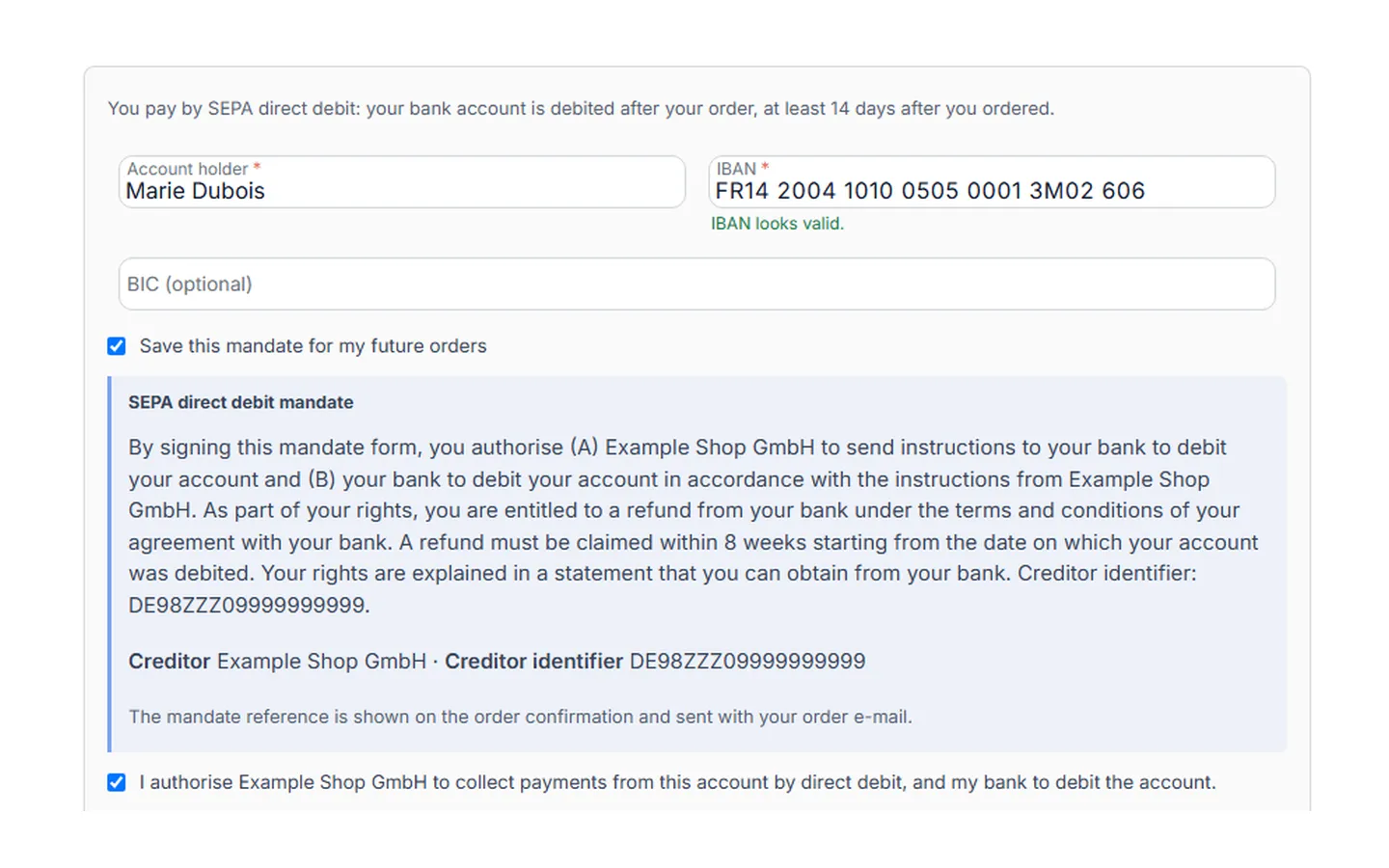
- At checkout the payment method SEPA Direct Debit shows a short notice (the bank account is debited after the order, not earlier than the pre-notification period), the account holder (filled in from the billing name), the IBAN, an optional BIC, the mandate text with your creditor name and identifier, and a consent box. The IBAN is checked while the customer types (country, length, check digits) and again on the server; a wrong IBAN keeps the order from being placed and says what is wrong.
- A signed-in customer can tick Save this mandate for my future orders. At the next checkout the saved mandates are offered by their masked account, so no IBAN has to be typed.
- The thank-you page and the order page show the mandate reference, your creditor identifier, the masked account and the pre-notification text (“Pre-notification: 59.99 EUR will be collected from the account DE02 **** … on or after 27 November 2026 under mandate SDD-2026-000012 …”), and a Mandate PDF button. The same block is added below the product table of the invoice and of the order e-mails.
- My account > SEPA mandates lists the customer’s mandates with the reference, creditor, type and date, a PDF for each and a Revoke button. A revoked mandate is not used again; collections that are already in a bank file are not affected.
Guests get a one-off mandate; they find the reference and the PDF on the order page they were sent to.
Your daily routine
Section titled “Your daily routine”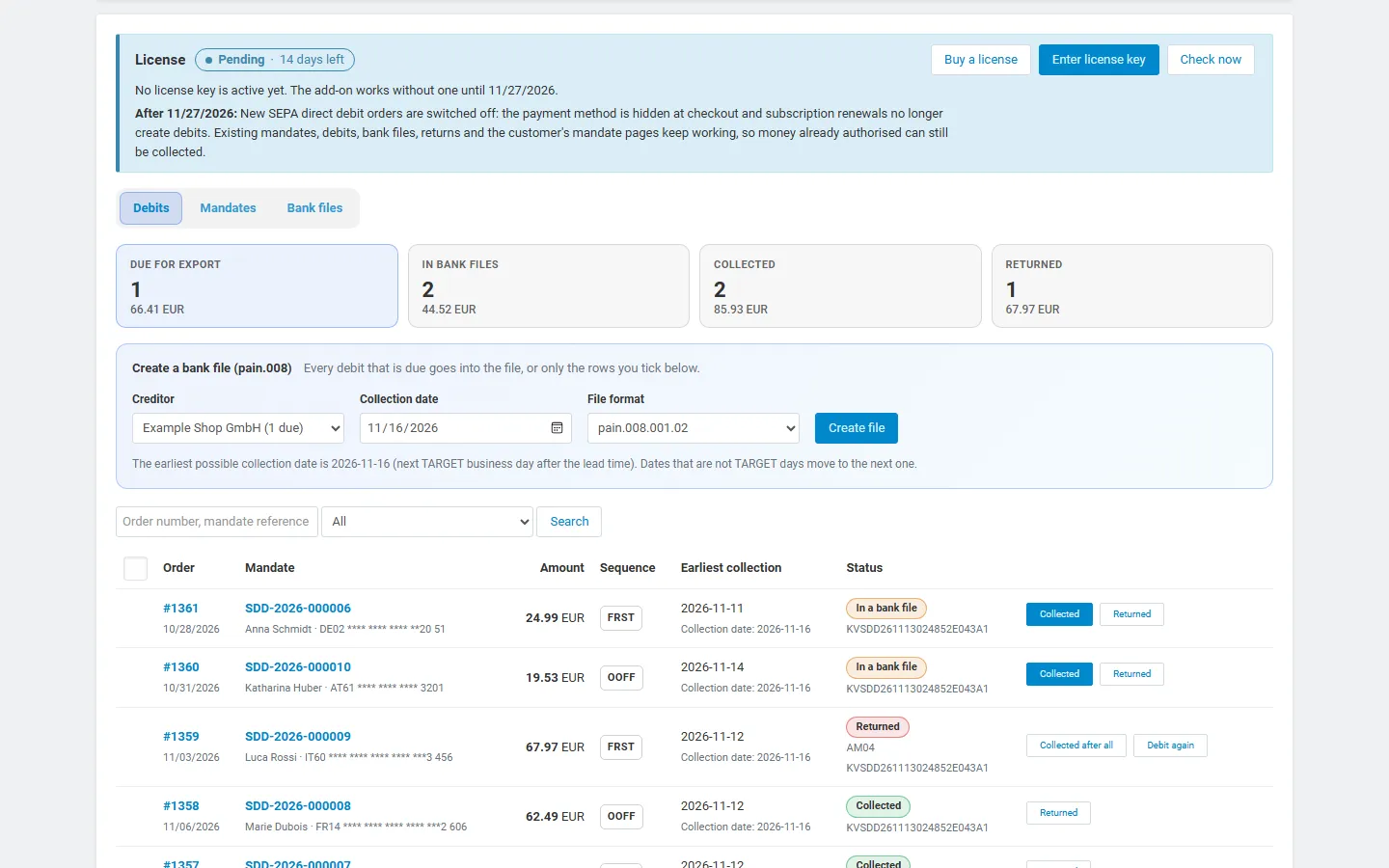
-
Orders > SEPA direct debit > Debits lists every debit with its order, mandate, amount in euro, sequence type, earliest collection date and state: Waiting for export, In a bank file, Collected, Returned, Cancelled. The counters at the top show what is due for export now.
-
Use the Create a bank file form: choose the creditor (payment method), the collection date (the earliest possible date is shown; a date that is not a TARGET business day moves to the next one) and the file format, pain.008.001.02 or pain.008.001.08, and click Create file. Every debit that is due goes into the file, or only the rows you ticked.
-
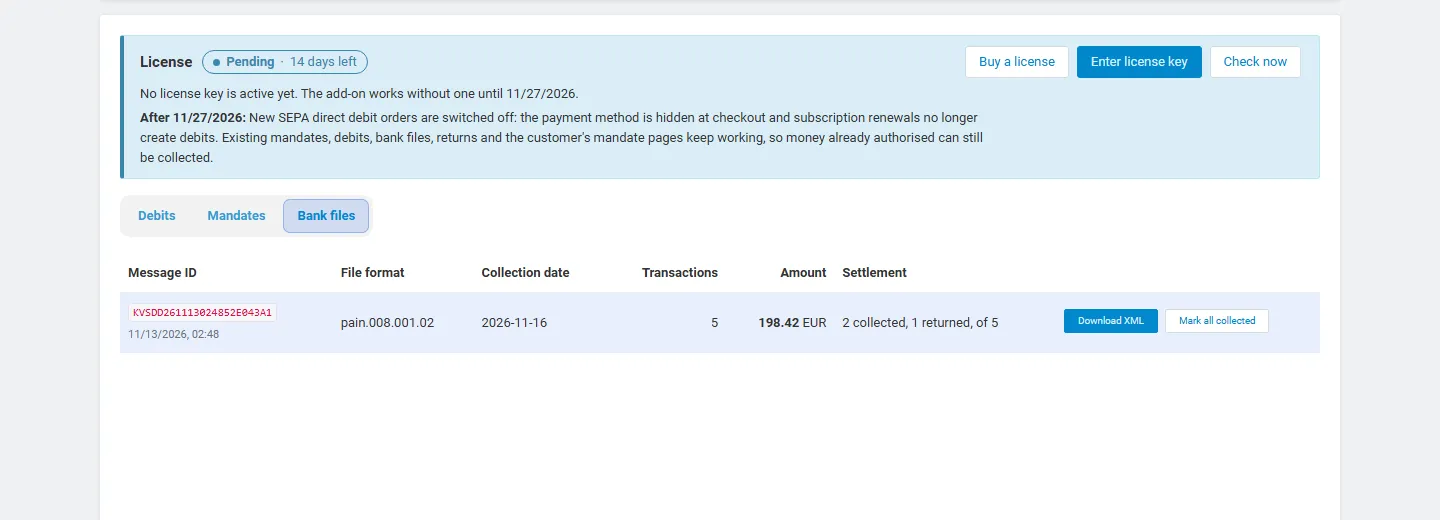
Bank files lists the files with the message ID, collection date, number of transactions and total. Download XML gives you the file; upload it in your online banking or give it to your bank’s file service. Do this before the bank’s cut-off; the collection date must be at least one TARGET business day away.
-
When the bank confirms the collection, click Collected on the debit (or Mark all collected on the file). The order moves to the status you chose. If the bank reports a return, click Returned and choose the reason code.
-
Debit again creates a new debit for a returned or cancelled order, for example after the customer gave a new account or asked you to try again.
Sequence types
Section titled “Sequence types”You never choose FRST, RCUR or OOFF. A one-off mandate is always OOFF. The first collection of a recurrent mandate is FRST (or RCUR when you switched FRST off), later ones RCUR. A second debit of the same mandate waits until the first one is collected, so two FRST collections never travel in one file. If a FRST collection is returned, the next try is FRST again. One file holds one payment instruction (PmtInf) per sequence type and collection date.
Returns
Section titled “Returns”| What happened | What to do |
|---|---|
| The bank returned or rejected the debit (for example AM04 insufficient funds) | Returned, choose the code. The order moves to the “returned” status. The mandate stays active, so you can Debit again. |
| The customer asked their bank for a refund (MD06, within 8 weeks) | Returned with MD06. |
| The account is closed, blocked or the customer stopped the payment (AC04, AC06, MD07, SP01, SL01) | Returned. The mandate is revoked automatically, because the account will not be debited again. |
| A debit was marked returned by mistake, or the money arrived after all | Collected after all on the returned debit. |
Debits that are not yet in a file can be cancelled; cancelling or deleting an order, or revoking the mandate, cancels them for you.
Mandates
Section titled “Mandates”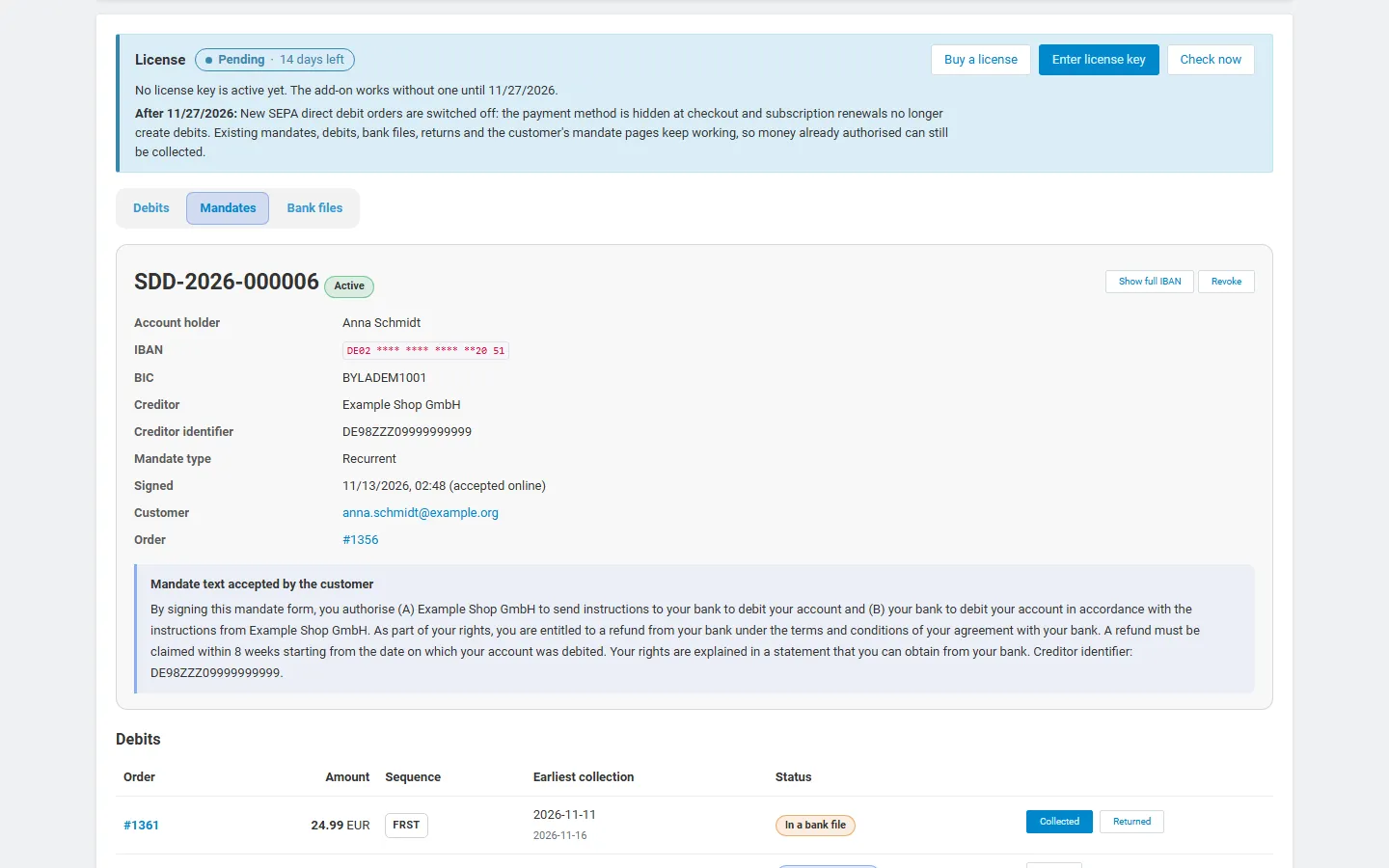
Orders > SEPA direct debit > Mandates lists every mandate with a search. A mandate page shows the data, the text the customer accepted, the debits, and the history of everything that happened to it. From there you can Show full IBAN (logged) or Revoke.
- Add mandate records a mandate you received outside the checkout (a signed form, an e-mail, a phone order). Enter the customer’s e-mail address to link it to the account; a recurrent mandate needs an account. Keep the signed original.
- Collect by direct debit on an order page (shown when the order has no debit yet and the customer has a recurrent mandate) creates a debit for any order, whatever its payment method. For a net-terms invoice the debit is the open balance and its earliest date is the invoice due date (if you chose that in the settings).
- Erase old mandate data removes IBAN, BIC, name and the signed text of revoked and one-off mandates whose last collection is older than your setting (at least 14 months). The reference and the debit history stay.
Work with the other Kavio Labs add-ons
Section titled “Work with the other Kavio Labs add-ons”- Subscriptions & Recurring Orders: a plan whose payment method is SEPA Direct Debit is collected automatically. The renewal order creates a debit from the customer’s recurrent mandate; no account data is asked again. Without a mandate the renewal is marked failed and the add-on’s reminders start.
- B2B Net Terms & Credit Limits: open an invoice order and use Collect by direct debit; marking the debit collected books the payment on the invoice.
- Bank Transfer Auto-Reconcile: when a statement entry is matched to the order, the debit becomes Collected; undoing the match puts it back to In a bank file.
- Payment Fees & Surcharge Rules: a method named “SEPA Direct Debit” is detected as the kind “Direct debit”; fees on SEPA payments are banned for consumers in the EU / EEA and the UK, and the legal guard of that add-on stops them.
Multi-Vendor and Ultimate
Section titled “Multi-Vendor and Ultimate”- Multi-Vendor: the creditor is the owner of the payment method. The marketplace owner collects for the marketplace; a vendor with own payment methods (Direct payments) collects for itself and sees only its own debits, mandates and files in the vendor panel. A cart with several vendors is paid on the parent order: one mandate and one debit for the parent order total; the sub-orders follow the parent’s status. Bulk erase is for the marketplace administrator.
- Ultimate: debits and mandates belong to the storefront of the order; choose a storefront in the admin to see only its rows.
Pages and privileges
Section titled “Pages and privileges”| Page | Privilege |
|---|---|
| Debits, Mandates, Bank files (view) | View orders |
| Create files, mark collected / returned, add or revoke a mandate | Edit orders |
| Download a bank file, show the full IBAN | Edit orders (the file holds account numbers) |