

Usage
Your own restaurant (CS-Cart or CS-Cart Ultimate)
Section titled “Your own restaurant (CS-Cart or CS-Cart Ultimate)”- Take orders. Orders > Restaurant settings: switch on Take orders, set the preparation time, minimum order and opening hours, save.
- Build the menu with normal products (categories, photos, prices). Add choice groups to the dishes that need them: size, extras, sauce, spice level.
- Offer pickup and/or delivery with ordinary shipping methods. Click & Collect Workflow adds pickup passes; Local Delivery Zones, Minimums & Fees adds delivery areas and fees.
- Run the day from Orders > Kitchen board on a tablet in the kitchen. Use Busy mode when the kitchen is swamped and Sold out today when an ingredient runs out.
A chain with several locations
Section titled “A chain with several locations”- CS-Cart Ultimate / Multi-Vendor Ultimate: create one storefront per location. Each storefront is a restaurant with its own hours, menu choices and kitchen board.
- Multi-Vendor: create one vendor per location under your operator account; each vendor opens its own kitchen board. Customers can order from one location at a time or from several in one basket (see below).
What the customer sees
Section titled “What the customer sees”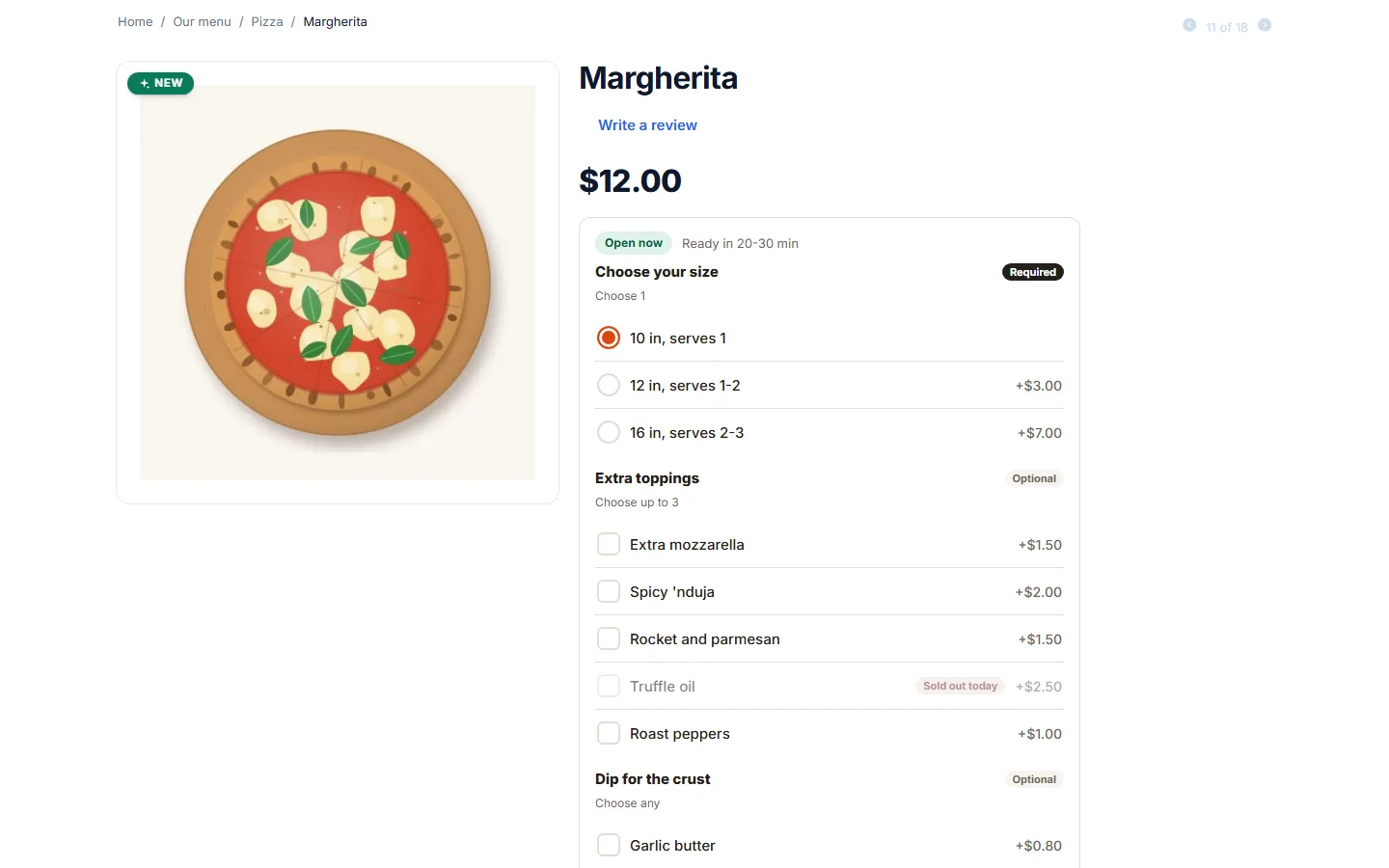
- Menu. Dishes with choices open the option dialog from the list (“Select options”); on the product page the choices are printed above the Add to cart button: required groups are marked, a running “choices add +$3.75” total is shown and sold-out choices are greyed with “Sold out today”.
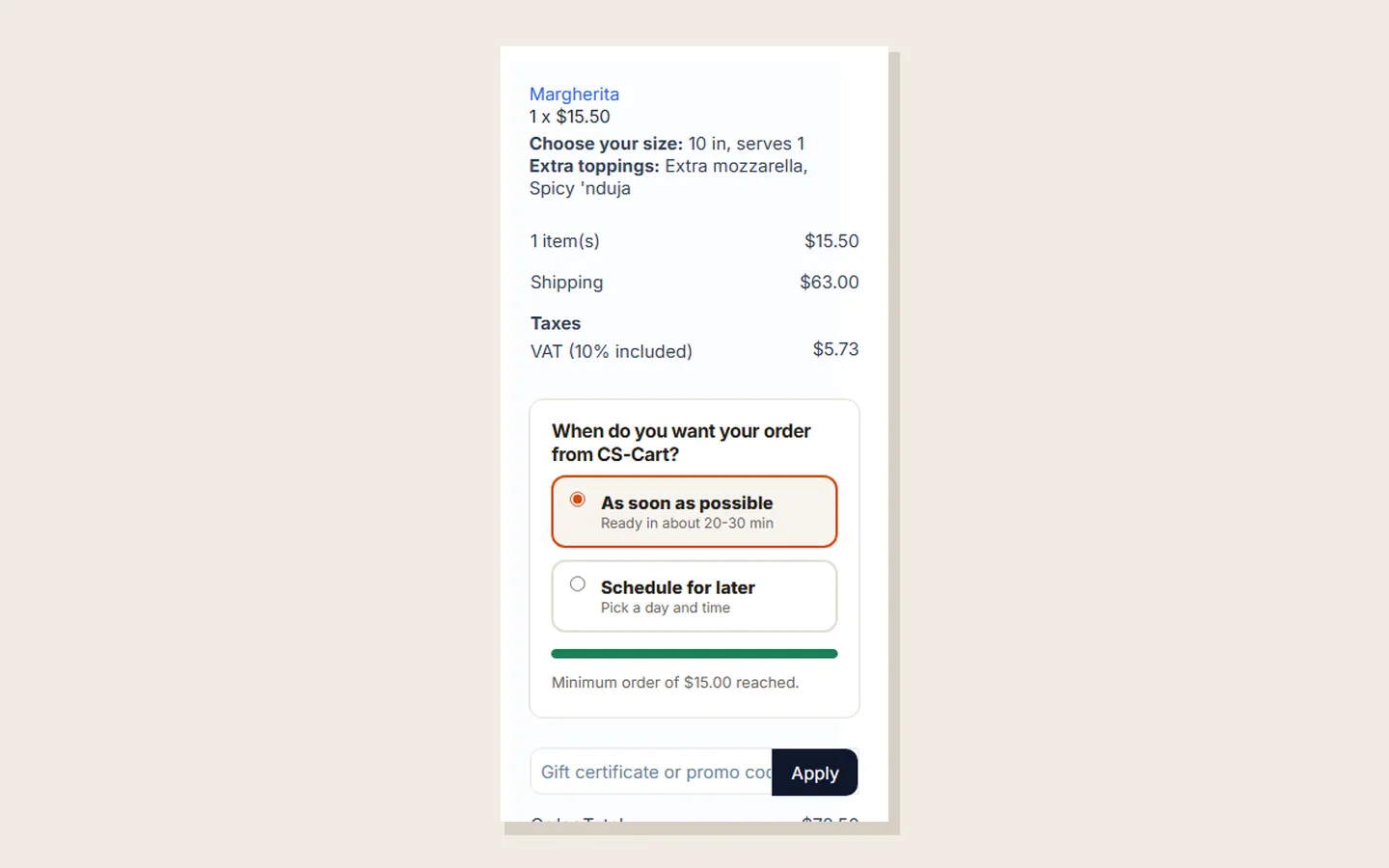
- Basket and checkout. Each choice combination is its own line. For each restaurant in the basket a box asks As soon as possible (with “Ready in about 20-30 min”) or Schedule for later (a list of times grouped by day). The minimum-order bar shows how much is missing. A closed restaurant offers only the scheduled times (or refuses the dish, depending on the setting).
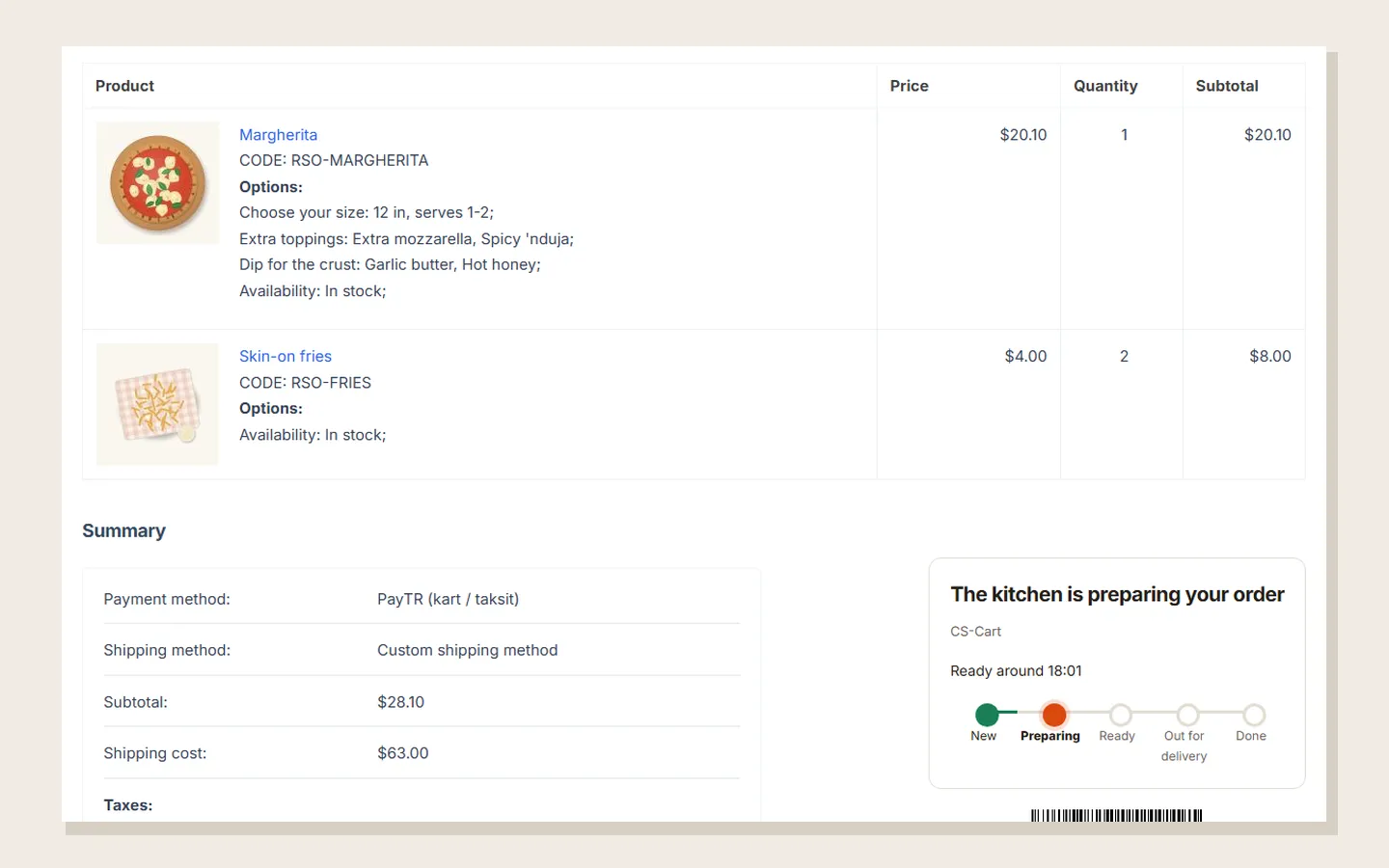
- After ordering. The thank-you page and the order page show the order’s progress: Order received, Preparing, Ready, Out for delivery, Done, with “Ready around 18:45” or “Scheduled for 19:30”. The page updates itself.
The restaurant list page index.php?dispatch=kv_rso.restaurants (also available as the Restaurant cards and Cuisine chips blocks in Design > Layouts) shows restaurant cards with an open / busy / closed label, ETA, minimum order and delivery fee (when Local Delivery Zones is installed).
The kitchen board
Section titled “The kitchen board”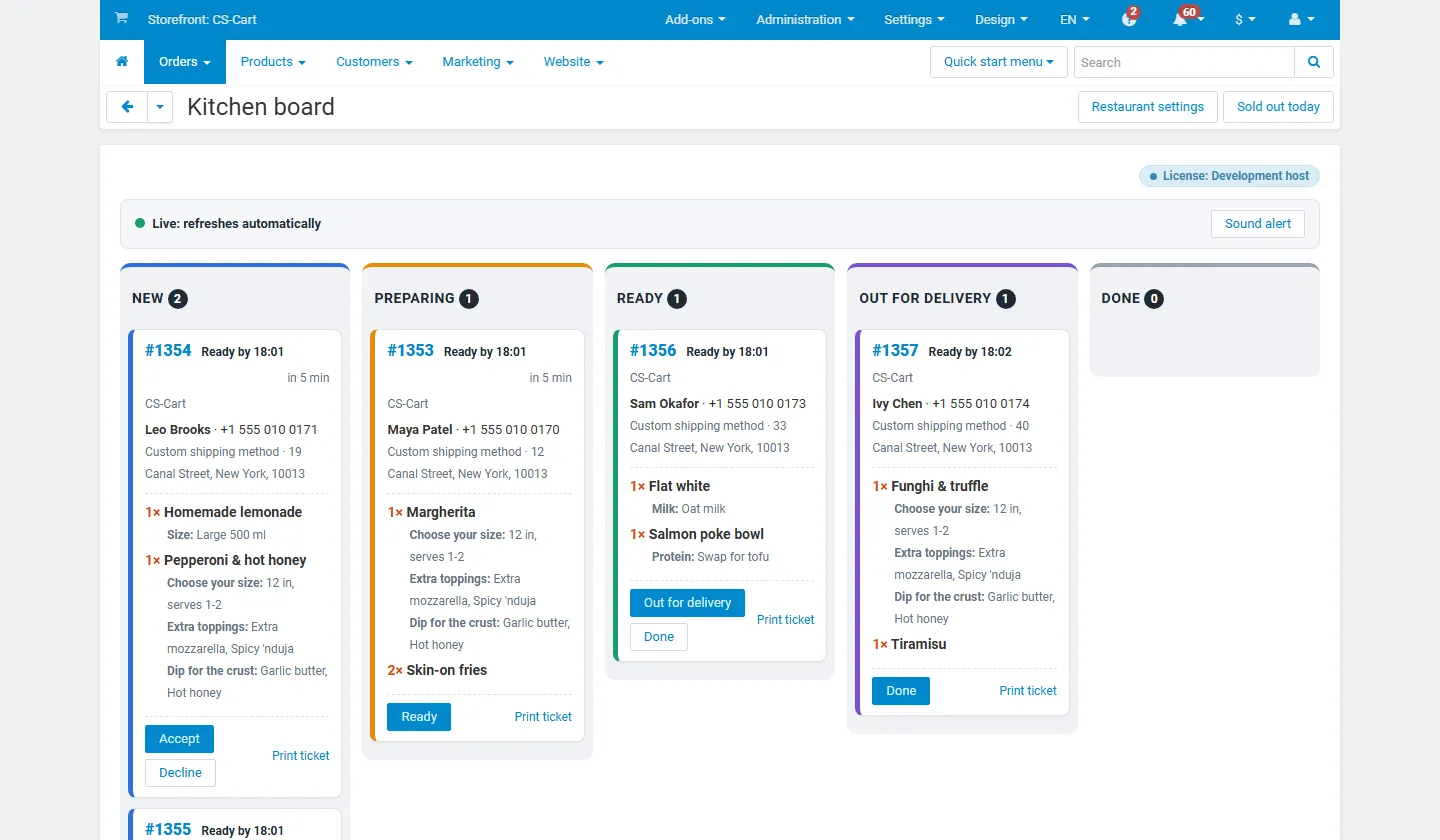
Orders > Kitchen board: five columns, one card per order with customer, phone, delivery or pickup, items with their choices, notes, the time to deliver by and a late counter.
| Button | Moves the card to | Order status set |
|---|---|---|
| Accept | Preparing | the status chosen for Preparing |
| Ready | Ready | Ready |
| Out for delivery | Out for delivery | Out for delivery |
| Done | Done | Done (Complete by default) |
| Decline | (removed) | Canceled |
- The board refreshes by itself; a short beep sounds once for each new order (click Sound alert once so the browser allows sound).
- Print ticket opens an 80 mm ticket in a new tab and the print dialog: no printer driver needed, any receipt printer set up in the browser works.
- Busy mode (15, 30 or 60 minutes) stops ASAP orders for this restaurant only; scheduled orders continue. End it with one click.
- If two people press a button at the same moment only the first one is applied and the other sees a short notice.
- A finished or canceled order cannot be moved back on the board. If a canceled or failed order is paid later (the customer pays again from the order page) or staff set it back to an open status, the card returns to New.
- An order paid online appears on the board once the payment is finished; an order whose payment was started but not finished (status Incomplete) stays off the board and cannot be moved, and it keeps a scheduled time for 30 minutes only.
Several restaurants in one basket (Multi-Vendor)
Section titled “Several restaurants in one basket (Multi-Vendor)”A basket with dishes of two restaurants becomes one parent order and one child order per restaurant. Each restaurant has its own box at checkout (ASAP for one, 19:00 for the other), its own preparation time, its own minimum and its own kitchen board; the customer sees one status block per restaurant. A restaurant that is closed or busy blocks only its own ASAP choice. Vendors see and move only their own orders.
Sold out today
Section titled “Sold out today”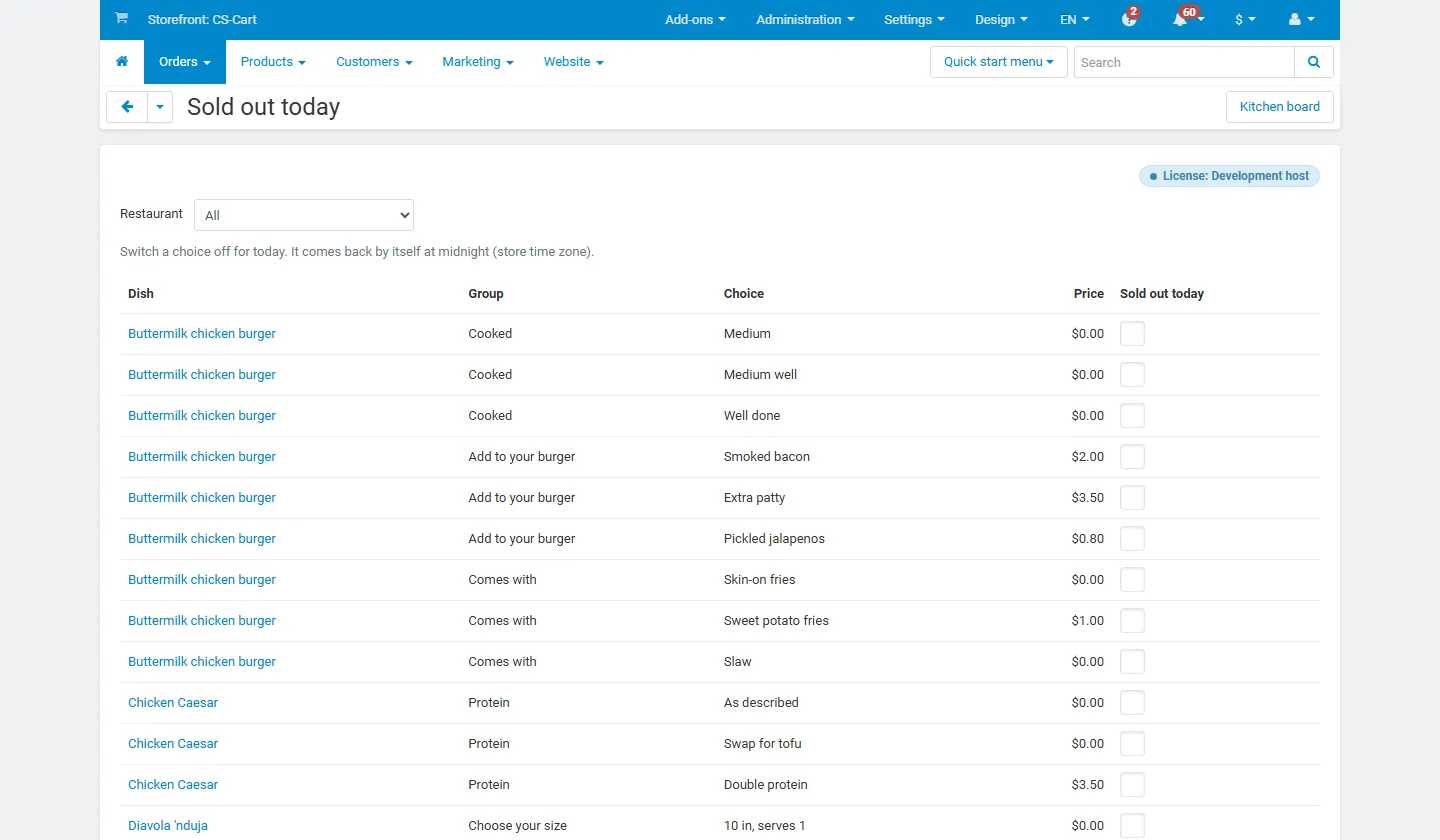
Orders > Restaurant settings > Sold out today lists every choice with a switch. The switch resets at midnight (store time zone). The product page refreshes immediately.
Holidays
Section titled “Holidays”Add closures under Opening hours (single days or ranges). On Multi-Vendor the vendor holiday mode of Vendor Holiday Mode is respected too (the restaurant counts as closed and takes no orders) when that add-on is installed.
Reports and exports
Section titled “Reports and exports”Kitchen records follow the orders: the normal order list, exports and reports keep working. Modifier choices appear in the product options of every order item, so invoices, packing slips and e-mails show them without template changes.