

Usage
Create an offer
Section titled “Create an offer”- Open Marketing → Quantity break offers and click New offer.
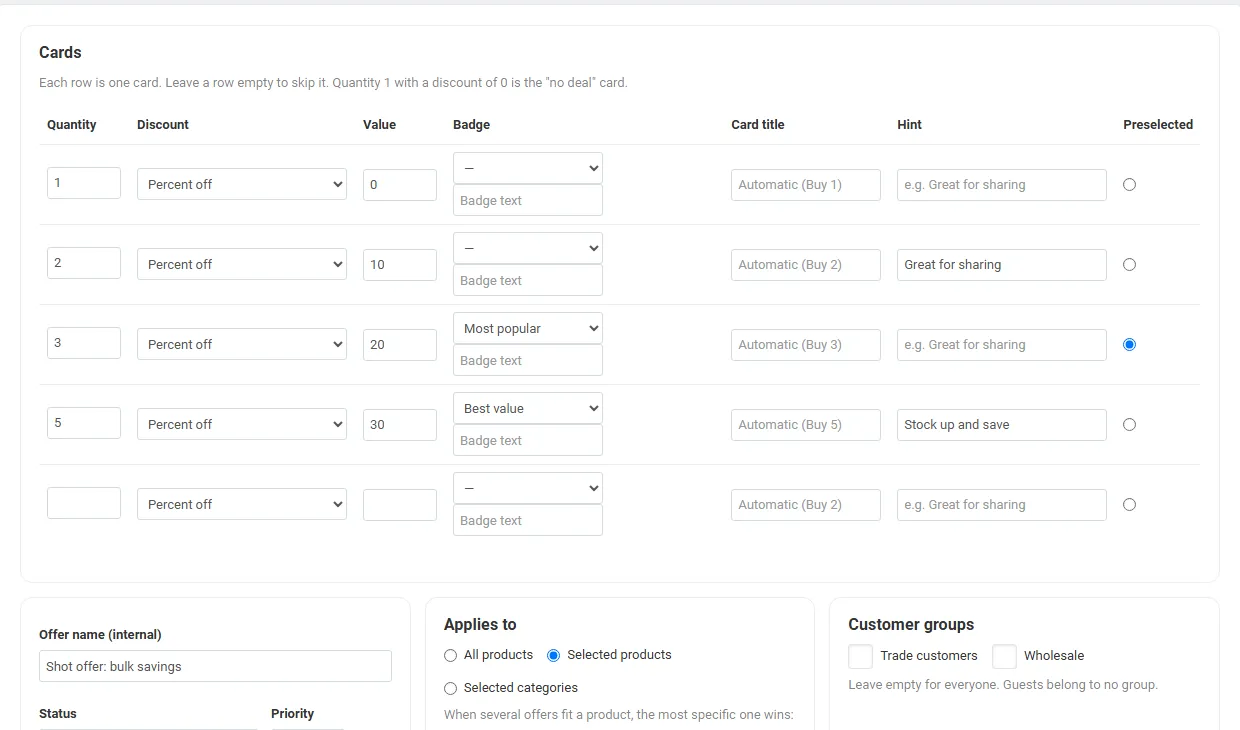
- Fill the Cards table. One row is one card:
- Quantity: how many units the card sells (1 to 9999). Quantity 1 with value 0 is the “no deal” card shoppers compare against.
- Discount: Percent off each unit, Amount off each unit or Fixed unit price (marketplace and store administrators only; vendors use percent).
- Badge: Most popular, Best value, your own text, or none.
- Card title: empty = “Buy 2”.
- Hint: a free line next to the saving, for example “Great for sharing” or “Includes a gift”. It is text only: use a core promotion for a real free-shipping rule.
- Preselected: the card selected when the page opens.
- Under Applies to choose all products, selected products or selected categories (subcategories included unless you untick it). Several offers can exist: the most specific wins (products, then categories, then all products), then the lower priority number.
- Optional: Customer groups (empty = everyone) and, in Multi-Vendor, Vendors (empty = all vendors).
- Other discounts: Combine with other promotions (default) or Do not combine, which skips units that already have a discount from a catalog promotion or from a promotion that runs earlier.
- Save. The product page shows the cards at once.
What the shopper sees
Section titled “What the shopper sees”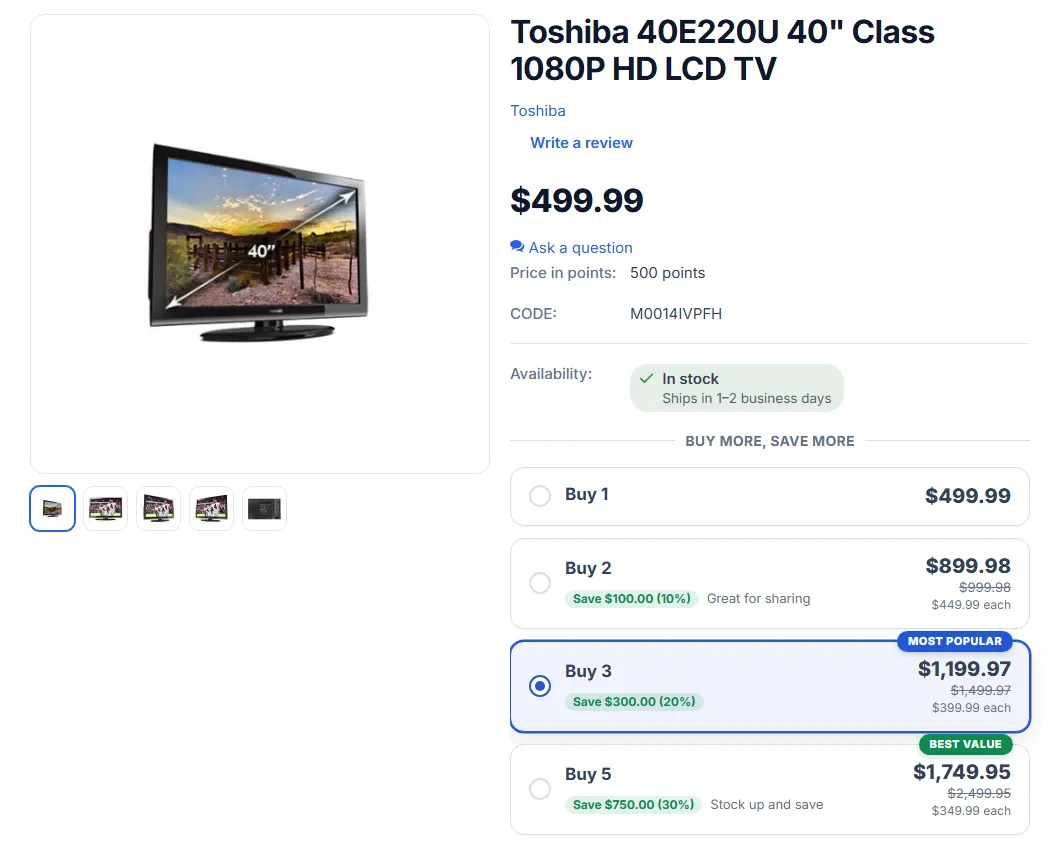
- The cards sit above the quantity field on the product page and in the quick view. Clicking a card sets the quantity (and, with the setting “Select and add to cart”, adds the product).
- Changing the quantity by hand selects the matching card; any other quantity selects none.
- Each card shows the price for that quantity, the regular price struck through, “Save $x (y%)”, the price per unit and your hint.
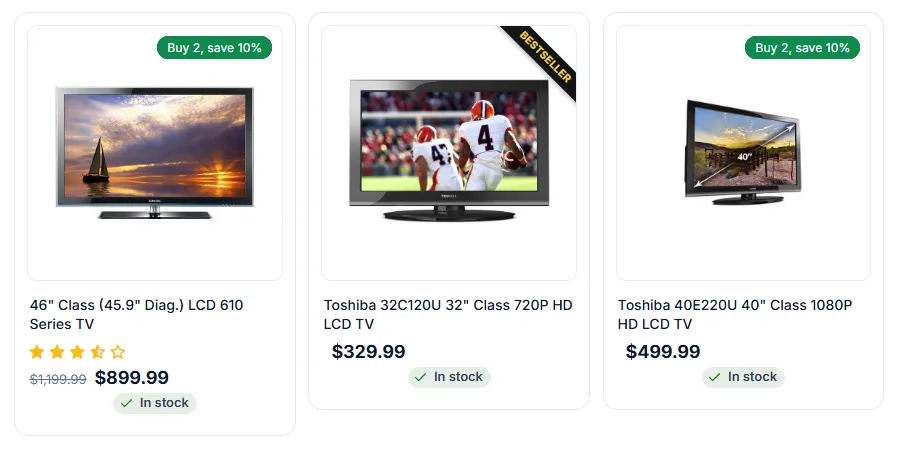
- Product lists show a green label such as “Buy 2, save 10%”.
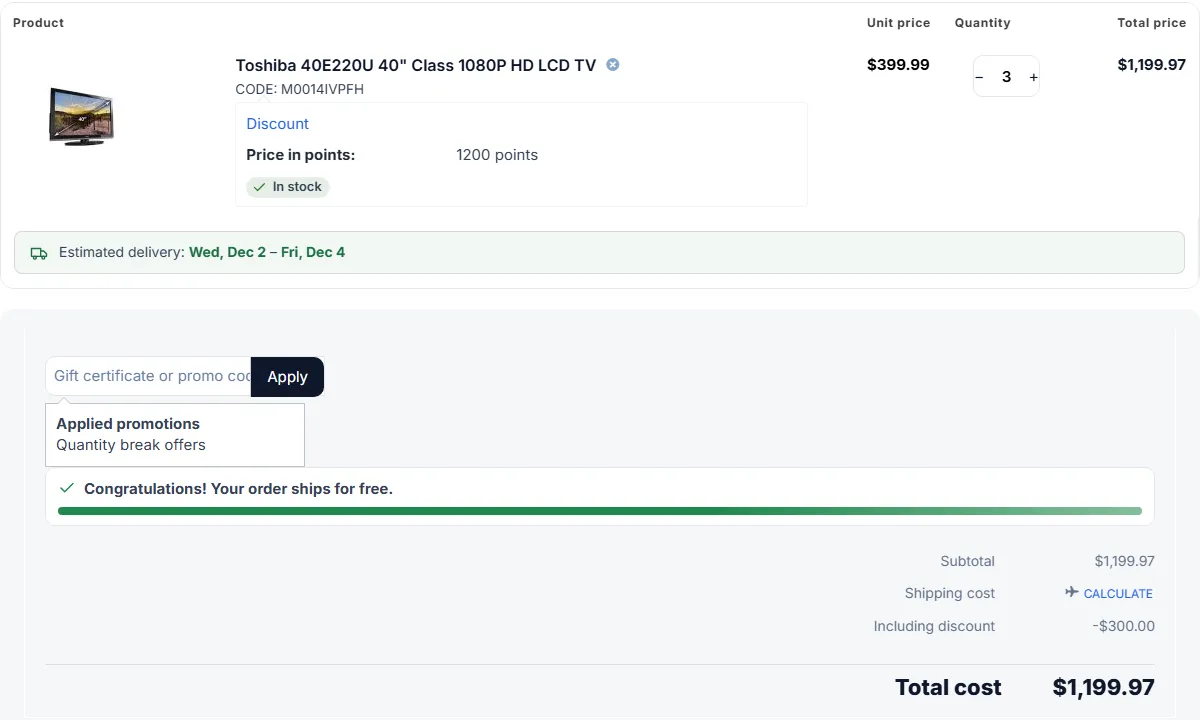
- In the cart and at checkout the discount appears as the core promotion “Quantity break offers”: the unit price of the line is lowered, the order total adds up to the cent.
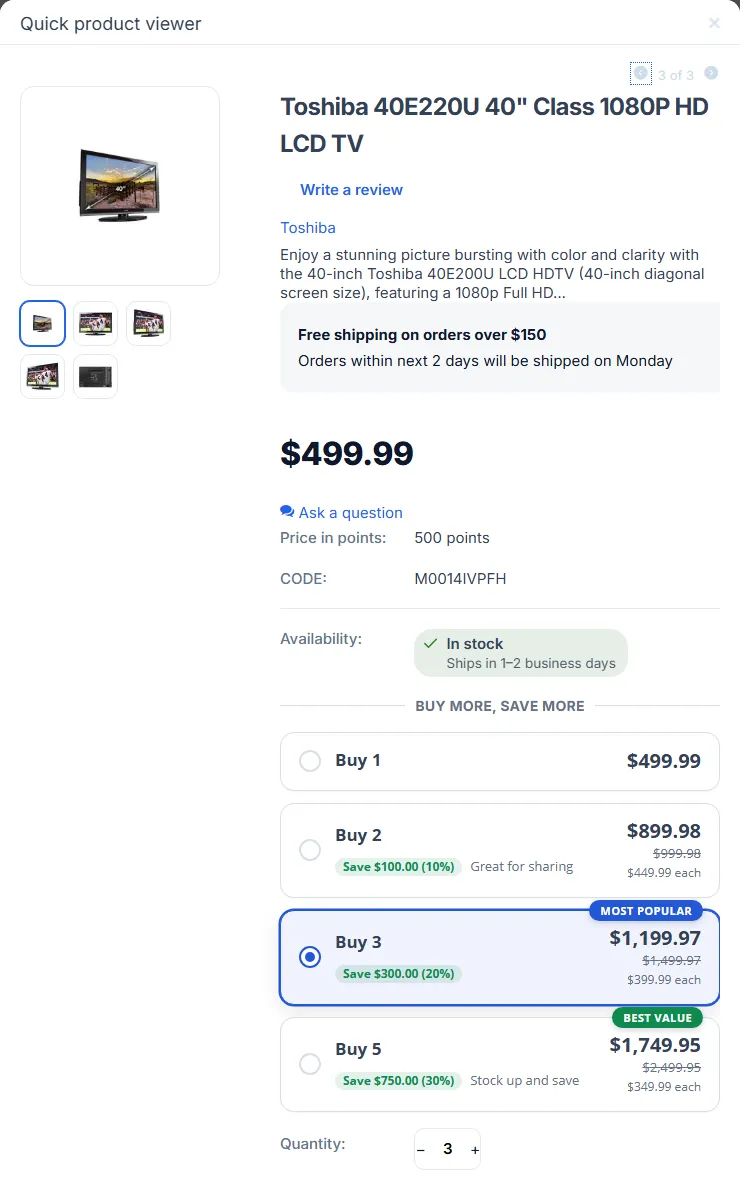
How the quantity is counted
Section titled “How the quantity is counted”The card a customer reaches is decided by the total quantity of the same product in the cart, also when it is added in several option combinations. A product variation counts together with its parent product for the offer rule. The highest card that does not exceed the quantity applies: with cards for 2, 3 and 5, a quantity of 4 gets the 3-unit card.
The discount is calculated from the price after catalog discounts (like the core “discount on products” bonus). Other cart promotions add their own discount to it unless the offer is set to Do not combine.
Analytics
Section titled “Analytics”Marketing → Quantity break offers → Analytics shows for 7 to 365 days: card views, picks, pick rate, orders with an offer, units per order line with and without the offer, the average order value with the offer against orders without any offer, revenue of the offer lines and the discount given. Click an offer to see its picks per card.
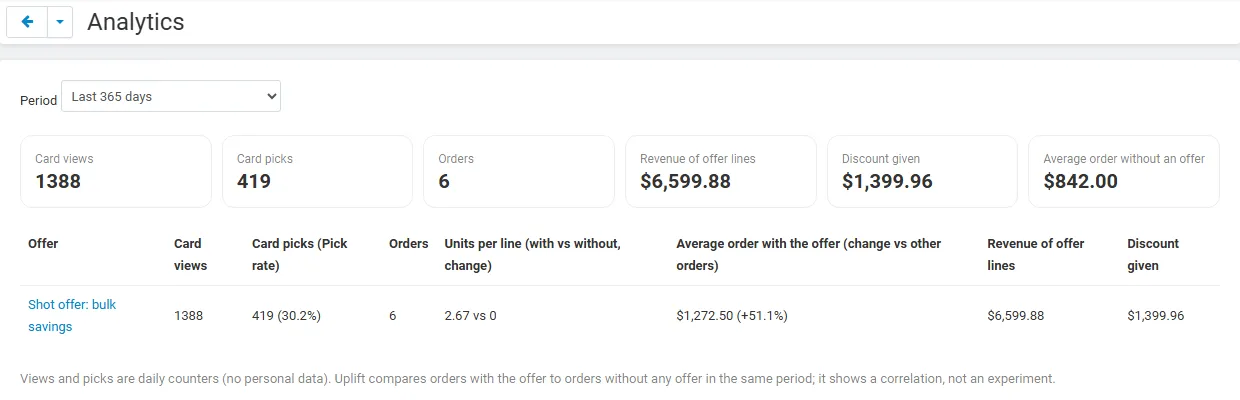
The uplift figures compare orders with and without the offer in the same period; they show a correlation, not a controlled experiment.
Multi-Vendor
Section titled “Multi-Vendor”When Vendors can create offers is on, each vendor sees Marketing → Quantity break offers in the vendor panel, works only with offers for its own products and sees only its own statistics. The marketplace administrator sees all offers and can also create offers that apply to all vendors or to chosen vendors. Vendor offers are percentage discounts up to the limit you set.
Ultimate
Section titled “Ultimate”Every store has its own offers. An administrator who works inside one store sees and changes only that store’s offers.
REST API
Section titled “REST API”See Developer notes.