

Configuration
Everything is configured in two places: the add-on settings (Add-ons → Manage add-ons → Classifieds Listings Pro) and the add-on’s own page Products → Listings → Configuration (marketplace owner only).
General settings
Section titled “General settings”| Setting | Default | What it does |
|---|---|---|
| Enable | Yes | Master switch. Off: no new terms, no archiving, no seller actions, no badges or labels. Data is kept. |
| Give new listings a term | Yes | Every product created while this is on gets an expiry date from the duration rules. Existing products are not touched. |
| Default listing duration (days) | 30 | Used when no category or vendor-plan rule applies. 0 = listings never expire. |
| Expiry reminder (days before) | 7 | Sellers see a reminder in the vendor panel this many days before listings expire. 0 = no reminder. |
| Bumped listings first in “Date” sorting | Yes | A bumped listing sorts by its bump time when the storefront is sorted by date. |
| Show Featured and Urgent badges | Yes | Badges on product cards and listing pages. |
| Show the seller type | Yes | “Seller type: Private person / Trader” on listings, cards and vendor pages. |
| Let vendors manage their listings | Yes | Multi-Vendor only. Off: vendors cannot renew, bump or upgrade; the marketplace owner still can. |
| Cron job | The cron line to add to the server (see below). |
Free quota
Section titled “Free quota”Every seller gets free uses of each action per period. The counters are per seller (vendor in Multi-Vendor, store in Ultimate).
| Setting | Default | What it does |
|---|---|---|
| Quota period | Calendar month | Week (starts Monday), calendar month or calendar year, in the shop time zone. Free uses reset at the start of each period. |
| Free renewals per seller and period | 10 | 0 = none, -1 = unlimited. |
| Free bumps per seller and period | 1 | 0 = none, -1 = unlimited. |
| Free Featured upgrades per seller and period | 0 | 0 = none, -1 = unlimited. |
| Free Urgent upgrades per seller and period | 0 | 0 = none, -1 = unlimited. |
| Days a free Featured upgrade lasts | 7 | |
| Days a free Urgent upgrade lasts | 3 | |
| Hours between two bumps of the same listing | 24 | Applies to free and paid bumps. 0 = no limit. |
A free renewal gives the listing the days of its duration rule (see below). A seller who has used the quota can still buy a package.
Cron job
Section titled “Cron job”The cron line is shown in the settings and on Configuration → Tools:
*/15 * * * * php /path/to/store/admin.php --dispatch=kv_lpro_cron.runIt archives every listing whose term ended, in batches of 500 (up to 10,000 per run). It is safe to run as often as you like and safe to run twice at once: the second run finds nothing left to do, and a run that starts while another one is active exits at once (database lock). It prints one line (archived N listing(s)). The same work is available as Archive expired listings now.
Durations
Section titled “Durations”Products → Listings → Configuration → Durations. A new listing runs for:
- the days of the rule for its main category or, if that category has no rule, of the nearest parent category that has one;
- otherwise the days of the rule for the seller’s vendor plan (Multi-Vendor with the Vendor plans add-on);
- otherwise the default duration from the settings.
A rule of 0 days means “never expires” for that category or plan. Rules apply to listings created from now on and to the length of a free renewal; running listings keep their dates.
Upgrade packages
Section titled “Upgrade packages”Products → Listings → Configuration → Packages. A package is what a seller buys when the free quota is used up.
| Field | Meaning |
|---|---|
| Type | Renew (adds days), Bump (moves to the top once), Featured (badge for N days), Urgent (badge for N days). |
| Name | Shown to the seller and as the cart line, for example “Featured for 7 days”. |
| Days | Renew: days added. Featured / Urgent: days the badge lasts. Bump: not used. |
| Price | In the primary currency of the store. |
| Position, Status | Order in the menu; disabled packages cannot be bought. |
Each package creates a hidden service product with its name and price. The product is kept in sync when you edit the package, is never shown in the catalog, cannot be opened by its URL and cannot be added to a cart without a valid request. Change the package, not the product. In Multi-Vendor the service product belongs to the marketplace owner, so a vendor never gets the money by accident. Taxes, payment methods, invoices and order e-mails of the store apply to these orders like to any other.
Seller type
Section titled “Seller type”Sellers choose Private person, Trader or Not declared in their company profile (Vendors → edit → Seller type for the owner; the vendor’s own profile page for a vendor). The add-on shows what was declared and nothing else: it does not verify the declaration and makes no statement about consumer law. If your jurisdiction requires you to ask sellers for more, collect that separately.
Payments log
Section titled “Payments log”Configuration → Payments lists every upgrade request: waiting for payment, applied, paid but not applicable (for example the listing was deleted in the meantime), cancelled. A request that was paid outside the checkout can be marked Mark as paid and apply (it is applied once).
- Start tracking existing products: gives every product without a term a full term from now. Safe to repeat.
- Archive expired listings now: what the cron job does.
- Restore all archived listings: re-enables every archived listing with a new term. Use it before you uninstall.
Permissions
Section titled “Permissions”- Administrators: privileges Classifieds listings: Can view / Can edit.
- Multi-Vendor vendors get only the Listings page, and only for their own listings. Configuration, payments log, tools and the cron entry are marketplace-owner tools.
License
Section titled “License”The license status is shown in a License card at the top of the add-on page, above the tabs. The License tab holds the key itself. The key is stored once for the whole installation.
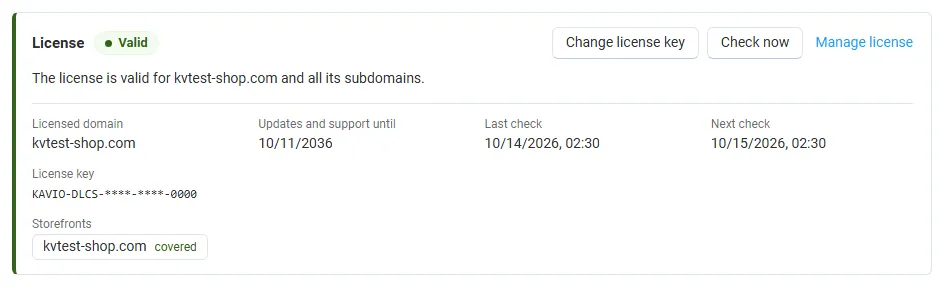
The License card shows the status, the licensed domain and the storefronts the license covers, the last and next check and the actions Enter license key / Change license key, Check now, Manage license and, without a valid license, Buy a license. In Add-ons → Manage add-ons the add-on’s row shows a small license badge. The add-on’s own admin pages show the same status in a small bar at the top.
| Setting | Meaning |
|---|---|
| License key | Your Kavio Labs license key (KAVIO-XXXX-XXXX-XXXX-XXXX) or your CS-Cart Marketplace license number. If you entered the Marketplace license number in Add-ons → Manage add-ons, leave this empty. |
| License status | Points to the License card. |
The check runs from the admin panel and from cron only, never on a storefront request. It sends the license key, the add-on id and version, the storefront host names, the CS-Cart version and edition and a random number. License information appears to administrators who may manage add-ons only; vendors and customers never see it.
What happens without a valid license. New listings get no term, nothing new is archived, and the badges, the seller type label and the bump order disappear from the storefront. Existing dates, upgrades, packages and archived listings are kept, and upgrades that customers already paid for are still applied. Archived listings stay hidden until you renew or restore them.